

Recorded course authors
Your narration explains the topic, but the learner needs an example to observe. Add a short scene at the point where the explanation calls for it.
Start with what learners need to notice or explain. VidMage helps you build a discussion scene, illustrate a comparison, or prepare a fictional case image that you can teach with your own questions and checked explanation.
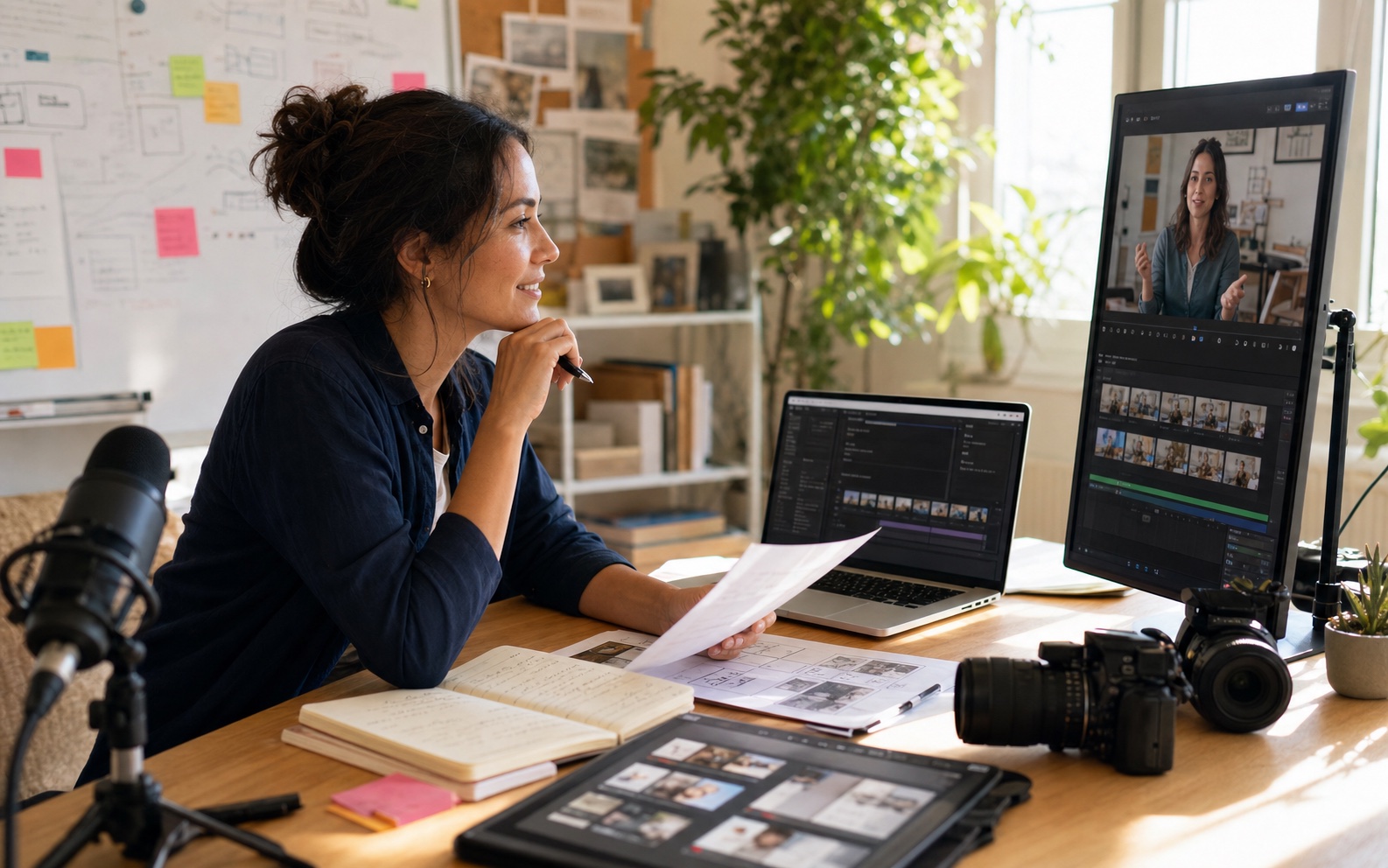
Choose the example for the learner’s task, whether it is a discussion, a comparison, a case, or a story.
Your narration explains the topic, but the learner needs an example to observe. Add a short scene at the point where the explanation calls for it.
A question needs context before learners can answer. Use a fictional situation as the shared starting point, then pause for their reasoning.
An abstract idea needs a concrete comparison. Make an image of the object or activity, then add the exact labels and teaching question in your materials.
A familiar illustration needs to carry one action in a narrated story. Animate a small moment while keeping the sequence and meaning under your direction.
A real case would expose someone’s identity or circumstances. Build a fictional setting around the learning problem instead of uploading the client’s photograph.
Several instructors need to agree that a visual supports the objective. Review the image, the accompanying explanation, and likely learner misunderstandings together.
Start with the question your learner needs to answer, then build only the scene or image that supports it.

“The pavement reflects the lights” is an observation. “It has just rained” is an inference learners discuss.
Tutors and discussion leaders
A lesson asks learners to separate what they can see from what they assume. A written definition is easy to repeat, but the group needs a shared scene to practice making that distinction.
Describe a nighttime street scene in VidMage’s Text to Video with visible details such as wet pavement and bright shop signs. Pause the selected clip in your lesson editor, then ask learners to sort their statements into observations and inferences.
Learners can point to the same visible clues and explain why a statement is an observation or a guess, giving you specific answers to discuss.

A pottery image introduces a question about what changes between the first attempt and later practice.
Lesson and worksheet designers
Your lesson explains practice and improvement, but a slide of definitions does not give learners a concrete comparison. You want an everyday activity they can relate to the concept.
With VidMage’s AI Image Generator, describe hands shaping a clay bowl or another familiar activity. Add your own question beside the image in the slide, then explain where the comparison helps and where it stops.
The image gives learners something specific to reference in their answer, while your explanation establishes the concept rather than leaving them to guess the metaphor.

A fictional team meeting accompanies a prompt about giving feedback without interrupting a colleague.
Coaches teaching client situations
A coaching exercise draws on a common workplace conflict, but using a real client photo or session screenshot would add personal details the lesson does not need.
Write a fictional meeting scene for VidMage’s AI Image Generator using only the situation you plan to teach. Place the image with an invented case description and discussion prompts in your workshop materials.
You retain a concrete setting for the exercise while leaving the real client’s identity, workplace, and private session material out of the visual.

A rabbit’s crafting action accompanies the sentence that introduces what the character is doing.
Literacy and story educators
A recorded story uses a still character illustration while the narration describes a simple action. A brief movement could help learners follow that moment, but extra action would distract from the sentence.
Upload the illustration to VidMage’s Image to Video and describe only the story action. Check the result against your script, then add the accepted clip beneath the matching narration in your editor.
The image becomes a focused story moment learners can connect to the spoken words, without turning the whole lesson into an unrelated animation.
Write the learning objective first, then check whether the visual helps a learner observe, compare, or explain that point.
Choose the observation, comparison, or explanation you want. Decide what the visual must show and which facts or context your narration must supply.
Generate a fictional scene or an image of a familiar activity. For an existing story illustration, request one action that matches the sentence you will teach.
Review the details and movement beside your script. Ask whether a learner could infer something false or focus on a distracting feature instead of the lesson.
Add the file to compatible slide or video software. Include the question, accurate labels, explanation, and sources before using it with your learners.
A scene to discuss and an image to compare serve different teaching purposes, even when both use AI.
| Learning task | Your input | VidMage tool | Output |
|---|---|---|---|
| Practice observation and inference | Fictional setting + visible details | Text to Video | Shared scene for a paused discussion |
| Concrete example for an abstract idea | Familiar activity + teaching context | AI Image Generator | Image for a labeled comparison |
| Case without personal client material | Invented setting + discussion problem | AI Image Generator | Fictional case illustration |
| Action in a narrated story | Owned illustration + one scripted action | Image to Video | Short clip beneath the narration |
| Simpler visual for another group | Authorized image + specific style or detail change | Image to Image | Revised image for instructor review |
Place the downloaded asset in compatible lesson software, then write the labels, narration, and question around it. Review the complete slide or sequence, since the meaning depends on that context.
Keep the objective and factual references with the lesson file. A visually clear image can still suggest the wrong conclusion without an accurate explanation.
Record what the learner should notice or be able to explain.
Add the visual, labels, narration, and checked context to the lesson.
Check both factual accuracy and likely misunderstandings before teaching.
Let the visual make the question concrete. Use your explanation and checked sources to establish the answer.
Write the question or learning point first. Keep the visual only if it helps learners observe, compare, or explain it. If removing the image changes nothing about the lesson, a simpler slide or real example may be more useful.
Create a fictional situation and review the details before teaching. Add your own question and choose a pause point in your editor. Ask learners to explain their reasoning rather than treating the clip as evidence of a real event.
State the idea it represents, then identify where the comparison stops. For example, a pottery image can introduce practice, but it does not prove how learning works. Add the explanation explicitly rather than expecting the image to teach it alone.
Describe the general learning problem without identifying details, then generate a fictional setting. Write an invented case description to accompany it. Do not present the fictional people or scene as the client’s actual experience.
Use checked diagrams, factual sources, or real experiments when accuracy depends on physical behavior or measurements. Generated details and movement can be wrong. A fictional illustration may introduce a topic, but it is not scientific evidence.
Save the accepted asset with its lesson objective, script, and review notes. Add it to compatible slide or video software and change the surrounding labels or question there. Recheck its meaning when using it for a different audience or topic.
Prefer fictional situations when identity is not needed. For personal material, confirm permission and your institution’s rules first. VidMage excludes uploads and prompts from model training and deletes uploaded and processed Web media within two hours; that does not replace your own consent requirements.
Review the privacy policy before uploadingBuild a discussion scene or a clear image that supports one learning point.