



Latest Video & Image AI Models | 100% Data Privacy
4K+ High-Resolution Export | Available on Web and Mac

Explore AI video and image models for your next idea.
From your first idea to your next clip.
Describe the scene. Turn your words into a short video.
Start with a photo. Describe the motion you want to see.
Use your existing clip to explore a different visual direction.
Guide a photo with movement from a reference video.
Sharpen details and improve clarity in your existing video clips.
Remove your video background and replace it with a solid color.
Remove unwanted watermarks from your video clips with AI.
Create, restyle, and refine your next image.

Describe the subject, scene, and style. Generate an image for your next project.
Create an Image
Upload a photo and describe the style, setting, or details you want to change.
Transform an Image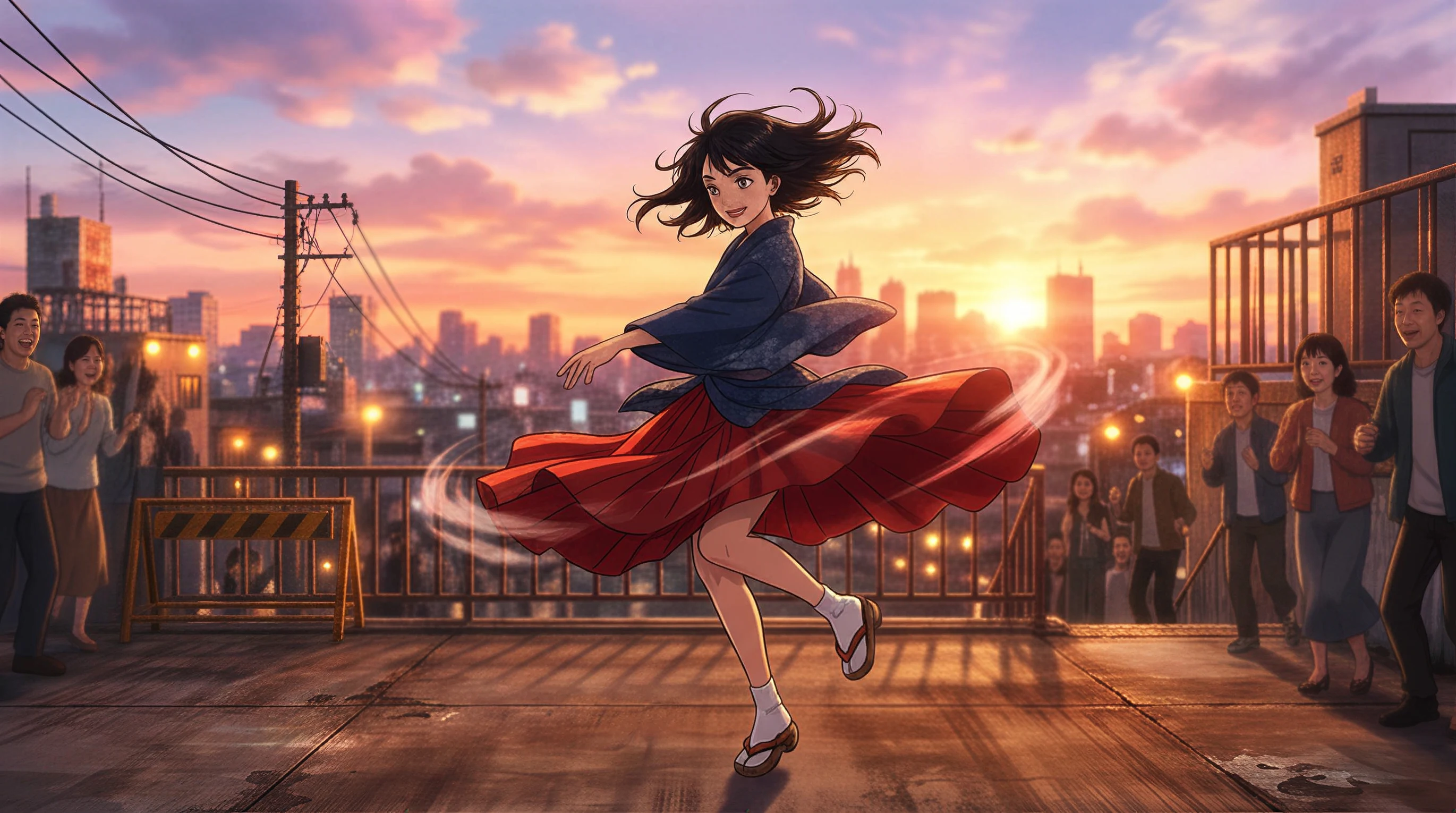
Turn a photo into a cartoon, an anime scene, or an illustration for your next post.
Create a Cartoon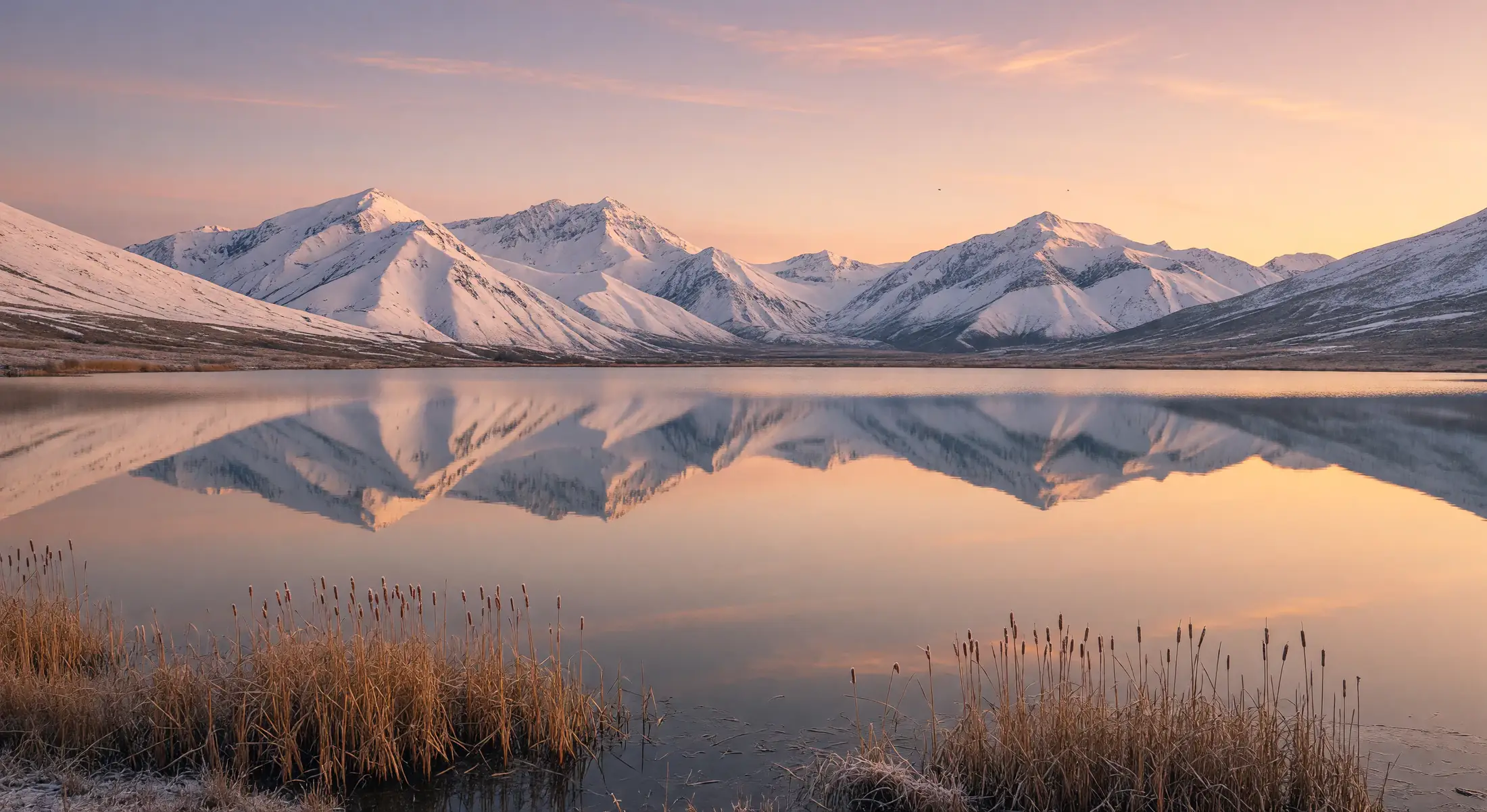
Increase your image resolution for larger visuals, from portraits to wide landscapes.
Upscale an Image
Brush over unwanted objects in your photo to remove them from the scene.
Remove an ObjectExplore a look, try a tool, and start something new.
Create videos up to 30 seconds long and export up to 4K with supported models.
Choose 4 to 30 seconds for text-to-video or image-to-video with Seedance 2.5. Create a longer scene in a single generation, with more room for movement and storytelling.
Select 1080p, 2K, or 4K output in Seedance 2.5, then download as MP4 or MOV. Set your resolution before generating to match the video you want to make.
Explore 18 video and 10 image model options, including Kling 3.0, Seedance 2.5, Veo 3.1, Nano Banana, and GPT Image. Choose a model from one VidMage account.
Choose from 17 video, 19 image, 5 effects, and 3 audio tools online, plus 3 Mac tools. Subscribers share one credit balance across Web, API, and MCP.
Your uploaded photos and videos are deleted from Web servers within 2 hours and are not used for AI training. In supported Mac workflows, your photos and videos are processed locally.
Try selected tools free each day. For AI video and image generation, the annual plan includes 4,800 credits issued upfront for the year, from $5.83/month for the first year, billed yearly.
Fill a missing shot, animate a product photo, or prepare a visual for your next lesson.
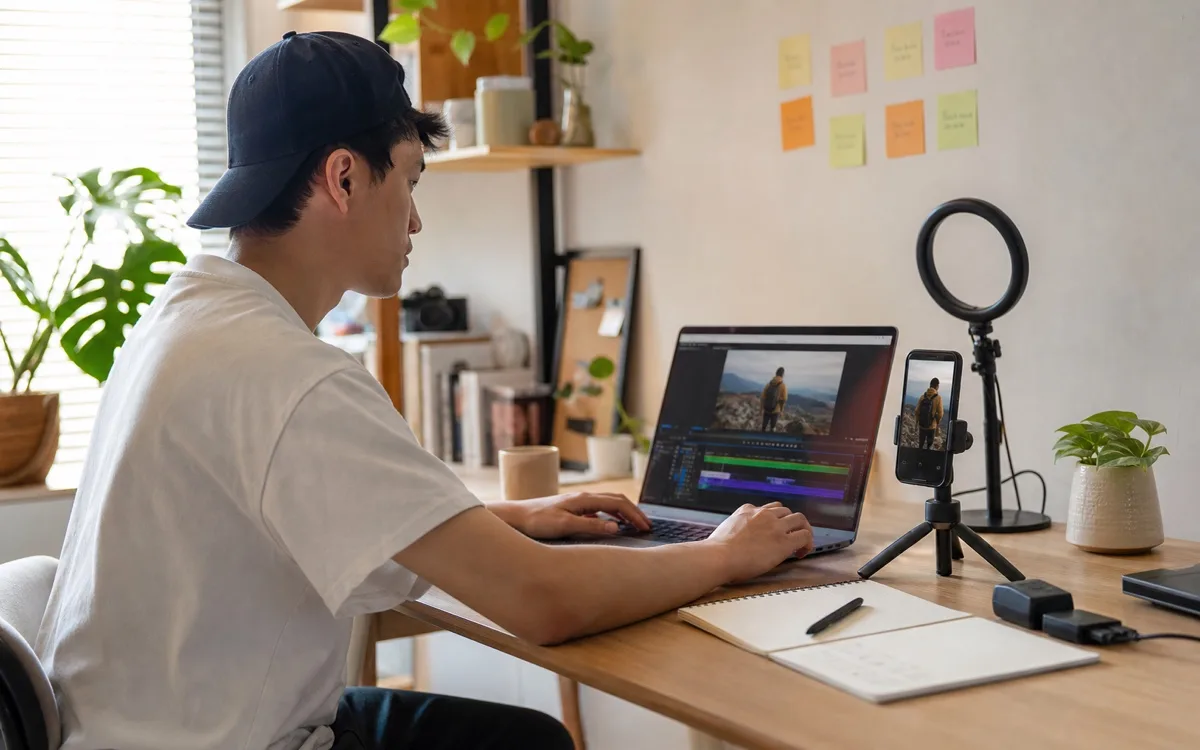
Keep your recorded narration. Generate a pottery cutaway for a line about learning a craft, then place the downloaded clip over the cut in your video editor.
See Creator Workflows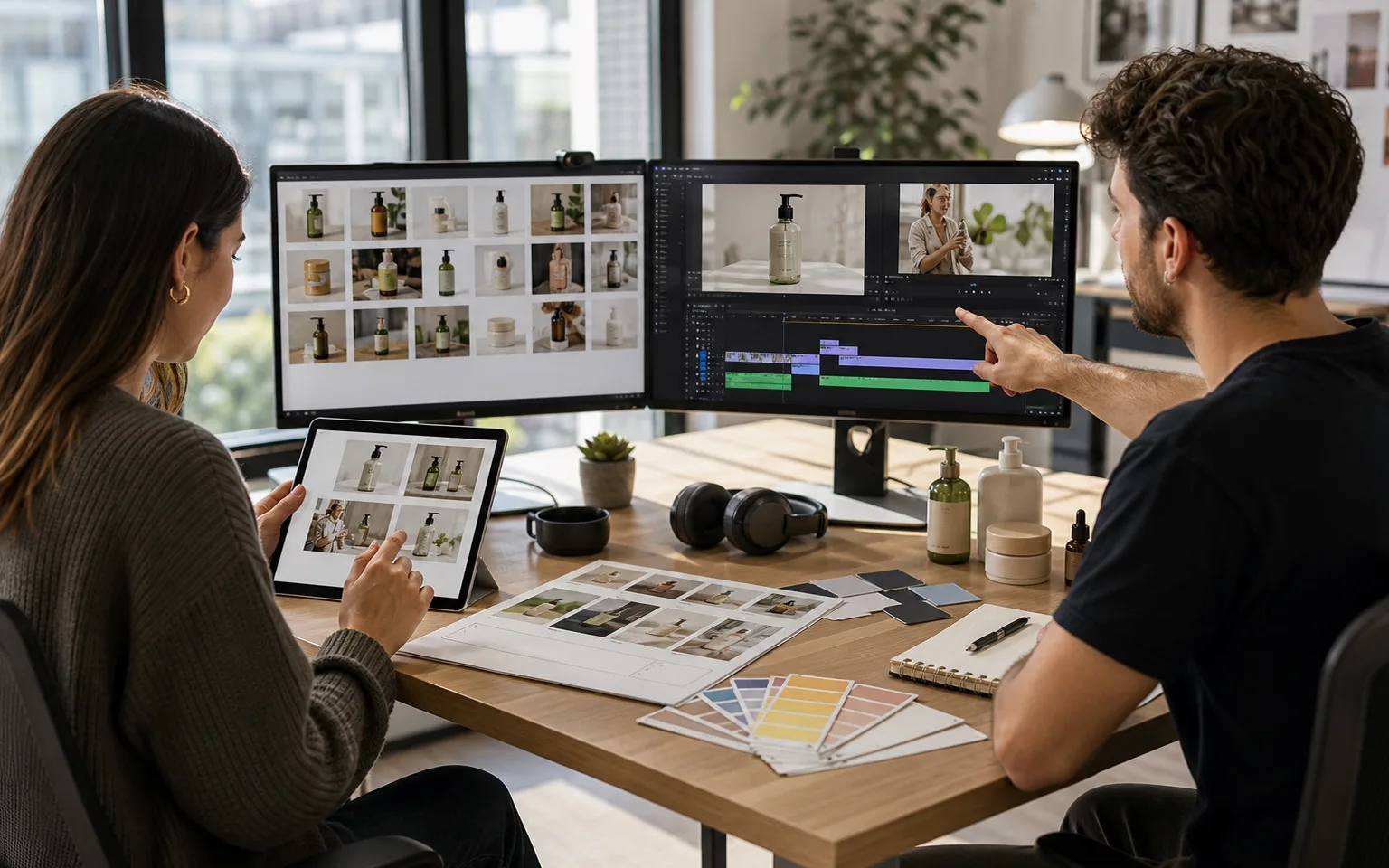
Animate an approved product photo with a slow camera move. Check the label and shape, then add the clip before your real product demonstration in the launch edit.
See Ecommerce Workflows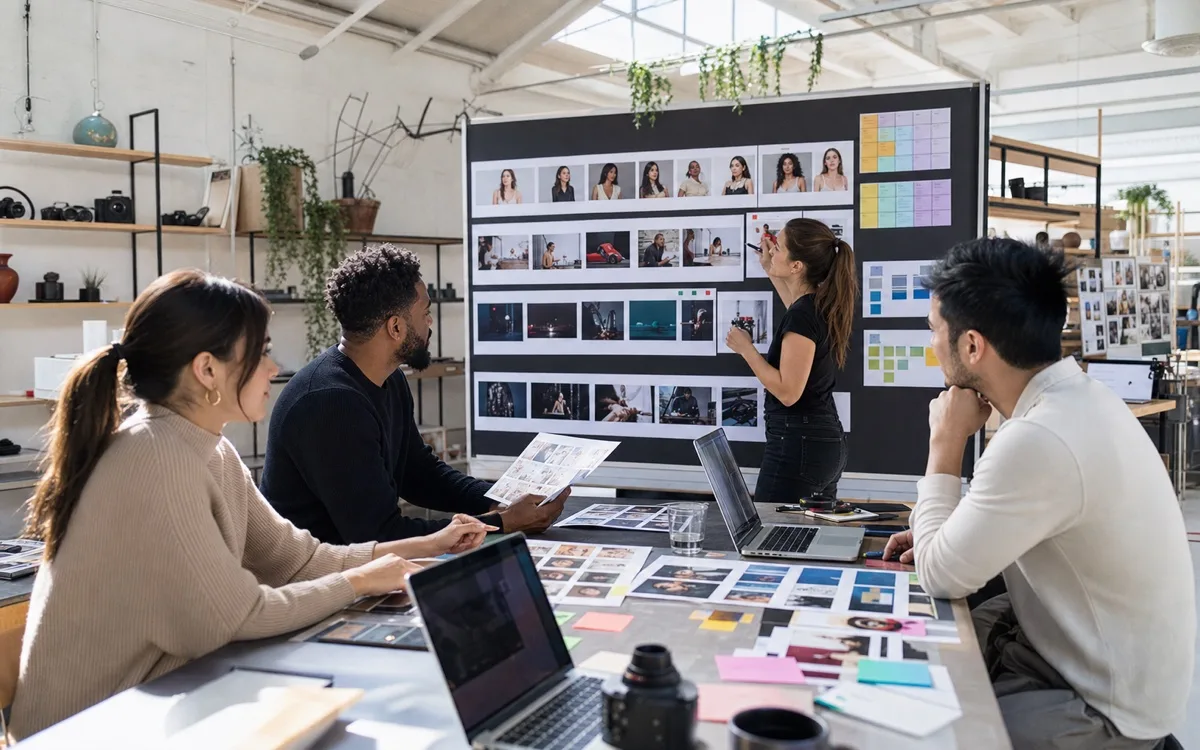
Generate a short support-team handoff scene to introduce a routing feature. Place it before your recorded walkthrough, so viewers see the problem before you show the settings.
See Product Marketing Workflows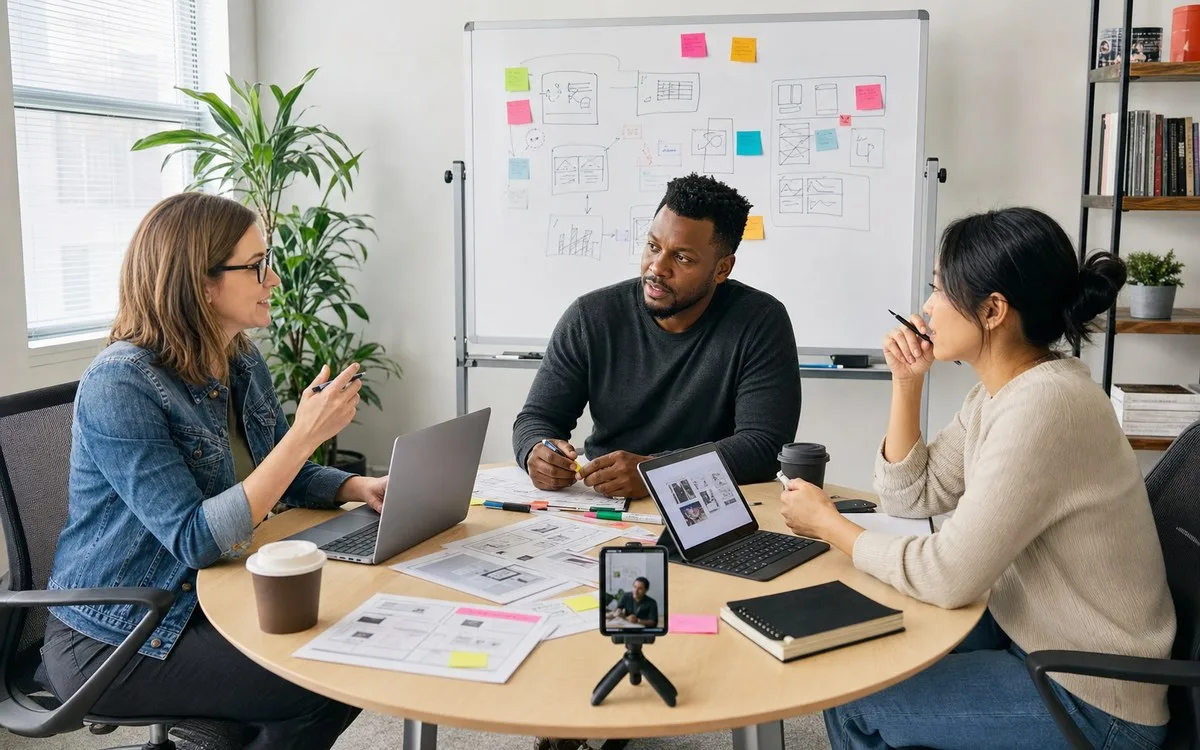
Create two image concepts for a travel campaign, such as a quiet coast and a lively station. Add your draft headline in a design app, then share both for review.
See Social Media Workflows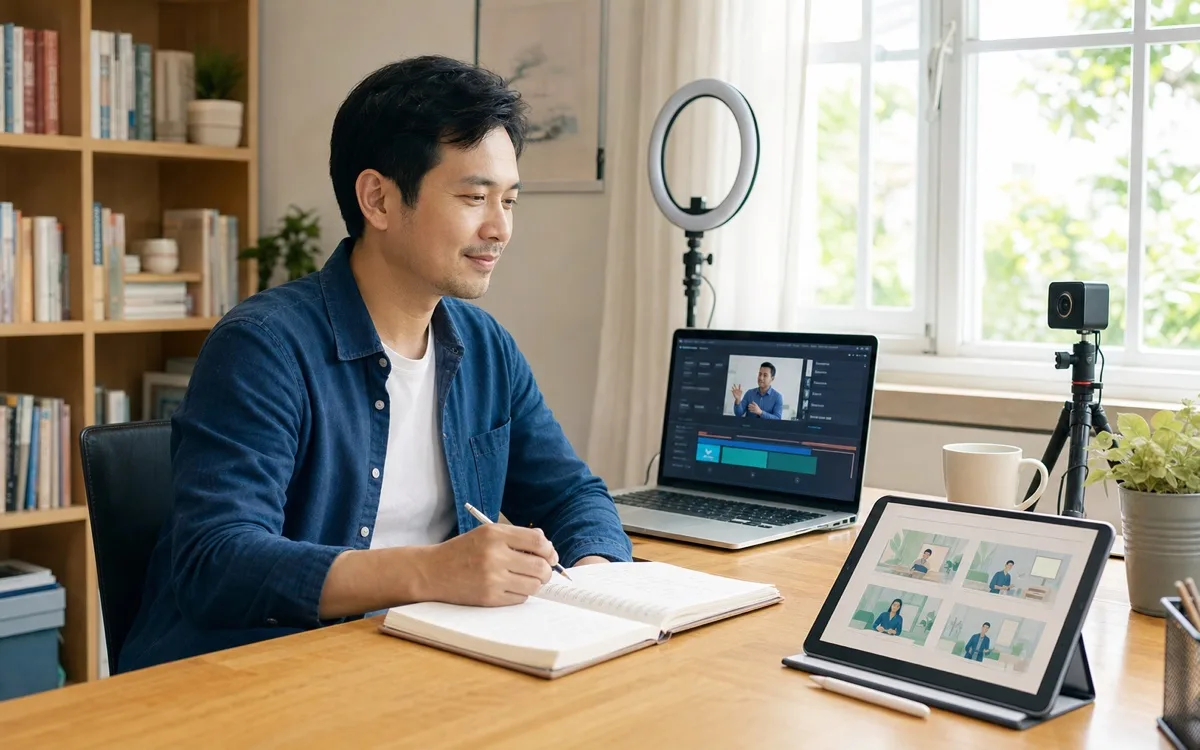
Generate a street scene with wet pavement and bright shop signs. Pause the clip in your lesson, then ask learners what they can see and what they are only guessing.
See Teaching WorkflowsVidMage is an AI video and image creation platform for creators. Short-form creators can turn photos into video clips, social media managers can make post visuals, and product marketers can create images for product launches. It brings models like Kling, Seedance, and GPT Image together with tools for image animation, motion control, and image editing.
Open Image to Video, upload your photo, and describe the motion you want. Review the settings, generate your clip, and download the result. If you created the image in VidMage, download it first, then upload it to the video tool.
Yes. Use AI Image Generator to create an image from a prompt, or Image to Image to explore a new style or scene from a photo you have.
Start with the subject and what it does. Add the setting, lighting, and camera movement. Keep the action focused, then refine your description after reviewing the result. You can use the prompt ideas above as a starting point.
Download your generated clip and bring it into your usual video editor to trim it, arrange shots, or add captions and music.
Image and video generation use credits. Access depends on the tool and your account, and some tools require a paid plan. Check the tool and current pricing before generating.
Start with what you want to create, then explore the relevant model pages. Compare input types, styles, and settings. Available models, access, and credit costs depend on the tool you use.
You get 30 free credits when you sign up. Some tools also offer a limited number of free uses each day. Daily free allowances vary by tool, so check the corresponding tool page to see how many free uses are available.
Your uploaded images and videos are automatically deleted from our servers within 2 hours. Your images, videos, and prompts are not used to train AI models or shared with third parties for training. Read our Privacy Policy for more details.
Visit All AI Tools to browse tools by category: AI Video, AI Image, AI Effects, AI Audio, AI Models, and Mac Exclusive. Choose a category, then open the tool or model you want to use.
Start with an idea. See where it takes you.


