

Object-led explainer channels
Give spoken ideas a visible object or setting. Choose a simple illustration for the concept and checked material when the explanation depends on real behavior.
Without an on-camera host, the scene has to tell viewers where they are and what changed. Use VidMage to build the missing settings, moving artwork, and visual references around your recorded narration.
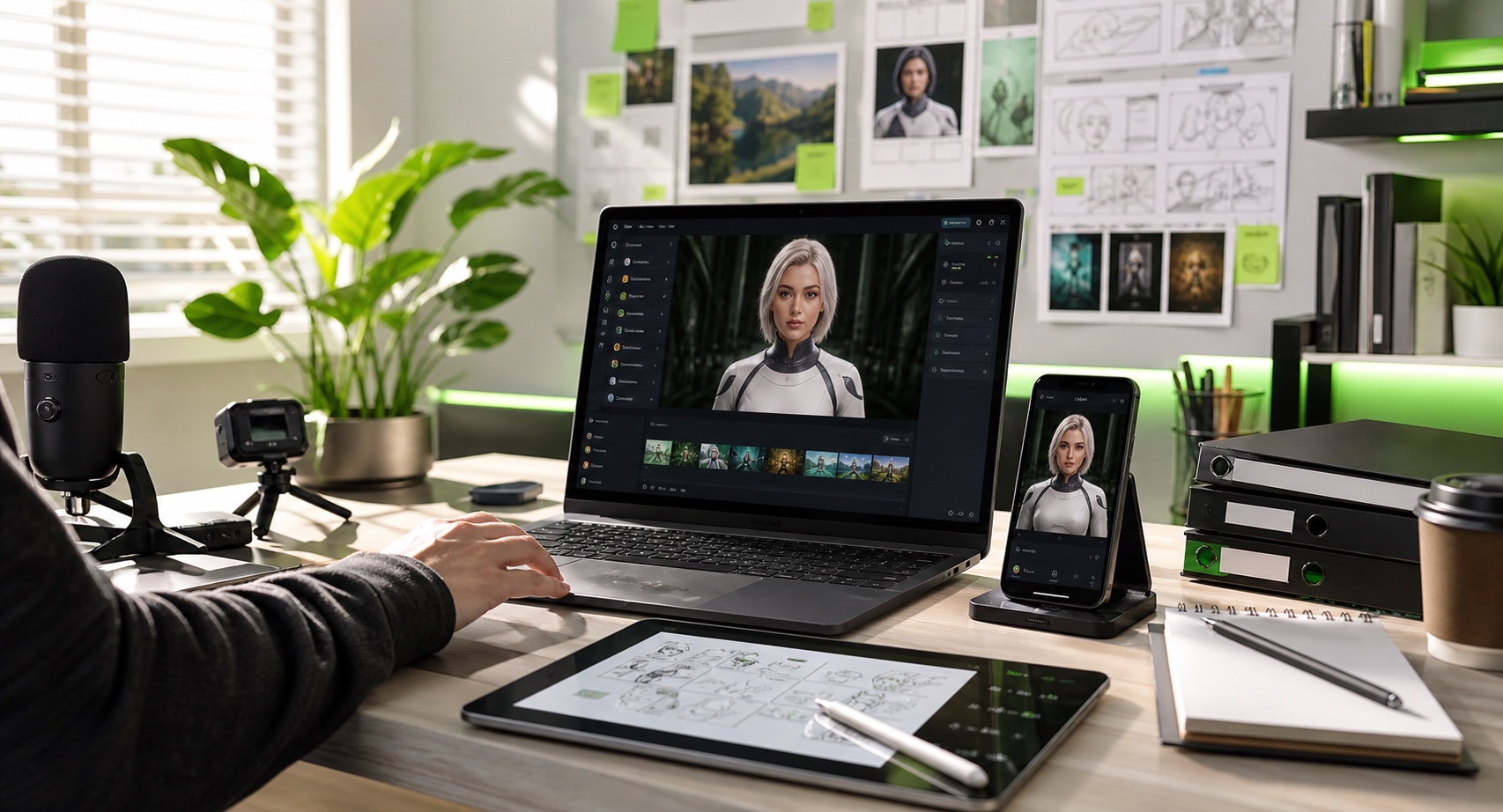
Without a host on screen, settings, objects, and scene changes help viewers follow the narration.
Give spoken ideas a visible object or setting. Choose a simple illustration for the concept and checked material when the explanation depends on real behavior.
Plan visuals after the narration is recorded. Mark passages that need a new example, and leave a useful image on screen when another cut would interrupt the thought.
Prepare enough visual context for a video edition of an audio piece. Use scene changes to mark where the story moves rather than replacing every sentence with a new image.
Keep notes on locations, time of day, and important props. Reuse selected source artwork when a story returns to a place, and inspect every generated variation.
Choose restrained motion for slow passages. Review the whole clip for sudden changes before placing it under a calm section of narration.
Hand the editor a shot list tied to narration cues, original source files, and selected downloads. Mark which visuals are fictional scenes, metaphors, or factual references.
Tie scenes to voiceover cues, revisit known locations, slow down quiet passages, and build a recurring visual reference.

A rainy street begins when the narrator moves from an indoor memory to a fictional late-night walk.
Voice-first essay creators
You have a recorded voiceover with an introduction, a personal observation, and a new idea. A folder of attractive clips does not tell the editor which image belongs at each change in the argument.
Mark the cue where the narration introduces a new setting or action. Describe that one scene in VidMage’s Text to Video, download the selected result, and place it at the cue while letting the voiceover continue across the cut.
Give each scene a reason to enter the video, so the visual sequence follows the spoken thought rather than a random order of available clips.
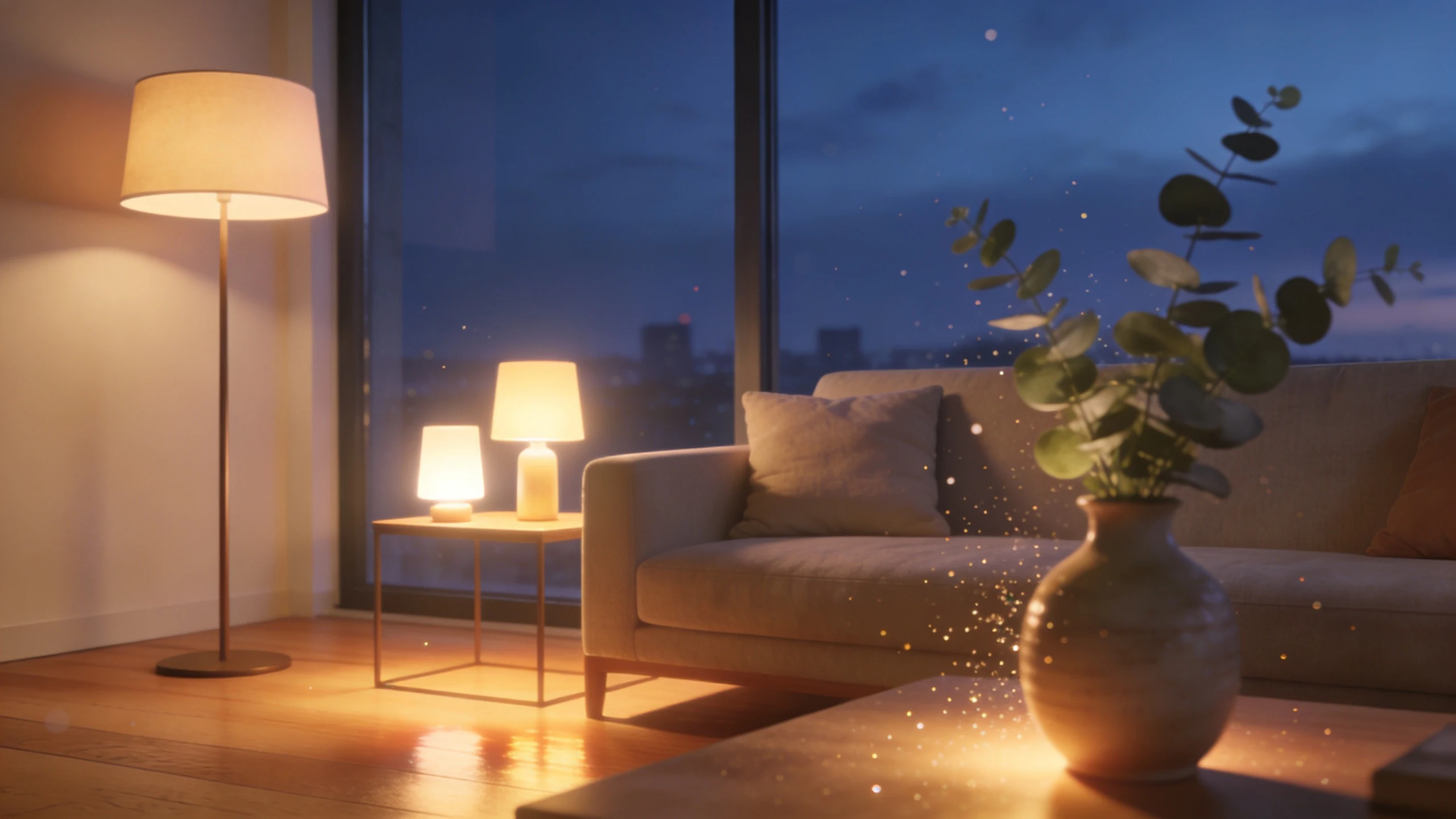
The story returns to the same lamp-lit room after an outdoor sequence, with the key window and furniture checked against the source.
Fiction & mystery storytellers
Your fictional character leaves a room and comes back later in the episode. Generating an unrelated room would change the furniture and layout that viewers already use to recognize the place.
Start from the selected room artwork in VidMage’s Image to Video and request a modest camera or lighting movement. Compare the result with the earlier scene, especially important props and windows, then use a version that still supports the story’s location cues.
Reuse a known visual starting point for the return scene and make continuity a review step instead of assuming separate generations will match.
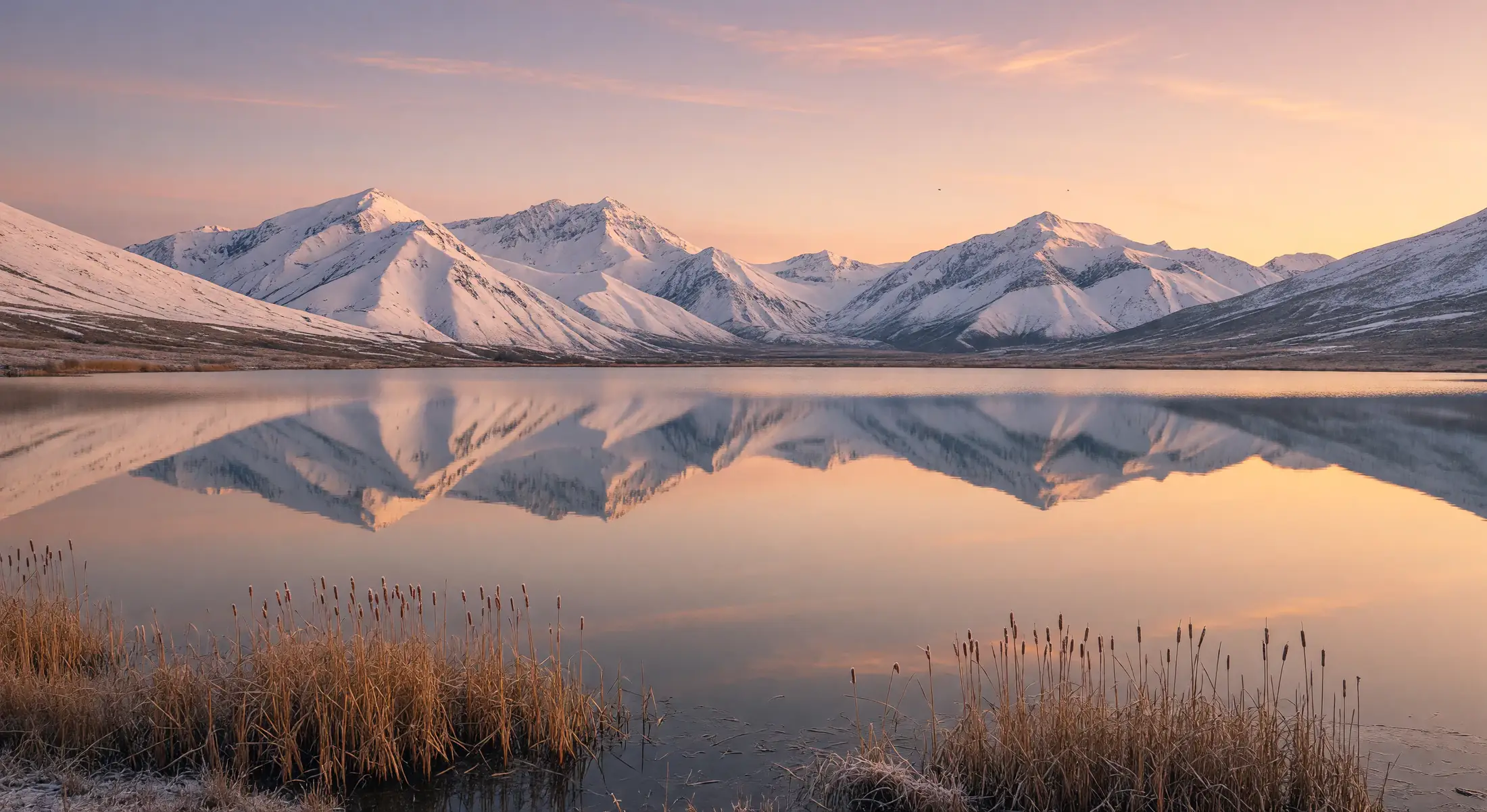
A calm mountain lake stays on screen through a reflective paragraph instead of changing location after every sentence.
Atmosphere & bedtime creators
A reflective paragraph needs time to land, but your current edit cuts on every sentence. The frequent scene changes make a calm narration feel rushed and force viewers to keep orienting themselves.
Bring a selected landscape illustration into VidMage’s Image to Video with a restrained motion prompt. Review the full result for abrupt movement, then use a suitable portion under the passage and trim around natural pauses in the voiceover.
Give the narrator room to finish a thought while the setting remains readable, without treating a sequence of new images as the default pace.

A loop-shaped ceramic object returns when the narrator refers to a repeated habit.
Object-led explainer channels
Your essay returns to the idea of repeating habits. A different stock image at every mention weakens the connection, but a simple recurring object could help viewers recognize when the theme returns.
Describe a clear object-based metaphor in VidMage’s AI Image Generator, such as a loop-shaped ceramic form. Select one image and reuse it at the relevant narration cues, adding any exact labels in your editor rather than generating new text into each version.
Create a recognizable reference for a repeated idea and keep the selected asset stable across the episode instead of introducing unrelated imagery each time.
Record or time the narration first, then assign a visual purpose to each change in the story.
Note where the location, idea, or emotional pace changes. Decide which passages need a new scene and which can stay with the current image.
Prepare a short scene prompt for each missing setting. Keep selected location artwork and a list of important props when a fictional story returns to the same place.
Make scenes in VidMage, then compare them in story order. Check abrupt motion, changing details, and whether each visual supports the line it accompanies.
Download the approved assets into a compatible editor. Place cuts at useful cues, leave room for pauses, and label fictional scenes or metaphors when the context requires it.
Choose the operation after deciding whether the passage needs a new setting, a familiar location, or a steady visual reference.
| Narration need | Your input | VidMage tool | Output |
|---|---|---|---|
| Introduce a change of setting in the voiceover | Narration cue + setting and action | Text to Video | Scene to enter at a specific point |
| Return to a familiar fictional location | Selected room artwork + restrained motion | Image to Video | Variation to check against the earlier scene |
| Support a quiet spoken passage | Calm landscape image + small movement | Image to Video | Clip segment for a slower part of the edit |
| Make a repeated theme recognizable | Object-based metaphor + simple composition | AI Image Generator | Selected image to reuse at related cues |
| Explore a different look before choosing the location | Existing concept image + visual direction | Image to Image | Location option for review before animation |
Place the VidMage downloads under the recorded narration and play the sequence without reading the script. Check that each location change is understandable, recurring props still fit the story, and quiet passages do not become crowded with cuts.
Store approved files with the episode. Configure timing, repeated playback, and transitions in a compatible editor rather than expecting a generation tool to assemble the full narration.
Name the narration line or time where the scene should enter and describe its role in the story.
Compare the return scenes and source artwork for props, layout, light, and other details the plot depends on.
Watch at the narrator’s pace and remove cuts that interrupt an unfinished thought.
Visual atmosphere can support a story or essay. Claims about real events and people still need suitable evidence.
A timed narration helps you see where the story changes and how long a visual needs to stay on screen. Mark those cues first, then generate the missing settings or illustrations. You can still develop concept artwork earlier to explore the story’s look.
No. Keep a scene when it still supports the thought. Change the image when the setting, example, or subject changes. During a reflective passage, restrained motion and fewer cuts may fit the narration better than a busy montage.
Start with the selected source artwork instead of describing a new room from scratch. Review the generated clip against the earlier scene, checking the layout and important props. A shared source helps your process, but it does not guarantee identical details.
Create the visual asset, then decide its timing and playback in your editor. Review the full clip for unwanted changes before repeating it. Generated clips are not guaranteed to loop seamlessly, so inspect the transition rather than assuming it will be invisible.
Provide the narration file, a list of scene cues, original artwork, and the selected downloads. Note which details must stay recognizable and which images are metaphors or fiction. This tells the editor why each asset exists and where it belongs.
Yes. Use checked source material for the facts and generated scenes only where illustration helps the explanation. Make their role clear in the narration or labels. A faceless format does not remove the need to distinguish evidence from an imagined scene.
Keep the artwork, narration, and chosen downloads in your own project storage. VidMage deletes uploaded and processed Web photos and videos within two hours. Your uploads, prompts, and generated media are not used for AI model training.
Read the privacy and retention policyFind one cue that needs a setting or a visual reference. Create that asset, then check it under the recorded line before planning more.