
Live product hosts
Your camera must show the real demonstration. Prepare the opening and break visuals in advance so they introduce the product segment without replacing what viewers see live.
Build the files around your run of show before you go live. VidMage can supply an intro scene, a moving break background, or episode artwork, while your broadcast setup handles guests, cameras, and live delivery.
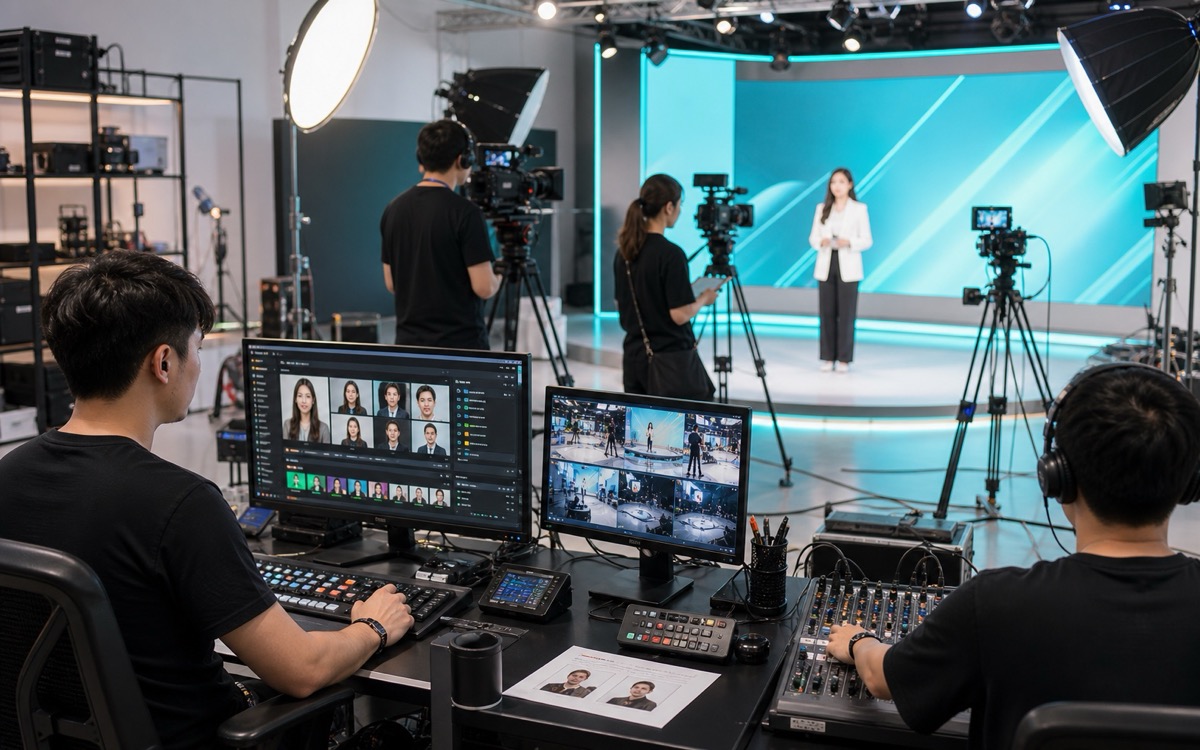
For hosts and operators who need ready-to-play assets, accurate announcements, and usable post-show excerpts.
Your camera must show the real demonstration. Prepare the opening and break visuals in advance so they introduce the product segment without replacing what viewers see live.
An upcoming guest needs an announcement before a recording exists. Build artwork around the episode topic, then add approved portraits and accurate schedule text.
You need a break screen while materials or the camera setup change. Animate owned artwork as a background and add the return message in your broadcast scene.
A themed opening helps identify the show before the host appears. Plan a short visual lead-in that fits the first segment of the run of show.
A useful moment from the recording looks soft in a highlight edit. Evaluate enhancement on that excerpt while keeping the real performance and audio as the source.
Someone besides the host may operate the show. Name the prepared files by segment and rehearse their playback, audio, and transition points together.
Give each file a purpose in the run of show, from the operator’s opening cue to the recap edit.

A night-city intro ends before the host begins a discussion of games and fictional worlds.
Gaming and story channels
The run of show starts with a topic introduction, but the only available scene is the live camera. The host and operator need a prepared opening that finishes before the first spoken line.
Describe the show’s setting and opening action in VidMage’s Text to Video. Add the title and audio in your editor, then import the finished file into your broadcast software and rehearse the handoff to the host.
The opening becomes a prepared item in the run of show with a clear endpoint, rather than something the host must improvise while the broadcast starts.
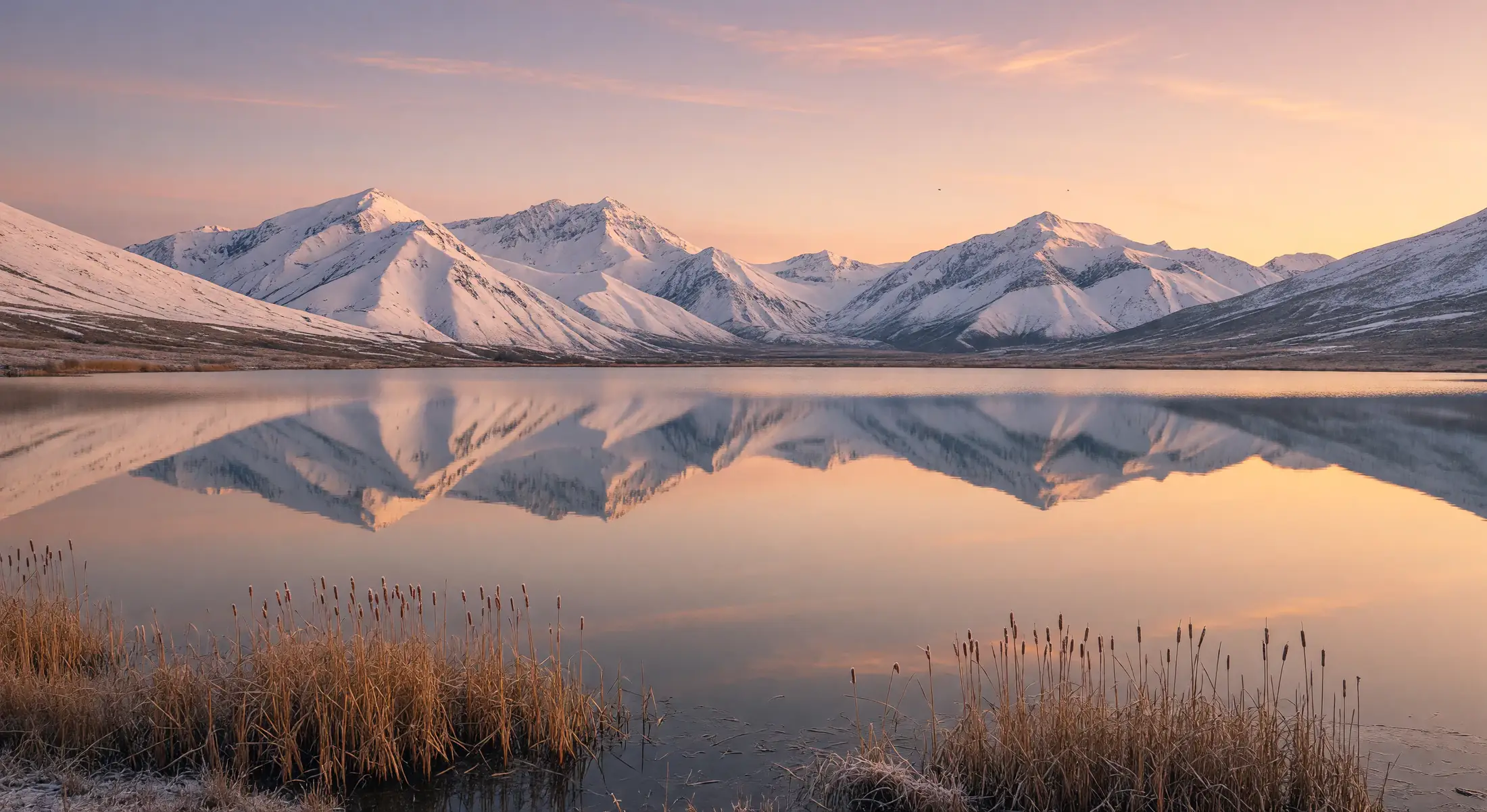
A calm lake background sits behind the operator’s return message during a workshop break.
Art and workshop streamers
A workshop needs a pause while the host changes materials. You have artwork for the break screen, but want some movement behind the return message without making the text hard to read.
Animate the owned artwork with restrained movement in VidMage’s Image to Video. Add the message in your broadcast layout, then test cropping and repeating playback there, including the jump between the clip’s final and first frames.
A prepared break scene keeps the return message readable while the host resets the workspace, with playback behavior checked before viewers see it.

Pottery-themed artwork supports an interview announcement, with the guest portrait and live time added separately.
Interview and podcast hosts
A guest is confirmed for next week, but there is no episode footage to promote yet. Reusing the previous show’s screenshot would give the announcement the wrong subject and people.
Generate topic artwork in VidMage’s AI Image Generator with room for the layout. In your design app, add the guest’s approved portrait, name, time zone, date, and channel details, keeping those elements separate from the background.
The announcement communicates the actual upcoming topic and guest, and you can correct a schedule change without regenerating the artwork underneath it.

A producer compares a short interview excerpt before placing it in the post-show highlight reel.
Performance stream producers
The live show is over and the producer has marked a useful interview or performance moment. The excerpt looks soft in the recap edit, but there is no reason to recreate the event.
Upload the recorded excerpt to VidMage’s Video Enhancer and select an available enhancement setting. Compare the download with the original around faces, hands, and motion, then use the accepted version in your highlight edit.
You can assess a clearer-looking version of the real moment for the recap, while keeping the original recording as the reference for what actually happened.
Work backward from the run of show. Every prepared file needs a segment, an operator action, and a checked playback setup.
Mark the intro, breaks, guest promotion, and post-show highlights. Gather owned artwork, approved guest photos, schedule details, and any recorded excerpts.
Generate a scene for the opening, animate a break background, or make episode artwork. After the broadcast, use the actual recording when evaluating a highlight enhancement.
Add names, dates, return messages, and audio in your editing or broadcast tools. Export supported files and name them by show and segment.
Play the finished assets in your broadcast setup. Check cropping, sound, start and end frames, repeat behavior, and the transition back to the live camera.
An opening, a break background, and a recorded highlight need different source material and different checks.
| Broadcast job | Your input | VidMage tool | Output |
|---|---|---|---|
| Pre-show opening | Episode theme + opening action | Text to Video | Clip to finish with title and audio |
| Planned intermission | Owned background art + restrained movement | Image to Video | Moving asset for a return-message scene |
| Guest announcement before filming | Episode subject + room for portrait and text | AI Image Generator | Background for an accurate announcement |
| Soft recorded highlight | Excerpt from the actual show | Video Enhancer | Version to compare before recap editing |
| Visual look for a themed segment | Existing show artwork + style direction | Image to Image | Artwork option for the next episode |
Download the selected asset and add exact text and audio in compatible editing or broadcast software. Test it at the size and placement viewers will see, then note the operator’s start, repeat, and exit cues.
This is a file handoff, not a direct connection to the stream. Keep the prepared assets accessible to the operator and preserve the original show recording for recap work.
Keep the show date and intro, break, or promo purpose in the filename.
Configure scene placement, audio, playback, and the return to the camera.
Check the finished file in the real broadcast layout before going live.
Build the supporting files in advance. Keep the actual conversation, demonstration, and performance in the live feed and recording.
These VidMage workflows create or process files before or after the live show. Use them for intros, breaks, announcements, and recorded highlights. Your broadcast software handles the camera feed, guests, scene switching, audio, and delivery.
Finish its title and audio in your editor, then export a file your broadcast software supports. Load it into the intended scene and rehearse the start and end cue, including the transition to the host’s microphone and camera.
Repeating playback is configured in your editor or broadcast software. A generated clip may jump when it restarts. Review the first and last frames and adjust the edit or playback setup before using it behind a break message.
Add them as editable text in your design or broadcast layout, together with the guest’s approved portrait. Keep the date, time zone, and channel information separate from generated artwork so late changes do not require another background.
No. Work from the recorded excerpt that exists. Video Enhancer lets you evaluate an enhanced version, but it does not supply an absent interview answer or performance. Compare faces, motion, and visible details with the original before publishing.
List the assets that actually change each episode. Keep accepted intro and break files when they still fit; generate new topic artwork as needed. Check each tool’s current credit cost for the model and settings before running it.
Check current credits and plansConfirm that the guest and production team permit the upload first. VidMage does not use uploads or prompts for AI training, and its Web policy deletes uploaded and processed media within two hours. Retain your original recording and accepted downloads in your own archive.
Read the recording privacy policyMake the opening clip or break background the operator needs before the broadcast starts.