
Editors cutting product reviews
You have an unboxing or review recording but no clean product insert. Start with the client’s approved packshot for an opening or cutaway.
The creator recording is ready, but your cut needs a stronger opening or a shot under the next line. VidMage generates scene clips, animates approved photos, and creates card backgrounds for your UGC edit.
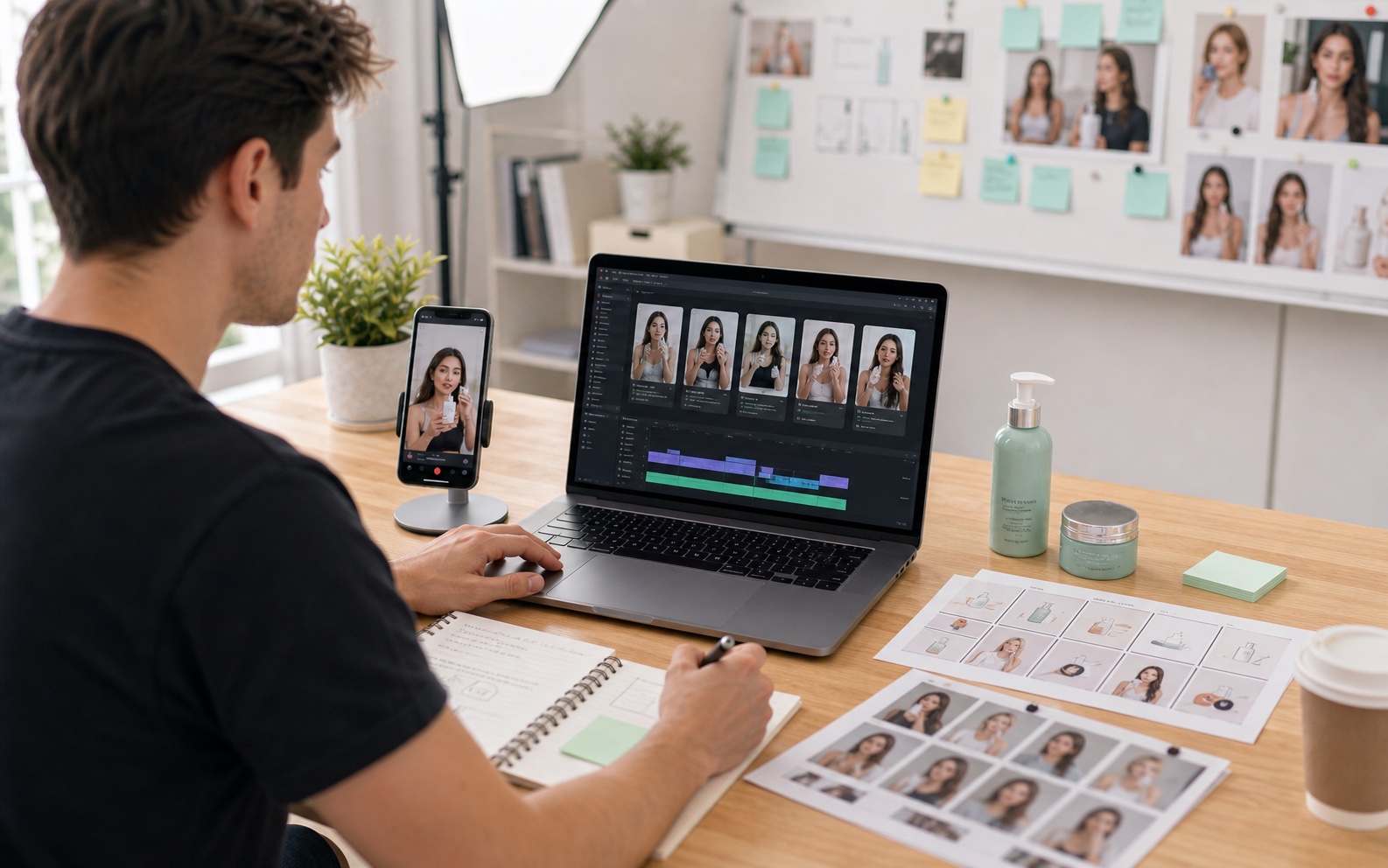
Start with the edit you already have: a spoken hook, product mention, buying question, or line that needs a cutaway.
You have an unboxing or review recording but no clean product insert. Start with the client’s approved packshot for an opening or cutaway.
Several approved opening lines share the same talking-head setup. Develop scene options that introduce each line before the creator appears.
The script needs a pause for a buying question. Prepare a simple card background, then add the approved question and answer yourself.
A long creator recording contains a useful line but an awkward visual cut. Plan a supporting shot that can sit over that edit.
The client’s still photos need a place in a video review. Explore restrained motion and check the product against the original photograph.
A client has not picked the opening direction. Show scene options against one shared creator recording so the review focuses on a clear choice.
Each job begins with a real creator recording and a defined place for the supporting visual.

One organizer ad opens on a crowded desk; another opens on someone searching for a notebook.
Editors working with spoken hooks
Your creator recorded three opening lines at the same desk. The client wants to compare different ad angles, but changing only the spoken sentence leaves the first visual almost identical.
Brief VidMage’s Text to Video with one concrete situation per line, such as a crowded desk or a misplaced notebook. Place each selected clip before the same creator recording, keeping the remaining edit fixed for the client’s review.
Deliver opening options the client can compare side by side, with each scene tied to a specific approved hook and an unchanged main recording.

A bottle insert appears under “I added this serum,” then the edit returns to the creator’s recorded routine.
Editors cutting product reviews
The creator describes a serum, but the bottle is partly hidden in their hands. You have a clear approved packshot and need a product view under that sentence, before the filmed demonstration begins.
Upload the packshot to VidMage’s Image to Video and request a subtle camera move. Check the label and bottle shape, then trim the selected clip to the product mention in your editor. Return to the real footage for the demonstration.
Give the product mention a dedicated visual using a supplied photo, while the creator’s own demonstration remains the source for how the product works.

A small-room question card separates the opening hook from a creator’s real space-saving demonstration.
Designers building objection cards
The approved script answers “Will it fit a small room?” A busy lifestyle shot makes that question hard to read, and you need a visual pause before the creator explains the answer.
Ask VidMage’s AI Image Generator for a simple room background with an uncluttered area for text. Download the image and add the exact question, answer, and approved product photo in your design app. Hold the card under the matching spoken line.
Turn one buying objection into a readable moment in the ad, with the wording and product evidence controlled in your final design.

An approved desk image covers the cut between two lines in a creator’s workspace review.
Editors making shorter cuts
You are shortening a creator’s explanation, and removing a repeated phrase leaves a visible jump. The client has an approved supporting image that fits the sentence, but a static insert feels abrupt beside the moving footage.
In VidMage’s Image to Video, animate that supporting image with restrained motion. Place a short selection over the dialogue edit while the creator’s audio continues. Match its start and end to the recorded action on either side.
Shorten the spoken section while giving viewers a relevant cutaway, instead of leaving an obvious jump between two parts of the recording.
Work from the locked script and creator recording. Give every generated asset a specific place in the cut.
Note the hook, product mention, objection, or dialogue edit that needs coverage. Record the intended in and out points before creating a shot.
Describe what the viewer should see during that line. Upload an approved photo for Image to Video or write a single-scene brief for Text to Video.
Review packaging, scene meaning, and room for text. Reject details that change the product claim, then download the clip or background you want to test.
Import the file into a compatible editor. Trim around the creator’s delivery, keep demonstrations in the original footage, and send the complete cut for review.
Choose by the source material and placement in the script, rather than generating assets without a slot.
| Gap in the edit | Your input | VidMage tool | Output |
|---|---|---|---|
| Different visual for each spoken hook | Approved hook + single-scene brief | Text to Video | Opening options for the same creator take |
| Product view under a spoken mention | Approved packshot + restrained motion | Image to Video | Moving product insert |
| Coverage over a dialogue edit | Relevant client image + motion instruction | Image to Video | Cutaway to place over a jump cut |
| Question or objection pause | Simple setting + space for exact wording | AI Image Generator | Card background for approved copy |
| Client review of a different insert style | Approved supporting image + visual direction | Image to Image | Alternative still for a creative review |
Download the selected VidMage asset and import it into an editor that supports the file. Place it over the intended line, trim it to the creator’s delivery, and compare the complete sequence with the approved script.
VidMage supplies visual files. Timeline editing, client feedback, and delivery stay in your current production process.
Keep the original audio under a cutaway when the creator’s words carry the claim.
Add pricing, conditions, and the final call to action from the approved brief.
Share complete ad versions so clients see each visual in the context of the creator’s delivery.
An opening or cutaway can illustrate the script. The creator’s real footage should establish the experience and demonstration.
Start with the missing shot, its script line, and the approved visual material. Use a packshot for Image to Video or describe one scene for Text to Video. Keep exact claim wording in your script and final edit.
Generate a scene for each approved opening line, then place each option before the same main creator recording. Keep the remaining sequence fixed so your client can review the change in the opening itself.
Yes. Animate an appropriate supporting photo and place the selected clip over the dialogue edit in your video editor. The original audio can continue beneath it. Check that the cutaway illustrates the sentence rather than implying a new claim.
Compare the result with the client’s approved packshot before using it. If a label, color, shape, or material changes, use the original still or real footage for that part of the ad.
Add approved prices, discounts, offer conditions, and the call to action in your editor or design app. Check the final text against the client’s current brief before exporting the ad.
Treat each generated scene or photo animation as a separate asset. Check the tool’s displayed cost for the selected model and settings, then choose which approved hook concepts to generate.
View pricingVidMage removes uploaded and processed Web photos and videos within two hours. These files, prompts, and generated media are not used for AI model training. Keep approved originals and downloaded selections in your own client project folder.
Read the privacy policyStart with the approved photo or spoken line that needs a visual, then create one asset for that place in the edit.