
Product & UGC creators
Open a recorded routine with a product photo you already have. Let the real footage show the texture, application, and result viewers came to see.
Use VidMage for the visual your next TikTok needs: a room idea requested in the comments, an opening for your recorded routine, or a photo style viewers can compare. Keep your own response at the center of the post.
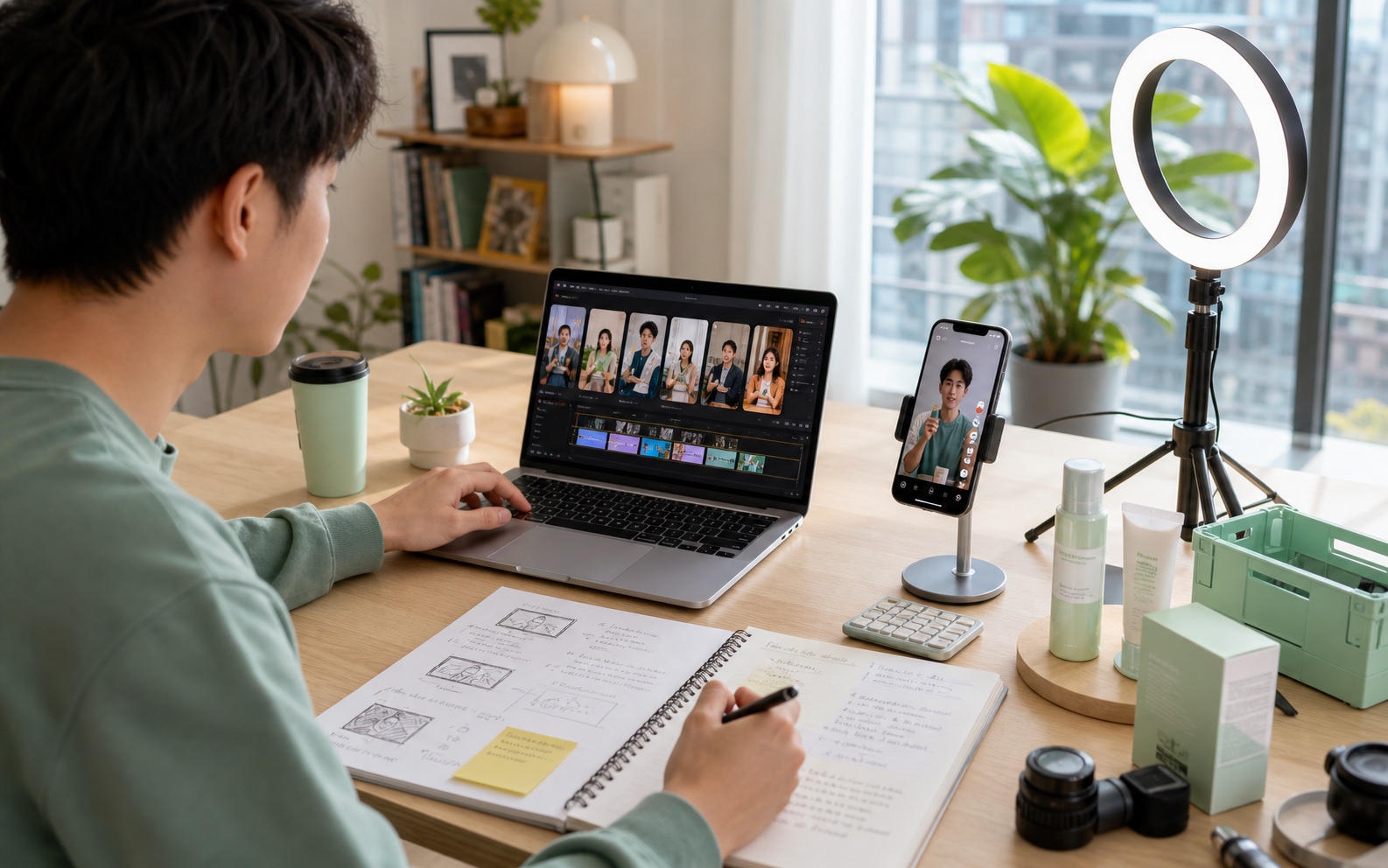
A useful post can start with a comment, a recorded routine, or a choice your viewers want to see.
Open a recorded routine with a product photo you already have. Let the real footage show the texture, application, and result viewers came to see.
Turn repeated audience questions into a specific reply. Add a visual example when another spoken explanation would leave the answer too abstract.
Respond to room, storage, or styling requests with a proposed scene. Explain which parts are design ideas and which details come from the viewer’s actual brief.
Use a recurring viewer prompt to choose the next fictional situation. Keep the premise in your caption so the scene makes sense without the earlier post.
Invite viewers to compare a photo treatment or suggest a movement. Bring your own source image and an authorized motion reference to the next post.
Find useful requests in the comments on a launch post. Build replies around actual questions and add current product details from your approved source material.
Show a proposed room, introduce a real routine, compare photo styles, or try a requested movement.

A proposed reading corner answers “What would you change in this small apartment?”
Home & lifestyle creators
A follower asks how to make a small reading corner feel warmer. Your comment can list lamps and fabrics, but the viewer wants to see how those choices might work together.
Describe the room, available space, and lighting in VidMage’s AI Image Generator. Place the chosen concept behind the original question in your reply edit, then explain two or three design decisions in your own voice.
Give the follower a concrete proposal to react to and turn one useful question into a post that other viewers can discuss.

A serum bottle introduction cuts to the creator applying the real product at their sink.
Product & UGC creators
You recorded a skincare routine with the product in use, but the first frame does not show which bottle you are talking about. Your approved packshot is clearer than the video frame.
Add a gentle camera move to that packshot in VidMage’s Image to Video. Check the label and bottle shape, then cut from the selected opening to your original routine as your voice introduces the product.
Identify the product before the demonstration begins while keeping the actual application and personal experience in your own recorded footage.

The original portrait and a painted variation appear together under “Photo or painting for the next cover?”
Fashion & personal creators
Your audience asks which look should become your next profile image or cover. You have one portrait and want to show a real choice rather than ask viewers to imagine the alternative.
Upload the portrait to VidMage’s Image to Image and describe one specific treatment, such as a textured painting. Put the original and selected variation side by side, label them in your editor, and ask one clear comparison question.
Make the choice visible in the post and give the next reply a clear starting point when viewers explain their preference.
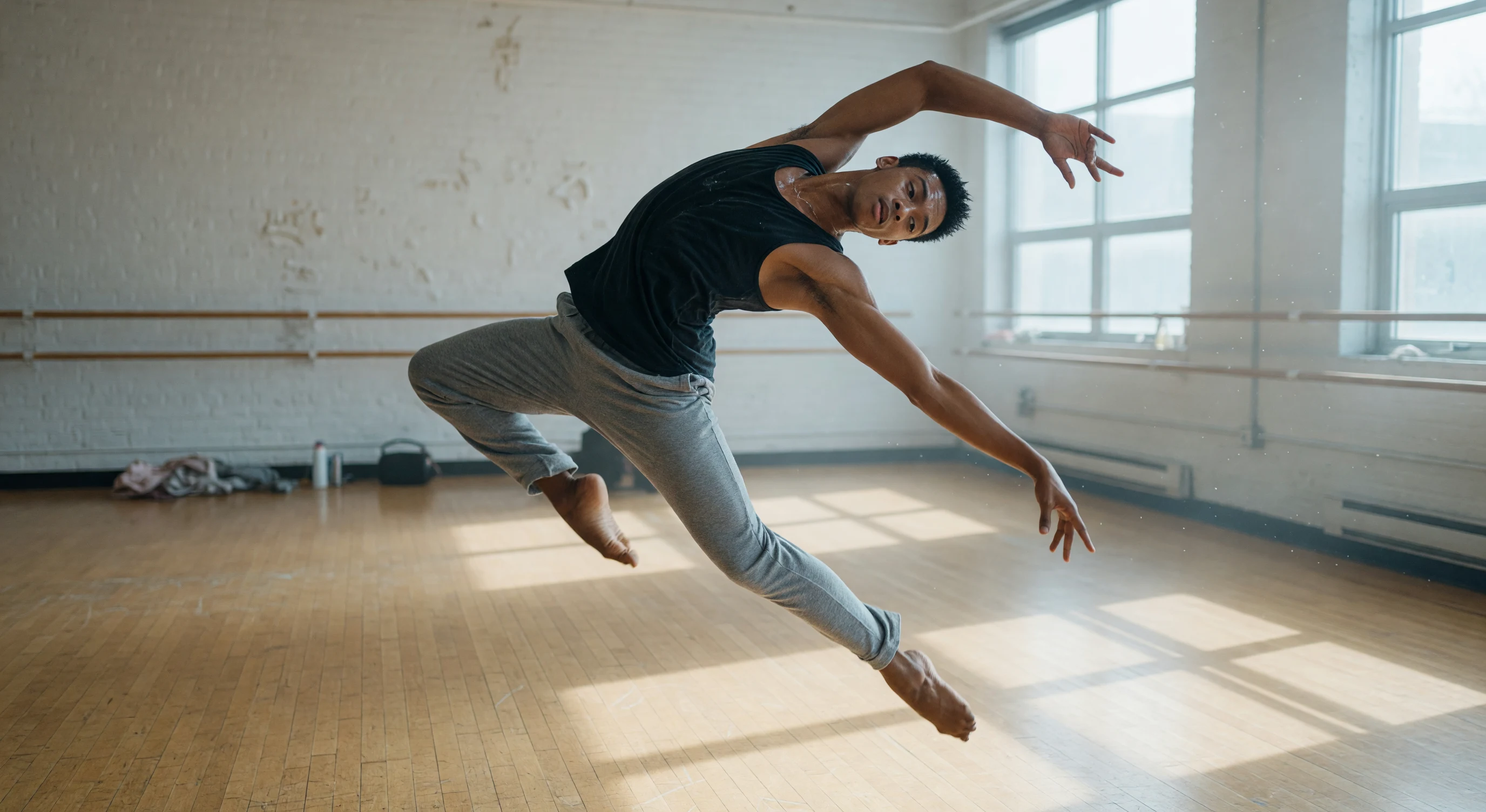
A character response follows a viewer’s request for the leap shown in an authorized dance reference.
Dance & character creators
A comment asks to see your character perform a short move. You have the character image and a reference recording you can use, but a text description does not capture the gesture clearly.
In VidMage’s Motion Control, pair the character image with the movement reference. Review the result for pose and subject changes, then place the selected clip in a reply that shows the question and names the movement you tried.
Use a visible movement reference to explore the audience’s request while giving yourself a clear result to review before posting.
Start with the viewer’s question or your recorded content. Create the supporting visual that makes the response clearer.
Save the comment you will answer or select the routine you will introduce. Write the single point the viewer should understand after watching.
Prepare the room brief, approved packshot, portrait, or character image. For a movement request, choose a reference video you are authorized to use.
Choose the matching VidMage tool. Check whether the room answers the brief, the product still matches its source, or the style and movement show the requested change.
Download the result and add your original footage, comment text, narration, and labels in a compatible editor. Preview the full response before uploading it to TikTok.
The source material changes with the request. Choose the tool that can show the detail your answer depends on.
| Audience request | Your input | VidMage tool | Output |
|---|---|---|---|
| Show a proposed room in a comment reply | Viewer’s room question + design details | AI Image Generator | Concept image you can explain |
| Introduce a product before your routine | Approved product photo + gentle movement | Image to Video | Opening clip to check against the packshot |
| Ask viewers to choose a photo treatment | Original portrait + one style direction | Image to Image | Variation to compare with the source |
| Respond to a requested gesture or dance | Character image + authorized reference video | Motion Control | Movement response to review |
| Show a fictional situation suggested by a comment | Viewer prompt + one clear action | Text to Video | Scene for a captioned response |
The generated visual is one part of the response. In your editor, bring it together with the original comment, your recorded explanation, and any source footage that supports the answer. Keep enough room for viewers to see both the visual and the words.
Download the selected asset before adding it to your post. Check the supported aspect ratios in the tool and preview the final TikTok crop in your editor.
Show the comment or state the question in your own words so the reply makes sense outside the original thread.
Point out what changed, why you chose it, or how it relates to your real routine.
Ask them to choose between labeled options or identify the next detail they want you to show.
Design concepts and character movements can explore a request. Your original footage should carry personal claims and product results.
Pick one concrete request, such as a room layout or a photo style. Write down the details in the comment, create the matching visual, and explain your choices in the reply. Keep the original question visible so new viewers have context.
Keep your actual routine and results in your own footage. A generated product opening can introduce the bottle, but it does not establish what the product did to your skin. Check packaging against the approved photo.
Compare the variation with the original for changes to the face, clothing, and important details. Place both images at the same size and add clear labels in your editor so viewers know which treatment they are choosing.
Image to Video starts with an image and a description of motion. Motion Control uses an image and a reference video to guide the movement. Choose the reference path when the gesture is easier to show than describe.
Open Motion ControlDownload the image or clip, then add the question, your response, and any labels in your editing tools. Upload the finished post through TikTok. Review the crop so the visual and comment text do not cover each other.
An image reply, photo animation, and reference-driven movement can use different tools and settings. Check the credit cost displayed for the specific generation before you start. There is no single cost for a complete TikTok post.
Check plans and creditsVidMage deletes uploaded and processed Web photos and videos within two hours. Uploads, prompts, and generated media are not used for AI model training. Save the result you want to keep, and use personal photos you are authorized to process.
Read the privacy policyChoose one saved comment or recorded routine. Start with its source photo or describe the scene that will make your answer clearer.