

If you want to face swap on Mac without uploading your photos or videos to an online tool, VidMage offers a local option. The Mac app processes your media directly on your computer so you can work offline and keep your files on your device.
VidMage runs natively on Apple Silicon M1 or later, supports JPG, PNG, WEBP, GIF, MP4, MOV, and M4V, and can export video in up to 4K.
How to Face Swap on Mac
Follow these steps to learn how to face swap on a Mac with VidMage:
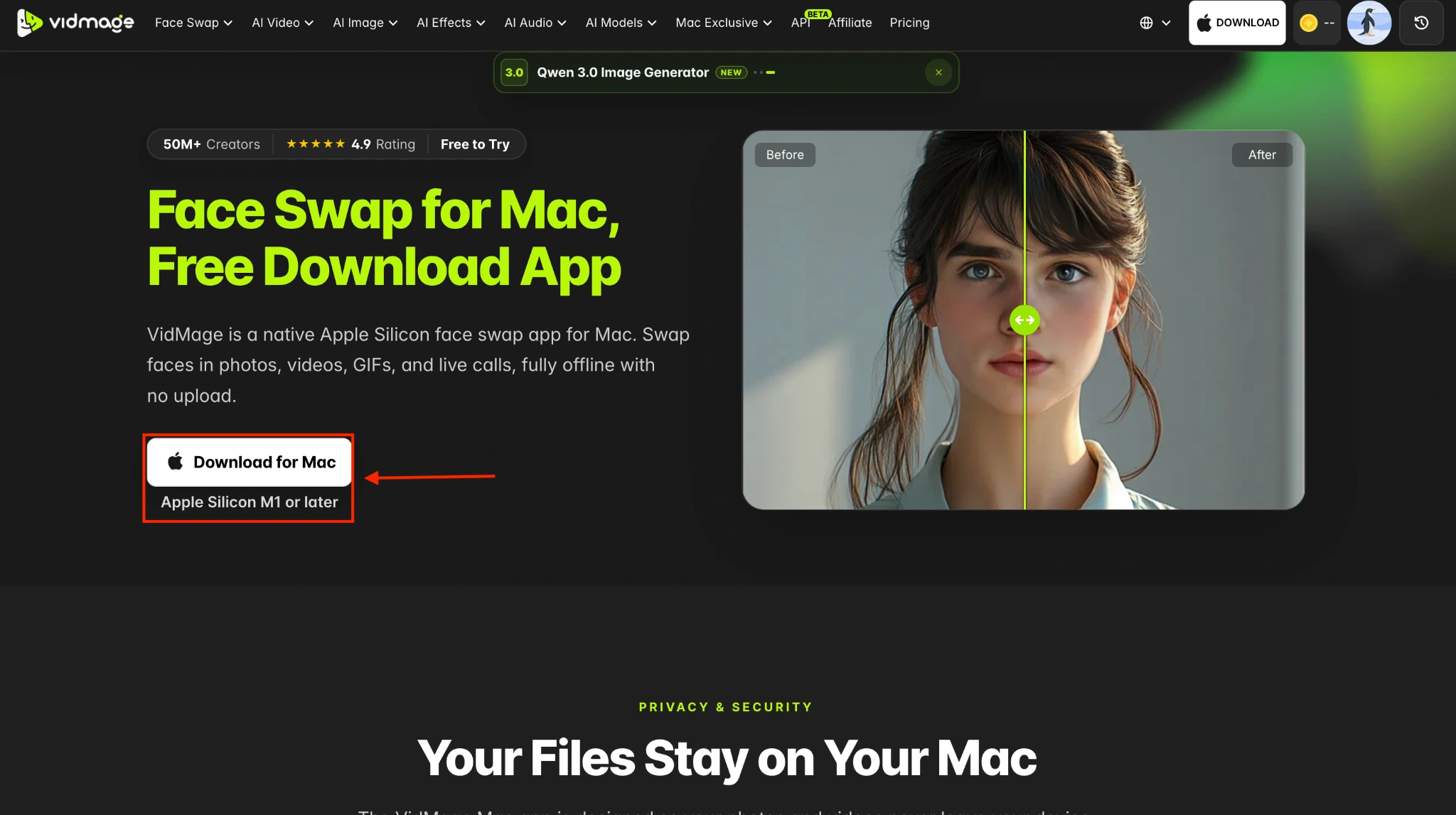
Step 1: Download and install the VidMage Mac app for face swap.
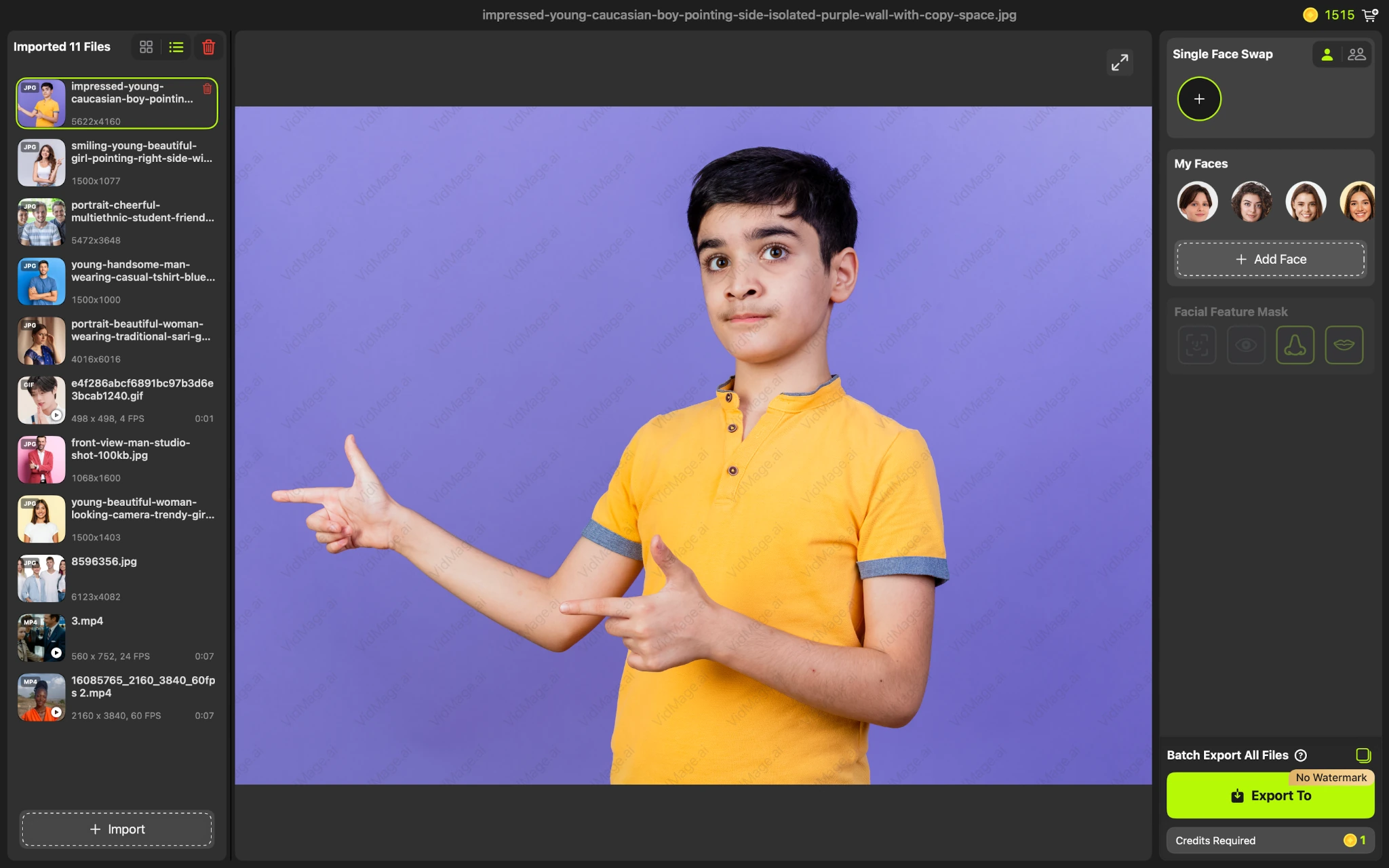
Step 2: Import the photo from your Mac.
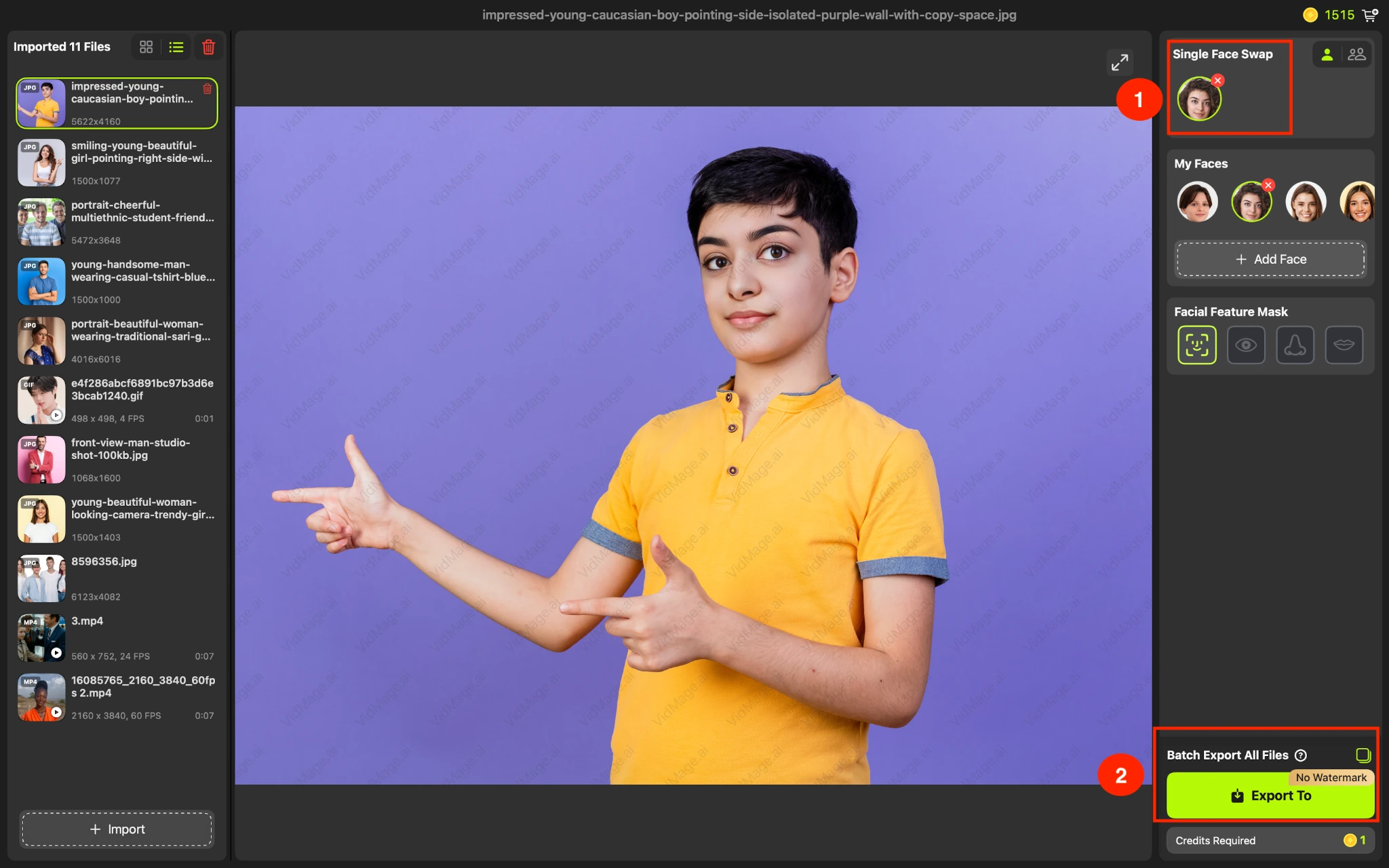
Step 3: Add the face you want to swap in. VidMage automatically detects faces, so you don't need to manually crop, mark, or outline them. Click the "Export to" button to save the result.
How to Face Swap Videos on Mac
Follow these steps for offline face swap on Mac in video:
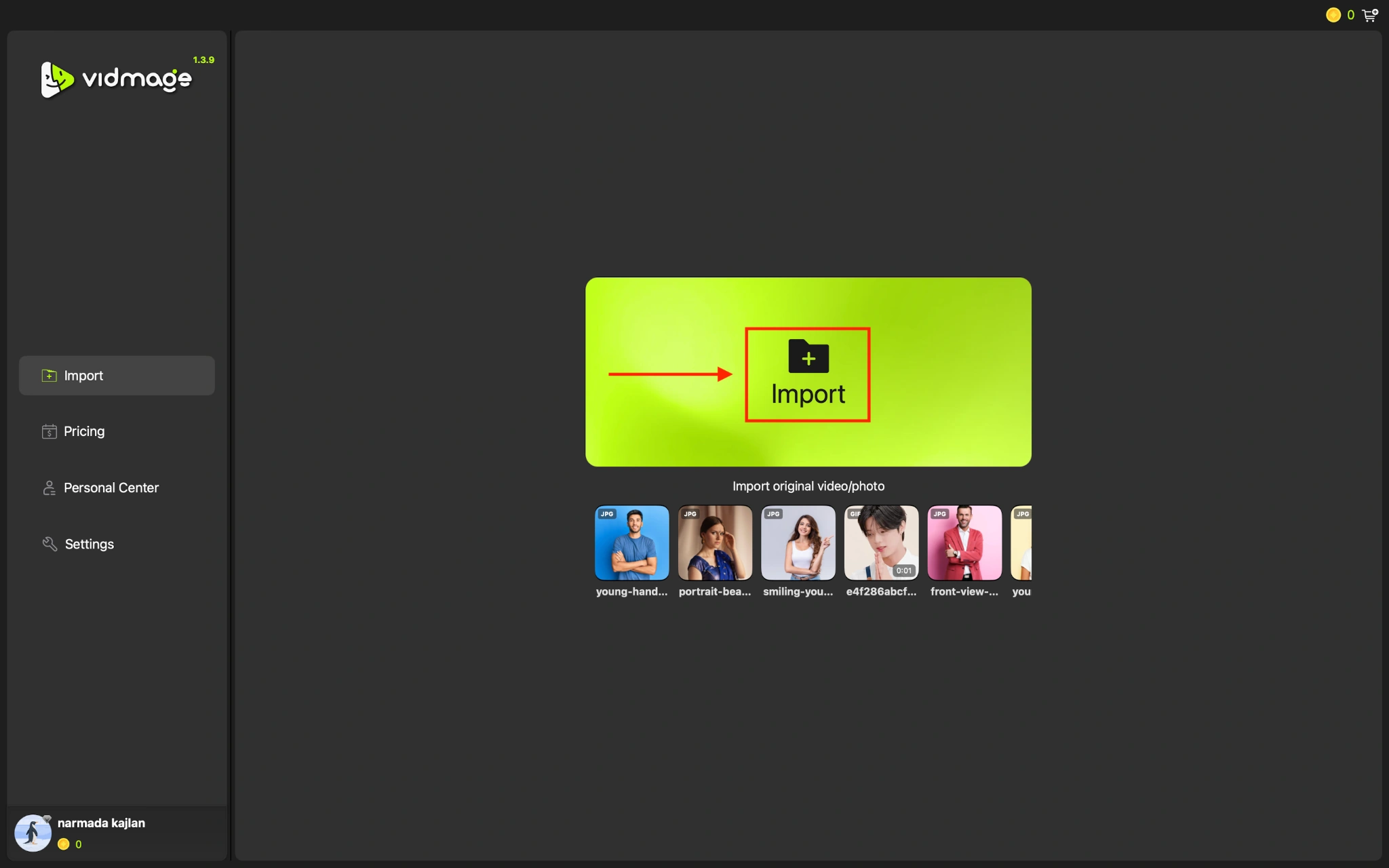
Step 1: Click the Import button to upload the video.
Step 2: If the video has one face, choose Single Face Swap. If it has more than one, choose Multi Face Swap.

Step 3: VidMage automatically recognizes the face. Add the target face. Tap the Export to button and save the outcome.

Supported File Formats
The VidMage Mac app supports:
- Photos: JPG, PNG, WEBP
- GIFs: GIF
- Videos: MP4 MOV, M4V
VidMage supports both input and export in these formats, with video output available up to 4K on supported plans.
Why Use VidMage for Face Swap on Mac
VidMage is designed for users who want to face swap photos on Mac without relying on an online upload workflow.
- 4K output: Export video face swaps at up to 4K.
- No fixed file-size limit: Process large files locally without a web upload limit.
- No watermark: Save your face swap without a watermark.
- Batch processing: Create multiple face swap variations in one workflow.
- Offline processing: Create swaps without an internet connection once installed.
Try VidMage for Mac
Open the tool and follow the steps above.