
Learning how to swap multiple faces in a photo is easy with VidMage. Upload a photo, let AI detect the faces, and assign a source face to each person you want to replace. VidMage supports JPG, JPEG, PNG, and WebP images and can swap up to 4 faces at once, with free users getting 15 photo swaps per day and no watermark.
How to Swap Multiple Faces in a Photo Online
Follow these steps to learn how to replace multiple faces in one photo with VidMage:
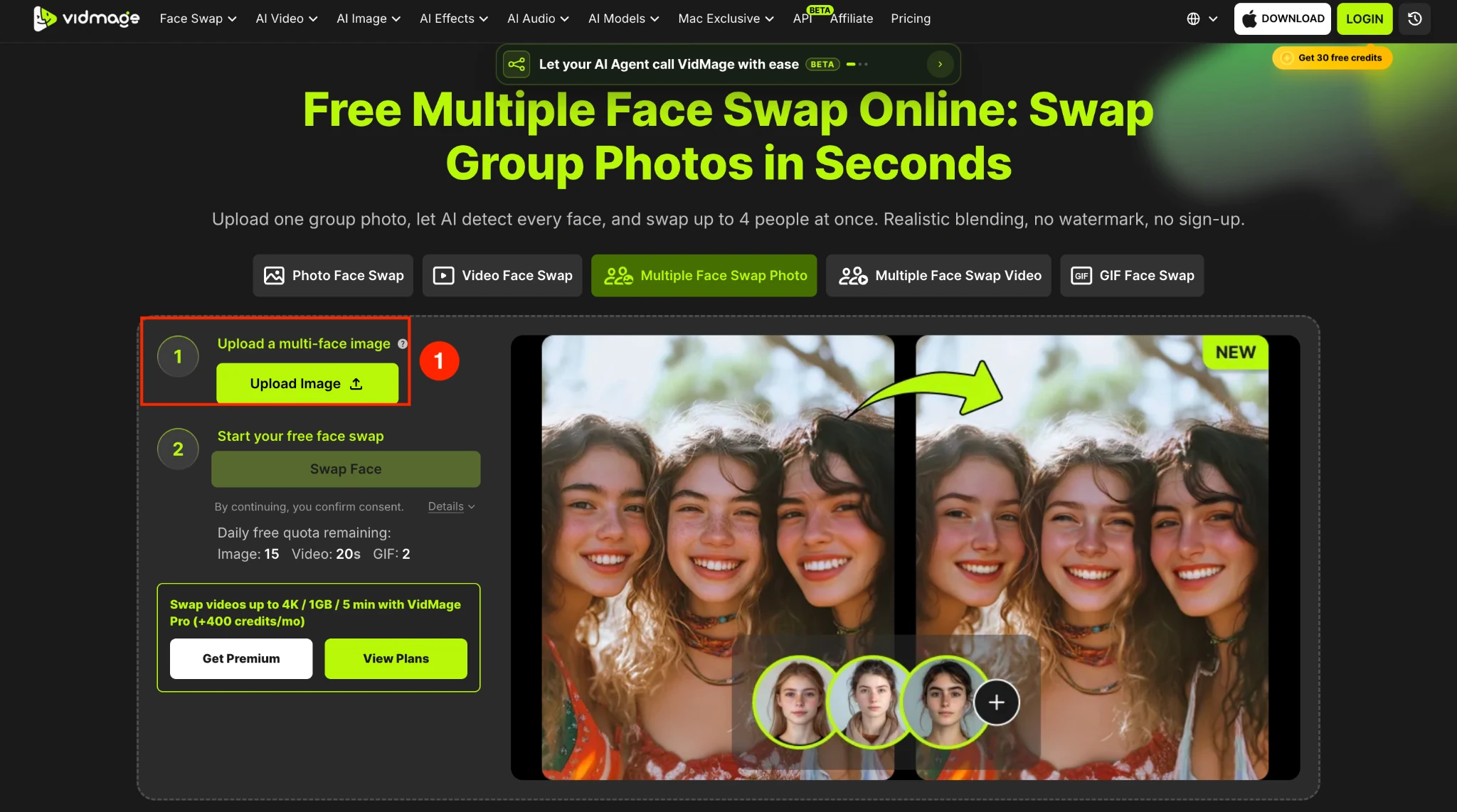
Step 1: Click the upload button, then select a photo that contains multiple faces. VidMage multi face swap photo supports JPG, JPEG, PNG, and WEBP files.
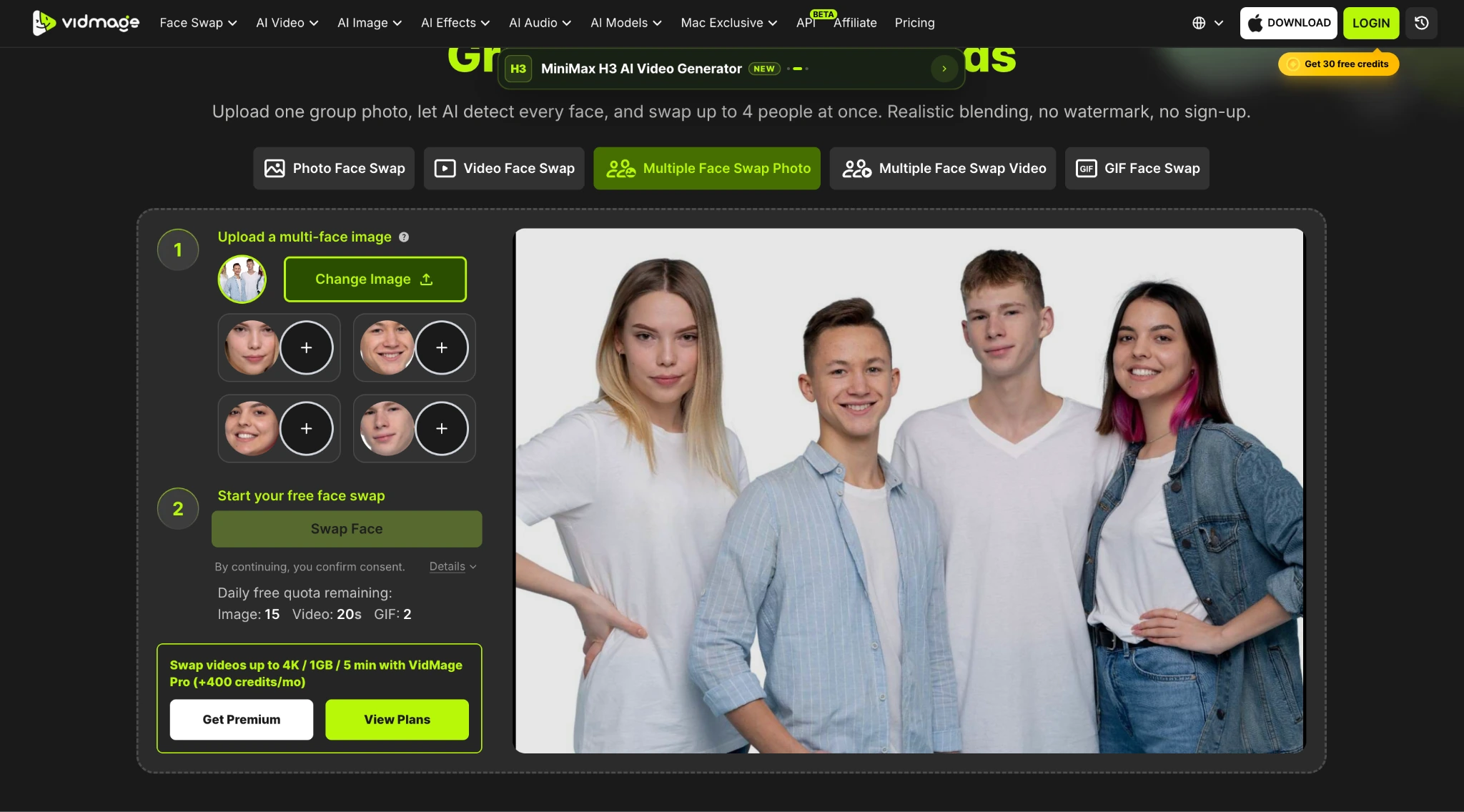
Step 2: Let VidMage detect the faces in your photo. The AI automatically identifies visible faces and highlights each one, so you can choose which faces to swap and which to keep unchanged.
Step 3: Upload the source face photos you want to use. You can assign a different face to each person you want to replace, or use the same source face for multiple people.
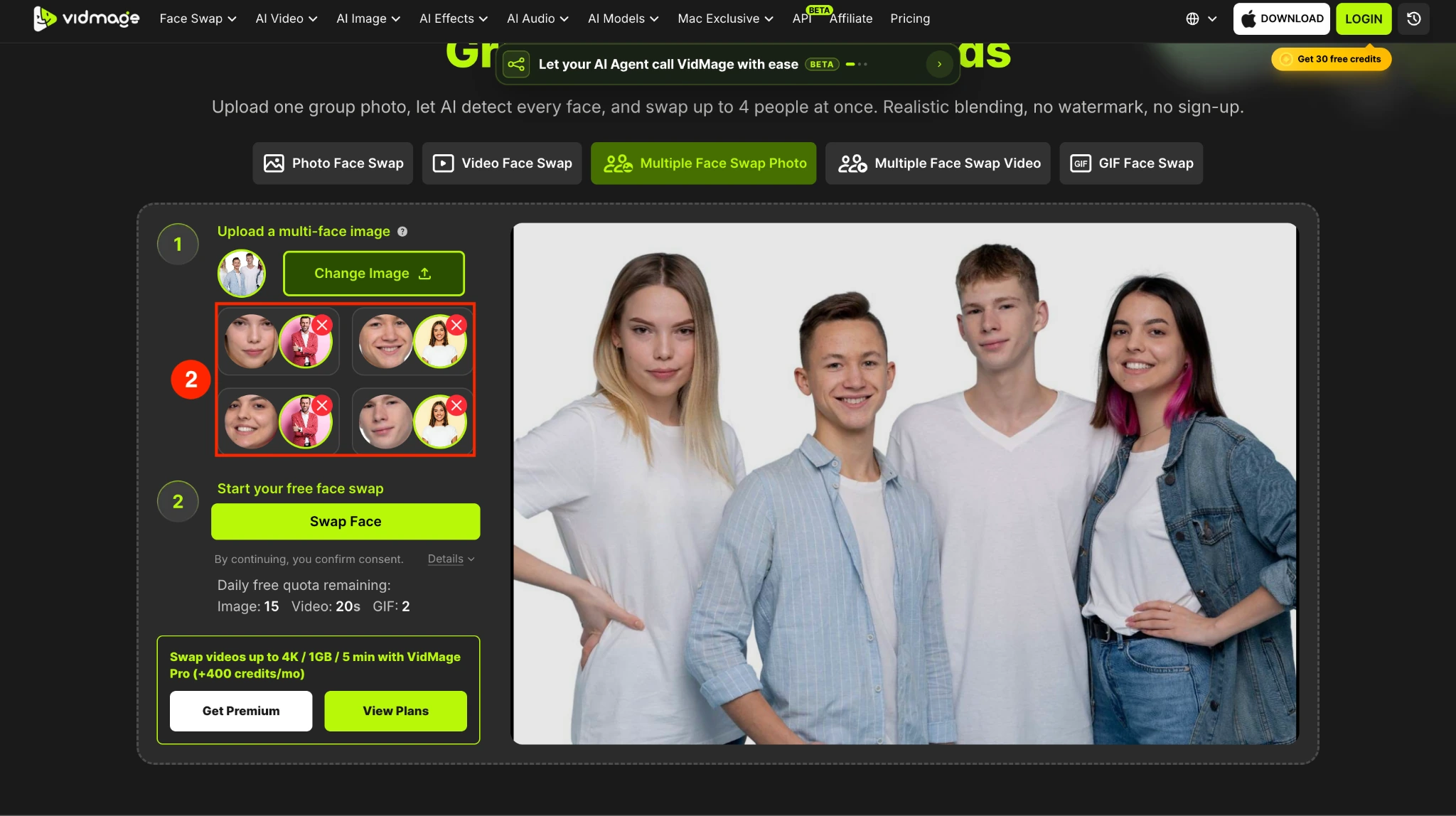
Step 4: Click "Swap Face" to start the process. VidMage processes each selected face separately and blends it with the target person's lighting, skin tone, and angle. Most photos are ready in about 5 to 10 seconds.
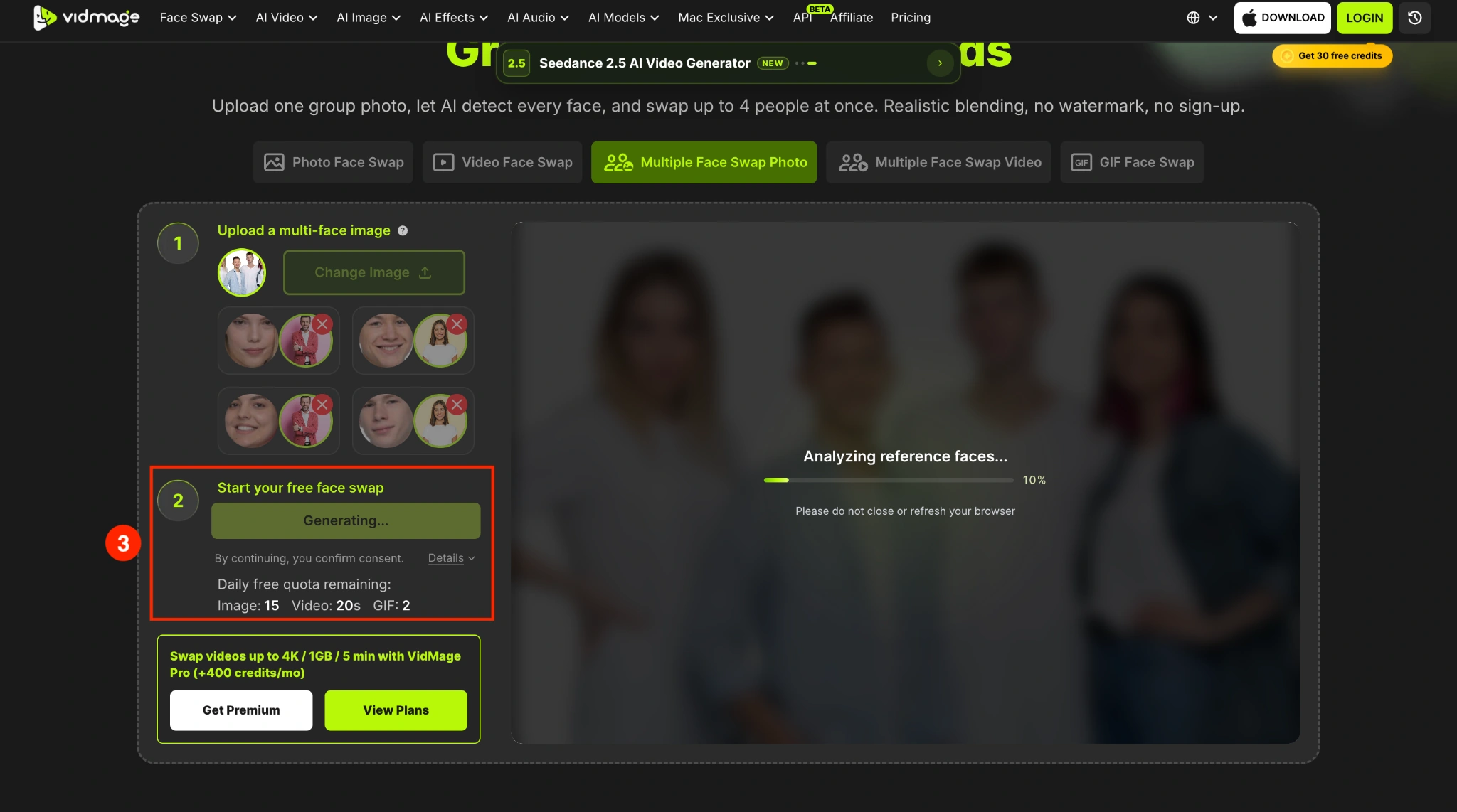
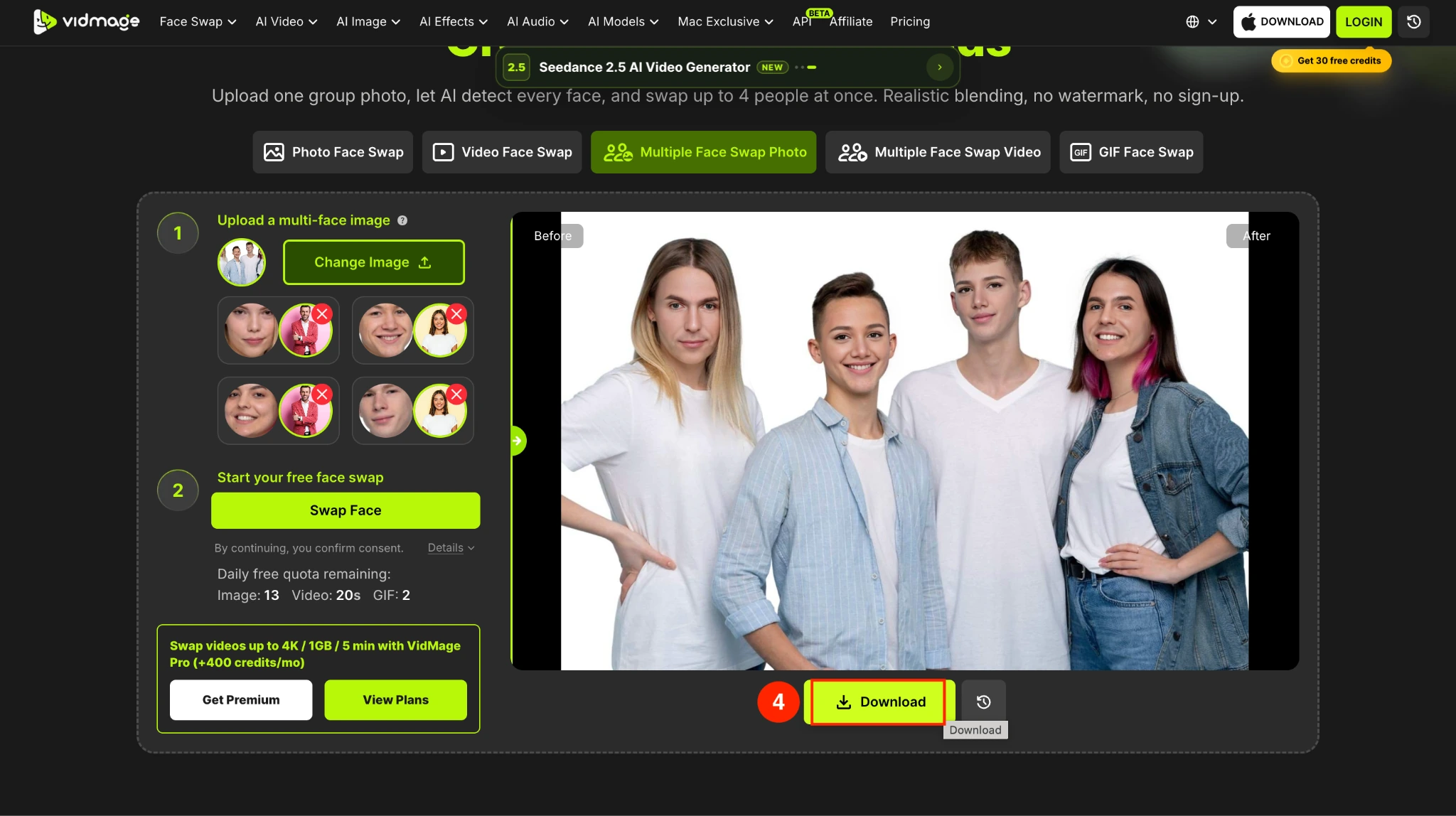
Step 5: Preview the results, then click the "Download" button to save them.
How to Face Swap a Group Photo with VidMage Mac App (Offline)
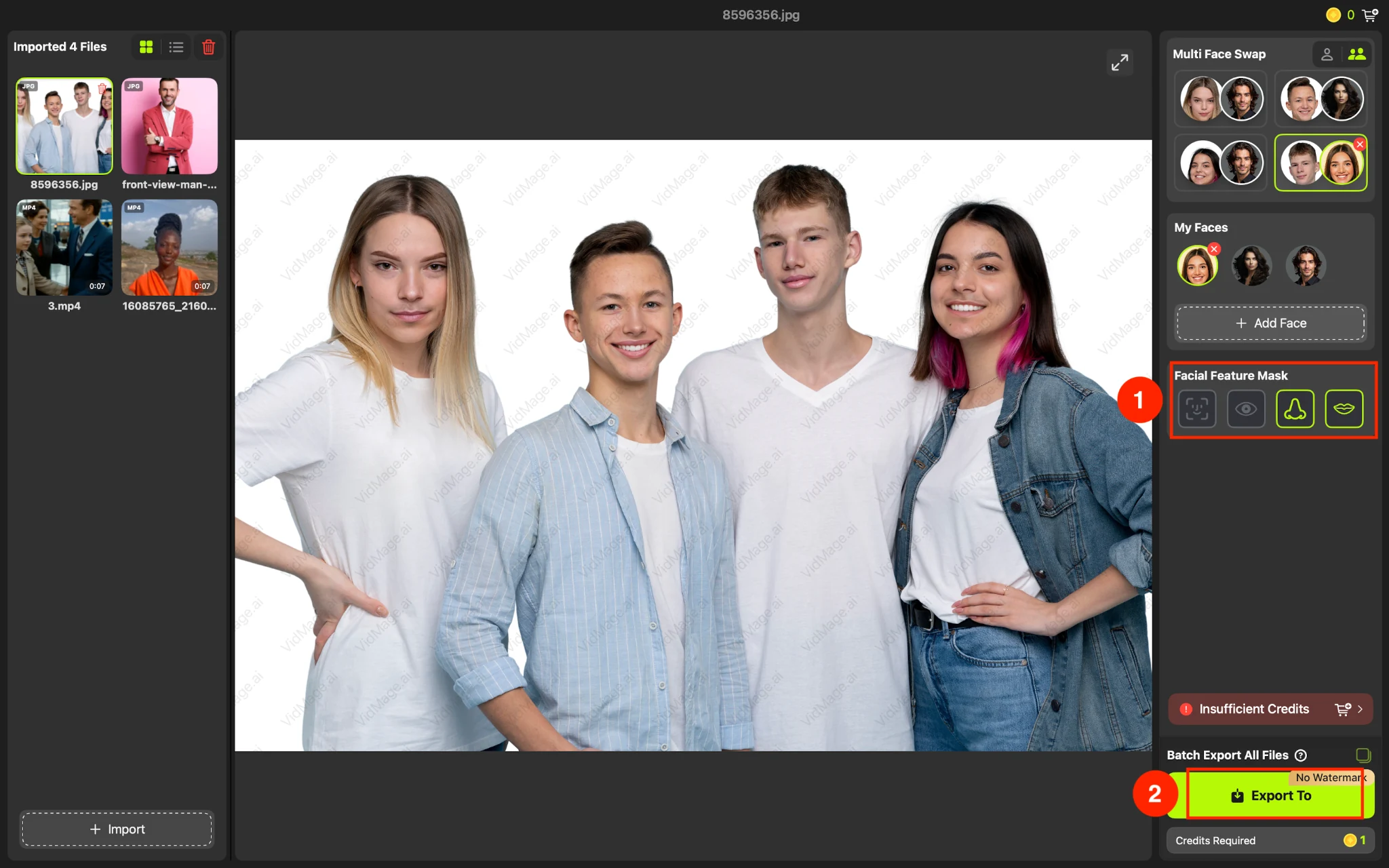
Here is the step-by-step guide to learn how to replace multiple faces in one photo on your VidMage Mac app (Apple Silicon M1 and later):
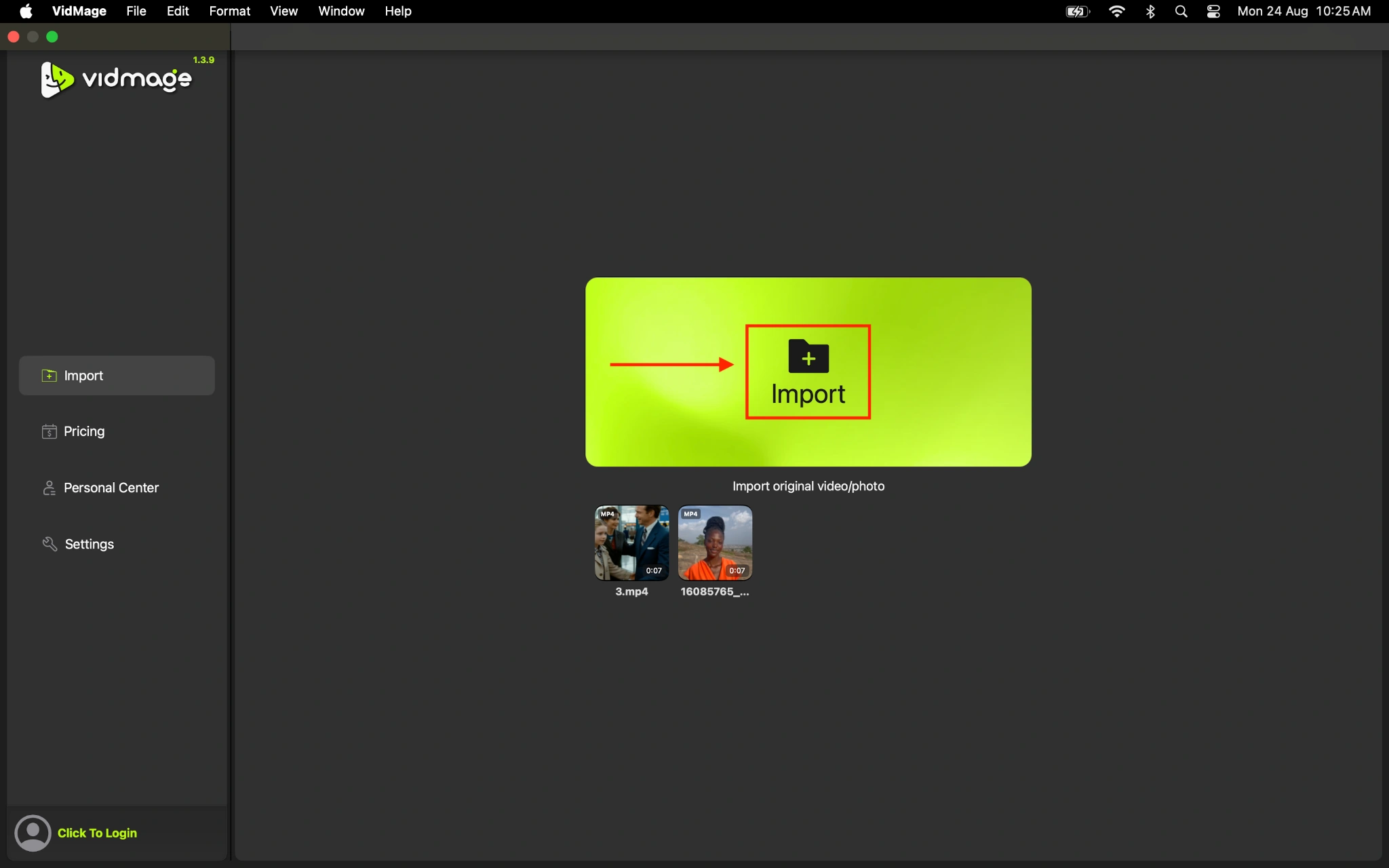
Step 1: Click the green Import button to upload a group photo in which everyone faces forward.
Step 2: The VidMage Mac app will recognize all faces. You can add different faces for each face in the original photo or add one single face for all. Click the Plus sign and add a new face.
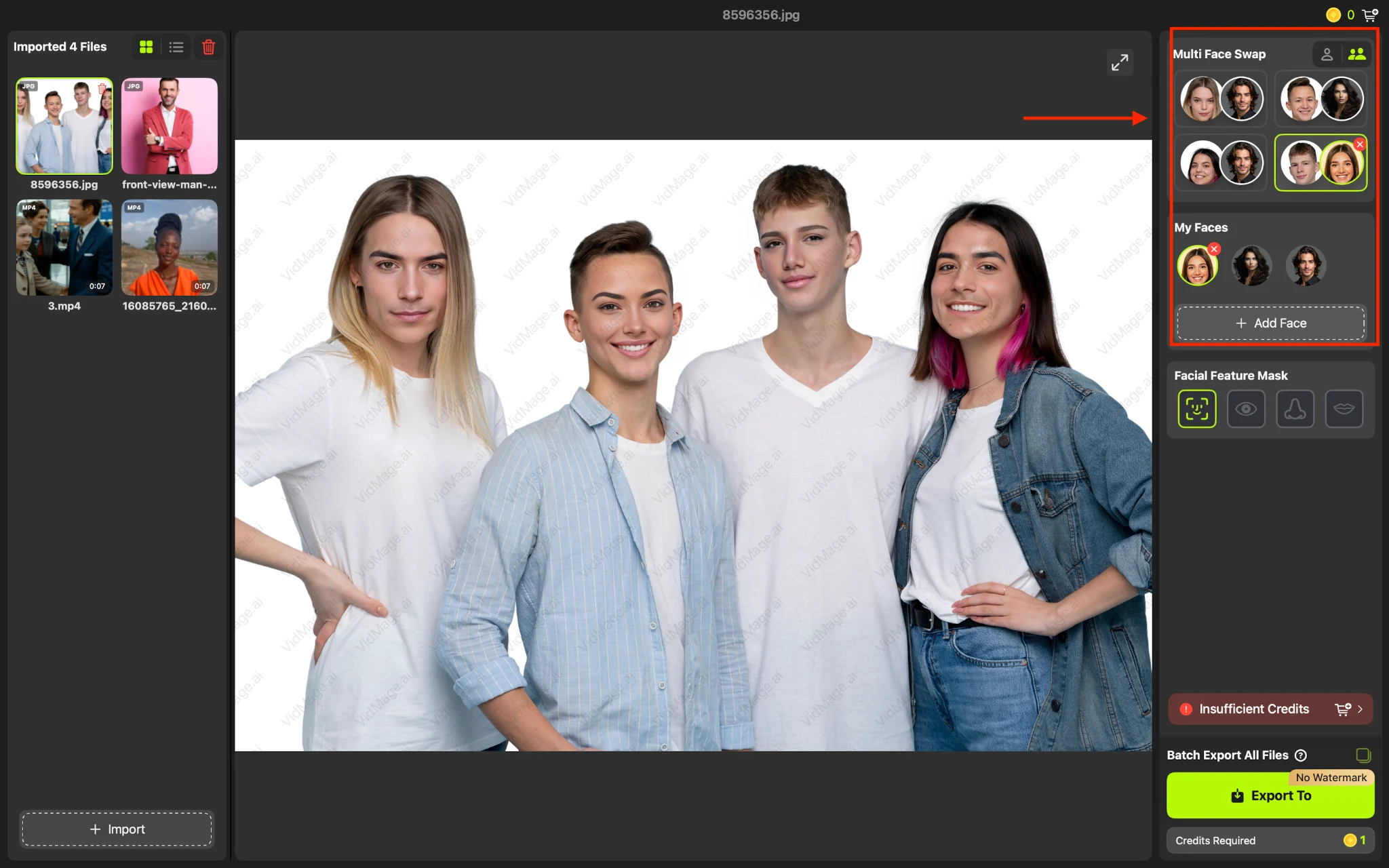
Step 3: You can change the whole face or change specific facial features, and once done, click the "Export to" button.
What Makes a Good Photo for Multiple Face Swapping
The quality of your group photo and source images can affect the final result. For cleaner and more natural-looking face swaps using VidMage, use:
- A clear group photo with faces visible
- Good, even lighting
- Clear source face photos
- Front-facing or mostly front-facing faces
- Images without sunglasses or other objects covering the face
- Source faces with a similar head angle to the target face
Clear, well-lit faces are easier for AI to detect and align. Strong side angles, heavy shadows, and partially covered faces can make face swapping more difficult.
What Can You Create With Multiple Face Swaps
VidMage can be used for different types of group photo edits, from simple fixes to creative social content. Some common uses include:
- Creating group photo memes
- Editing family and reunion photos
- Creating fun team or class photos
- Replacing specific faces while keeping everyone else unchanged
- Applying the same face to everyone in a group meme
- Creating personalized social media content
- Making creative birthday or event photos
What Should You Keep in Mind When Using Multiple Face Swaps
Keep these points in mind:
- Get permission from people whose faces you use
- Make sure you have the rights to the original photo and source images
- Avoid creating misleading or deceptive content
- Respect people's privacy and image rights
- Be transparent when a digitally edited image could be mistaken for a real photo
VidMage states that uploaded photos are automatically deleted from its servers within 2 hours and are not used to train AI models. Mac users can also process multiple face swaps locally, so files do not leave the device.
Try Multiple Face Swap
Open the tool and follow the steps above.