

If you want to learn how to do live face swap on Mac, the VidMage Mac app will help you. It lets you replace your face in real time during video calls, livestreams, and recordings.
Live face swap runs locally on your Mac, so you don't need to upload your webcam feed to a cloud server. You can use the swapped camera feed in apps such as Zoom, FaceTime, Google Meet, OBS, Twitch, and Discord.
VidMage Live Face Swap is available on Apple Silicon Mac with an M1 chip or newer. It is not available on Intel-based Macs or Windows.
How to Use Live Face Swap on Mac
Follow these steps to set up real-time face swap with VidMage.
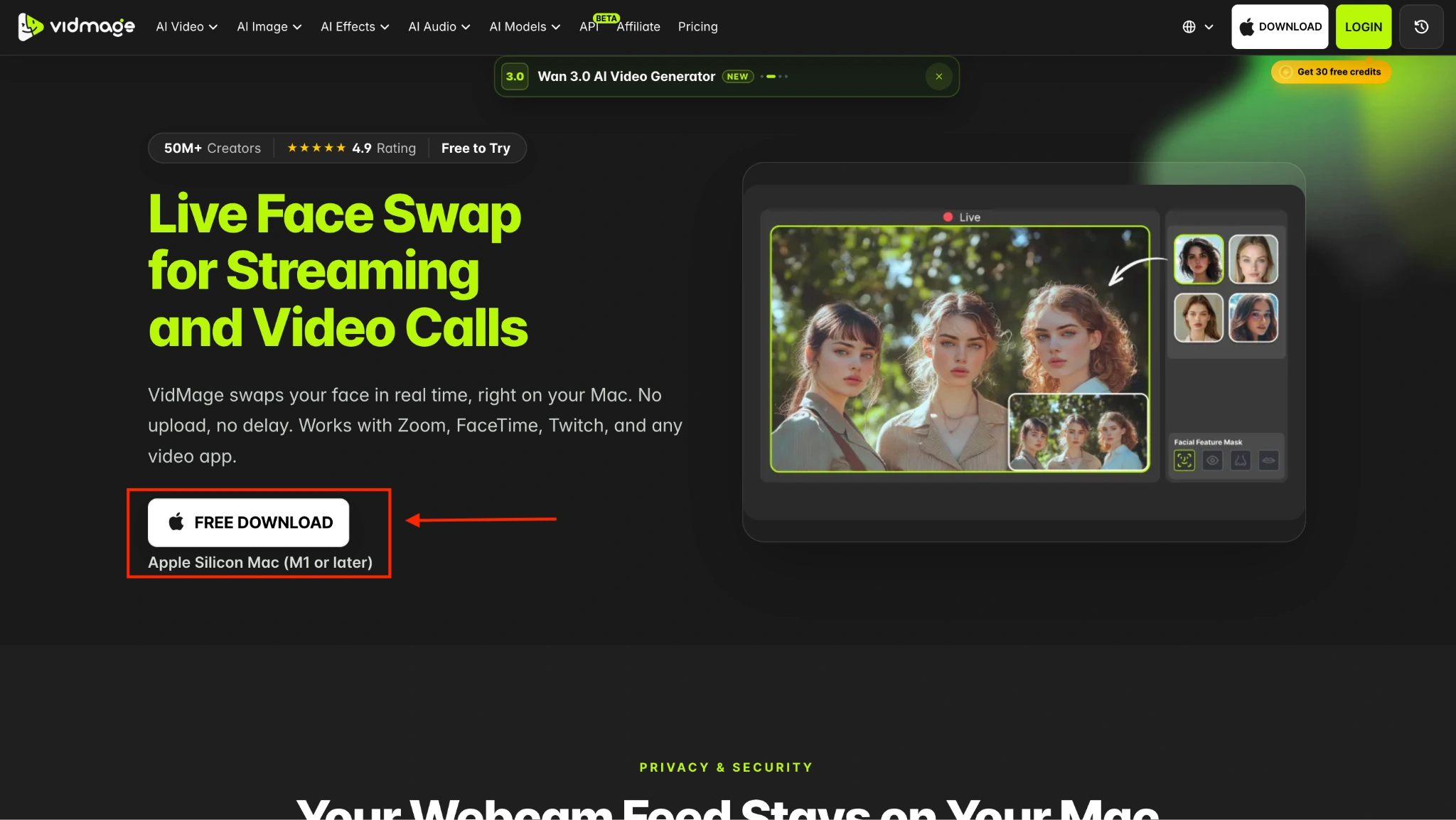
Step 1: Download the VidMage Mac app from VidMage.ai and install it on your Mac. VidMage live face swap is designed for Apple Silicon Mac, including M1, M2, M3, and newer chips.
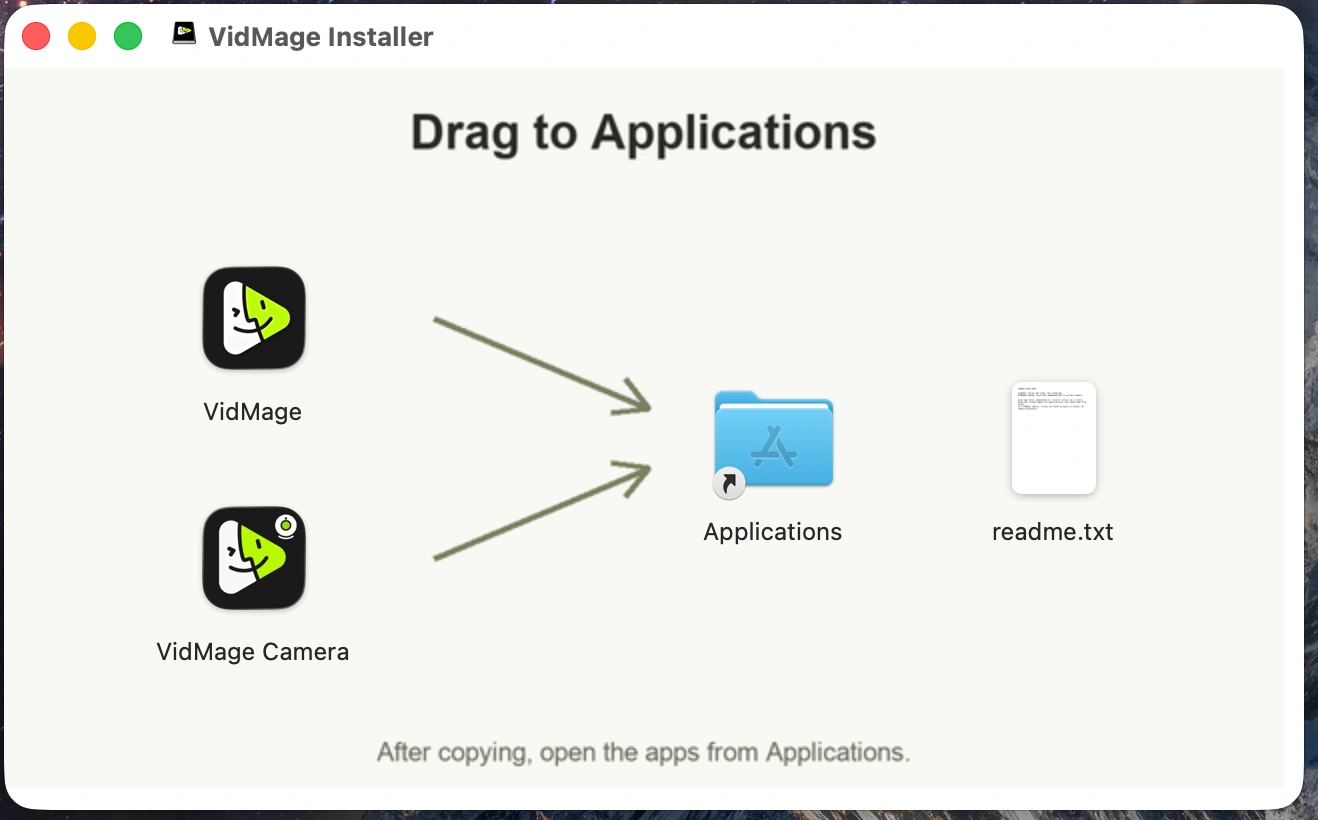
Step 2: Install VidMage and drag VidMage and VidMage Camera to Applications.
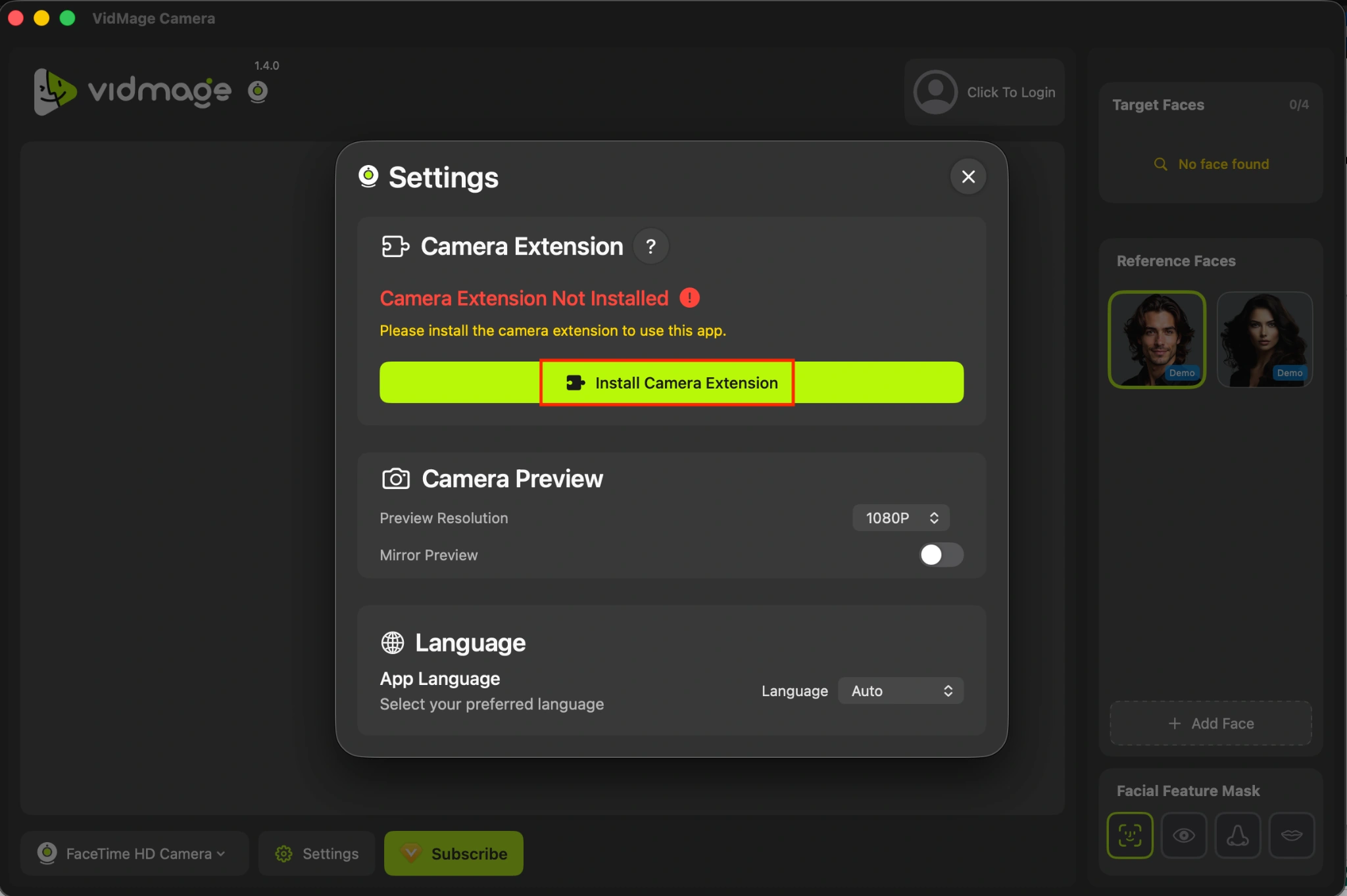
Step 3: Open VidMage and click the Install Camera Extension option.
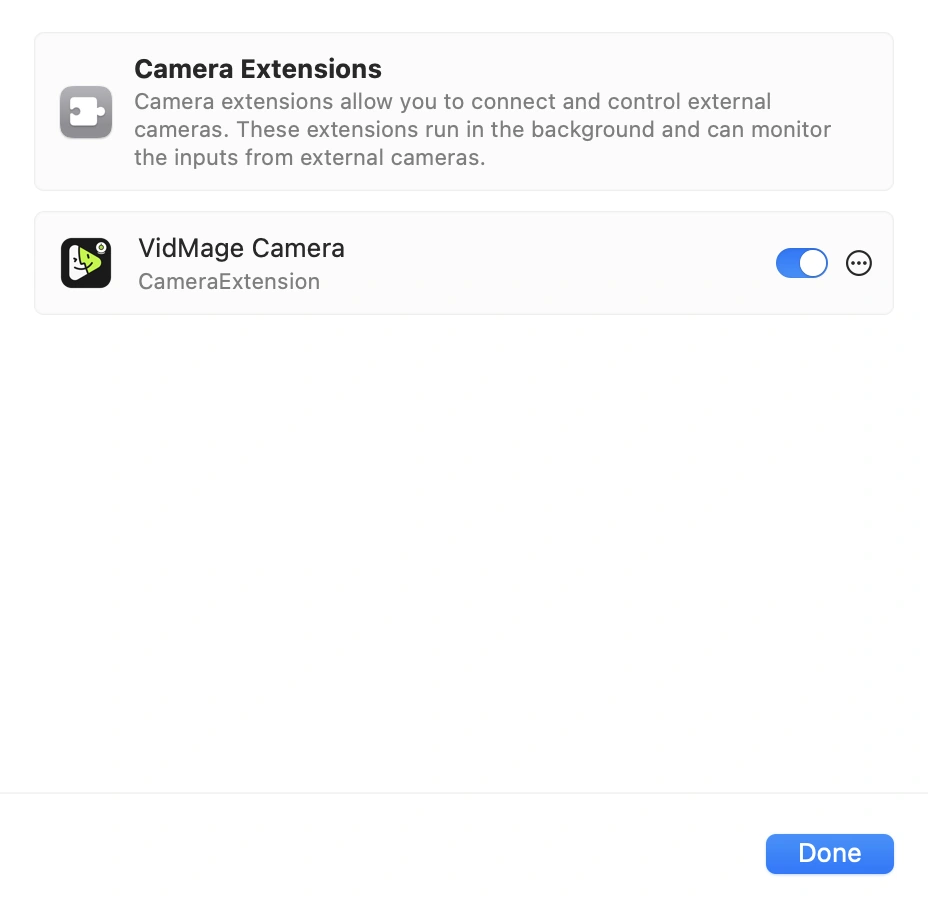
Step 4: Open System Settings, go to Login items and Extension and Choose VidMage Camera.
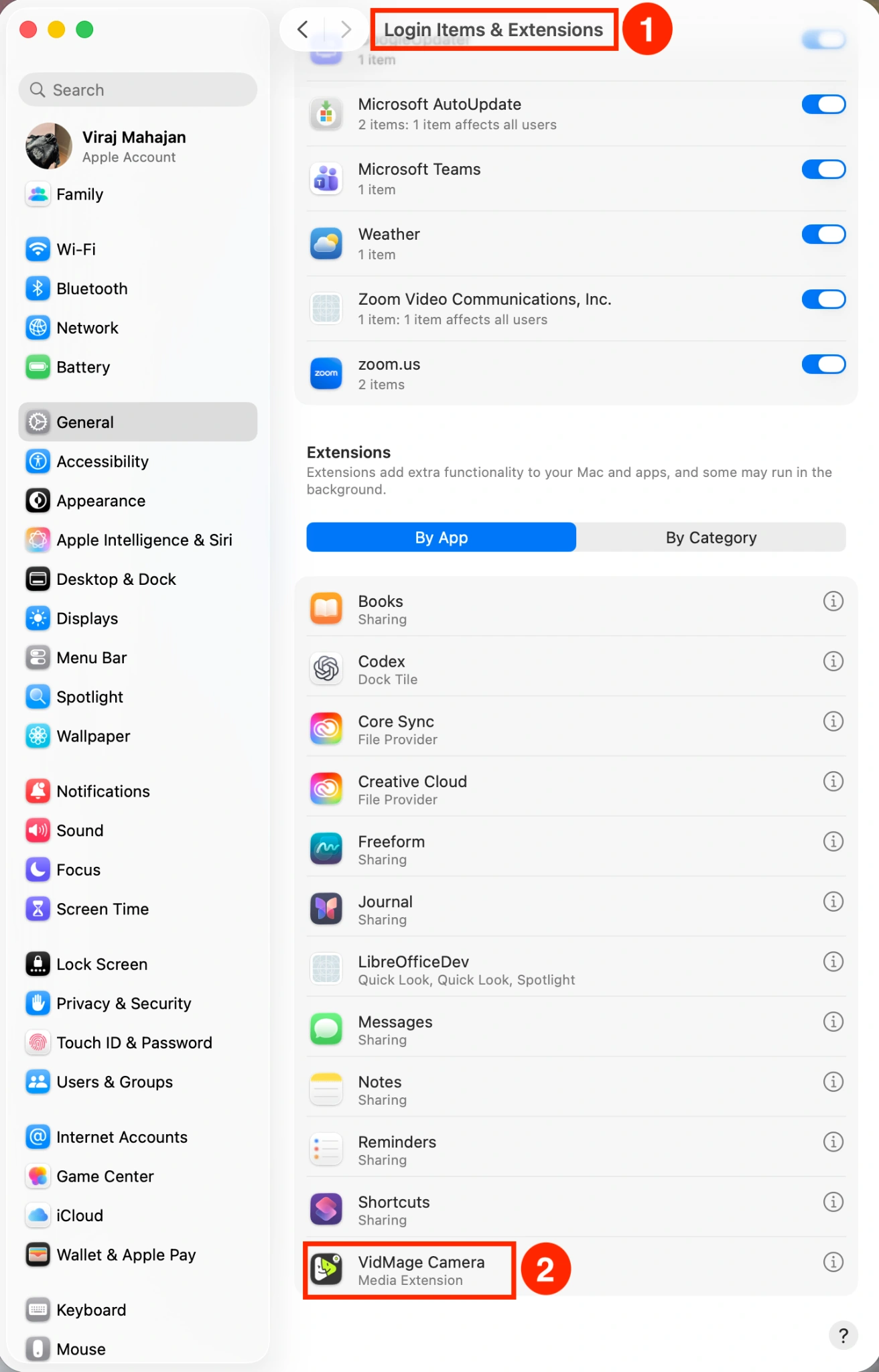
Step 5: Enable the VidMage Camera and click Done.
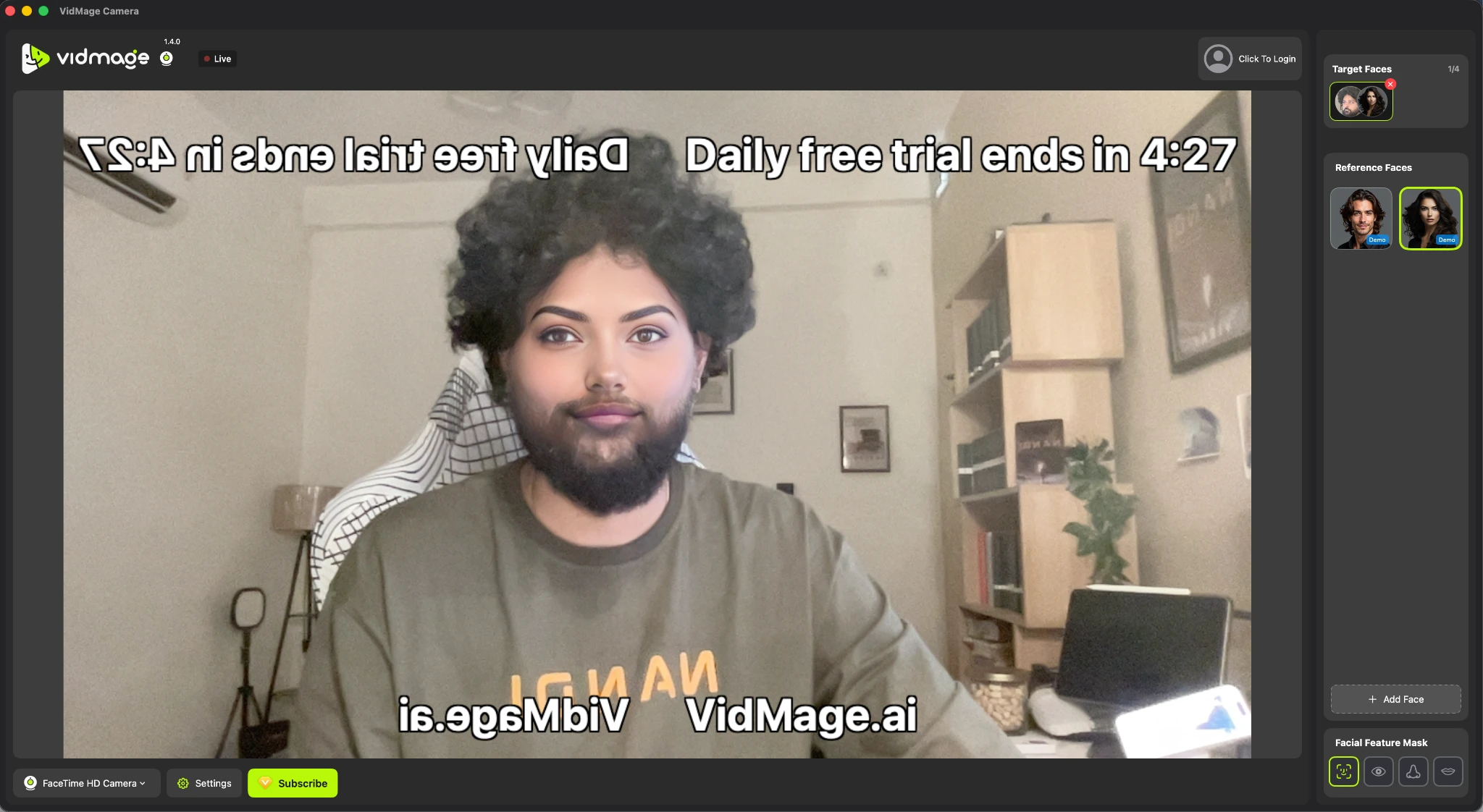
Step 6: Open VidMage Camera, and VidMage automatically swaps your face with faces in templates, or you can add other face photos.
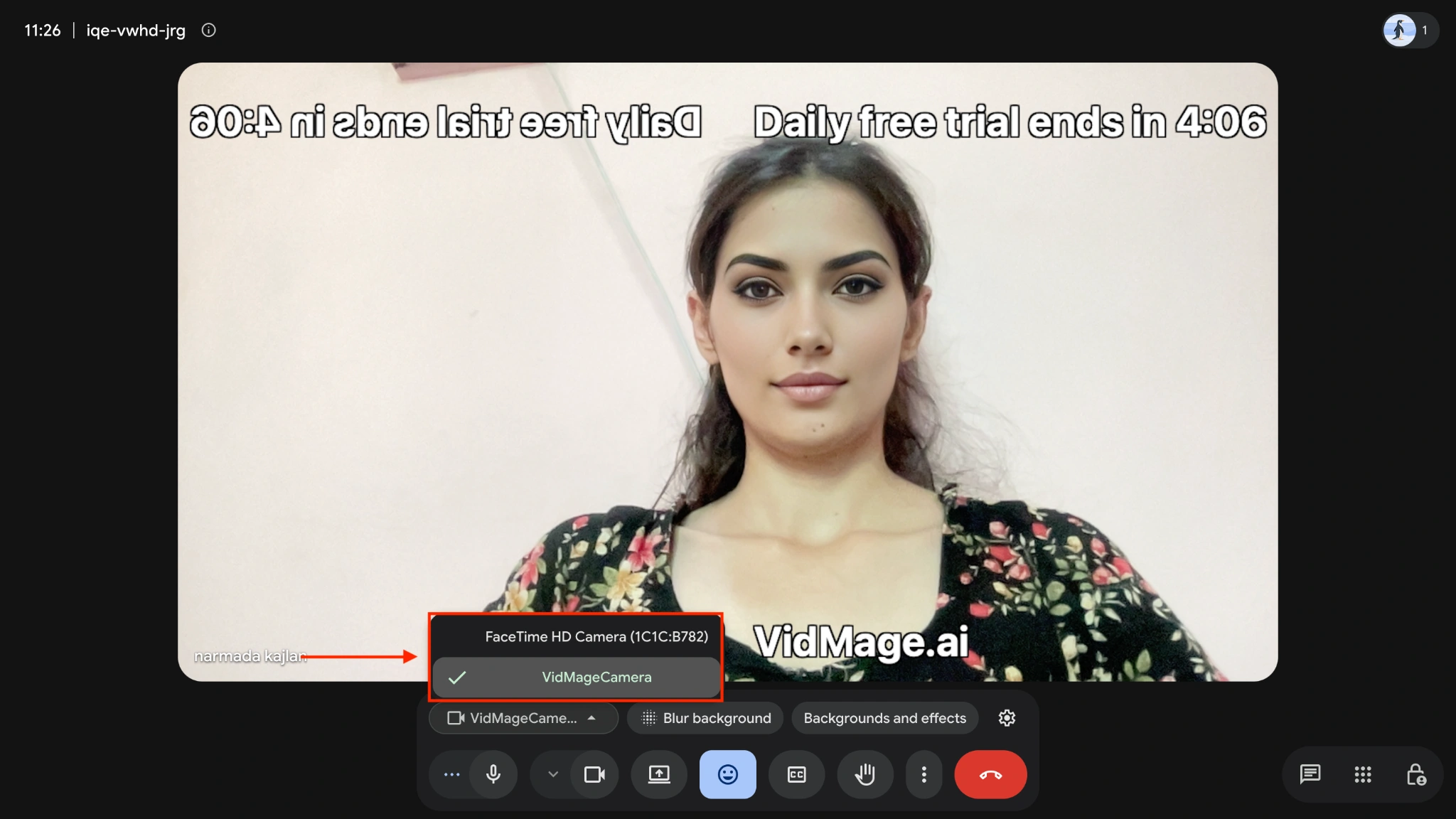
Step 7: Open the video or streaming app you want to use. For example, in Zoom, FaceTime, Google Meet, OBS, or Discord, open the camera or video settings and select VidMage Camera as your camera source.
What You Need for Live Face Swap on Mac
Before you start, make sure your Mac meets the following requirements:
- Mac with Apple Silicon: M1 or newer
- Supported chips: M1, M2, M3, M4, and newer Apple Silicon chips
- Camera: Built-in Mac camera or compatible webcam
- VidMage Camera: Installed and enabled as a camera extension
- Video app: Zoom, FaceTime, Google Meet, OBS, Discord, Twitch, or another app that accepts a webcam source
VidMage Live Face Swap does not support Intel-based Mac or Windows.
How Does Real-Time Face Swap Work on Mac
VidMage processes the live webcam feed directly on your Mac. VidMage processes each frame on the device and sends it to the selected video app through VidMage Camera, which works as a virtual camera.
This means you can use the swapped feed without sending your webcam footage to an external server.
VidMage also lets you save multiple target faces and switch between them during a live session.
Common Setup Issue: VidMage Camera Doesn't Appear
If VidMage Camera doesn't appear as a camera option in Zoom, FaceTime, OBS, or another app, make sure the VidMage Camera extension is enabled in your Mac's System Settings.
Depending on your macOS version, check:
System Settings > General > Login Items & Extensions > Camera Extensions > VidMage Camera
or:
System Settings > Privacy & Security > Security > VidMage Camera > Allow
After enabling the extension, reopen the video app and check its camera settings again.
Try Live Face Swap
Open the tool and follow the steps above.