

Swapping multiple faces in a video lets you replace several people in the same clip without editing each face separately. VidMage can swap up to 4 faces in one video, with face control so you can choose which face to replace. The free web version supports MP4, MOV, and M4V videos up to 100 MB, with up to 15 seconds of video per day and free results are available in 1080P without any watermark.
Let's learn how to swap multiple faces in a video step by step.
How to Swap Multiple Faces in a Video Online
Follow these steps to learn how to swap multiple faces in a video with VidMage:
Step 1: Upload a video that contains the faces you want to replace. VidMage multi face swap video supports MP4, MOV, and M4V files up to 100MB on the free plan. Free users can process up to 15 seconds of video per day.

Step 2: Match each reference photo with the correct face in your video. VidMage detects the faces in the clip and lets you decide which person gets each replacement face.
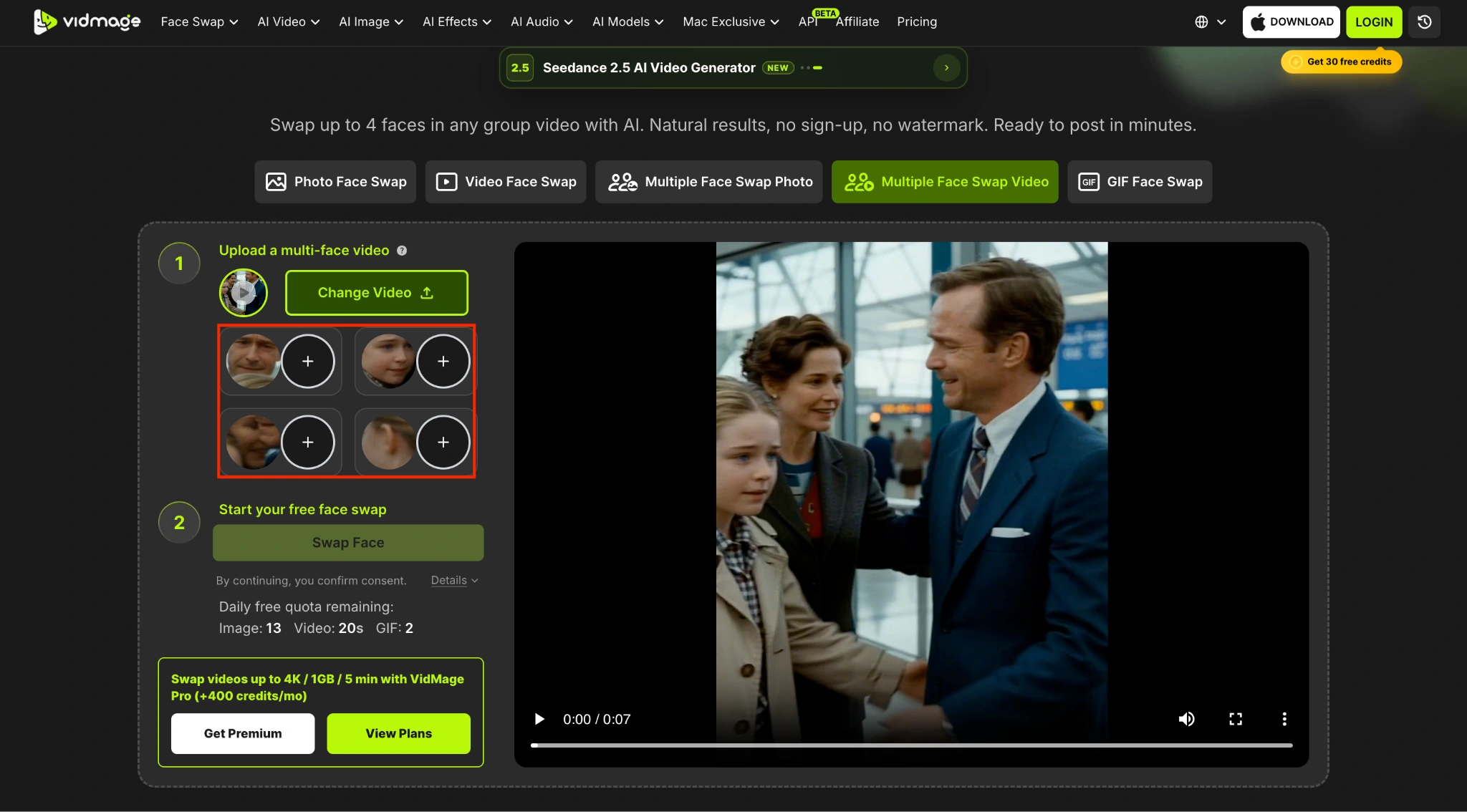
Step 3: Add one clear face photo for each person you want to replace. You can add up to 4 reference face photos for one video. For the best results, use front-facing photos with good lighting and a fully visible face.
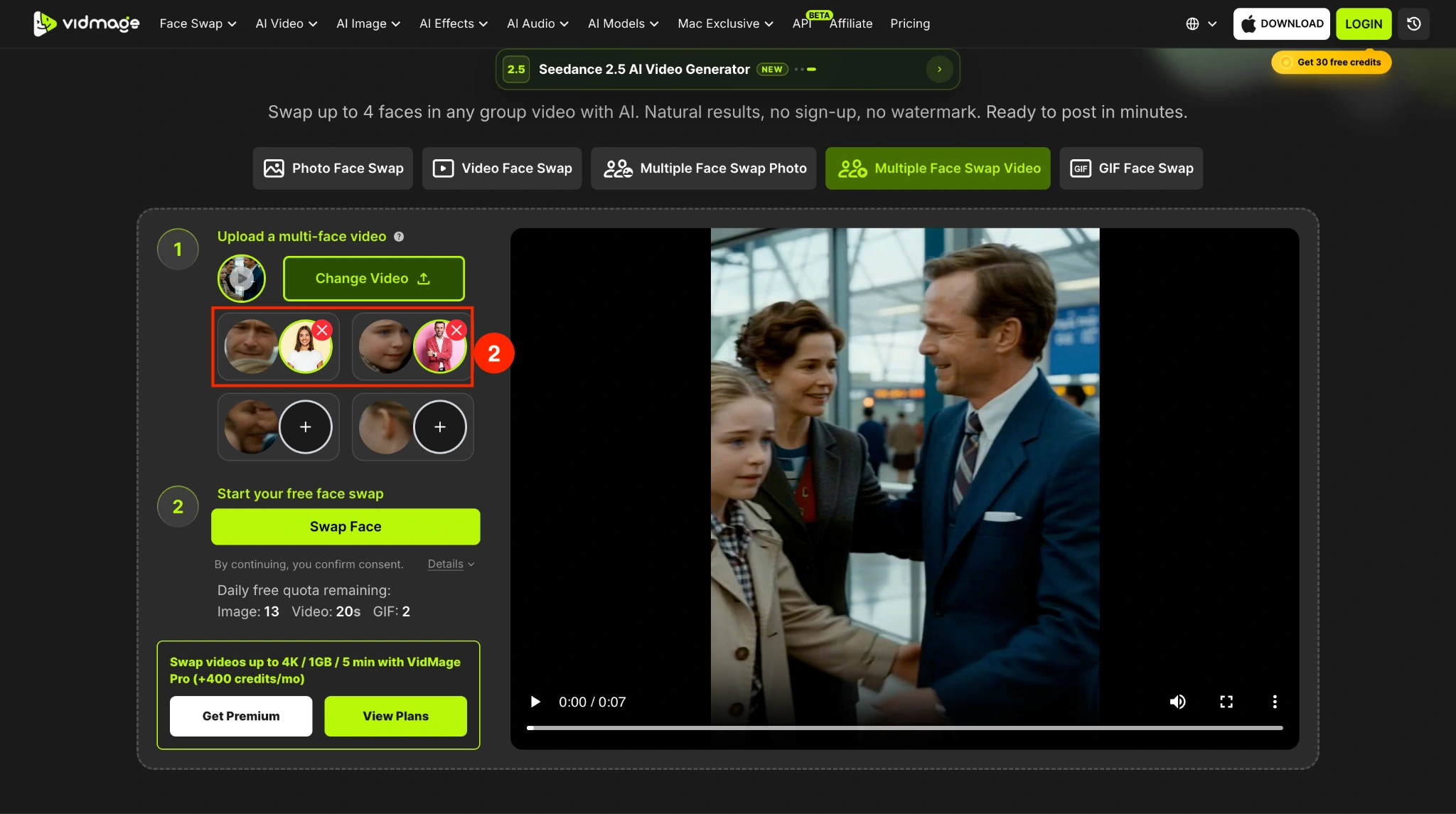
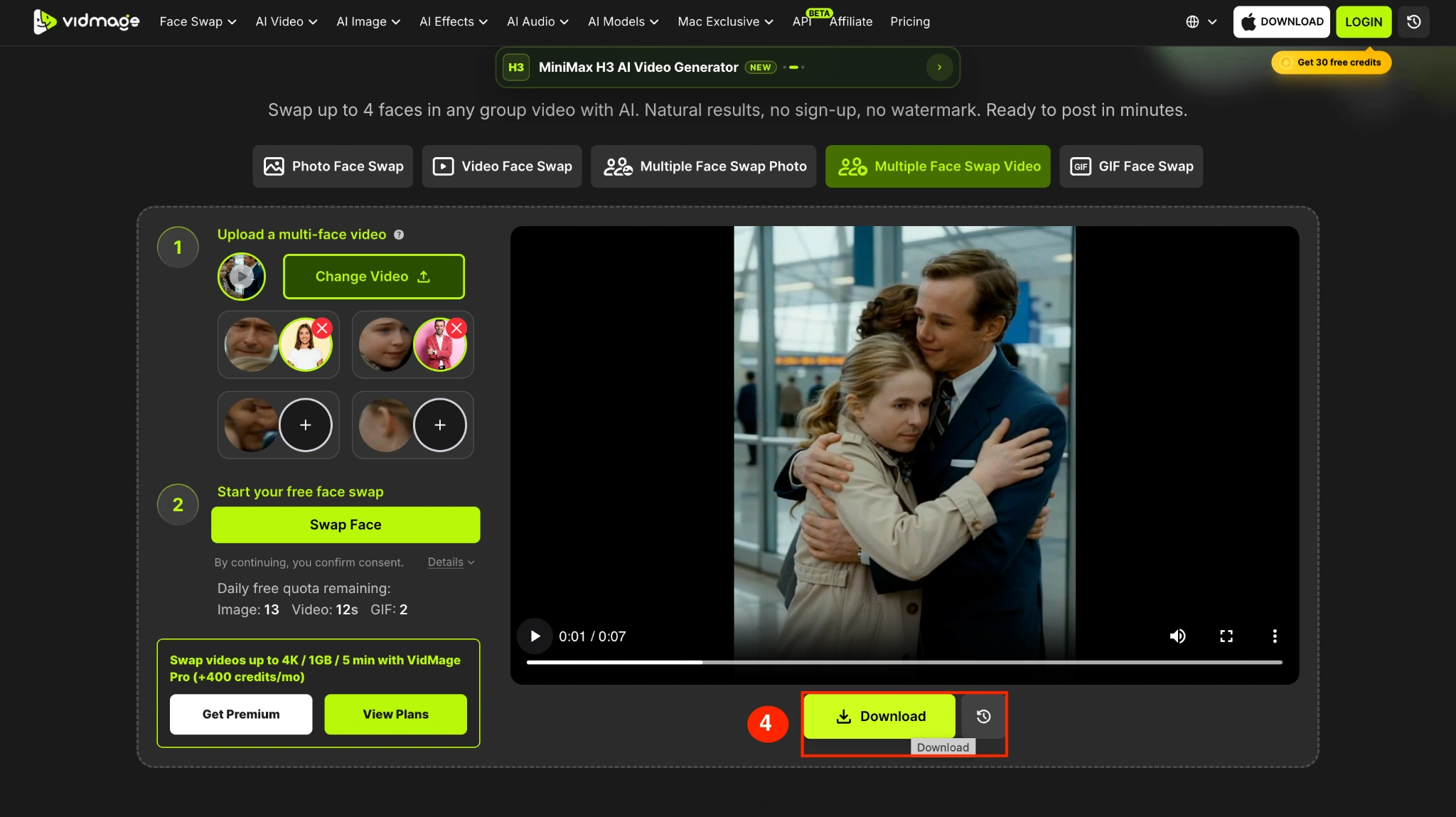
Step 4: Click "Swap Faces Now" to start processing. VidMage tracks each selected face across the video and adapts to changes in movement, lighting, and facial expressions.

Step 5: Preview the finished video and download it. Free users get a 1080P result without a watermark. Paid plans support videos up to 5 minutes, files up to 1GB, and 4K output.
How to Swap Multiple Faces in a Video with the VidMage Mac App
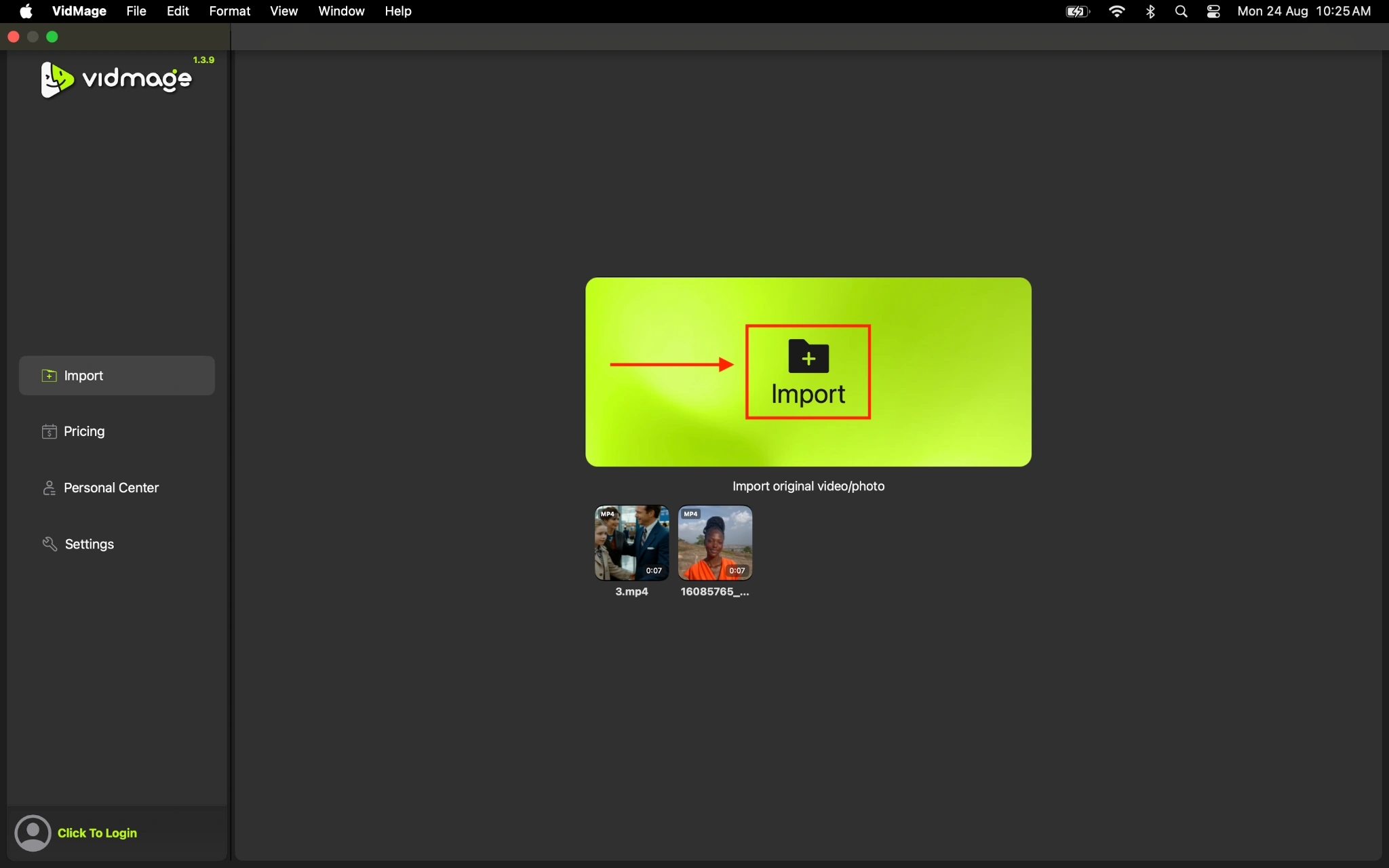
If you use a Mac with Apple Silicon M1 or later, you can use the VidMage Mac app to process multiple face swaps locally. The Mac app works fully offline, so you don't need to upload your video and face photos to VidMage's servers.
Step 1: Open the VidMage Mac app and import the group video you want to edit.
Step 2: Add the face photos you want to use. Add one reference face for each person you want to replace, up to 4 faces per video.
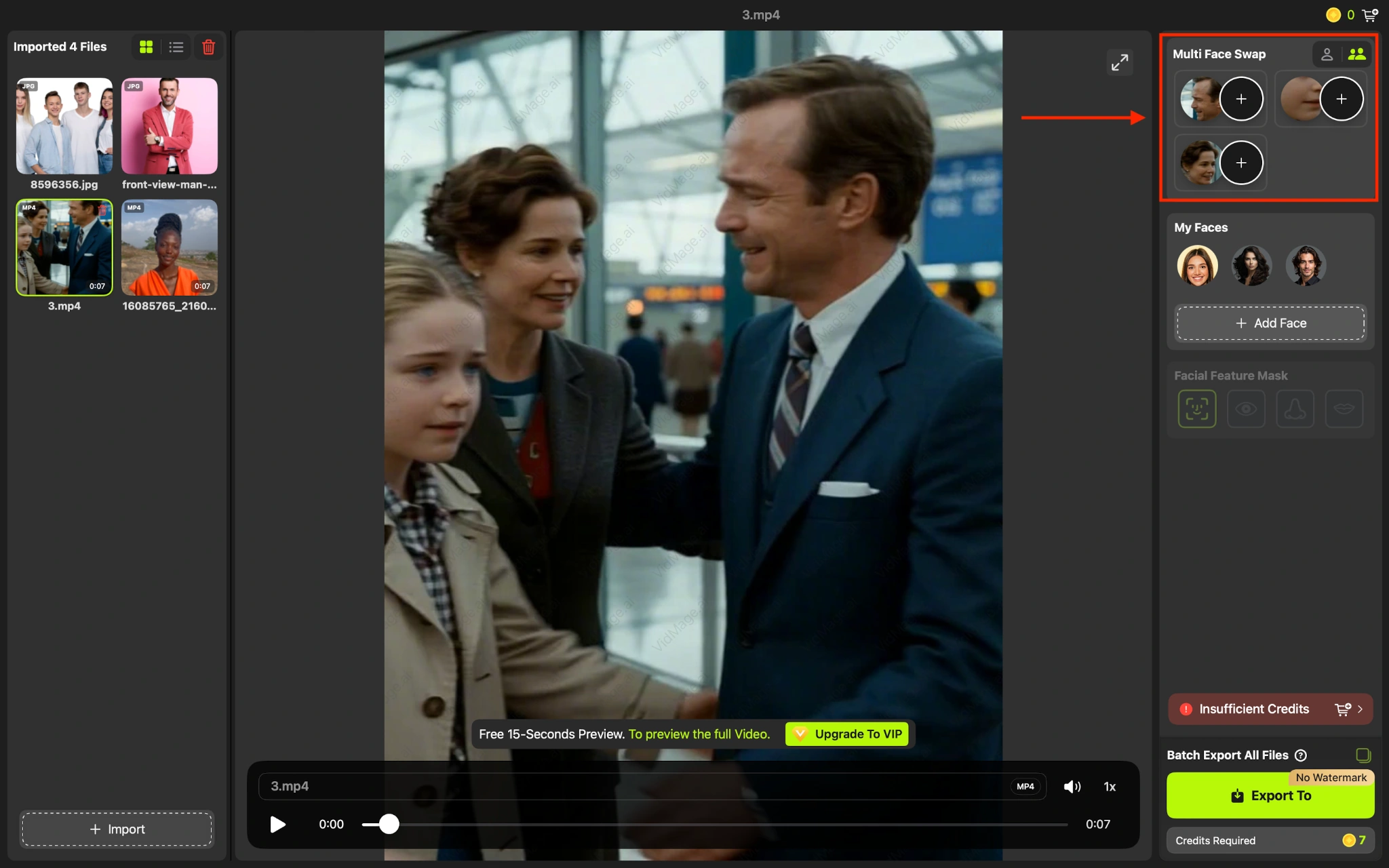
Step 3: Match each source face with the corresponding person in the video. You can choose specific people to replace while leaving other faces unchanged.
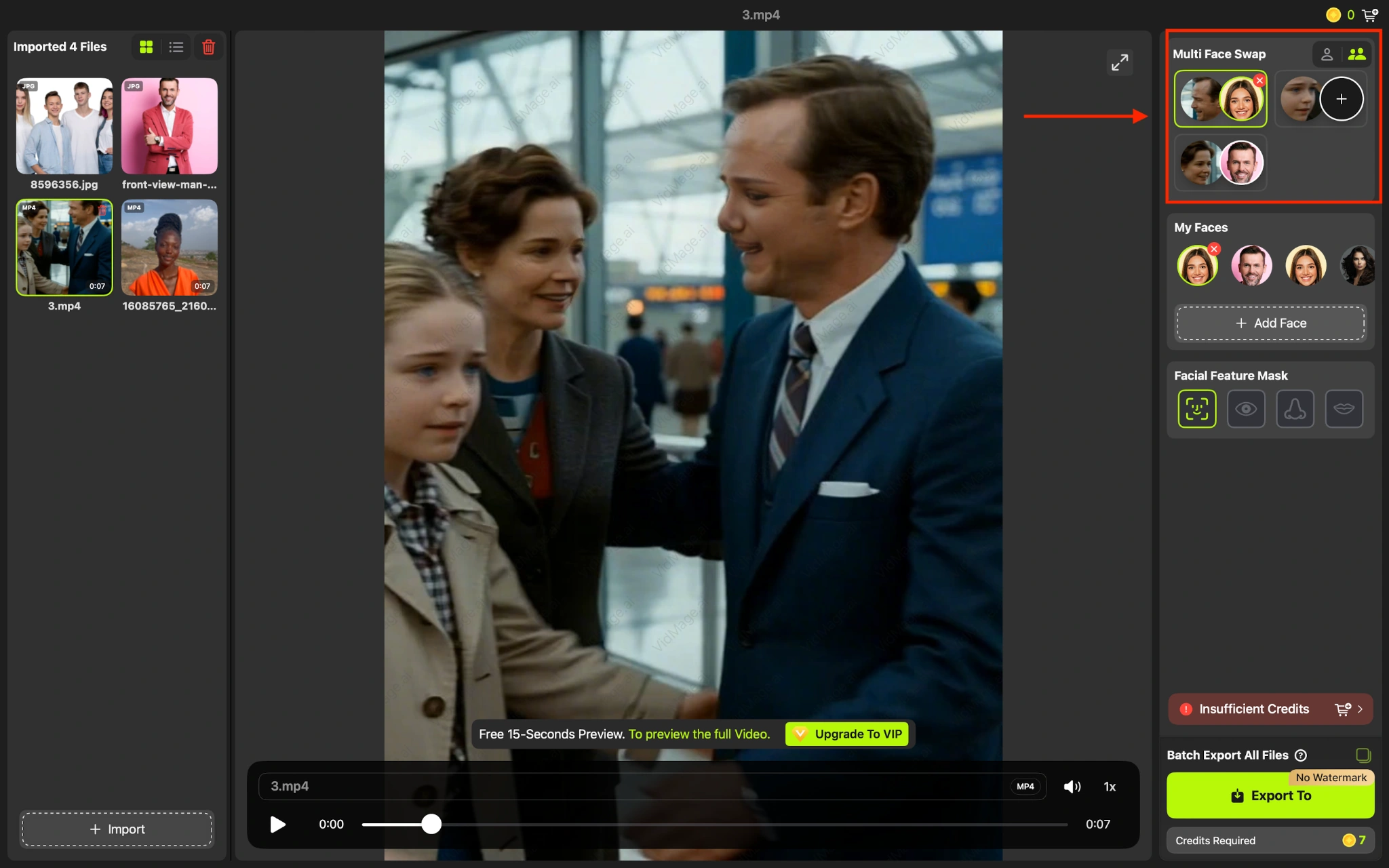
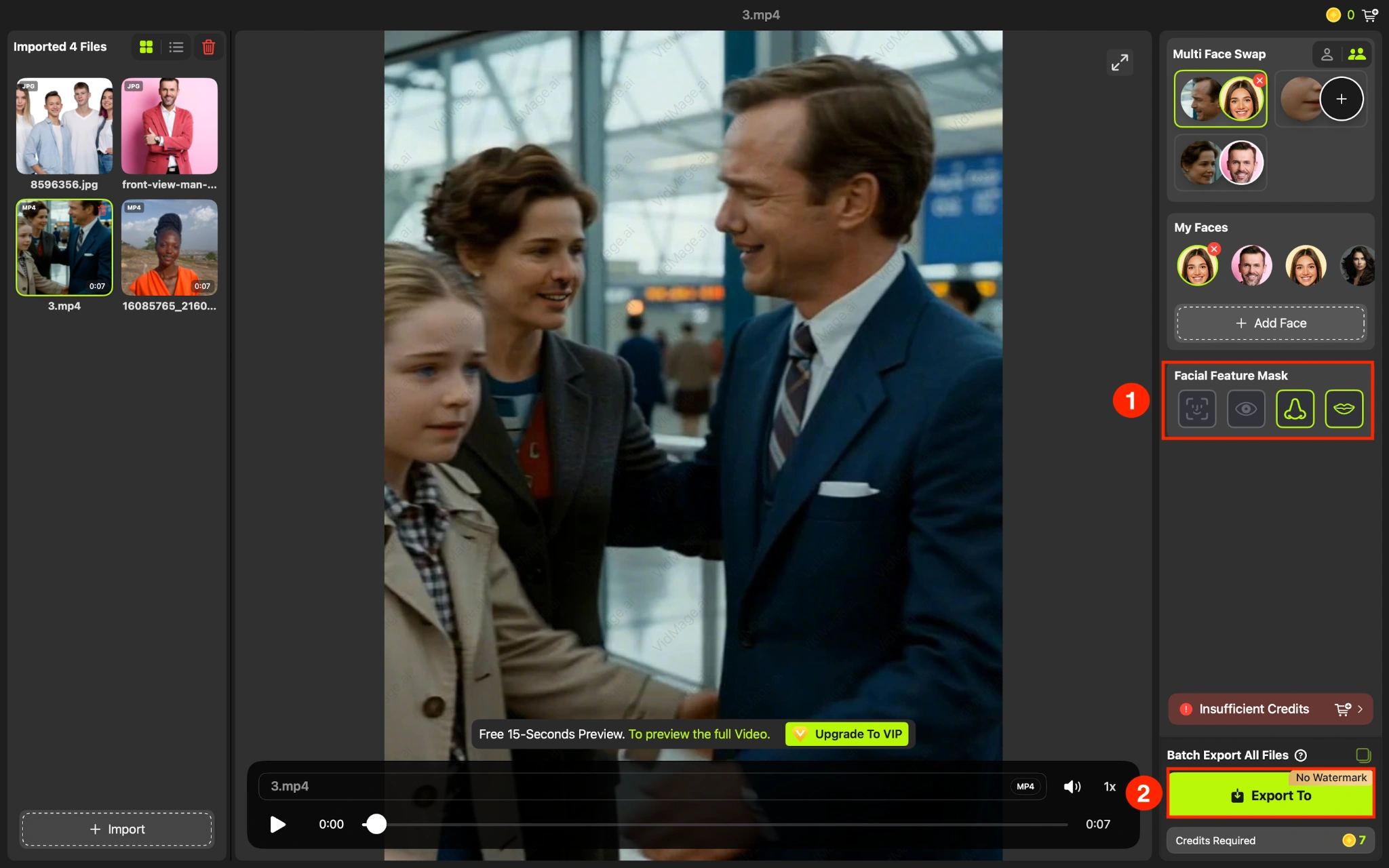
Step 4: You can also swap specific facial features, then click “Export to” to save the final result.
Tips for Better Group Video Face Swap
The quality of your video and reference photos can make a noticeable difference in the final result. For cleaner and more consistent face swaps:
- Use a video where faces are clearly visible.
- Choose front-facing reference photos with even lighting.
- Avoid reference photos with sunglasses, hats, or heavy shadows.
- Use high-resolution face photos with enough facial detail.
- Avoid clips with heavy motion blur or very fast cuts.
- Use reference photos with a similar head angle to the people in the video.
- If possible, choose clips where each face remains visible for enough frames for the AI to track it.
VidMage tracks each selected face frame by frame, including changes in movement, expressions, lighting, and head position. However, very fast movement, severe motion blur, or frequent camera angle changes can make face tracking more difficult.
Where Can You Use Multiple Face Swap Videos
Multiple face swaps can be useful anywhere several people appear together in the same clip. Some common uses include:
- TikTok and Reels: Replace several people in a trending group video and create a personalized version.
- YouTube Shorts: Make short comedy sketches, character edits, or fan content with multiple face replacements.
- Group memes: Put different faces onto several people in the same meme or reaction video.
- Party and event videos: Create fun versions of birthday, wedding, or celebration clips.
- Dance videos: Replace multiple dancers' faces while keeping the original choreography and movement.
- Friend and family videos: Create personalized versions of group clips by assigning a different face to each person.
- Fan edits: Replace selected characters while leaving other people in the scene unchanged.
- Creative projects: Use multiple face swaps for fictional characters, social content, and other visual experiments.
VidMage supports both vertical and horizontal videos, making the results suitable for platforms such as TikTok, Instagram Reels, YouTube Shorts, and Discord.
Note: When using someone else's face, obtain their permission and ensure you have the necessary rights to use the original video and reference photos. Avoid using face swaps to create misleading or deceptive content.
Try Multiple Face Swap Video
Open the tool and follow the steps above.