

When your video is ready, but the captions are missing, you don't need to type every line manually. If you want to know how to auto-generate subtitles for your video, VidMage can detect the spoken audio, create timed subtitles, and embed them directly into the video.
You can upload videos up to 5 minutes, 1080p, and 100MB, then generate subtitles with one click.
How to Auto-Generate Subtitles for Your Video Online
Follow these steps to learn how to auto-generate subtitles for your video:
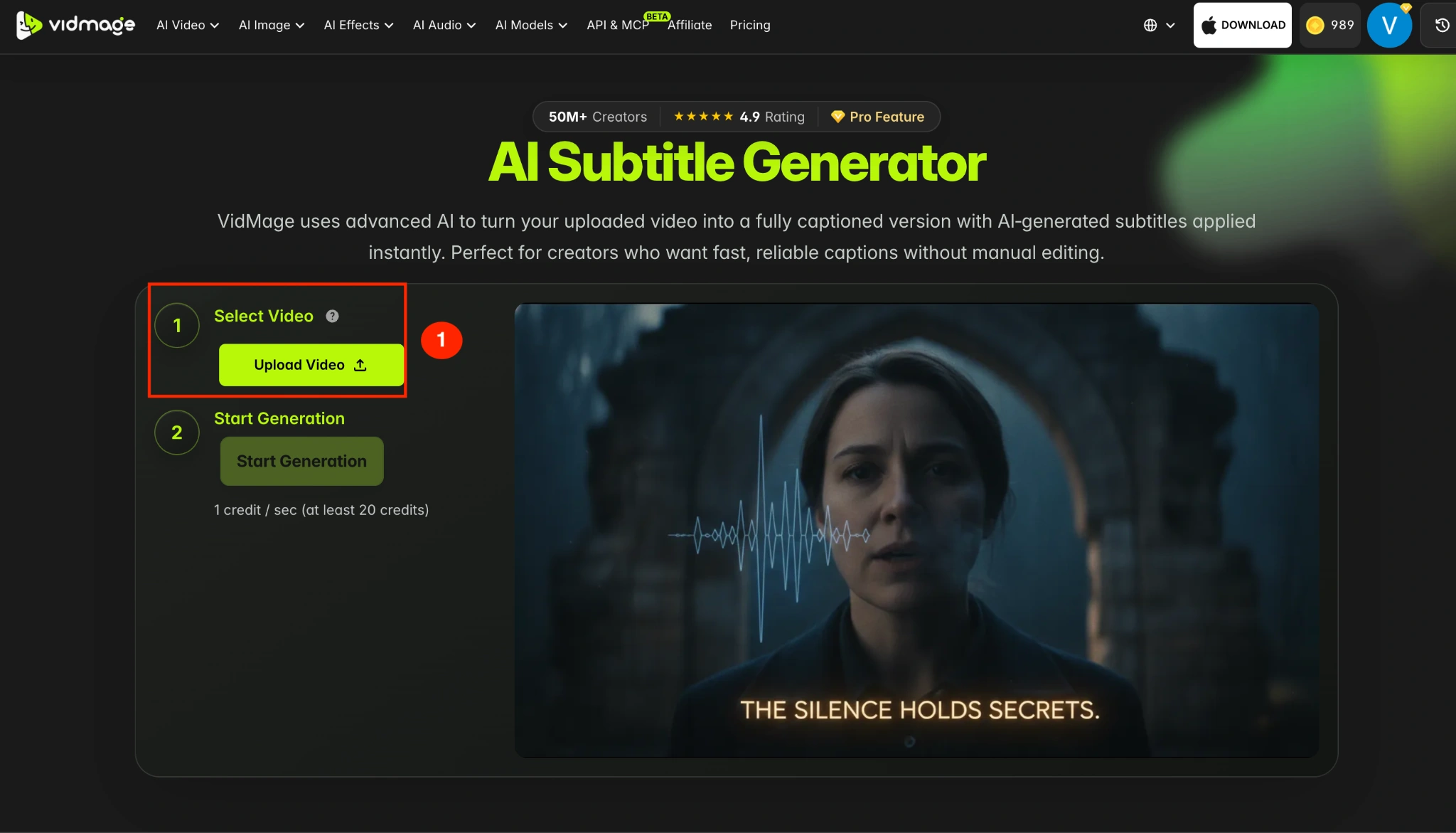
Step 1: Open the VidMage AI Subtitle Generator and click Upload Video under Select Video. Choose an M4V, MP4, or MOV file from your device.
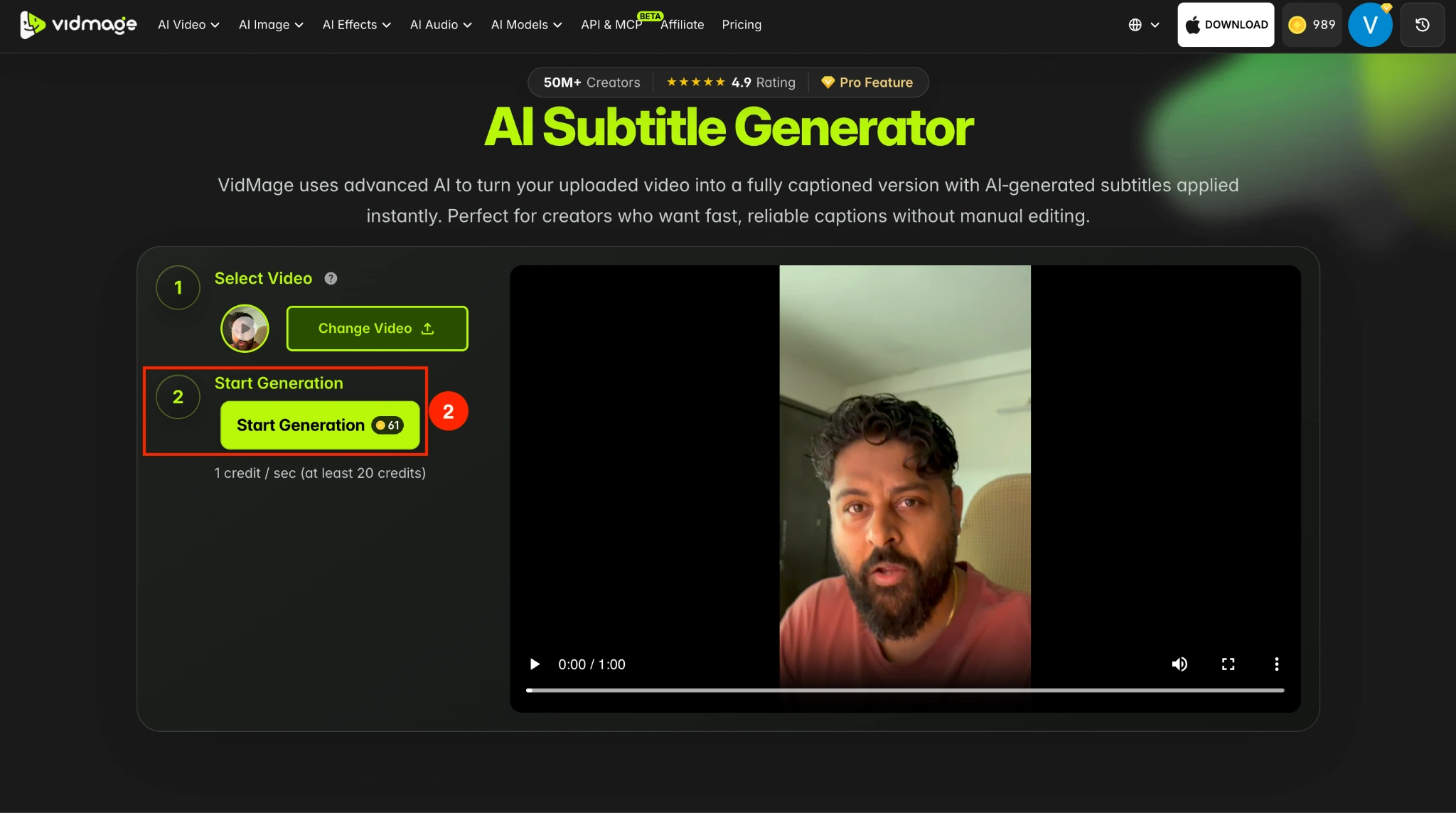
Step 2: Click Start Generation. VidMage analyzes the audio, detects spoken words, creates subtitles, and syncs them with the video.
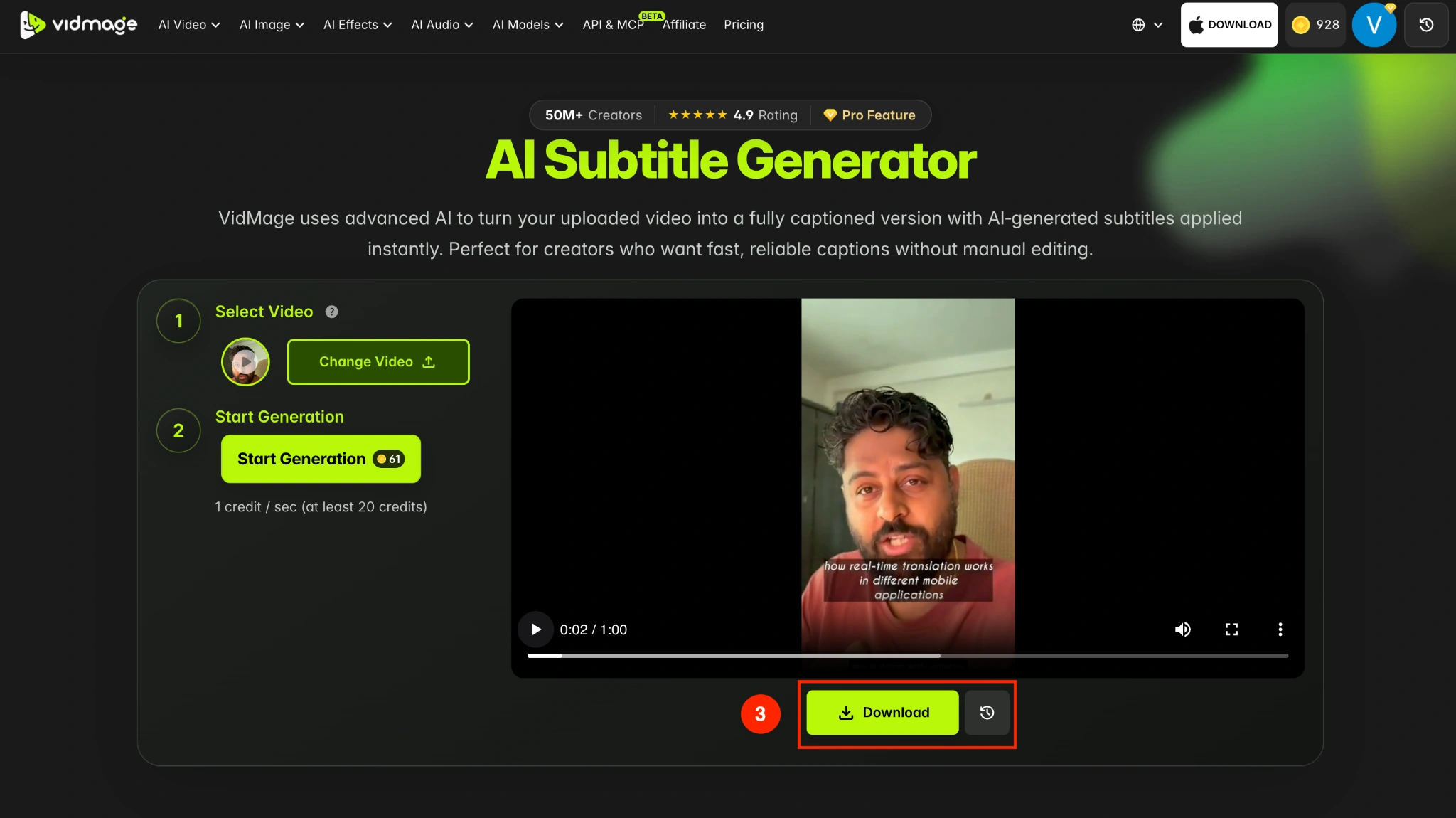
Step 3: Download the completed video once the subtitles look suitable. VidMage embeds the captions directly into the video, so you don't need to attach a separate subtitle file afterward.
Tips for Generating More Accurate AI Subtitles
Automatic subtitles save time, but their accuracy depends on how clearly the speech can be understood. Follow these tips to improve your results.
1. Use Video With Clear, Audible Speech
Background music, overlapping conversations, and muffled voices can make it harder for AI to recognize spoken words correctly.
For example, if you're captioning a tutorial, keep the narration louder than the background music. If multiple people are speaking, avoid overlapping dialogue whenever possible.
2. Finalize Your Video Before Generating Subtitles
If your video contains unnecessary dialogue, long pauses, or sections you plan to remove, edit those parts before adding subtitles.
For example, if your tutorial includes an unwanted introduction, trim it before generating captions. This prevents subtitles from being created for content you don't intend to publish.
3. Check Subtitle Accuracy and Timing Before Publishing
AI can occasionally misinterpret names, numbers, technical terms, and accented speech. Even a small transcription error can change the meaning of a sentence.
For example, if a speaker says "15 percent" but the subtitle displays "50 percent," viewers may receive incorrect information.
Can You Edit VidMage Subtitles After Generation
Knowing whether you can edit subtitles after generation is important to know before you spend credits.
VidMage currently embeds the generated subtitles directly into the finished video. You can't edit the captions after generation in the current workflow.
VidMage will add editable subtitle formats such as SRT and VTT in future updates, but they aren't part of this tool yet.
Because of this, check the source audio first. If the recording contains mistakes, unwanted speech, or a section you already know you don't want captioned, fix the source video before generating subtitles.
When Automatic Subtitles Are Most Useful
Automatic captioning is especially useful when you regularly publish speech-led videos and do not want to transcribe each one manually.
Social Media Videos
Captions make spoken content easier to follow when viewers watch Reels, TikToks, or Shorts without sound.
Tutorials and Educational Videos
Subtitles can help viewers follow instructions, terminology, and spoken explanations more easily.
Interviews and Talking-Head Videos
AI transcription can turn spoken conversations into timed on-screen text without manually entering each sentence.
Product and Marketing Videos
Captions keep key spoken information visible even when viewers mute their device.
Internal or Business Videos
Training clips, updates, and presentations are easier to follow when the spoken information appears on screen.
VidMage Subtitle Generator Requirements at a Glance
Item | VidMage details |
|---|---|
Supported formats | M4V, MP4, MOV |
Maximum video length | 5 minutes |
Maximum resolution | 1080p |
Maximum file size | 100MB |
Processing cost | 1 credit per second |
Minimum cost | 20 credits |
Access | Premium subscribers |
Subtitle output | Embedded directly into video |
Editable SRT/VTT | Not currently available |
Language support | Multiple languages |
Try it in VidMage
Open the tool and follow the steps above.