

If you want to know how to upscale a video with AI, VidMage lets you increase video resolution without manually editing individual frames. Upload your clip, choose an upscaling level, and let AI process the video for a clearer, higher-resolution result.
You can choose 2X or 4X upscaling in the tool, while VidMage subscribers can upscale videos up to 8K.
What to Check Before Upscaling a Video
Before uploading your video, check these three things to avoid unnecessary processing and get a better result.
1. Check Your Original Video Resolution
Knowing the starting resolution helps you choose an appropriate upscaling level.
For example, a 720p video may benefit from 2X enlargement if you want a higher-resolution version for a larger display. A 1080p video already has more pixels and may only need 2X to reach 4K dimensions.
You can usually find your video's resolution in its file properties or media information.
2. Use the Best Available Source Video
If you have both an original recording and a compressed copy downloaded from social media, use the original whenever possible.
Repeated compression can introduce blocky textures, blurry edges, and lost details. AI may make some of these imperfections more noticeable when enlarging the video.
For example, a 720p recording directly from your phone is generally a better starting point than a heavily compressed version of the same clip.
3. Identify What Actually Needs Improvement
Not every quality problem can be solved by increasing resolution.
- Low resolution: Upscaling can make the video better suited to a larger display.
- Mild blur or grain: AI enhancement may improve perceived sharpness and reduce some noise.
- Severe motion blur: Missing details may remain unclear even after upscaling.
- Shaky footage: Increasing resolution does not necessarily stabilize unwanted camera movement.
This helps you set realistic expectations before processing the video.
How to Upscale a Video With AI in VidMage
Follow these steps to learn how to upscale a video with AI online:
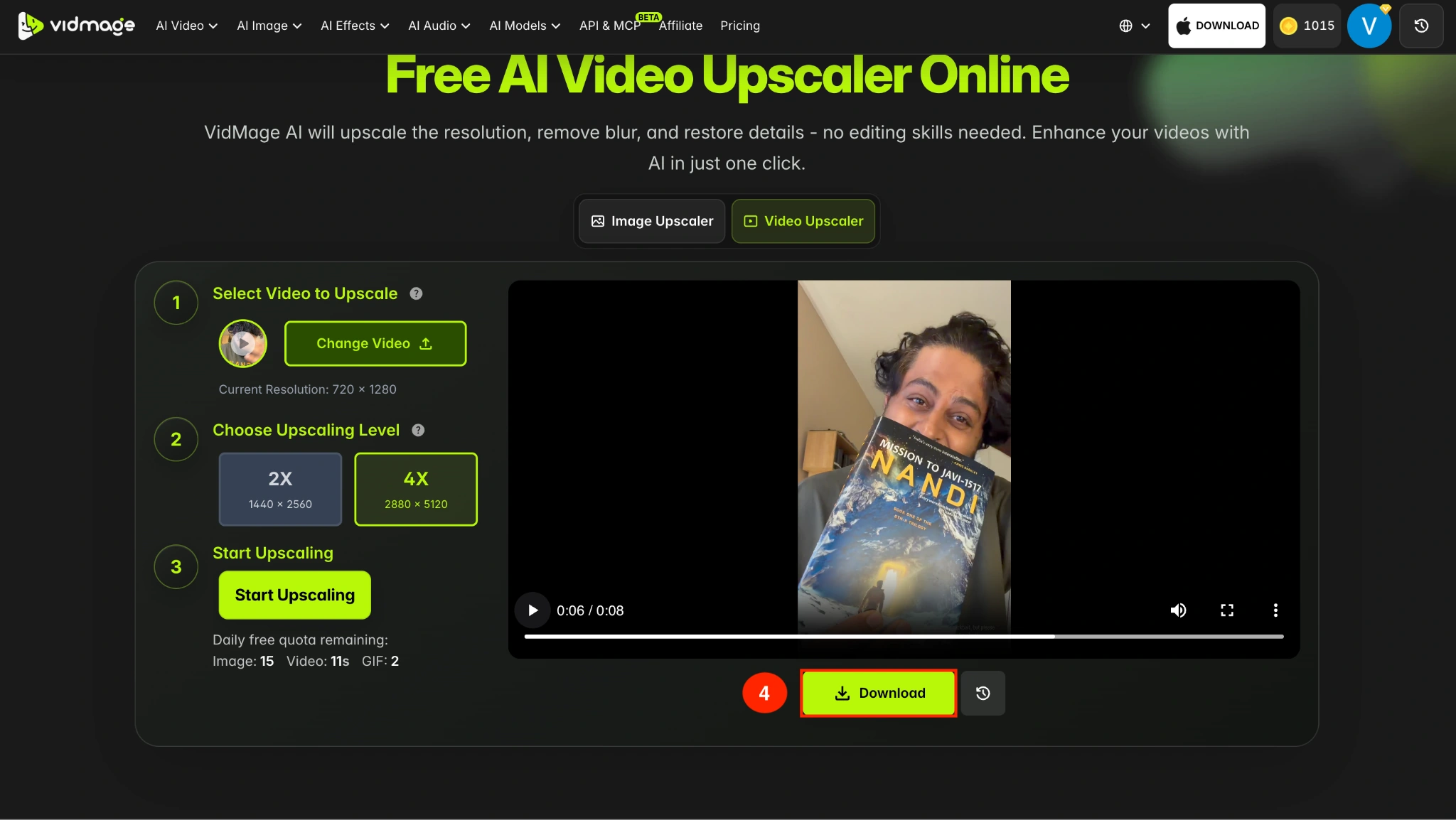
Step 1: Open the VidMage AI Video Upscaler and select Video Upscaler.
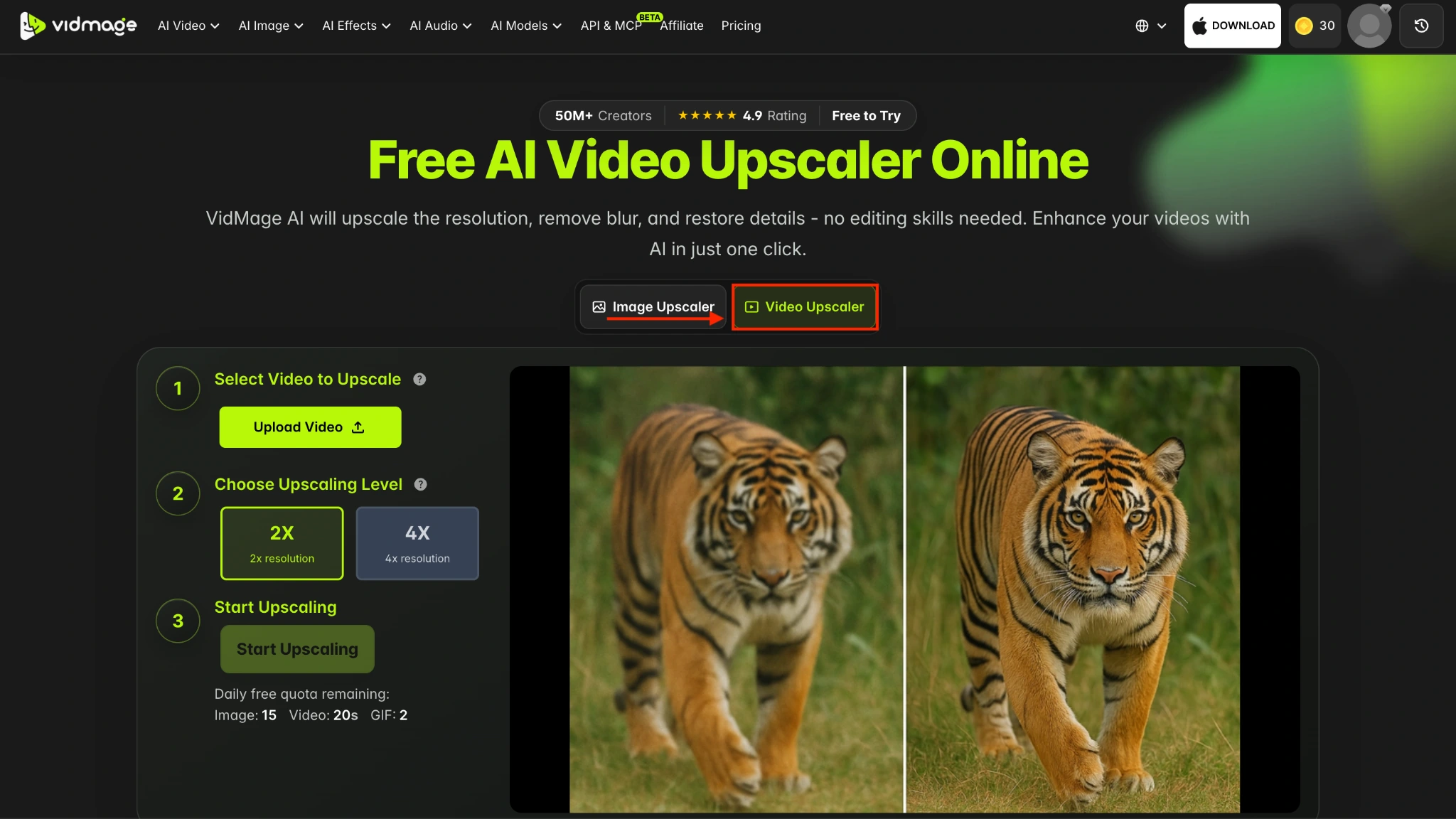
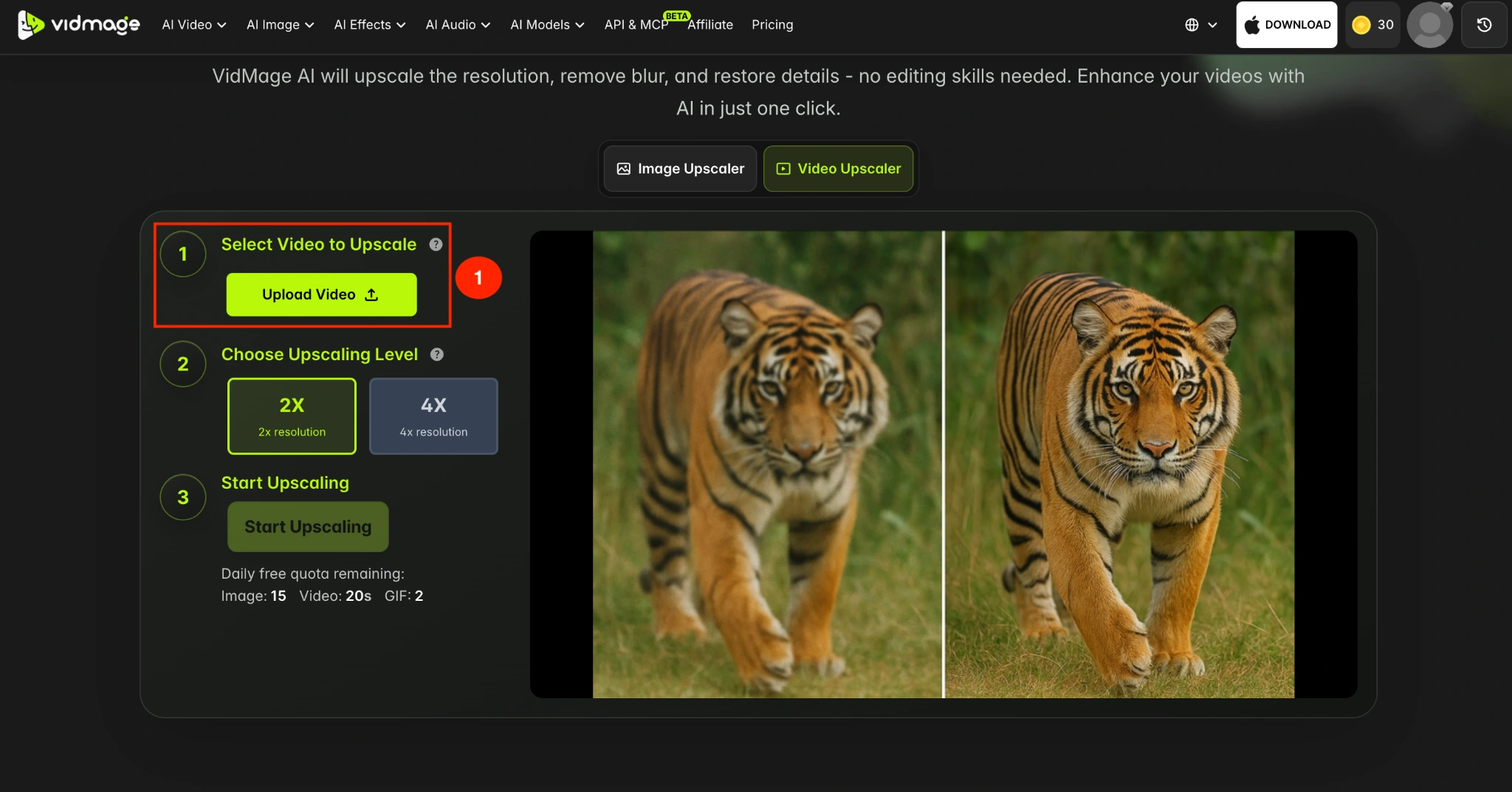
Step 2: Click Upload Video under Select Video to Upscale and choose the video from your device. You can upload MP4 and MOV files, and it also supports additional video formats.
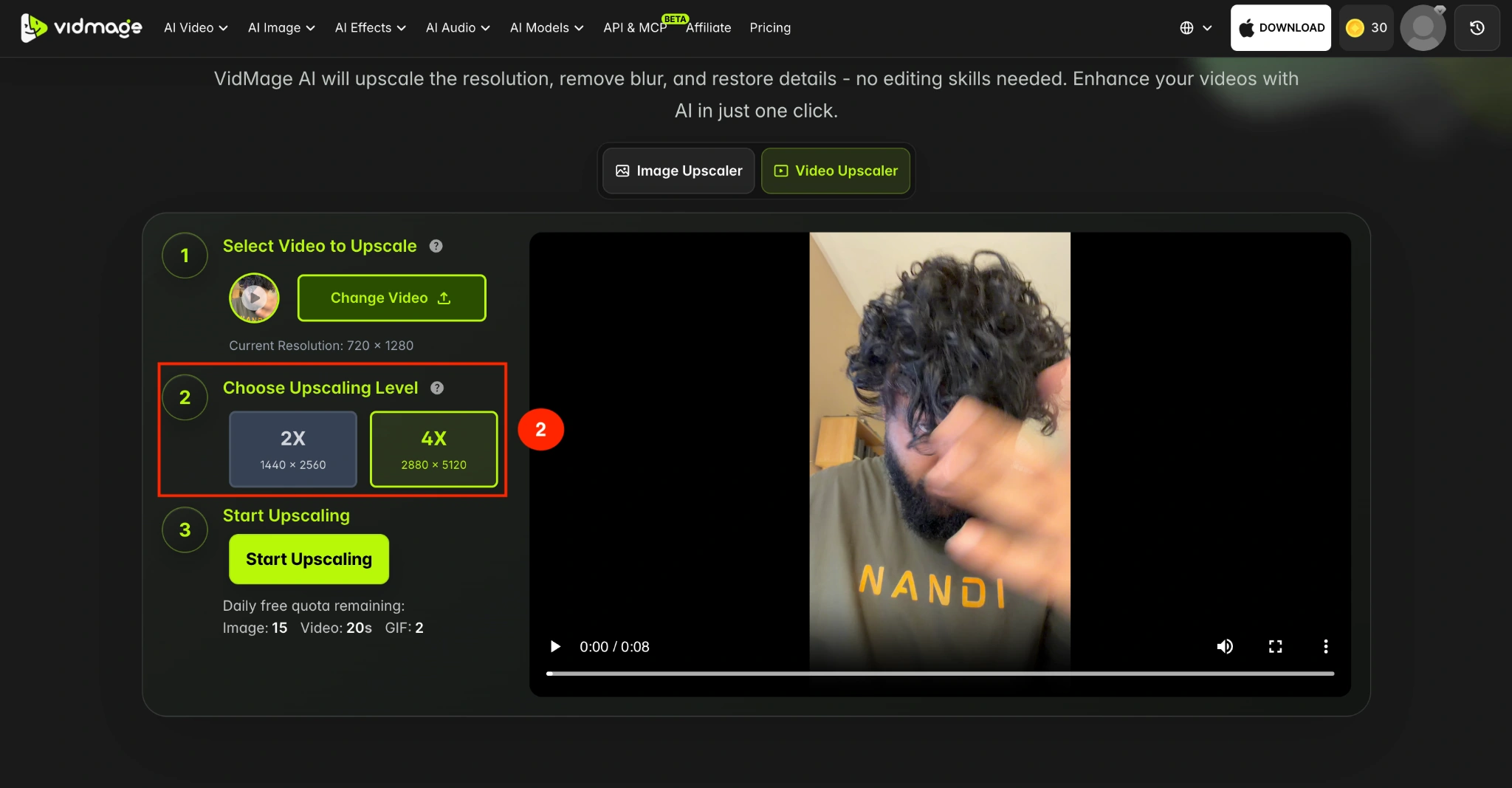
Step 3: Choose an upscaling level. Select 2X to double the video's resolution or 4X to increase it four times.
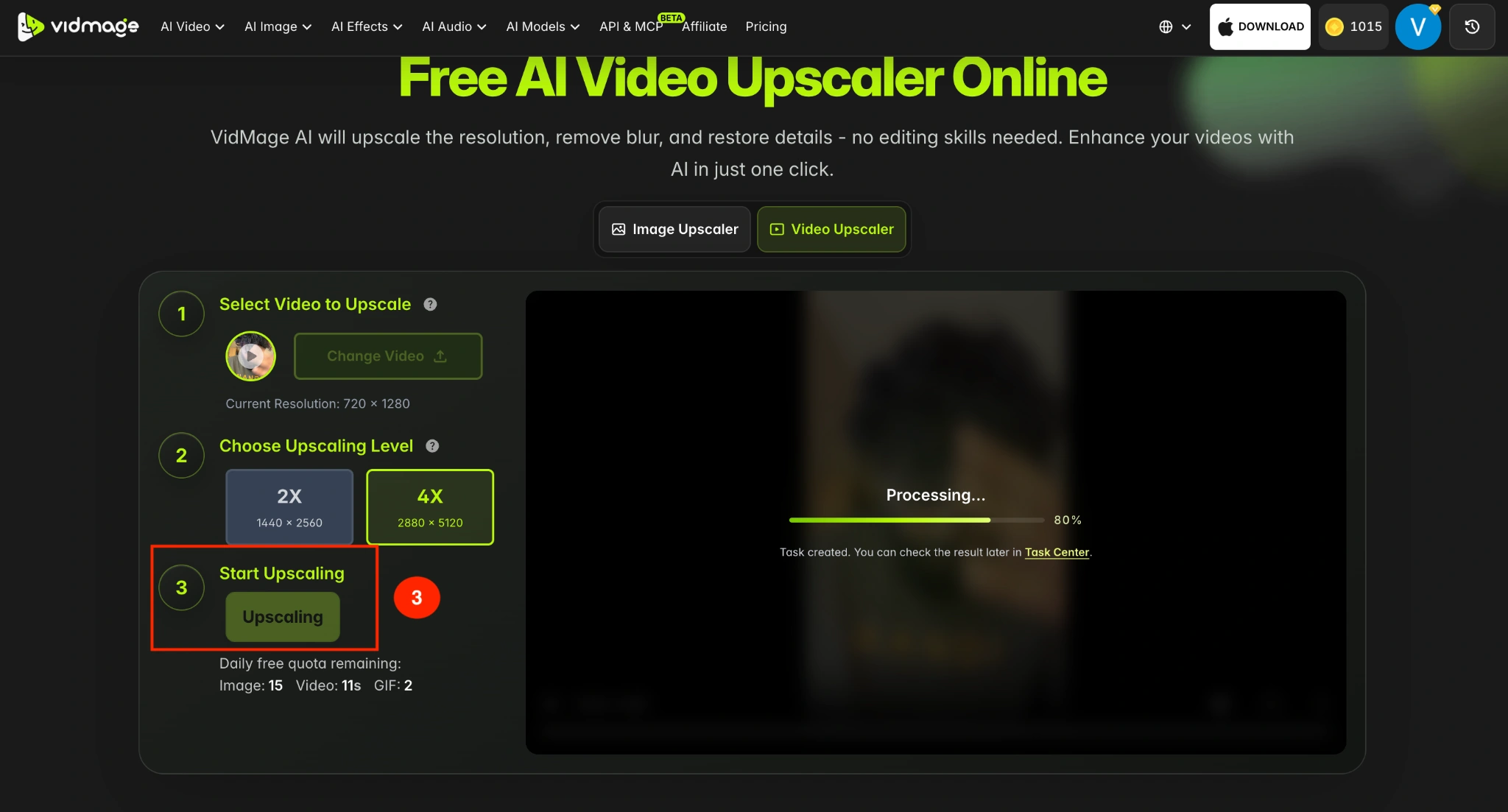
Step 4: Review your selected video and upscaling level, then click Start Upscaling.
Step 5: Click Download to save the enhanced video to your device when you are satisfied with the result.
Which Video Upscaling Level Should You Choose
The right setting depends on your starting resolution and how you plan to use the final video.
Option | What it does | Good for |
|---|---|---|
2X | Doubles the source resolution | Moderate resolution upgrades and already-clear footage |
4X | Increases the resolution four times | Lower-resolution footage or larger output needs |
Up to 8K for subscribers | Provides higher-resolution output for subscribed users | Large displays, archival footage, or projects that need very high-resolution output |
You do not always need the highest available resolution. Start with the level that matches your intended output and source quality.
What AI Video Upscaling Can and Cannot Fix
AI upscaling increases resolution and can improve the appearance of some low-quality footage. However, its effectiveness depends on the condition of the original recording.
Video problem | What to expect |
|---|---|
Low resolution or pixelation | A higher-resolution image with potentially clearer edges and details |
Mild noise or grain | Some noise reduction and improved perceived clarity |
Slightly soft footage | Sharper-looking details, depending on the source |
Severe motion blur | Limited recovery of missing details |
Heavy compression damage | Some artifacts may remain or become more noticeable |
Out-of-focus subjects | AI may improve their appearance but cannot guarantee accurate reconstruction |
For instance, upscaling a low-resolution product video may make its outline and textures look clearer. However, if the original product label is unreadable, AI cannot reliably reconstruct the exact missing letters.
The goal is to make the footage more usable, not assume that a higher output resolution is equivalent to a recording originally captured in 4K.
What Types of Videos Can You Upscale
VidMage Video Upscaler can help when the source footage is usable but lacks the resolution or clarity you need.
Old Family Videos
Older recordings from VHS, DVDs, or early digital cameras may have low resolution, visible grain, or soft details. Upscaling can make them easier to view on newer displays.
Phone Recordings
You can upscale a compressed or low-resolution phone clip before reusing it in another project or publishing it on a larger screen.
Social Media Videos
If you only have a lower-resolution copy of a TikTok Reel, Short, or other social clip, upscaling can increase the resolution before you repurpose it.
Screen Recordings
Small screen captures can benefit from a higher output resolution, especially when interface elements and text need to remain easier to see.
Blurry or Noisy Footage
Video upscaler helps reduce blur and noise while increasing resolution. Results will depend on how much detail is available in the source clip.
Try it in VidMage
Open the tool and follow the steps above.