
To learn how to make realistic AI videos with VidMage, select Text to Video, describe the scene and movement in a clear prompt, choose your video settings, and generate the clip. You do not need to upload an image or video for this workflow.
Let's learn to make realistic AI videos step by step.
How to Make Realistic AI Videos in VidMage
Follow this simple step-by-step guide to learn how AI creates such realistic videos:
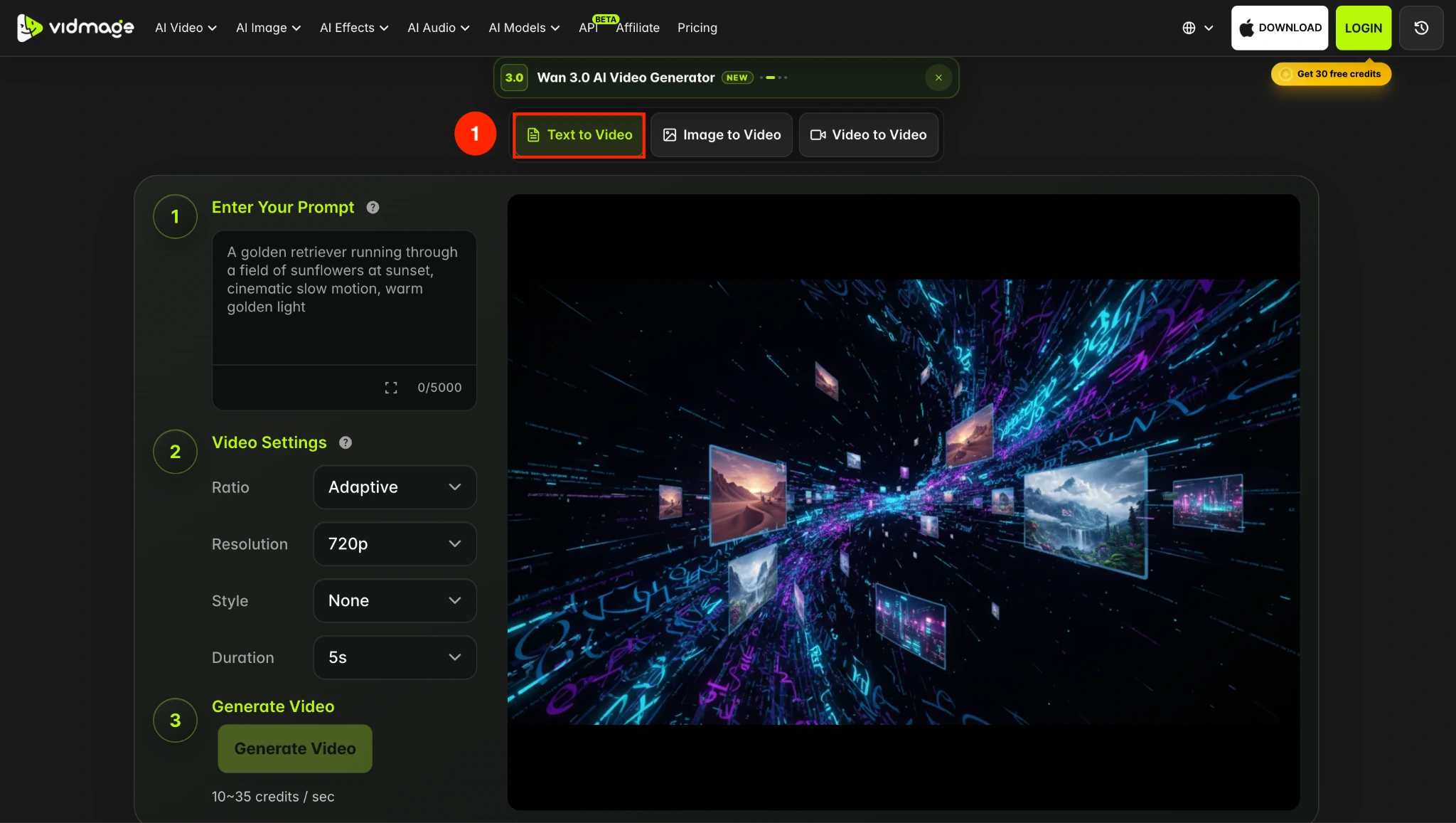
Step 1: Open the VidMage AI Video Generator in your browser. Choose Text to Video at the top of the tool. Make sure you are not using Image to Video or Video to Video, since those modes use different workflows.
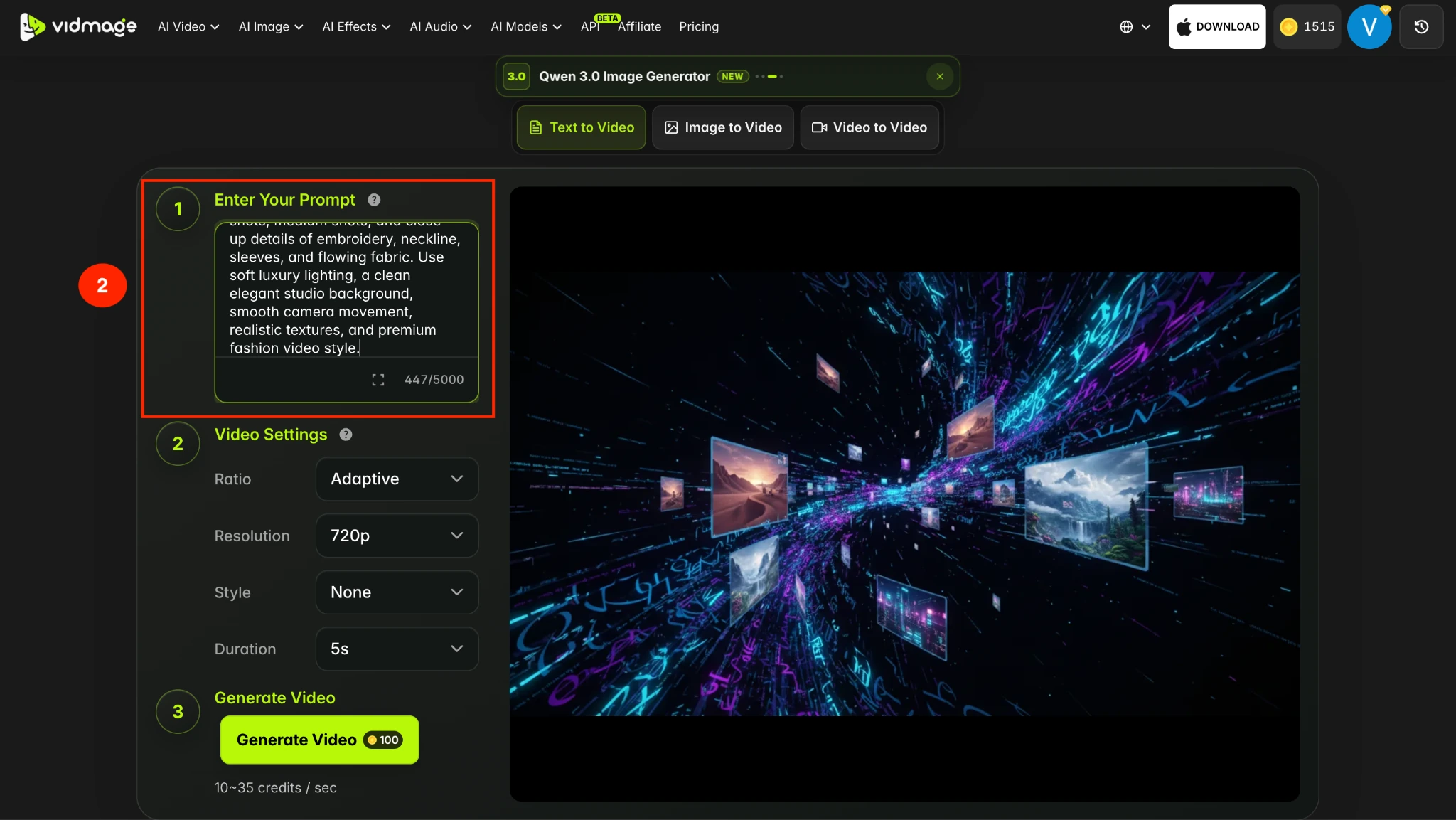
Step 2: Click the Enter Your Prompt box and describe what you want the video to show. For a more realistic result, include these details: Subject, main action, camera movement, setting, lighting, and important visual details. The prompt field supports up to 5,000 characters, but you do not need to fill the entire limit. Use only the details that help define the shot.
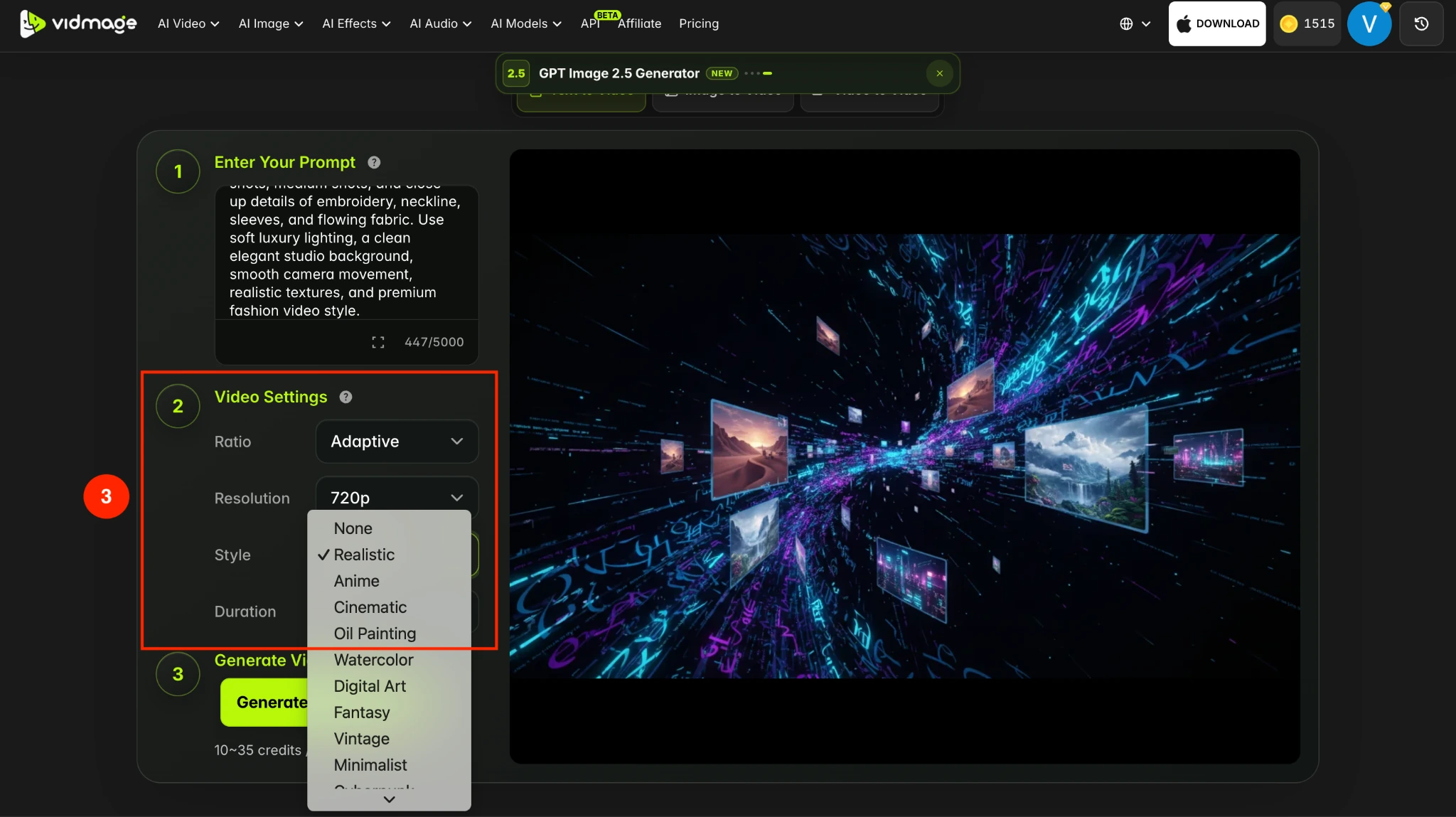
Step 3: Under Video Settings, select the Ratio, Resolution, Style, and Duration you want. VidMage supports clips from 4 to 15 seconds.
Step 4: Look at the credit estimate shown below Generate Video before starting. VidMage currently charges about 10 to 35 credits per second, depending on the selected settings.
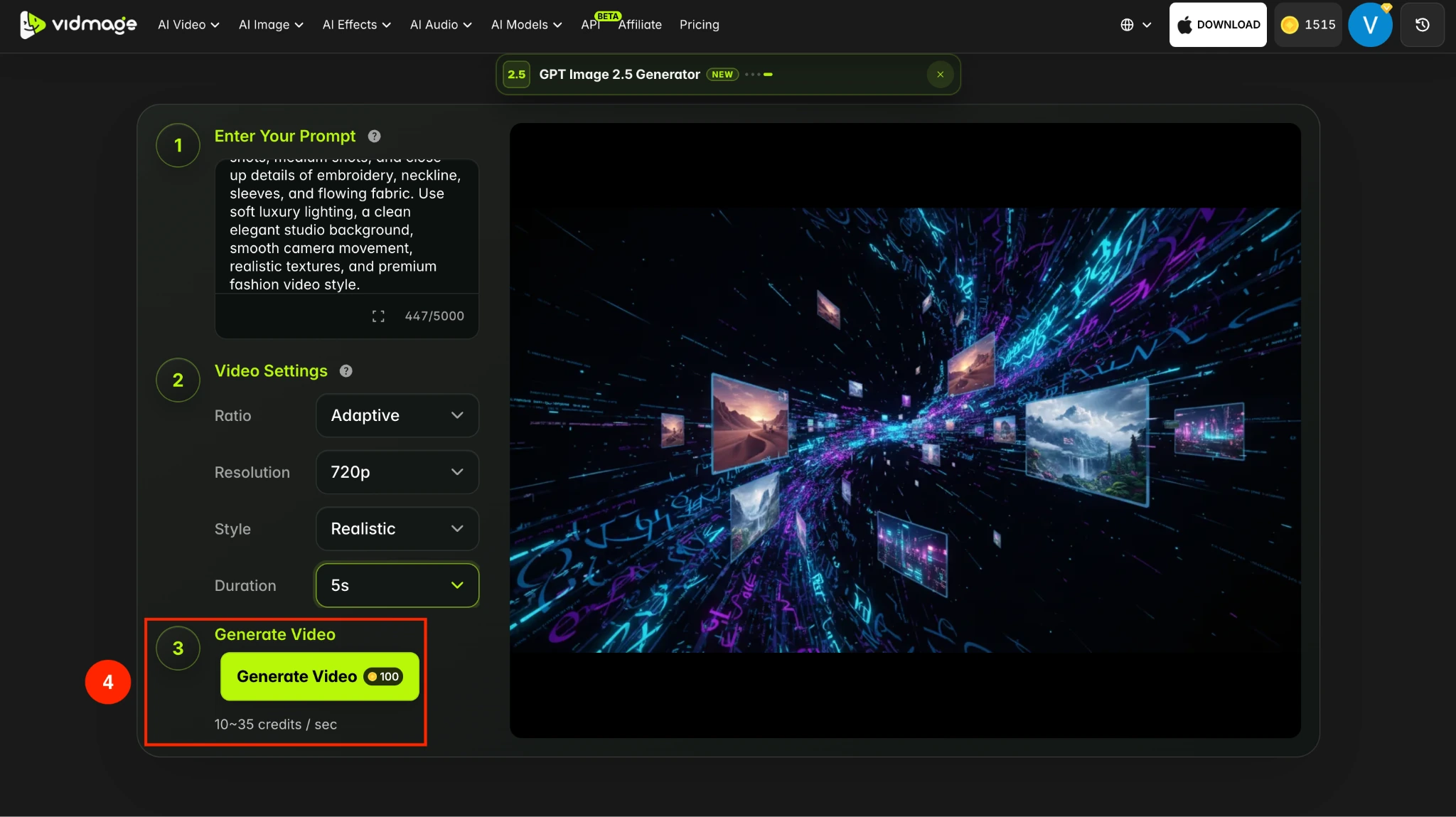
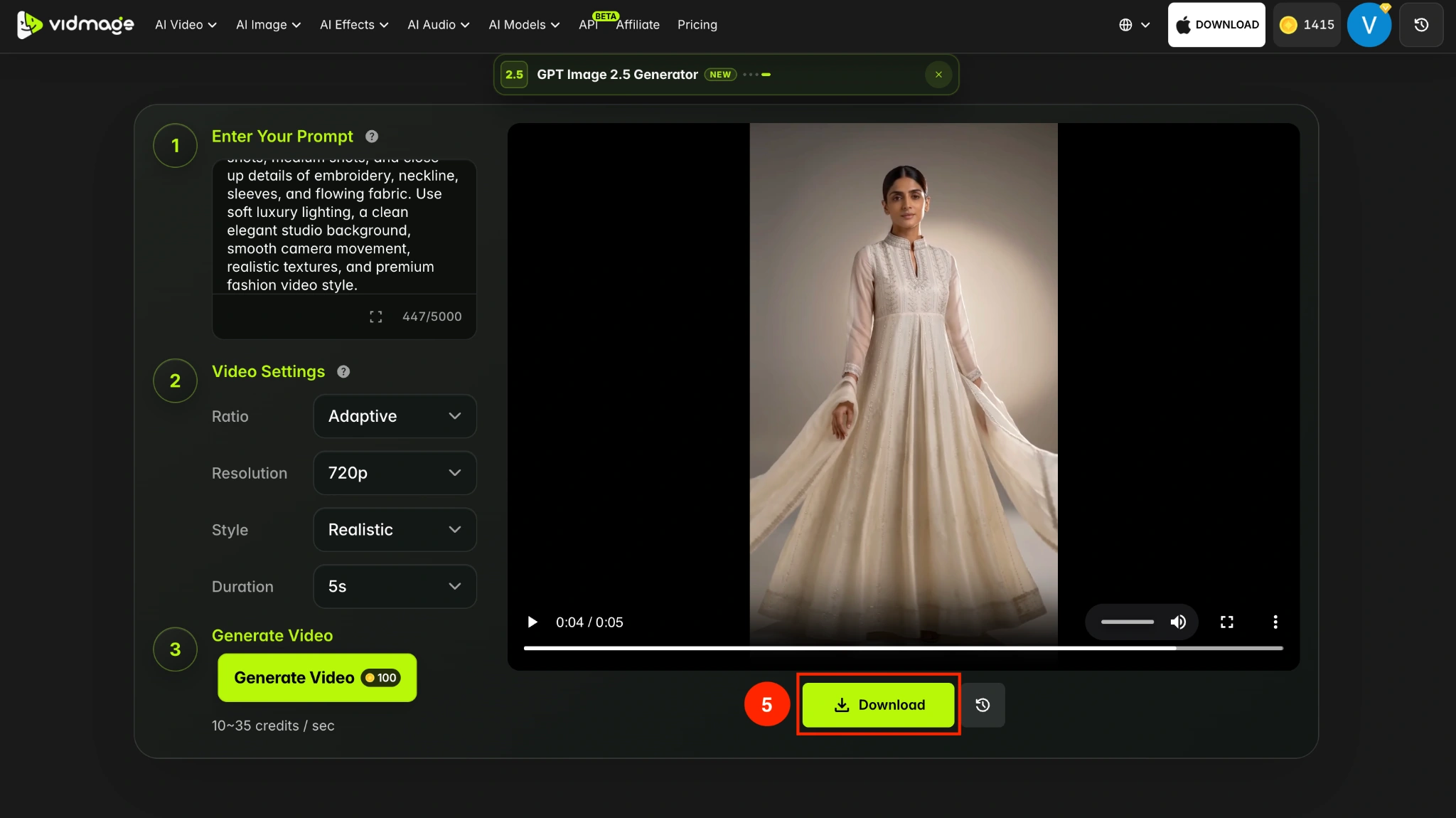
Step 5: Watch the complete generated clip before saving it. When you are satisfied with the result, use the Download option on the generated video to save it to your device.
How to Make Realistic AI Videos From Images in VidMage
If you already have a photo or an AI-generated image, you can use VidMage's Image to Video feature to turn it into a realistic moving clip. Here's how:
Step 1: Visit the VidMage AI Image-to-Video Generator and switch to Image to Video. This mode uses your uploaded image as the starting point for generating motion.
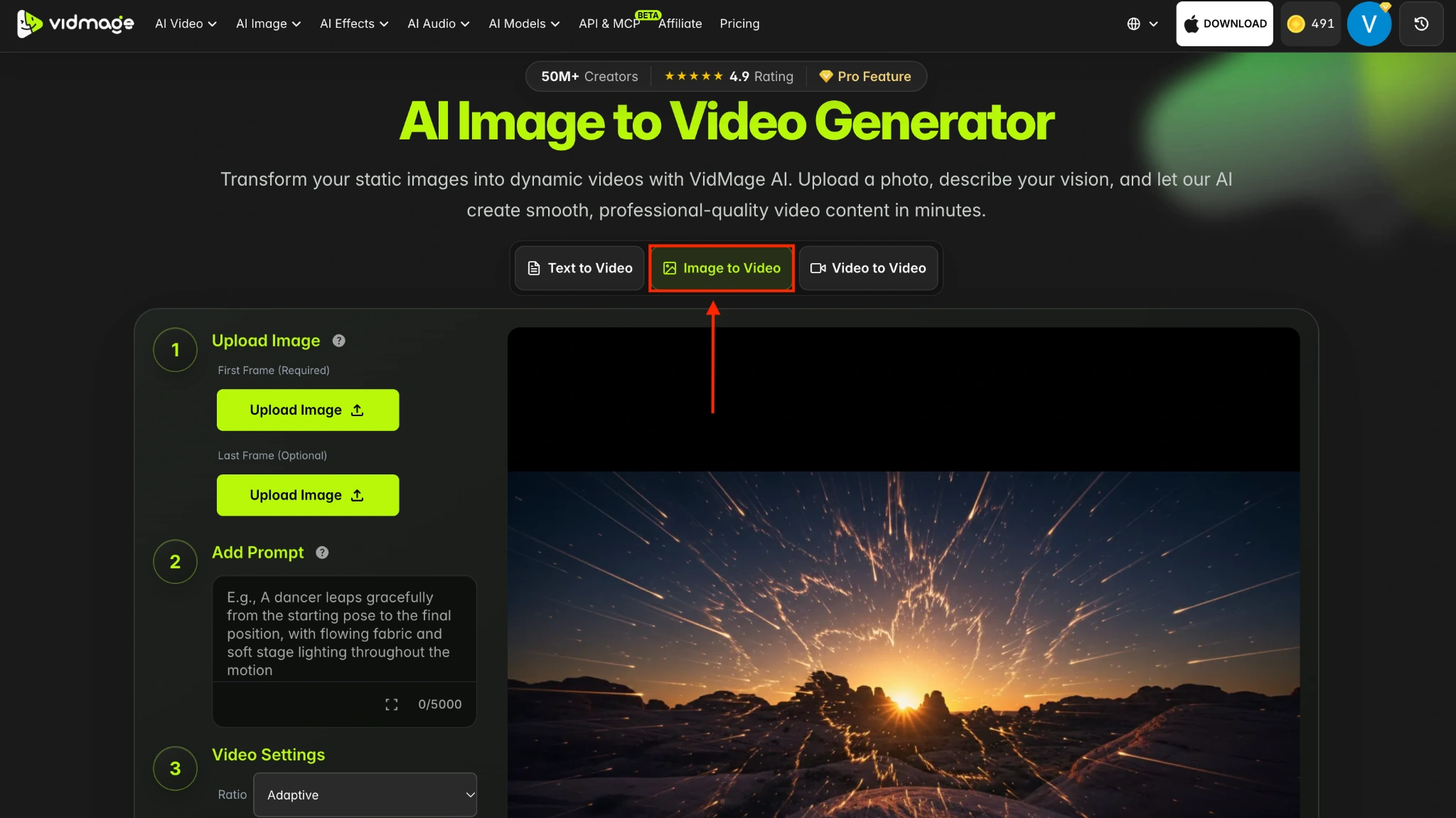
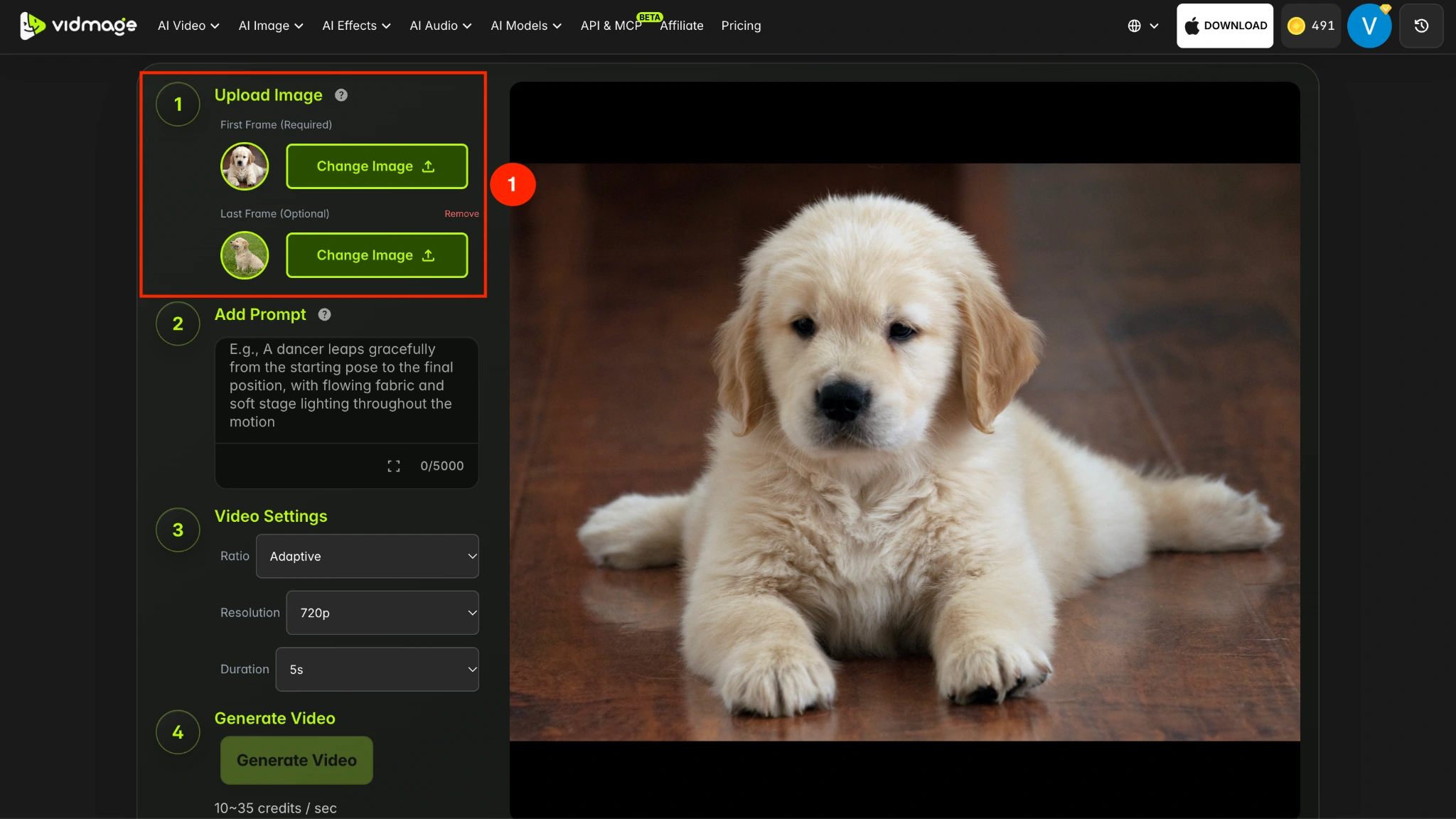
Step 2: Under First Frame (Required), click Upload Image and add a clear, well-lit picture of your subject. You can also add a Last Frame (Optional) if you want to guide how the video ends.
Step 3: In the Add Prompt field, explain how your subject should move. For realistic results, describe subtle movements, natural lighting, and steady camera behavior.
For example:
"A golden retriever resting on a sunny porch slowly lifts its head and blinks. Its fur moves gently in the breeze while the camera remains still. Keep the afternoon lighting and shadows consistent."
The prompt supports up to 5,000 characters. You can leave it empty, but adding specific motion instructions helps guide the result.
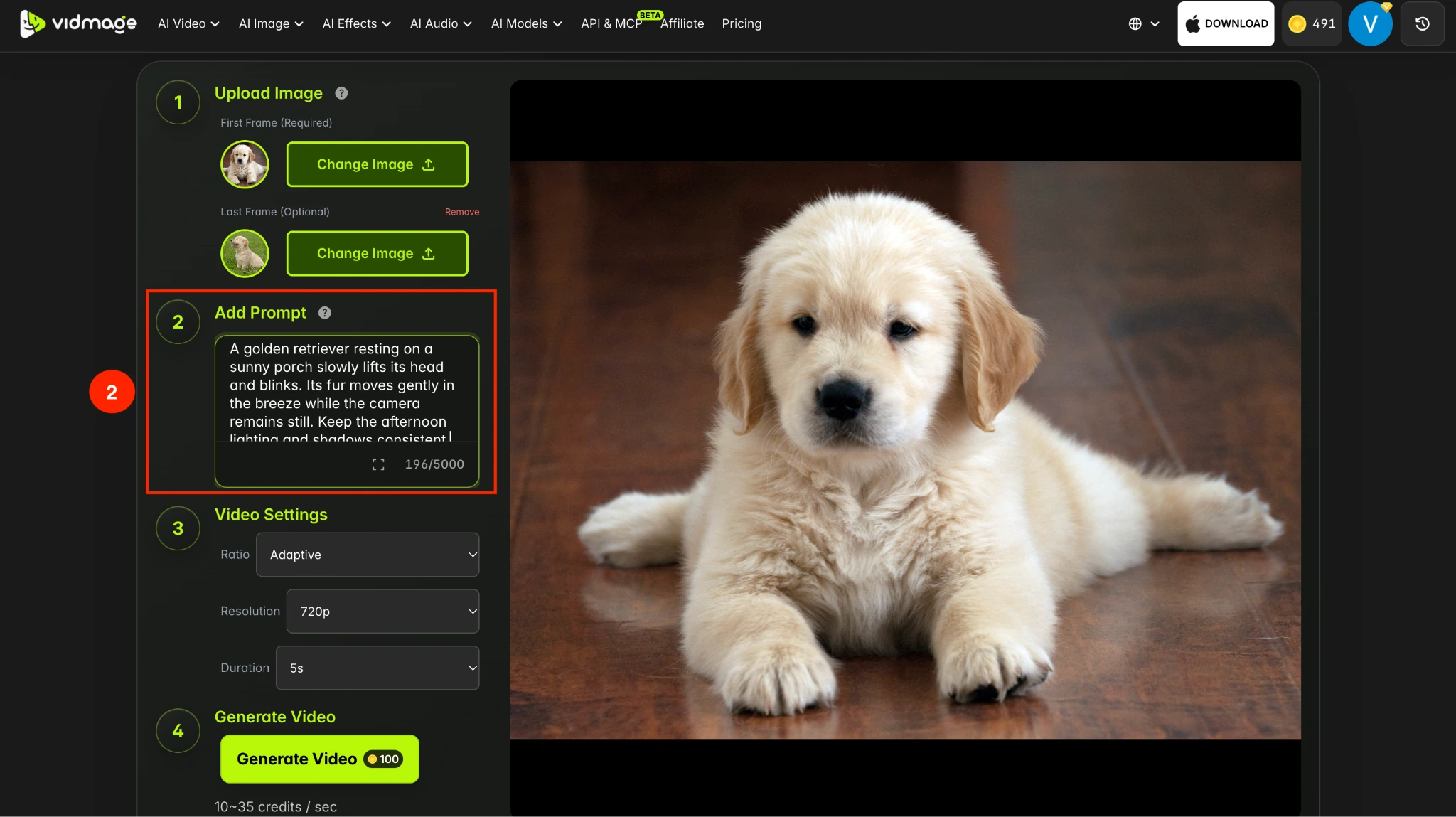
Step 4: Under Video Settings, select your preferred Ratio, Resolution, and Duration. Choose a duration that allows the movement to happen naturally without rushing the action.
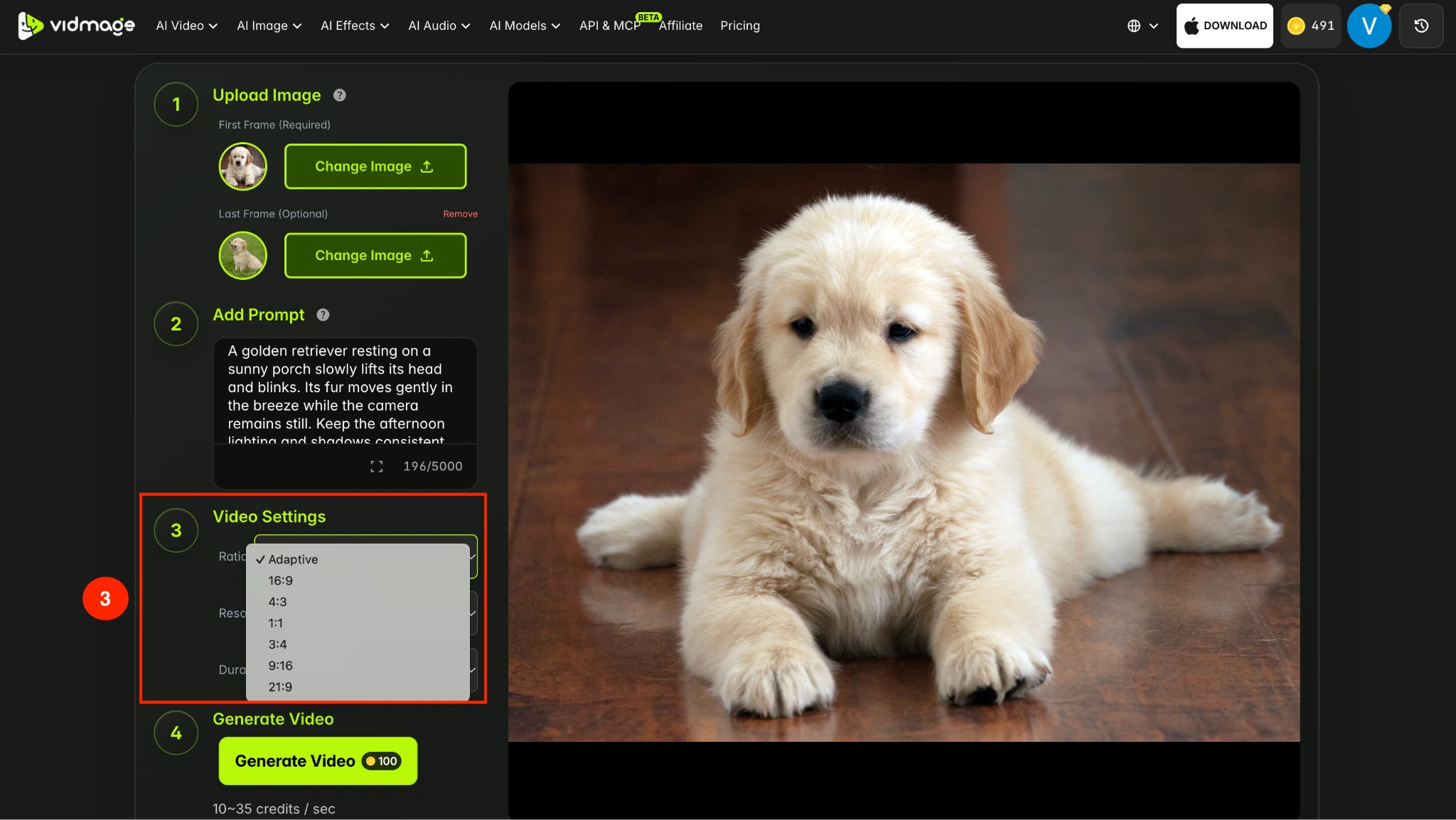
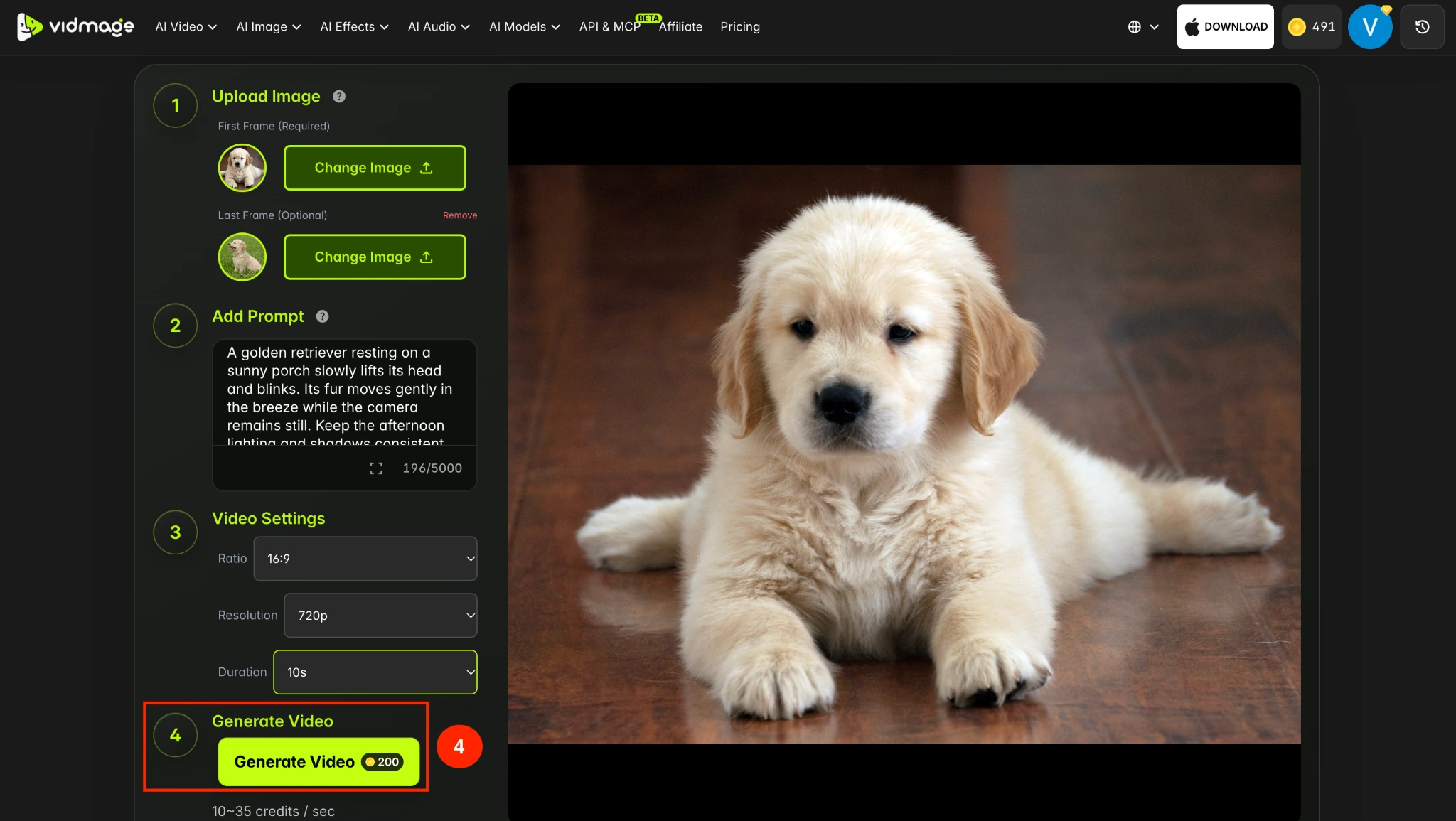
Step 5: Review your image, prompt, and video settings, then click Generate Video. VidMage displays a generation cost of approximately 10–35 credits per second, depending on your selected settings.
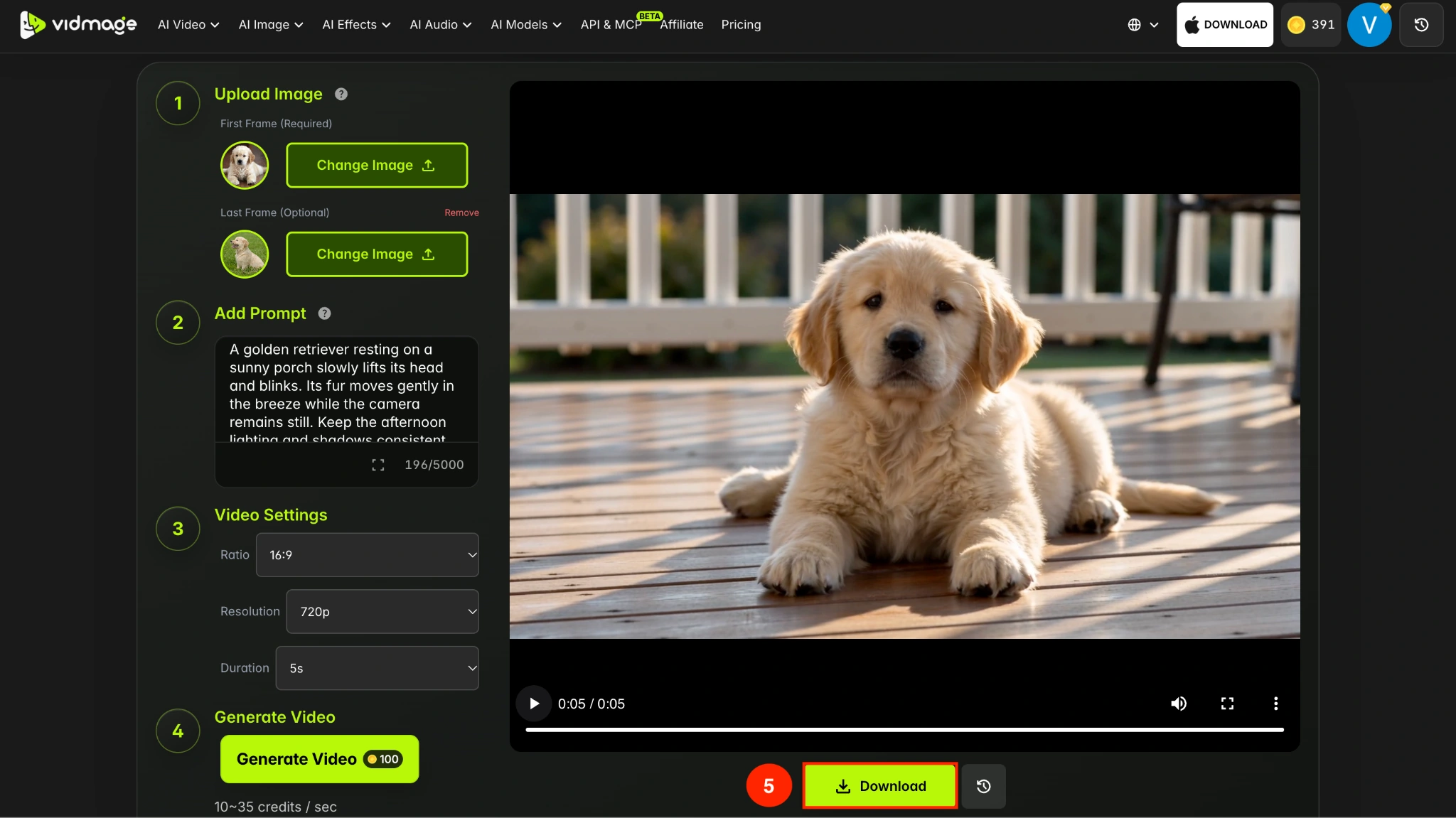
Step 6: Play the generated clip and check whether the movement looks natural, the subject's appearance remains consistent, and the background stays stable. If you're satisfied, click Download to save your video.
How to Make AI Videos Look More Realistic
Realistic AI videos require more than a detailed prompt. You need to consider how a scene is planned, filmed, and animated. Here's a practical workflow.
1. Plan and Storyboard Your Shots
Before generating a video, decide what happens in each shot, who appears in it, and how the camera captures the action.
- Focus on one main action: Instead of showing someone entering a café, ordering coffee, and sitting down in one clip, create separate shots for these actions.
- Plan the camera angle: Use a wide shot to establish the location and a medium or close-up shot to show the subject's actions.
- Maintain the same visual style: If your first shot uses soft morning daylight, keep the same lighting and setting in subsequent shots.
Example: For a café scene, plan a wide shot of the café entrance, followed by a medium shot of a woman placing her coffee cup on the table.
This gives each action enough time to unfold and makes the sequence easier to maintain visually.
In VidMage: Generate your planned shots separately using Text to Video or Image to Video. You can choose an appropriate duration between 4 and 15 seconds for each clip.
2. Prepare a Clear Reference Image When Needed
A reference image helps establish the subject's appearance, clothing, composition, and lighting before animation begins.
For better results:
- Choose a sharp image: Avoid blurry faces, distorted hands, or objects with unclear edges.
- Use natural lighting: A well-lit face or product with consistent shadows gives the video a clearer starting appearance.
- Keep the composition simple: Make sure the subject is visible and has enough room for the intended movement.
For example, if you want a realistic video of a woman turning toward a window, start with a well-lit photo showing her face, hairstyle, and surrounding room.
In VidMage: Select Image to Video and upload your picture under First Frame (Required). You can also add an optional Last Frame to guide the ending appearance.
If you don't have a reference image, use Text to Video instead. Creating an image first is optional, not a requirement.
3. Write Prompts for Realistic Lighting, Motion, and Camera Movement
A prompt should describe what the viewer sees and how the scene moves. Simply adding "ultra-realistic" or "cinematic" may not give the AI enough direction.
Focus on three details:
- Lighting: Specify the light source, such as soft window daylight or warm evening sunlight.
- Subject movement: Use clear actions such as walking slowly, turning the head gently, or reaching for an object.
- Camera behavior: Describe a static camera, slow push-in, or steady tracking shot.
Basic prompt: "A realistic video of a woman walking outside."
Improved prompt:
"A woman in a navy-blue coat walks slowly along a quiet city sidewalk. Soft morning sunlight creates natural shadows. Her hair moves gently in the breeze while the camera follows her from the side at a steady pace."
The improved prompt gives the model clearer instructions about appearance, movement, and camera behavior.
In VidMage: Enter this description in the Text to Video prompt box. For Image to Video, focus mainly on the movement because the uploaded image already establishes the subject and setting.
4. Keep Characters Consistent and Refine the Results
When generating multiple clips, characters may change slightly in appearance, and backgrounds can become distorted.
To improve continuity:
- Repeat character details: Keep the same hairstyle, outfit, and physical description across prompts.
- Reuse suitable reference images: When possible, use the same character image as the starting point for related Image to Video shots.
- Keep the environment consistent: Repeat details about the location, lighting direction, and time of day.
For example, if your first clip shows a woman wearing a beige coat in a sunlit café, mention the same coat, café setting, and daylight in your next prompt.
In VidMage: Generate each shot and compare the results. If the character changes or an object looks distorted, simplify the movement or adjust the relevant prompt details before regenerating.
These techniques help improve consistency, although they cannot guarantee identical results across separate generations.
How to Fix Common AI Video Generation Problems
If your AI-generated video looks unnatural, check the problem below and adjust your text prompt or VidMage video settings before generating it again.
Problem | What to try |
|---|---|
The subject's face changes during the video | Describe the subject's facial features clearly and use slower, simpler head movements. |
Movement looks too fast or unnatural | Specify a slower, more controlled action and avoid combining several movements in one prompt. |
Hands or objects look distorted | Simplify hand interactions, such as holding one object instead of handling several. |
The background changes or warps | Describe a consistent setting and use a static camera or slower camera movement. |
Lighting changes unexpectedly | Specify one main light source, its direction, and the time of day. |
The character looks different in separate clips | Repeat the same appearance, hairstyle, clothing, and setting descriptions across prompts. |
The video does not follow the prompt | Put the main action first and remove vague or conflicting instructions. |
Generation does not start | Check that you've entered a prompt, selected the required video settings, and have enough VidMage credits. |
Try it in VidMage
Open the tool and follow the steps above.