

If you want to give an existing video an anime-style look without recreating the footage from scratch, VidMage can restyle the clip with AI. In this guide, you will learn how to turn videos into anime by uploading your video, choosing an art style, adjusting the settings, and starting the conversion.
Convert Your Video to Anime in VidMage
Follow these steps to learn how to turn video into Anime with VidMage:
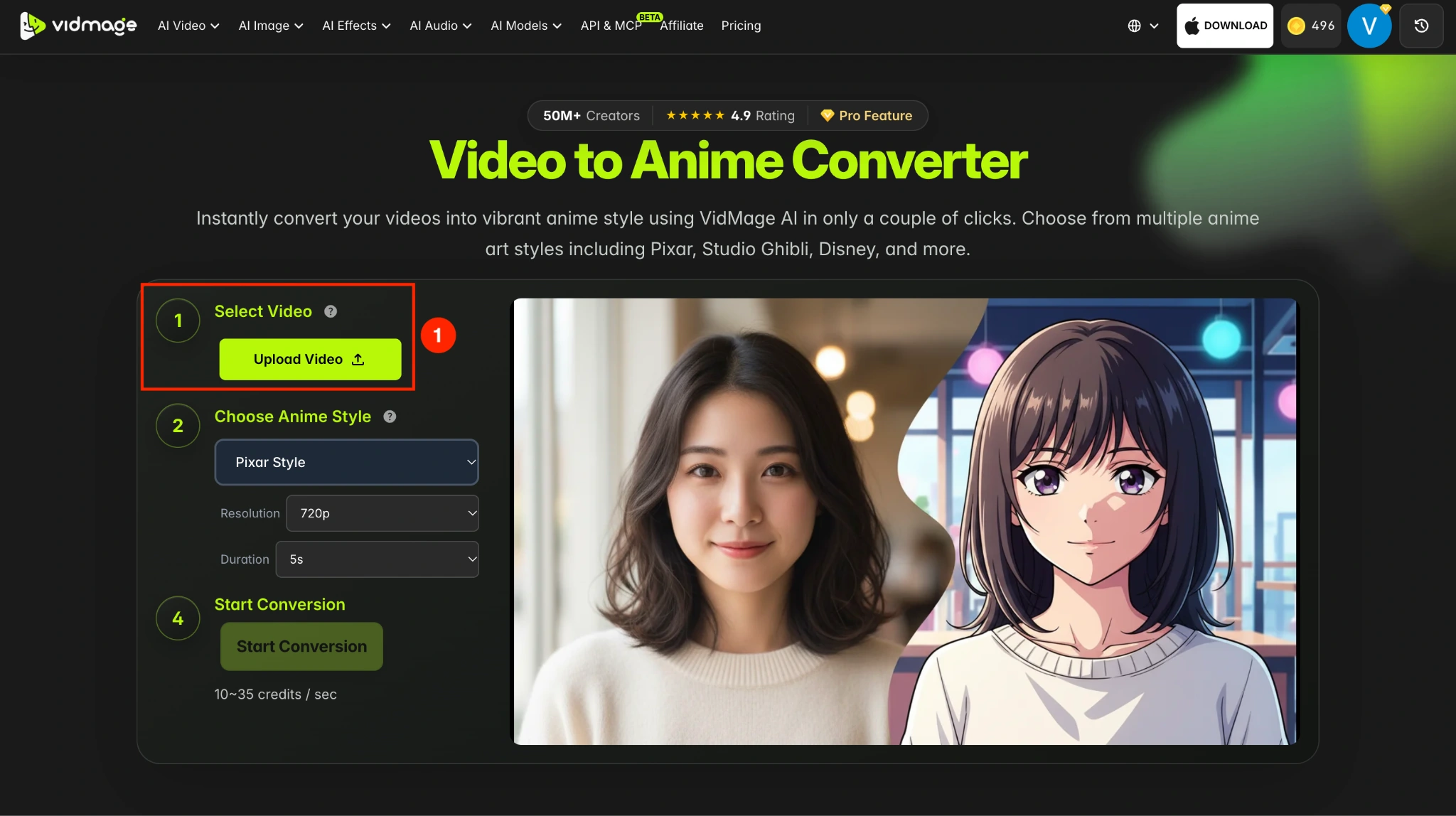
Step 1: Open the Video to Anime Converter and click Upload Video under Select Video. Choose the clip you want to restyle. Supported formats include M4V, MP4, and MOV, and videos can be up to 20 seconds long.
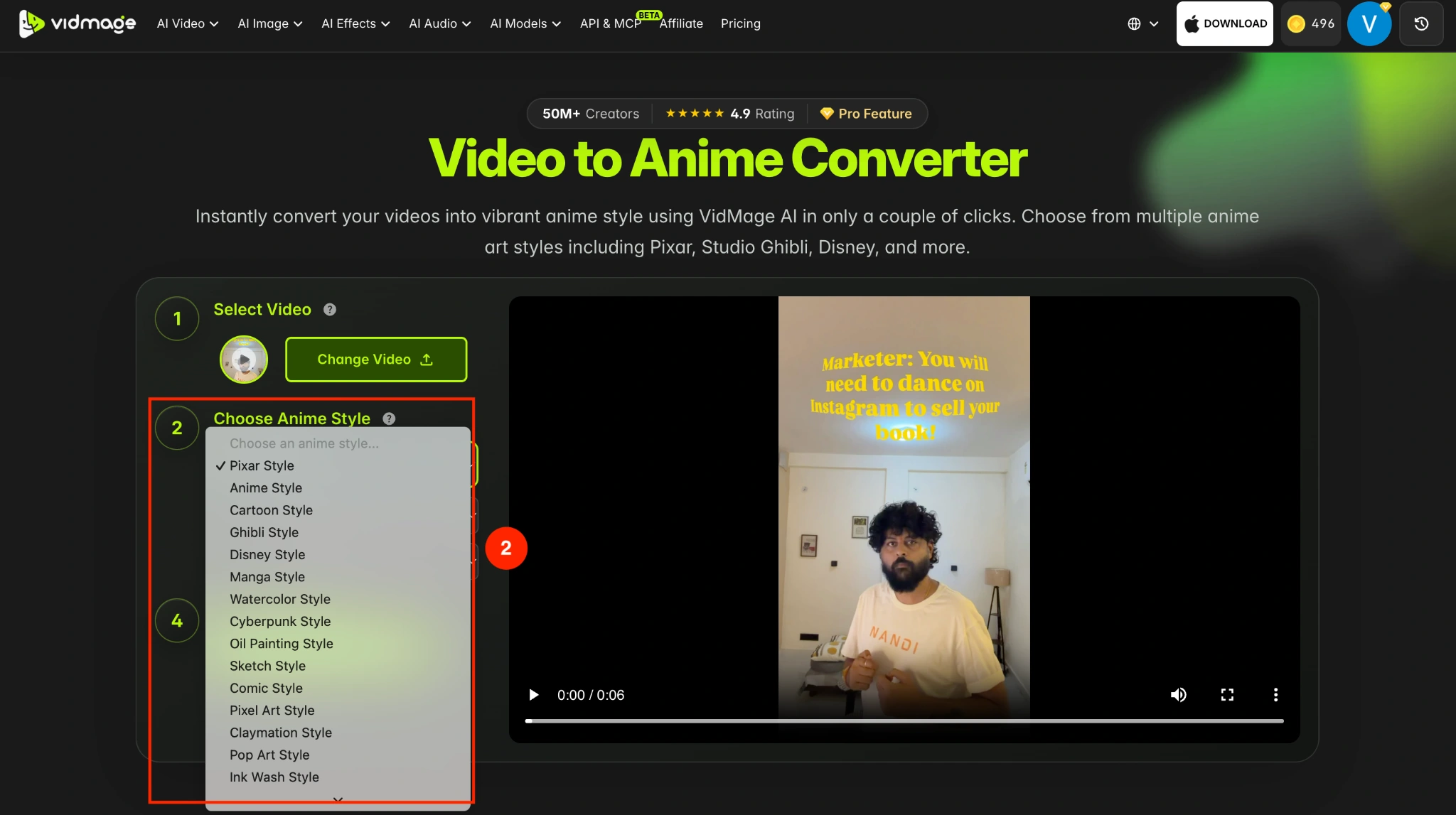
Step 2: Open Choose Anime Style and select the look you want for the final video. Each preset changes the footage's visual treatment, including line work, shading, colors, and overall illustration style.
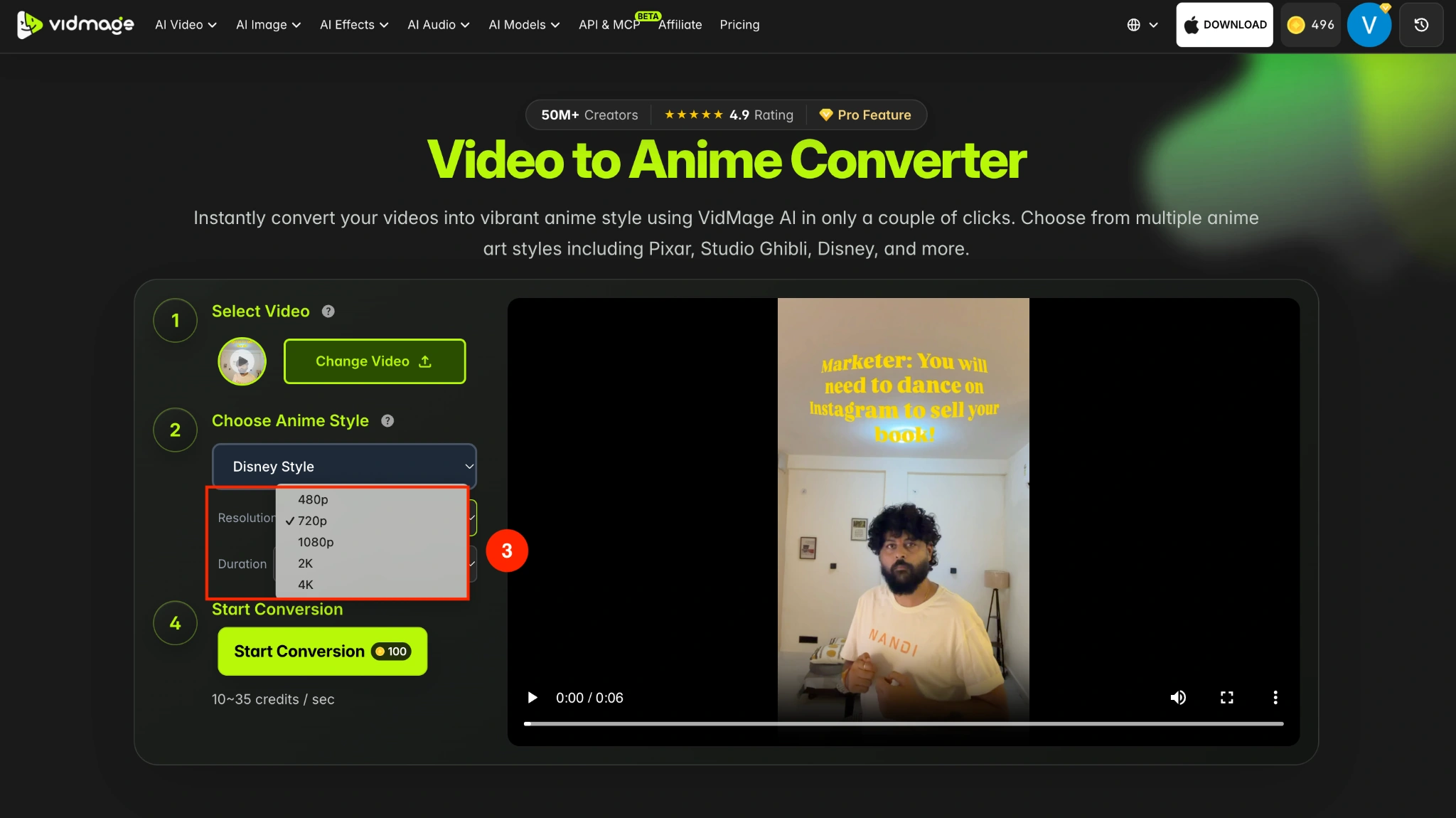
Step 3: Set the Resolution and Duration for the conversion. The interface includes a 720p resolution option and lets you choose the generated clip length.
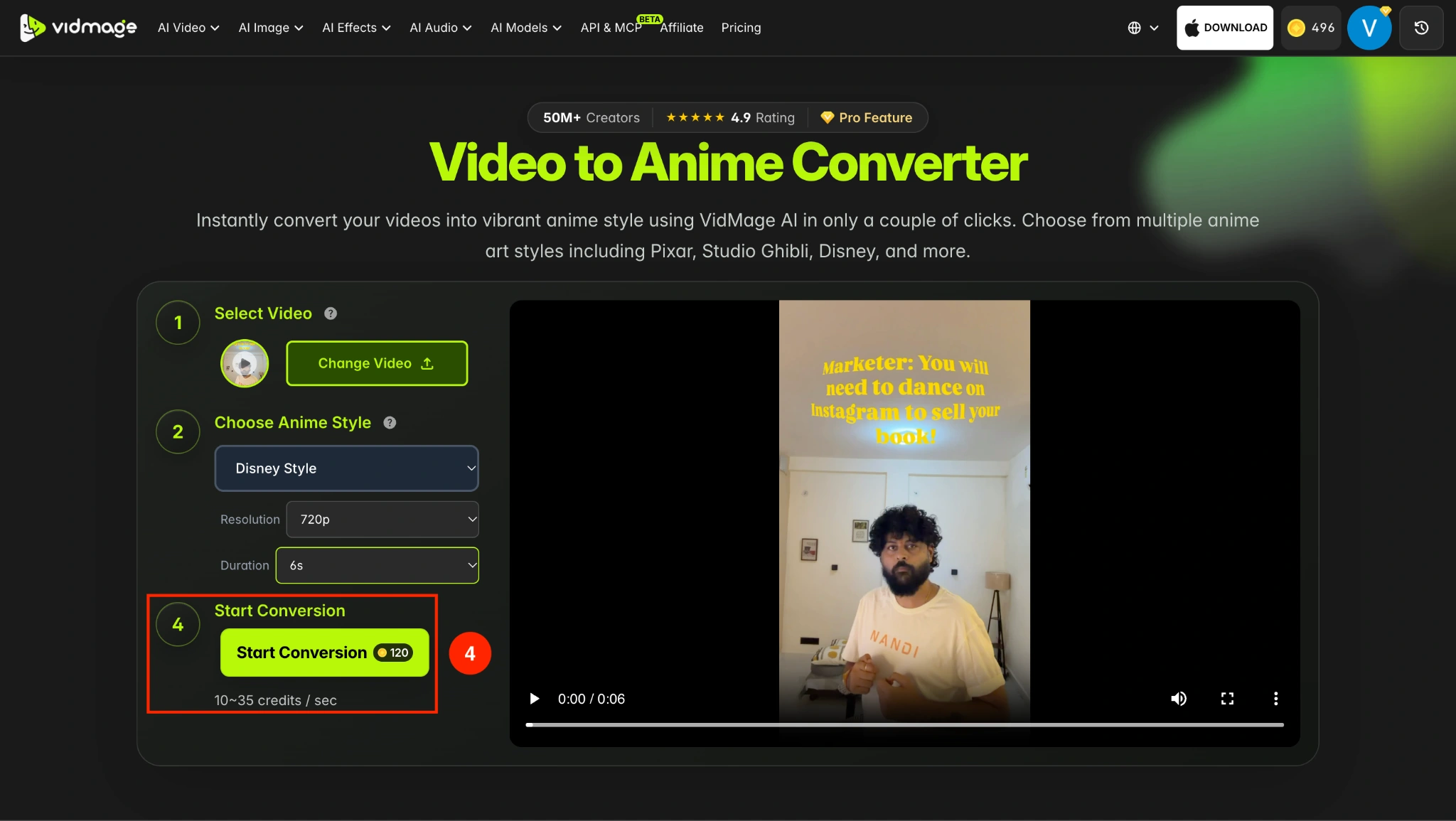
Step 4: Review the video, selected style, resolution, and duration. Then click Start Conversion.
Step 5: When you are happy with the result, download the anime-style video.
Which Anime Style Should You Choose
The right preset depends on the look you want, not which option sounds most dramatic.
Style | Useful when you want |
|---|---|
Anime | A general Japanese animation-inspired look |
Manga | Stronger illustrated or comic-style treatment |
Cartoon | A simpler, more playful animated appearance |
Pixar Style | A polished 3D animated look |
Disney Style | A colorful character-animation aesthetic |
Studio Ghibli Style | A softer illustrated and cinematic appearance |
Tips for Getting Better Anime Video Conversions
Your source video's lighting, movement, and composition can affect how well AI applies the selected animation style. Follow these tips for more consistent results.
1. Use Footage With a Clearly Visible Subject
Anime conversion changes the appearance of people and objects, so the original video should contain enough detail for the AI to recognize them.
Choose footage with good lighting, visible facial features, and a background that doesn't obscure the main subject.
Example: A close-up of a person speaking against a simple background is generally easier to convert than footage of several people moving through a crowded street.
In VidMage: Upload a well-lit video with a clearly visible subject under Select Video. If the anime version distorts the character's appearance, try footage with a simpler background or clearer framing.
2. Avoid Fast Camera Movement and Excessive Motion Blur
Quick camera movements, sudden turns, and motion blur can make it harder to maintain consistent outlines and character details during conversion.
For example, a steady walking shot may produce more recognizable anime-style characters than a shaky recording with frequent camera movements.
In VidMage: Choose a clip with stable framing and controlled movement. If your original video contains several fast camera movements, use a calmer section for conversion.
3. Convert One Continuous Scene at a Time
When a video contains multiple cuts, the lighting, background, and subjects may change significantly. This can make it harder to maintain a consistent animation style.
For example, instead of converting a travel montage containing five different locations, start with a single shot of someone walking along a street.
In VidMage: Trim your source footage to one continuous scene before uploading. If you're working with multiple scenes, convert them separately using the same anime preset to help maintain a similar visual appearance.
4. Check Character Details and Animation Consistency
An anime-style video may look good in the opening frame but develop changing facial features, flickering outlines, or inconsistent background textures during movement.
For example, a character's hairstyle may change slightly between frames, or the outlines around moving hands may become distorted.
In VidMage: Preview the entire converted video, paying attention to faces, clothing, moving objects, and background details. If the result looks inconsistent, try a clearer source clip or a different anime preset.
How to Fix Common Video-to-Anime Problems
If your converted video doesn't look as expected, try these adjustments.
Problem | What to try in VidMage |
|---|---|
Character's face changes during movement | Use footage with clearer facial features and less motion blur. |
Anime outlines flicker | Choose a steadier clip with fewer sudden movements or camera changes. |
Background details look distorted | Try footage with a less cluttered background. |
The selected style doesn't suit the video | Choose another preset from the six available styles. |
Movement looks unnatural | Use a shorter, continuous clip with simpler actions. |
If you're testing different styles, start with the same source video. This makes it easier to compare how each preset handles the subject, movement, and surrounding scene.
What Kind of Video Converts Well to Anime
The AI still needs to understand the people, objects, and movement in the source footage before it can restyle them. Use footage with:
- A clearly visible main subject
- Stable or controlled camera movement
- Good lighting
- Defined facial features when people are important
- Limited motion blur
- A background that is not overly cluttered
- Movements that remain visible inside the frame
Where Anime Video Conversion Works Well
Anime conversion can be useful when you already have footage and want to reuse the movement in a different visual style.
Social media clips
Restyle short videos, dances, travel moments, or daily life clips before posting them as Reels, Shorts, or TikToks.
Character-focused videos
Turn footage of a person into a more illustrated or animated-looking sequence while keeping the original performance.
Travel and lifestyle footage
Apply an illustrated style to walking shots, city clips, landscapes, or everyday scenes.
Pet videos
Restyle short pet clips while retaining their movement and the general scene.
Creative video projects
Use converted footage for visual experiments in music videos, short films, concept videos, or personal art projects.
Video to Anime Requirements at a Glance
Item | Details |
|---|---|
Supported formats | M4V, MP4, MOV |
Maximum supported duration | 20 seconds |
Style presets | 6 |
Available styles | Anime, Cartoon, Manga, Pixar, Disney, Studio Ghibli |
Video settings | Style, Resolution, Duration |
Visible resolution option | 720p |
Generation cost | 10 to 35 credits per second shown in the generator |
Access | Premium feature |
Try it in VidMage
Open the tool and follow the steps above.