

Learning how to remove a video background with VidMage is very easy, and it creates a professional aesthetic. VidMage separates the foreground subject from the original scene and replaces the background with a solid color.
You upload a video, choose the replacement color, and start background removal.
How to Remove Video Background in VidMage
To learn how to remove video background with VidMage, follow these steps:
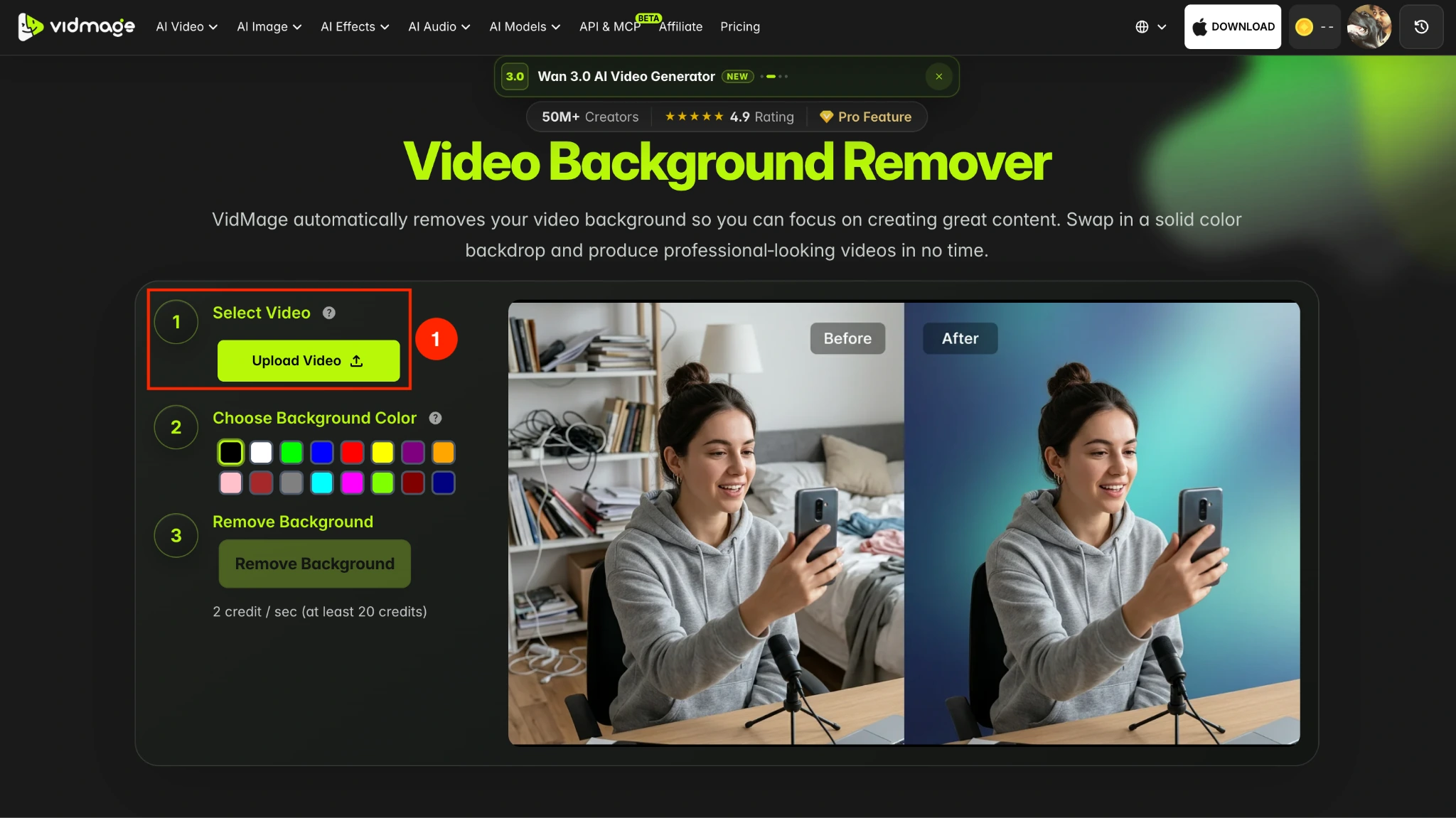
Step 1: Open the VidMage Video Background Remover and click Upload Video under Select Video. Choose a supported M4V, MP4, or MOV file from your device. Make sure it meets the 20-second, 1080p, and 100MB upload limits.
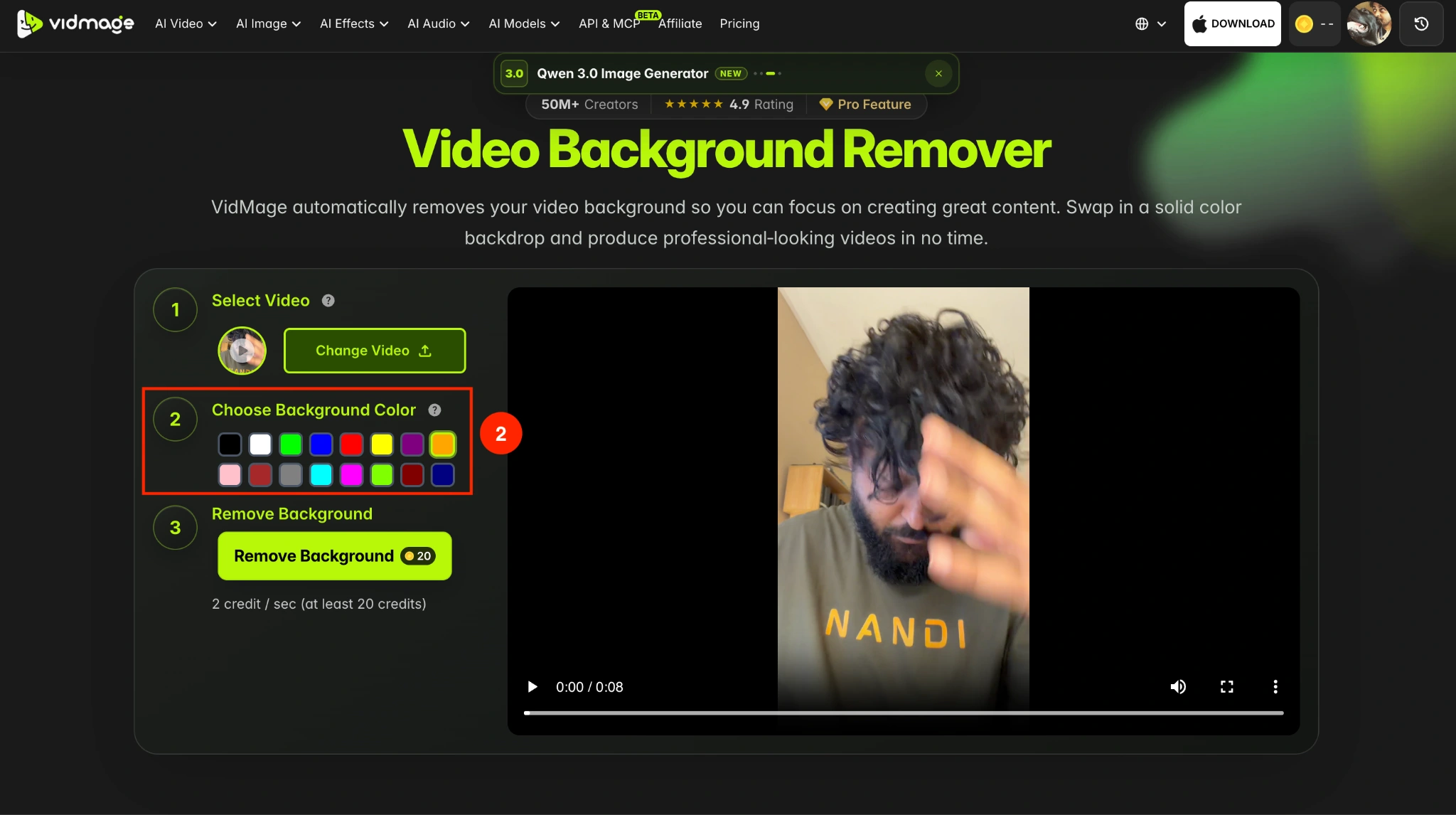
Step 2: Go to Choose Background Color and select the solid color you want behind the subject. You can choose from several preset colors, including black, white, green, blue, and red.
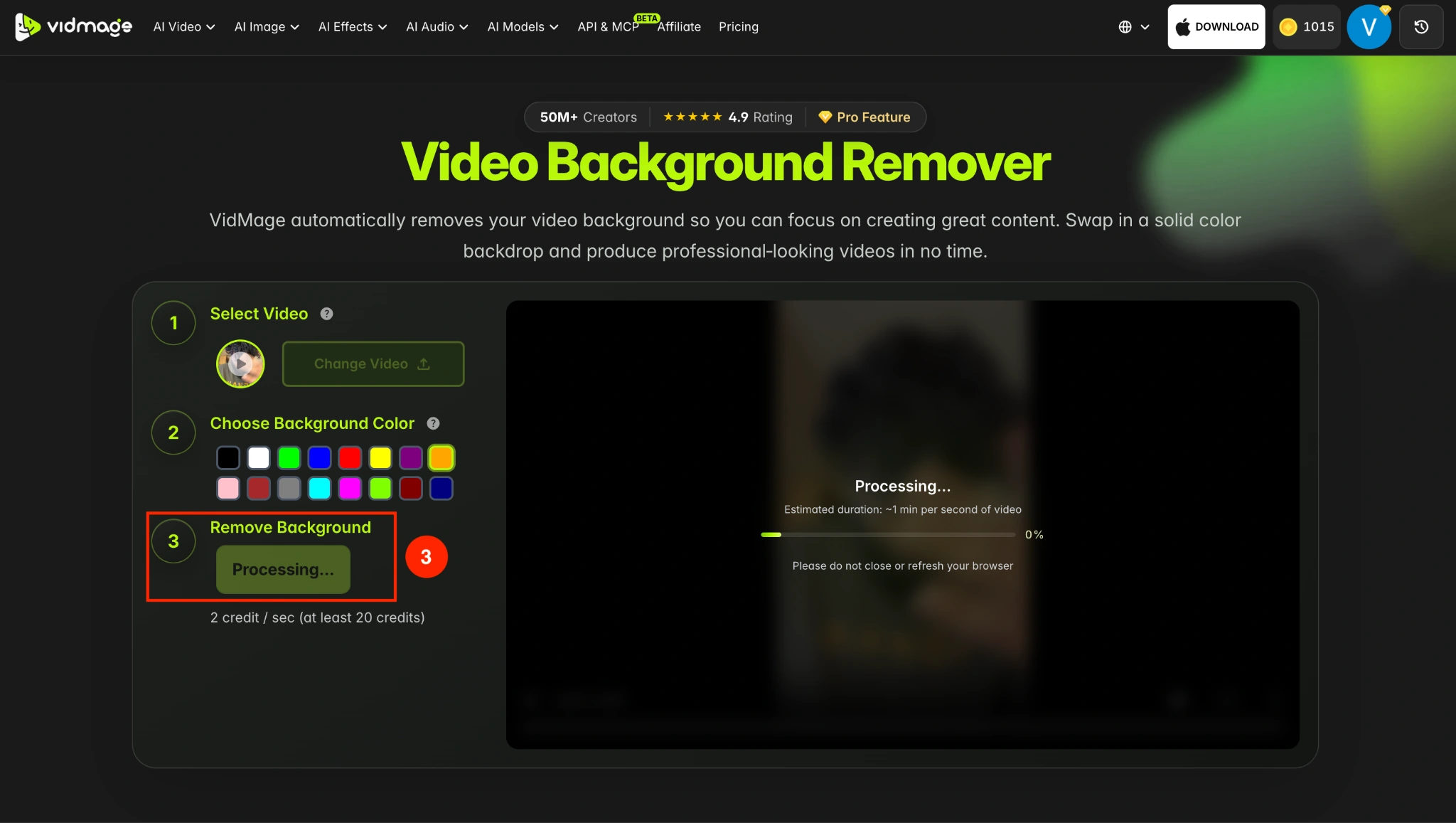
Step 3: Check the selected video and background color, then click Remove Background.
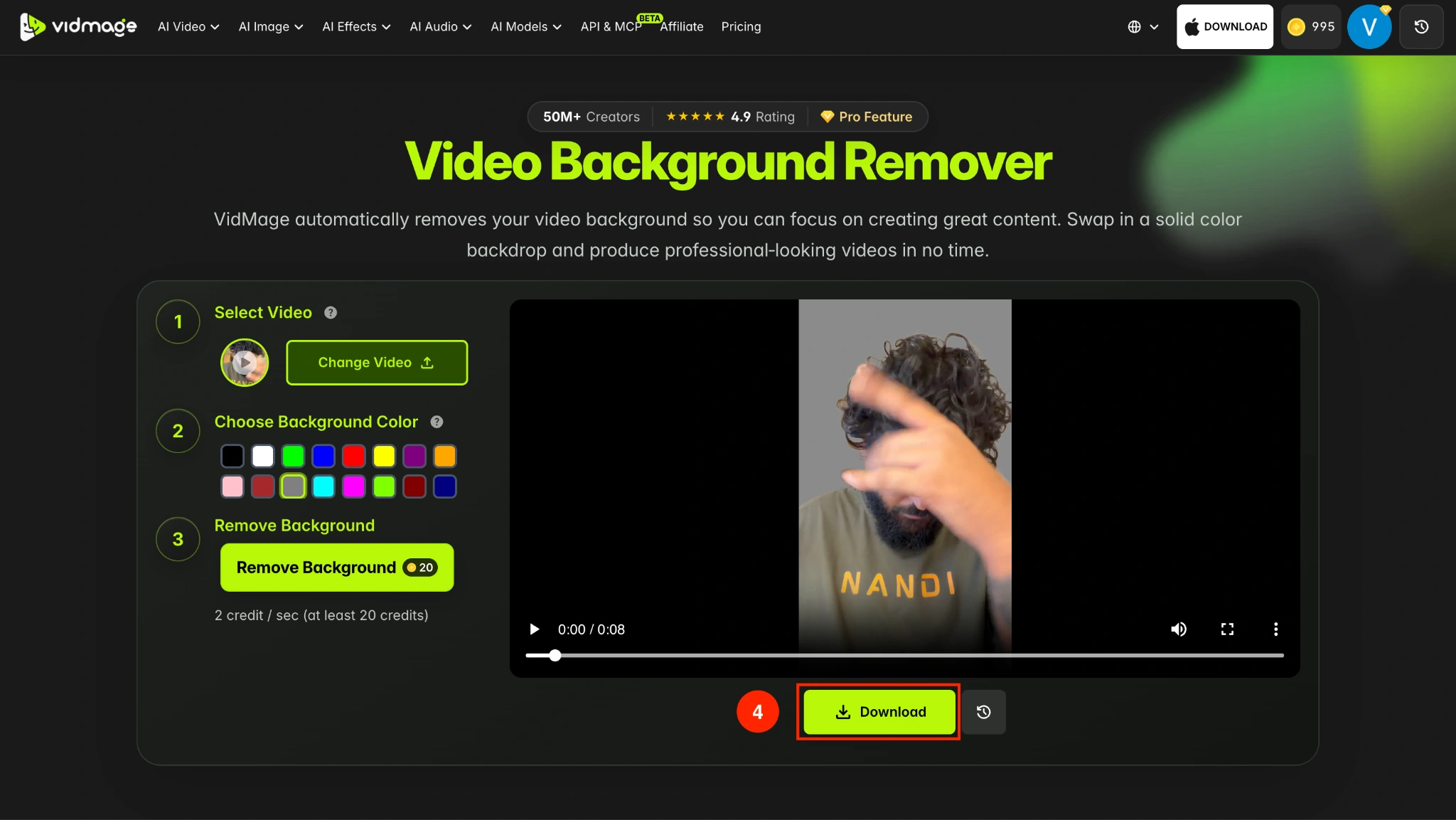
Step 4: Download the result once the subject and replacement background look correct.
Which Background Color Should You Choose
The right replacement color depends on what you plan to do with the video next.
Background color | When it can help |
|---|---|
Black | Dark presentations, product clips, or simple high-contrast backgrounds |
White | Clean talking-head videos, product content, or business clips |
Green | When you plan to use chroma key and replace the background again in an editor |
Blue | Another chroma-key option when the subject contains green |
Other preset colors | Branding, social clips, or simple visual styling |
What Should You Check After Background Removal
You should check:
- Hair edges for missing strands or rough cutouts
- Hands and fingers during movement
- Loose clothing or fabric
- Areas where the subject and original background had similar colors
- Fast movement that may create edge artifacts
- Whether any part of the original background remains visible
These areas are usually harder for automated background removal because the boundary between the subject and surroundings changes from frame to frame.
When a Solid Background Works Better Than the Original Scene
Replacing the original background can be useful when the surroundings are distracting or inconsistent.
Talkinghead videos
A solid background can remove clutter from home-office, webcam, or presentation footage and keep attention on the speaker.
Product demonstrations
Removing a busy room or desk can make the subject or product easier to see.
Social media clips
A consistent background color can help several short videos follow the same visual style.
Training and tutorial videos
A simple backdrop can make instructor-led content easier to combine later with slides, text, or screen recordings.
Green-screen preparation
You can choose green as the replacement background if you plan to composite the subject into another scene later.
What VidMage Changes and What It Keeps
Here is what VidMage changes and what it keeps when changing video background:
- Detects the foreground subject
- Removes the original surroundings
- Replaces them with your selected solid color
- Keeps the subject's original movement in the clip
VidMage differs from a full video editor because its workflow focuses specifically on subject isolation and background replacement.
Video Requirements and Cost at a Glance
Item | VidMage requirement |
|---|---|
Supported formats | M4V, MP4, MOV |
Maximum video length | 20 seconds |
Maximum resolution | 1080p |
Maximum file size | 100MB |
Replacement background | Solid preset colors |
Processing cost | 2 credits per second |
Minimum charge | 20 credits |
Access | Premium subscribers |
Try it in VidMage
Open the tool and follow the steps above.