
If you want to learn how to change video style with AI, VidMage lets you start with an existing video and describe the new look you want in a text prompt. You can change the colors, textures, lighting, mood, or overall visual style.
For this workflow, use VidMage Video to Video. Your source video should be no longer than 20 seconds. VidMage supports M4V, MP4, and MOV.
Things to Do Before Video Style with AI
The source video's quality and movement can affect how well the new visual style is applied. Before uploading, check the following:
- Choose clear footage: Use a video with a visible subject, good lighting, and limited motion blur. Poor-quality footage can make it harder to preserve facial features and object details.
- Avoid too many scene changes: A clip with several cuts, fast camera movements, or overlapping subjects may produce inconsistent styling. For better control, restyle individual shots separately.
- Decide what should remain unchanged: Identify the subject, clothing, background elements, and movements you want to preserve.
- Define one visual style: Choose a specific aesthetic, such as hand-drawn anime or black-and-white film noir, rather than mixing several unrelated styles.
For VidMage, prepare a source video of 20 seconds or less and sufficient generation credits. Common video formats include MP4 and MOV.
How to Change Video Style With AI in VidMage
Here is the step-by-step guide to learn how to change video style with AI:
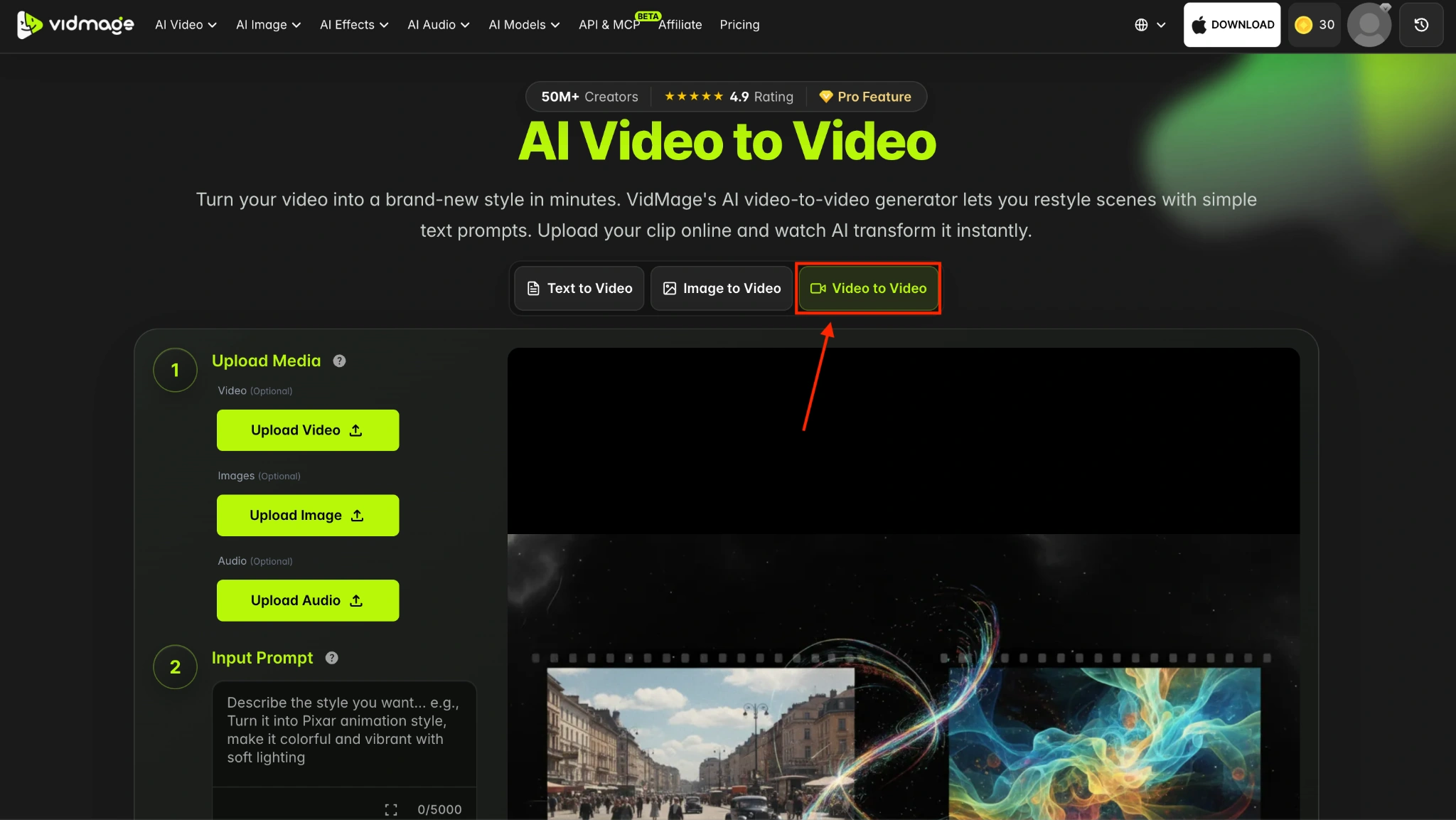
Step 1: Open the VidMage AI Video to Video tool and choose Video to Video.
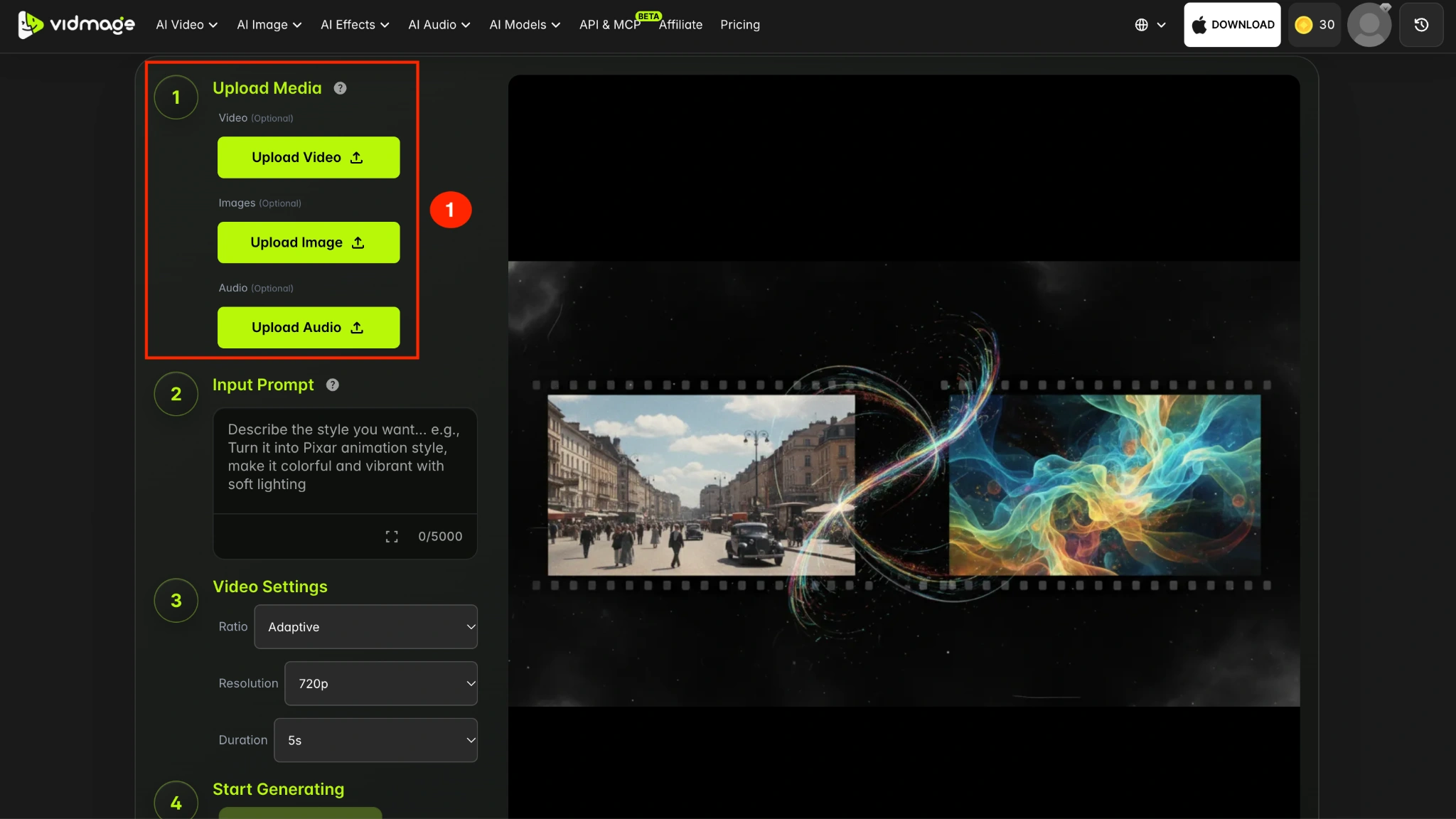
Step 2: Go to Upload Media and click Upload Video. Select the source clip from your device. For this, the video is the main input. The interface also provides optional Image and Audio upload fields, but you do not need them for a basic video style change.
Step 3: Use the Input Prompt to tell VidMage how you want the video to look. You do not need to describe every action already happening in the source video. Focus on the visual transformation instead.
For example:
Change the entire video to a hand-drawn anime style with soft colors, warm evening lighting, and detailed backgrounds.
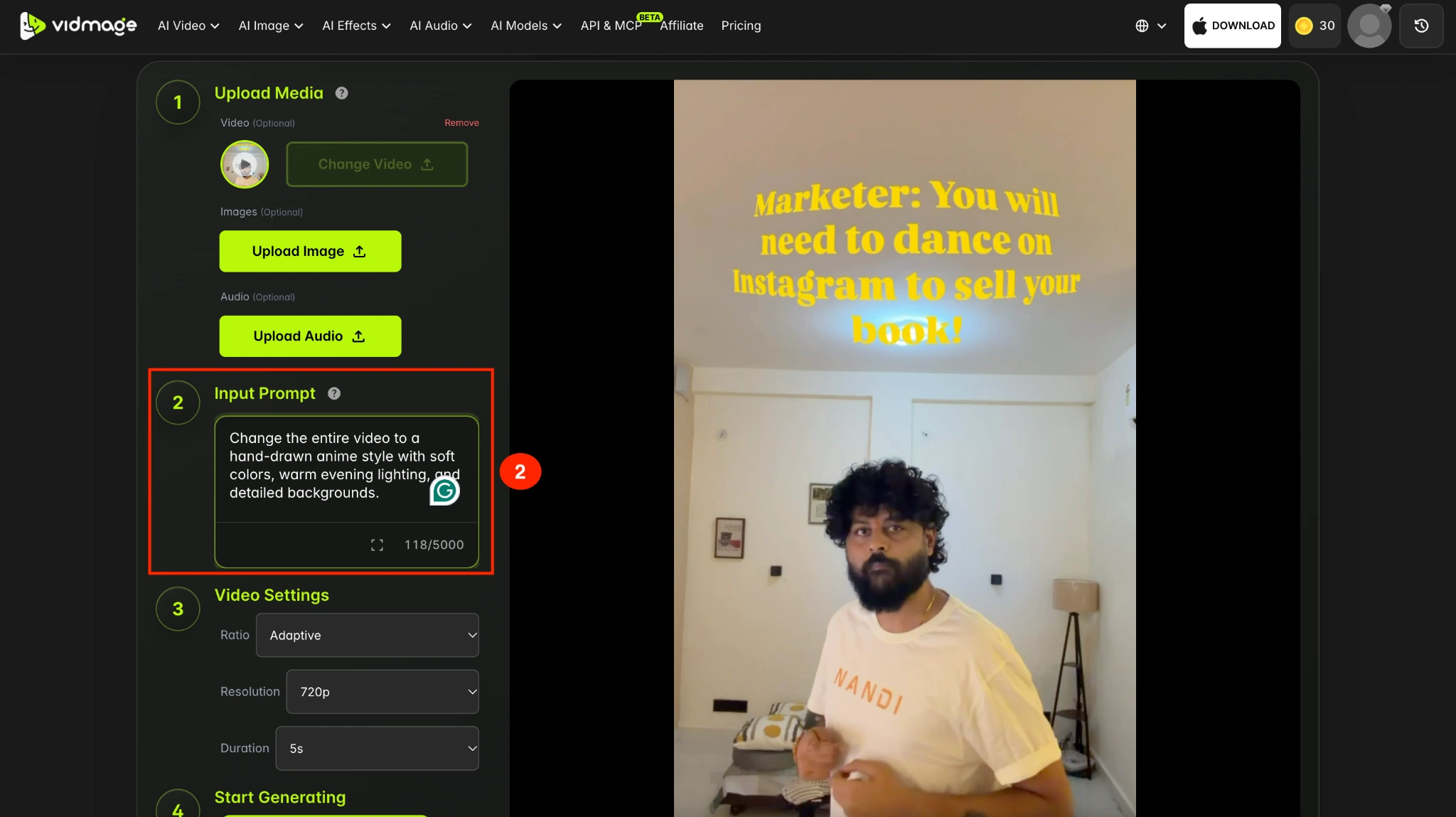
The prompt box supports up to 5,000 characters. VidMage's page lists styles such as anime, cartoon, cinematic, realism, and other artistic variations.
Step 4: Review the settings below the prompt before generating the video. VidMage provides controls for Ratio, Resolution, and Duration.
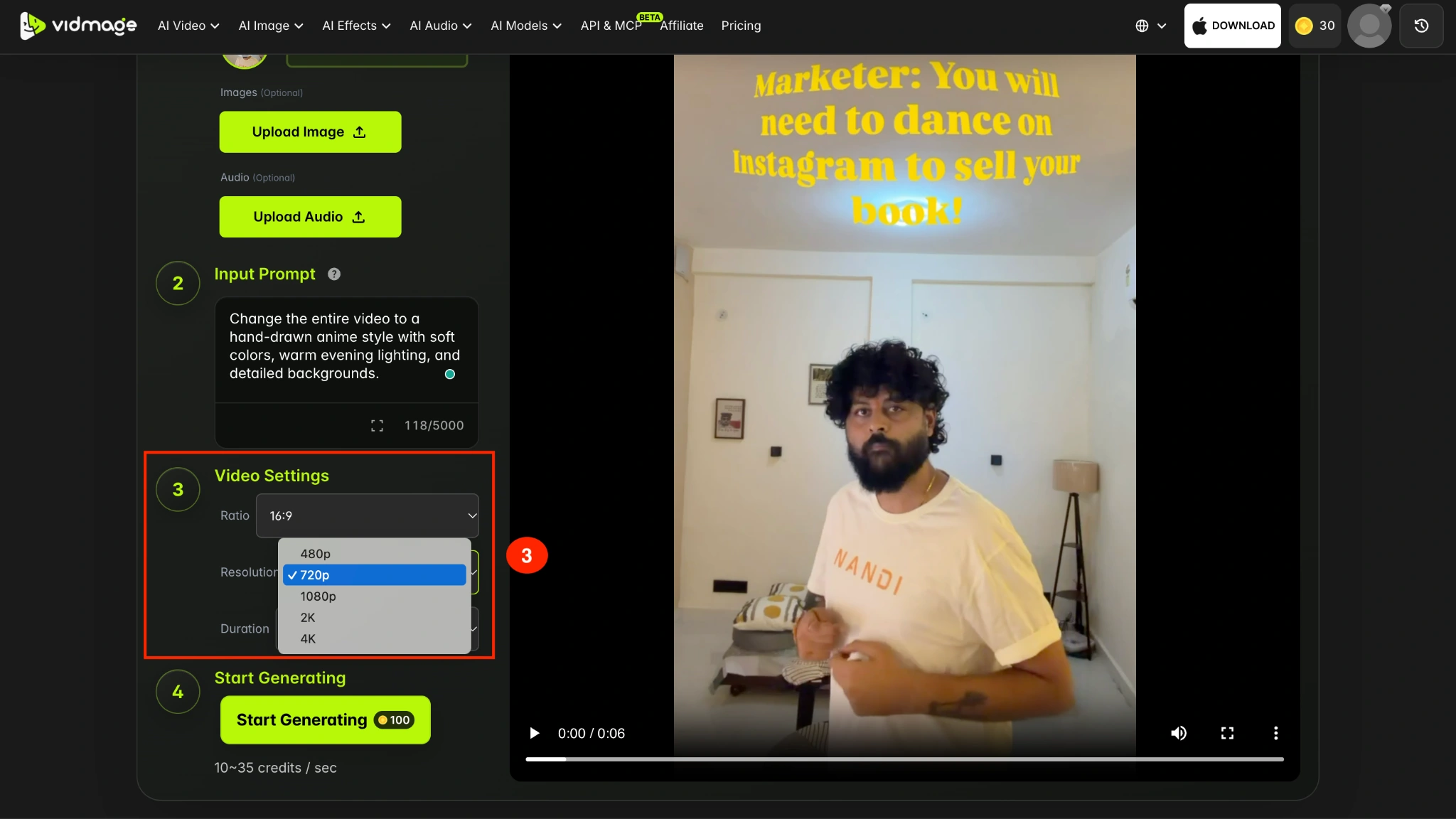
Step 5: Check your uploaded video, prompt, and settings, then click Start Generating.
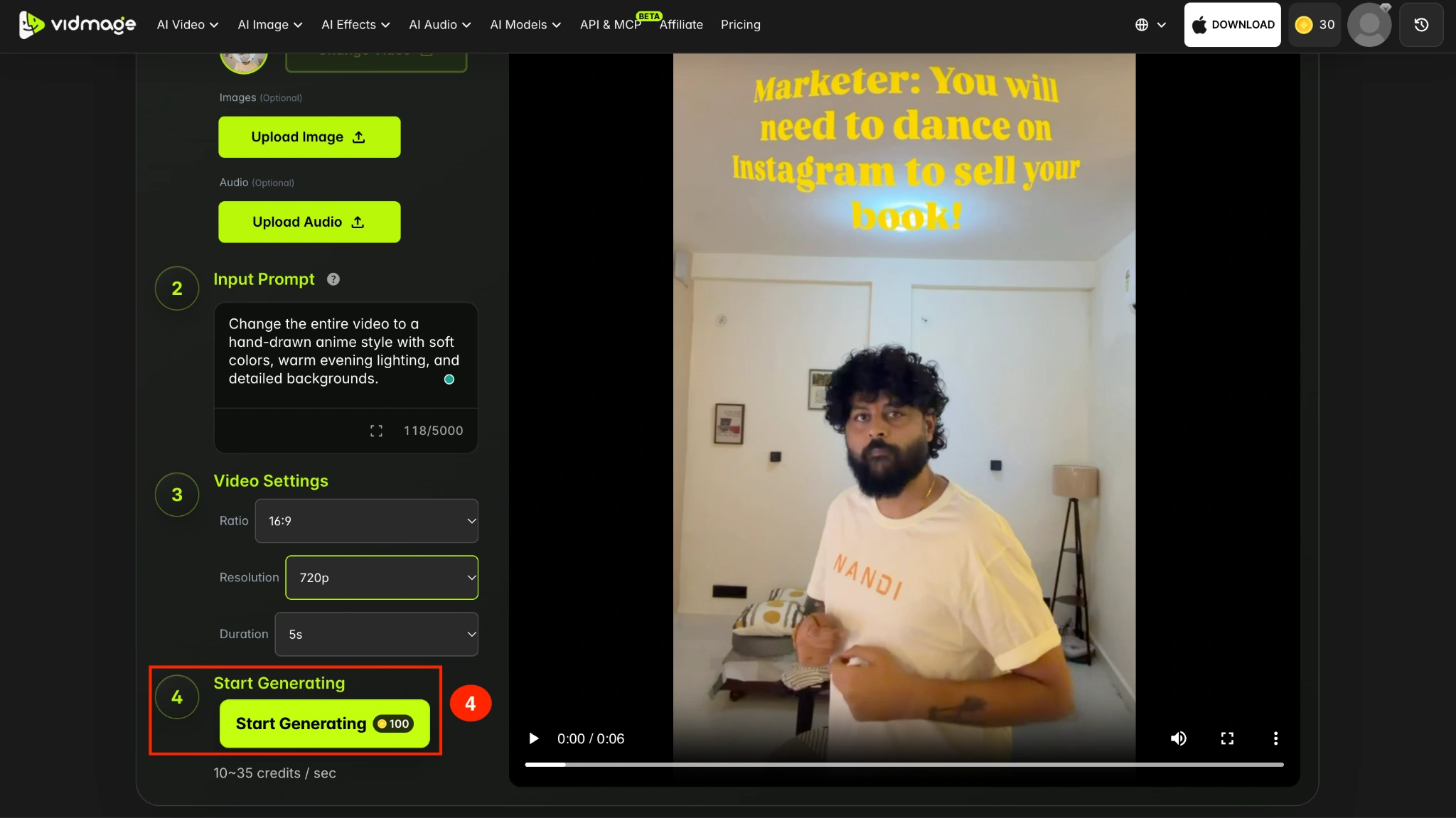
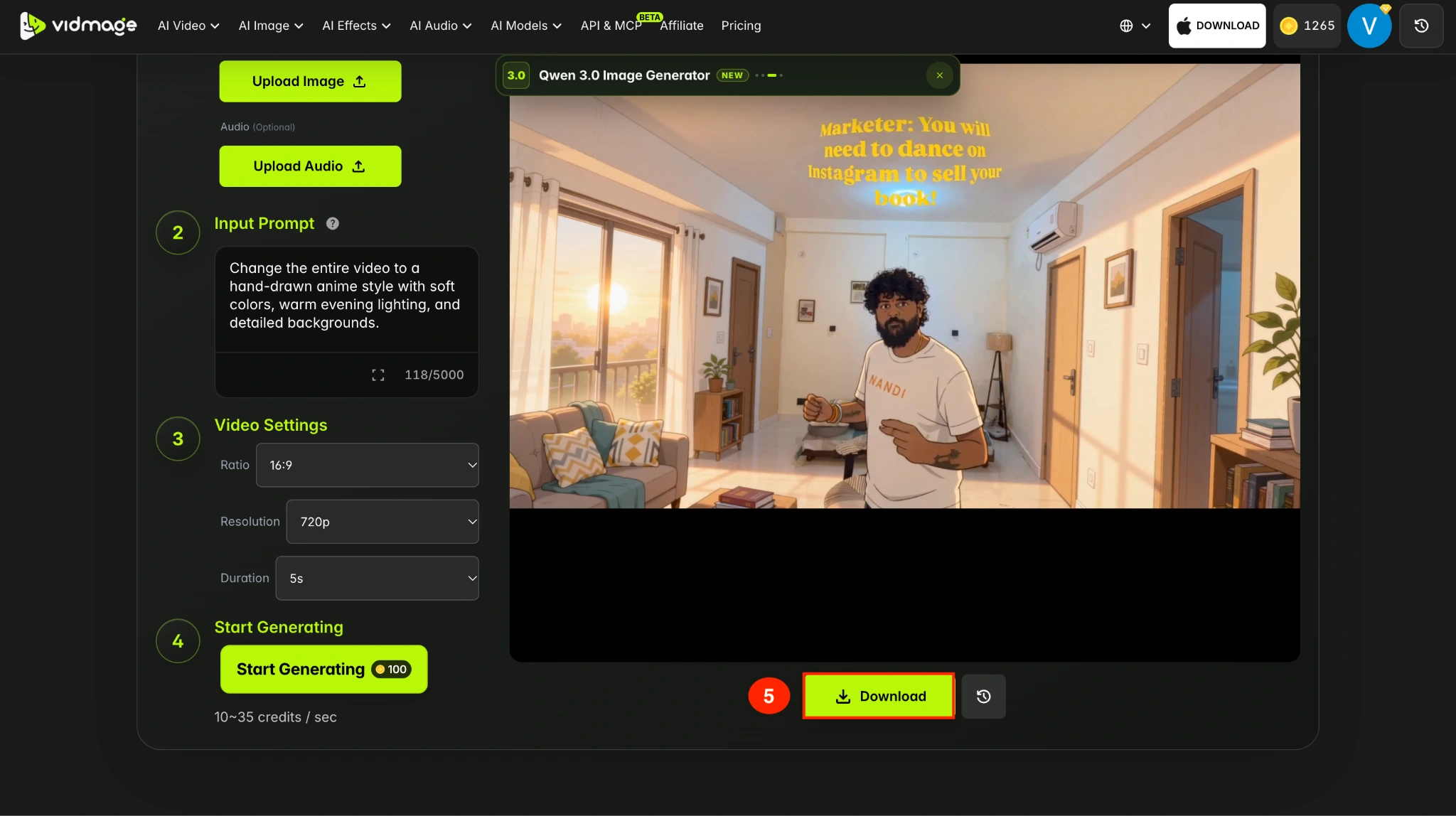
Step 6: Watch the result and check whether the new style stays consistent throughout the clip. If the result matches the look you wanted, download it to your device. VidMage exports generated videos in MP4 format.
How to Write a Prompt That Changes the Style, Not the Action
An effective video style prompt should explain both what you want to change and what you want to preserve.
For example, imagine you have uploaded a video of someone walking through a city street.
Basic prompt: "Make this video cinematic."
Improved prompt:
"Give the footage a cinematic film look with muted colors, soft contrast, warm highlights, and subtle film grain. Preserve the person's walking direction, the existing camera movement, and the original street composition."
The second prompt is more useful because it specifies the visual treatment without requesting a different scene.
When writing your own prompt, include:
- Artistic style: Anime, watercolor, cartoon, vintage film, or cinematic realism.
- Visual details: Color palette, lighting, contrast, outlines, or textures.
- Elements to preserve: Original subject, action, camera framing, and movement.
This distinction matters because dramatic changes to the scene can also change elements you intended to keep.
In VidMage: Add these instructions to the Input Prompt field. There is no need to request new camera movements if your goal is only to restyle the existing footage.
Prompt Examples for Different Video Styles
Your prompt should make the visual direction clear. Here are a few ways to write it.
Anime video
Restyle the video as detailed anime with clean line art, soft shading, vivid colors, and warm natural lighting.
Cinematic video
Give the scene a cinematic look with soft contrast, natural skin tones, shallow depth of field, and warm evening light.
Cartoon video
Transform the footage into a colorful cartoon style with bold outlines, simple shading, and bright backgrounds.
Film noir video
Restyle the video as black-and-white film noir with strong shadows, dramatic lighting, and subtle film grain.
Futuristic video
Give the scene a futuristic neon look with blue and purple lighting, reflective surfaces, and a dark city atmosphere.
These prompts describe the appearance rather than changing the action already present in the uploaded footage.
How to Fix Common AI Video Style Transfer Problems
If the generated video does not look as expected, identify the visual problem before making changes.
Problem | What to try |
|---|---|
The new style changes throughout the clip | Use one clearly defined aesthetic and reduce conflicting style instructions. |
The character or object becomes distorted | Try footage with clearer details and less motion blur. Ask to preserve recognizable features. |
Colors or textures flicker | Simplify the requested textures and avoid combining several dramatic lighting effects. |
The original movement changes | Explicitly ask to retain the source video's action, timing, and camera movement. |
The video looks almost unchanged | Add more specific visual details, such as cel shading, bold outlines, or monochrome lighting. |
The output has unexpected framing | Check the selected aspect ratio and use a setting that matches the original video when available. |
Where You Can Use Video-to-Video Generation
Video style changes can work for several types of existing footage.
- Social media clips: Restyle the same recorded clip for different visual themes without filming it again.
- Product videos: Apply a different mood, color treatment, or seasonal look to existing product footage.
- Short films and creative scenes: Test cartoon, anime, cinematic, or other visual directions on recorded footage.
- Gaming videos: Give gameplay clips a different artistic or atmospheric look.
- Digital art projects: Turn recorded movement into a stylized video that matches an illustration or creative concept.
Try it in VidMage
Open the tool and follow the steps above.