

If you need to learn how to remove a video watermark with AI, VidMage lets you upload the video and automatically process the marked area without manually masking it frame by frame.
VidMage AI analyzes the watermark across the frames and reconstructs the covered area using surrounding visual information.
How to Remove Video Watermark With VidMage
Here is how to remove a video watermark online with VidMage:
Step 1: Open Video Watermark Remover in VidMage. Make sure you use the video option, not the separate Image Watermark Remover.
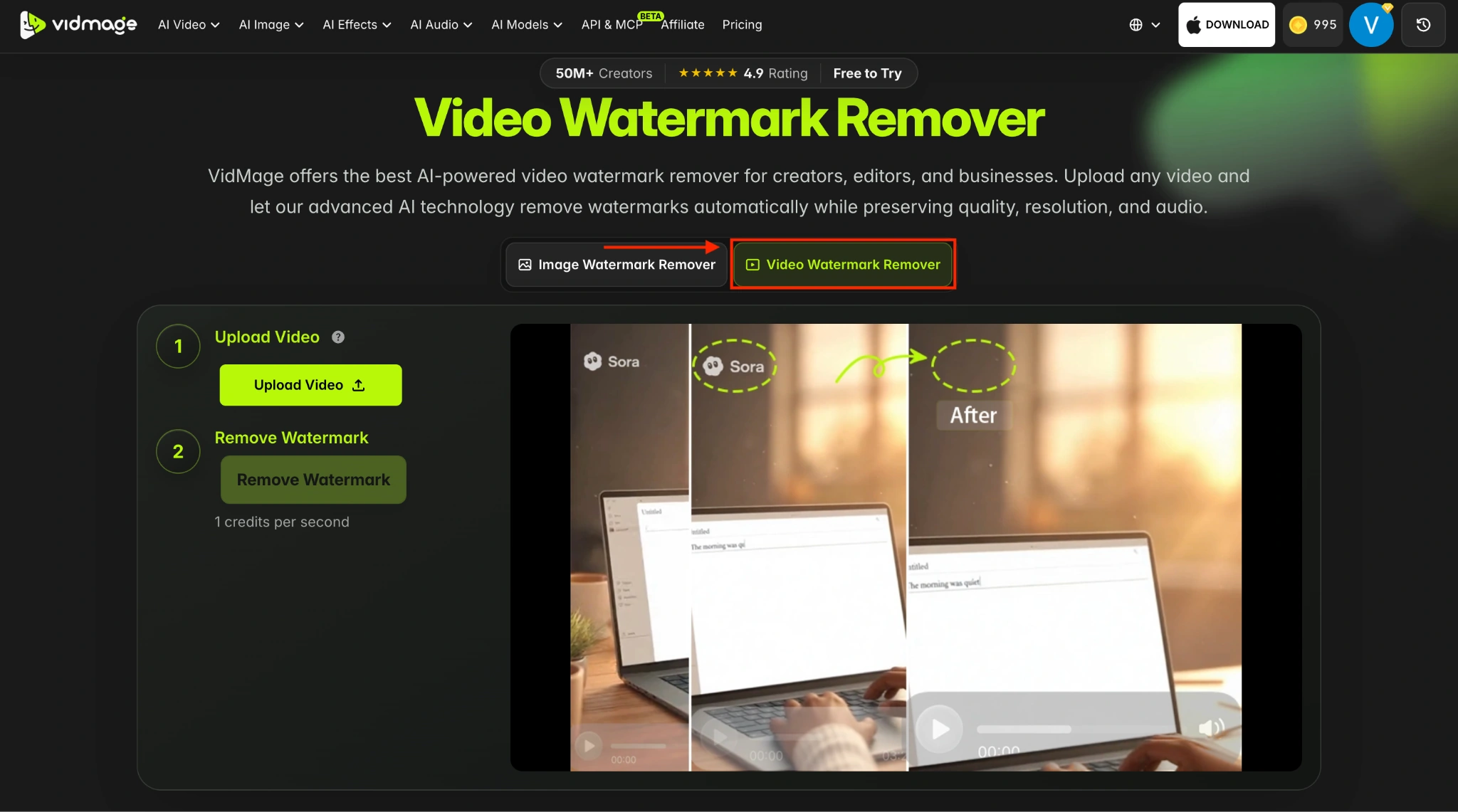
Step 2: Click Upload Video and select the MP4, MOV, or M4V video you want to clean. Use the original file when possible, so VidMage has more visual detail to analyze.
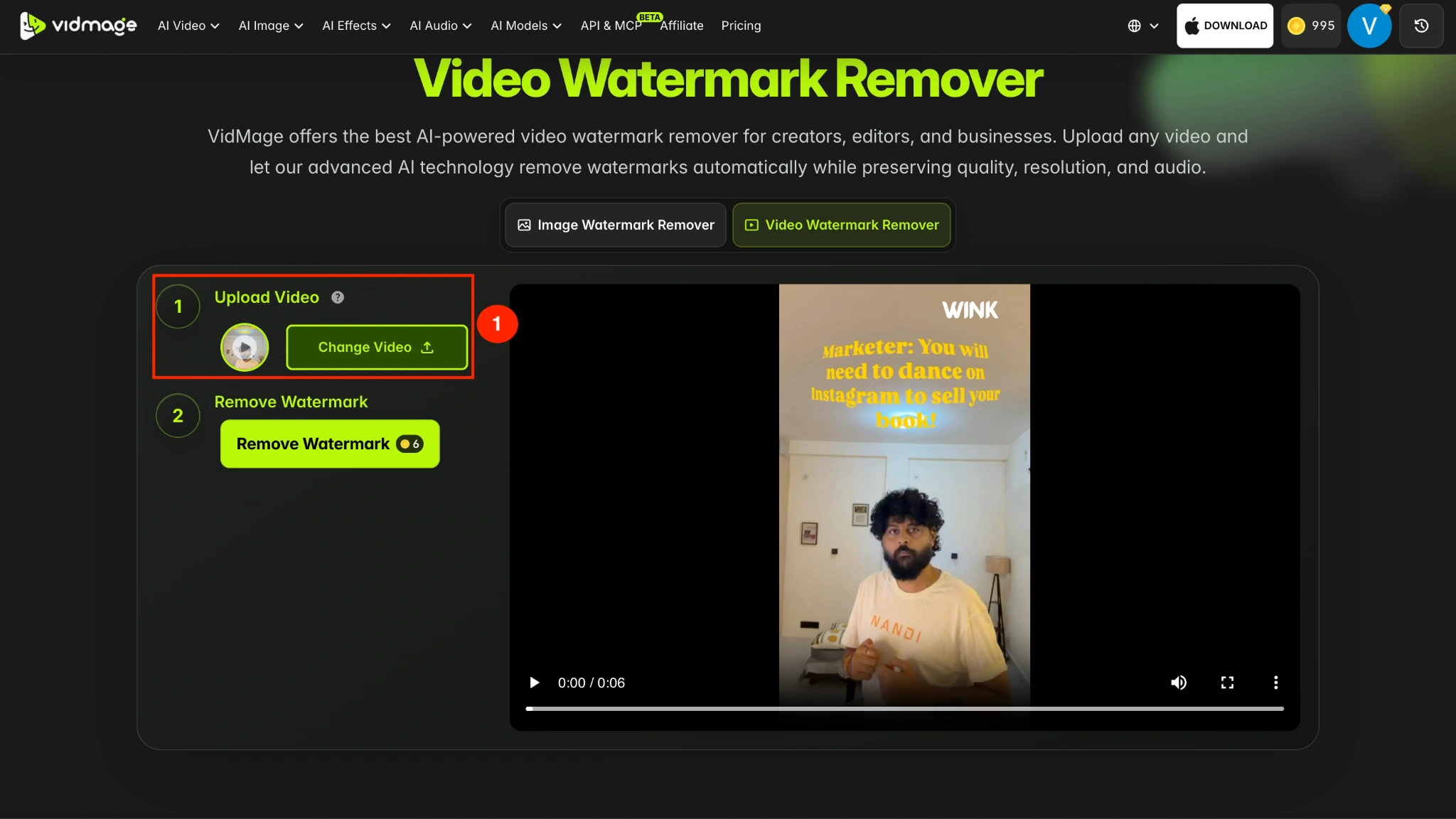
Step 3: Review the uploaded clip, then click Remove Watermark. The tool charges 1 credit per second, so check the video length before processing.
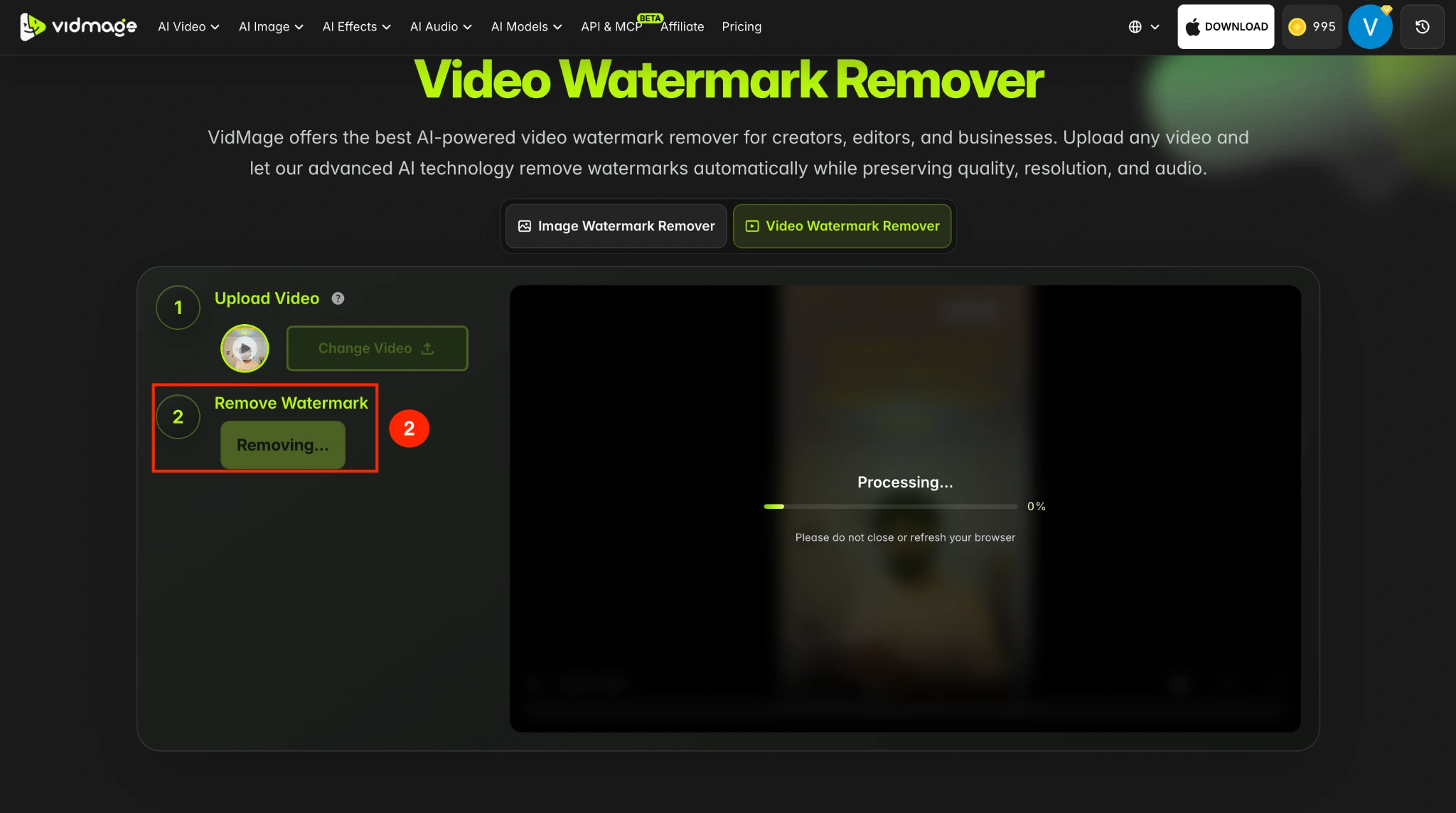
Step 5: Preview the processed video before downloading it.
What Can You Remove From a Video
VidMage's watermark cleanup workflow handles several types of visible overlays:
- Logo watermarks: Remove a fixed or moving logo that covers part of the frame
- Text overlays: Clean up unwanted text embedded directly in a video
- Stickers and graphics: Remove digital stickers, emojis, or similar overlays
- Date and time stamps: Clean up timestamp information embedded in older recordings
- Website or branding text: Remove unwanted text overlays from footage you have the rights to modify
When Is Watermark Removal More Difficult
Some watermarks are easier for AI to remove than others. A small watermark over a simple wall, sky, floor, or other predictable background gives the system more surrounding visual information to use.
Removal can be harder when the watermark:
- Covers a person's face
- Sits over moving hands or clothing
- Covers detailed text or a logo you need to preserve
- Moves across several complex areas of the frame
- Covers a large part of the video
- Appears over fast motion
- Fixed on footage with heavy compression or blur
Fixed vs. Moving Video Watermarks
A fixed watermark stays in the same position throughout the clip. This may include a corner logo, date stamp, or persistent text overlay.
A moving watermark changes position during playback. These can be harder because the watermark moves across different parts of the underlying scene.
VidMage AI works across individual frames and handles changing watermark positions and transparency.
For either type, review several points in the finished clip rather than checking only the beginning.
Processing Time, Formats, and Credits
Item | VidMage details |
|---|---|
Supported formats | MP4, MOV, M4V |
Processing cost | 1 credit per second |
Access | Subscription required |
Processing method | AI frame-by-frame reconstruction |
Typical processing time | About 1 to 3 minutes, depending on the clip |
Preview | Available before download |
Try it in VidMage
Open the tool and follow the steps above.