
To understand how to transfer motion from video to any character, you only need two inputs in VidMage: a character image and a reference video containing the movement you want to copy. VidMage Motion Control uses Kling 3.0 to apply that movement to your character while following the timing and pose changes from the reference clip.
Use VidMage to Learn How to Transfer Motion From Video to Any Character
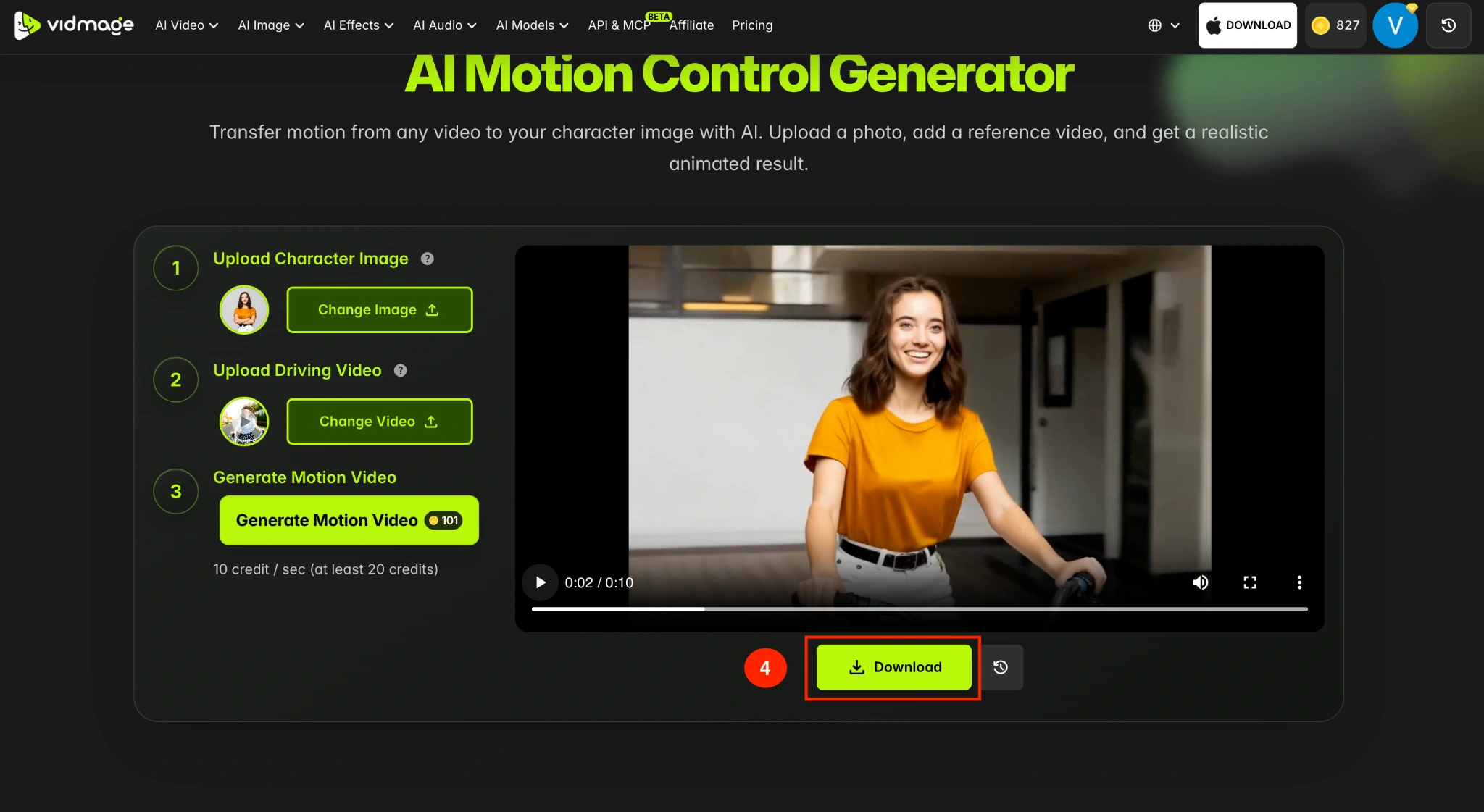
Here is the step-by-step process to learn how to transfer motion from video to any character:
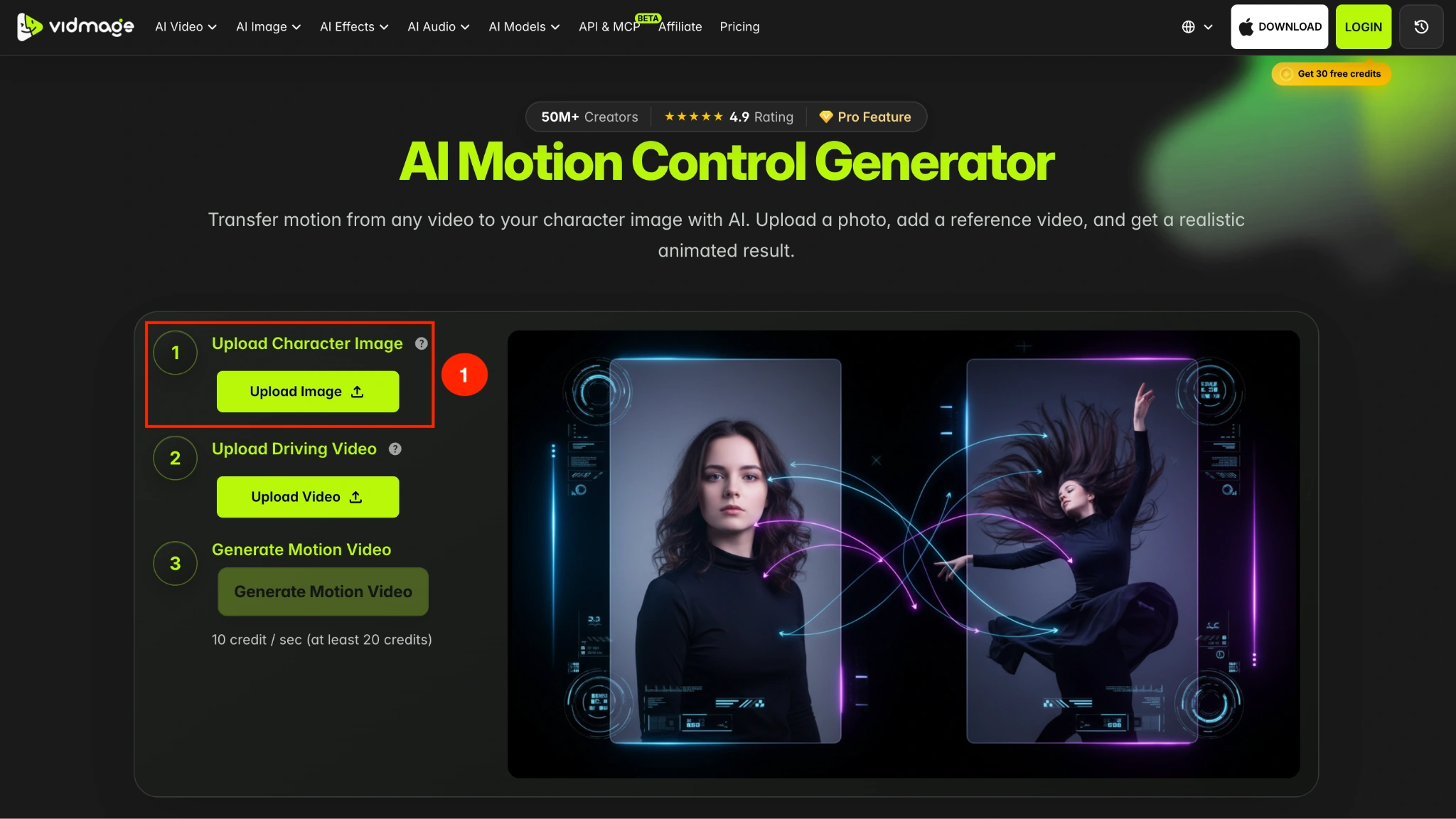
Step 1: Open the VidMage AI Motion Control Generator and click Upload Image under Upload Character Image. VidMage supports PNG, JPG, JPEG, and WEBP images.
For better motion transfer, use a clear full-body or half-body image where the character's pose and limbs are easy to see.
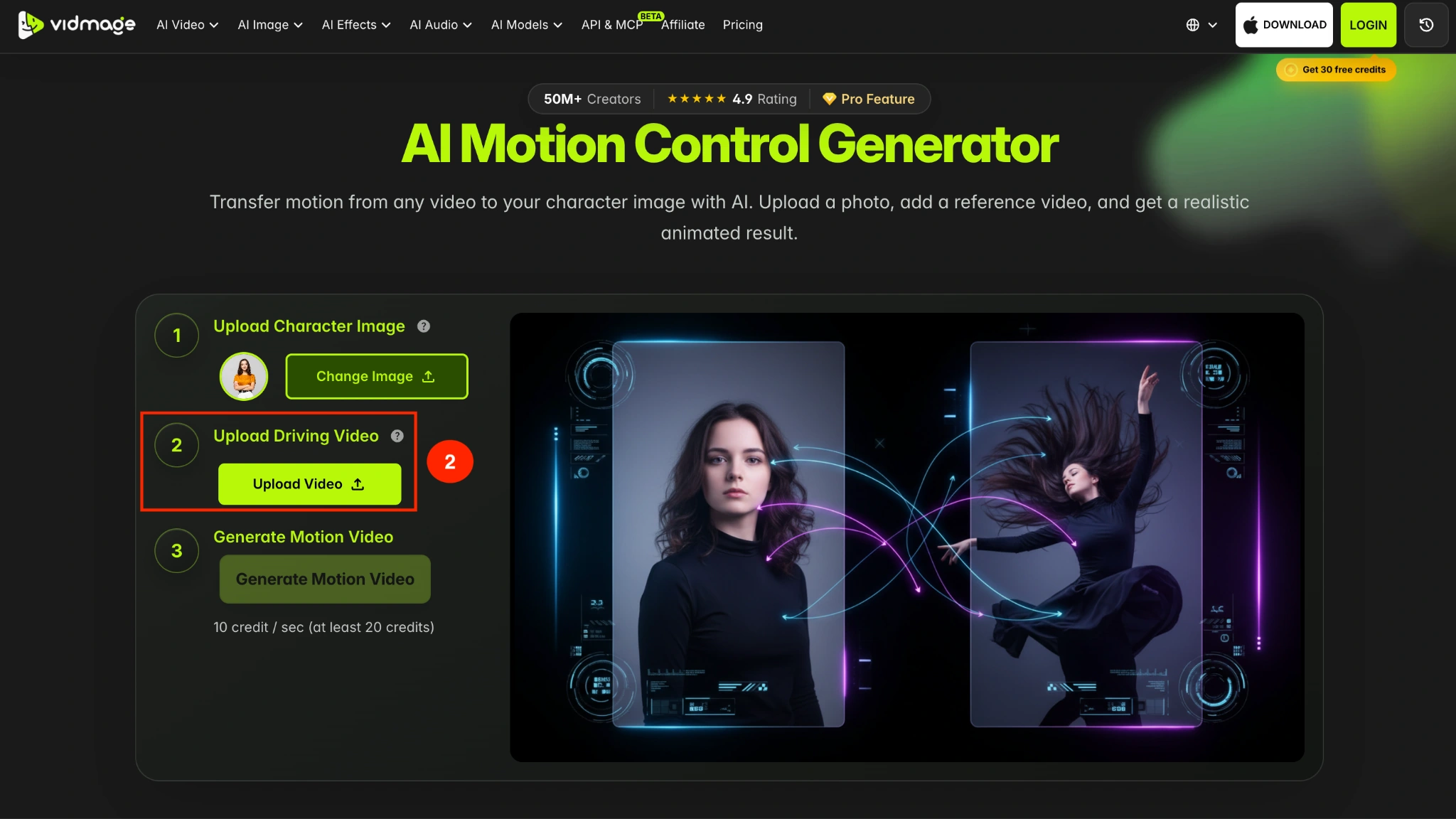
Step 2: Click Upload Video under Upload Driving Video and add the clip containing the movement you want the character to perform.
VidMage supports MP4, MOV, and M4V reference videos. Short clips between 3 and 15 seconds are recommended.
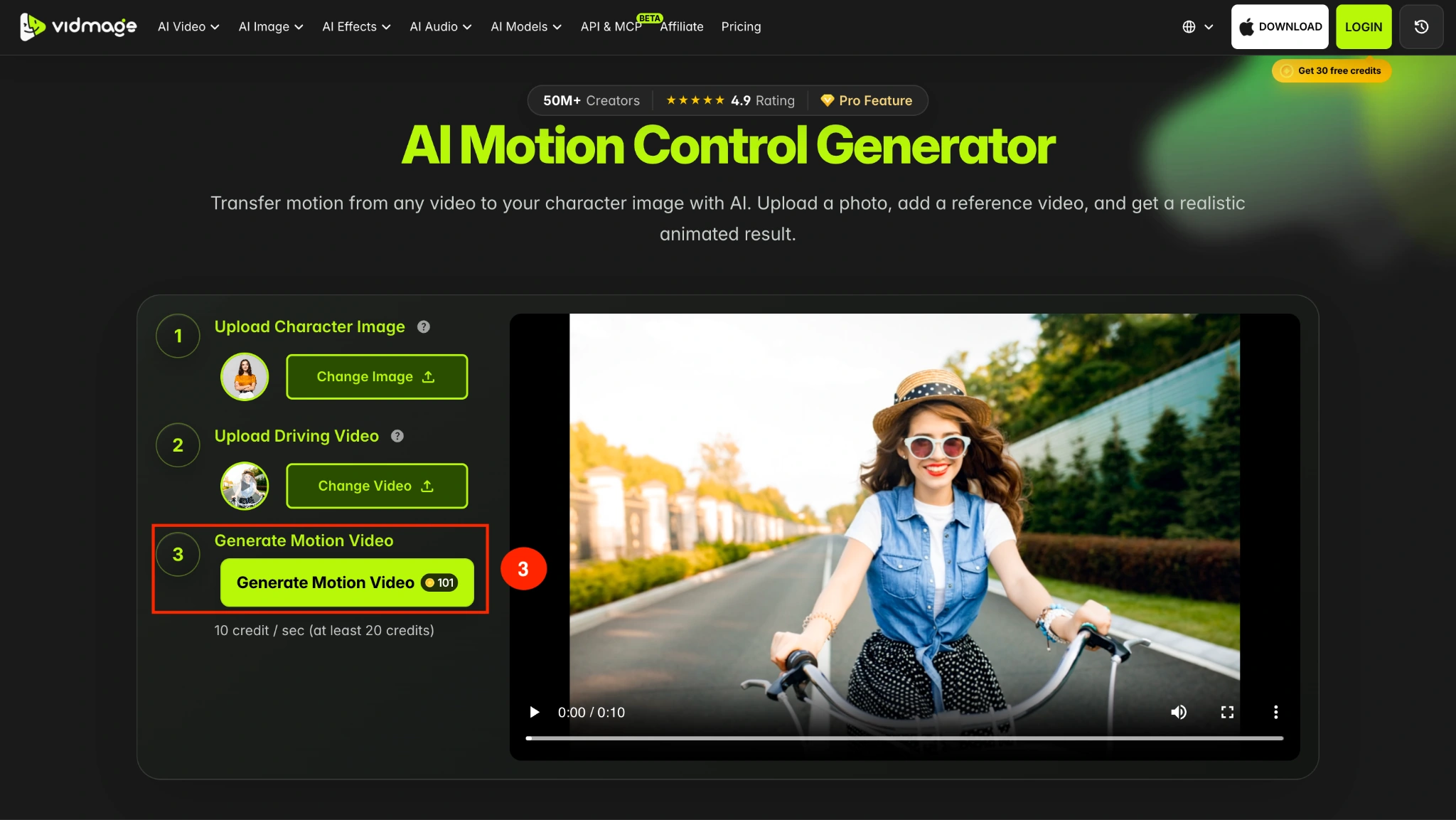
Step 3: Click Generate Motion Video. VidMage uses Kling 3.0 to read the movement from the driving video and apply it to the uploaded character.
Motion Control costs 10 credits per second, with a minimum charge of 20 credits per generation.
Step 4: Preview the generated animation and click Download. Check that the character follows the key poses, timing, and direction of the reference clip.
Tips for Getting Better AI Motion Transfer Results
Accurate motion transfer depends on how well your character image matches the movements in the reference video. Follow these tips to get smoother animations and reduce distorted poses.
1. Match the Character Image With the Reference Video
Use a character image that shows the same body area as the person in your driving video. This helps the AI map the movement onto the character's visible body parts.
For example, if you are transferring a dance involving footwork, use a full-body character image rather than a waist-up portrait. For hand gestures or facial expressions, a clear upper-body image may be enough.
In VidMage: Upload an appropriate full-body or half-body picture under Upload Character Image, then choose a driving video with similar framing.
2. Choose a Clear Reference Video With One Person
Motion transfer works best when the AI can follow one person's movements without interruptions.
Avoid reference clips with multiple people, frequent cuts, shaky camera movement, or body parts hidden behind objects. These can make it harder to track the intended poses and gestures.
Example: For a waving animation, use a stationary shot of one person waving with their arm clearly visible instead of a crowded video.
In VidMage: Upload a single-person clip under Upload Driving Video. Choose footage where the subject remains visible throughout the action.
3. Leave Enough Space for the Character to Move
The character needs enough room in the starting image to perform the movement without extending beyond the frame.
For example, if the reference video shows someone raising both arms, avoid an image cropped tightly around the character's head and shoulders.
In VidMage: Choose a character image with sufficient space around the subject, especially in the direction of movement. For full-body actions, keep the character's head, arms, and legs visible.
4. Start With Short, Controlled Movements
Fast turns, jumps, and complicated movements can make motion transfer more difficult, particularly when limbs overlap or move outside the camera frame.
For example, start by transferring a simple dance step or a short walking sequence before trying a routine with several spins and jumps.
In VidMage: Start with a clear 3-15-second driving video, as recommended by the tool. If your reference contains several complicated actions, trim it to one continuous movement before uploading.
Where Motion Control Is Useful
Motion Control is useful whenever you already have the movement you want but need a different character to perform it.
- Character animation: Apply recorded human motion to illustrations, avatars, or original characters.
- Dance content: Use a dance reference to animate a character image for short-form videos.
- Brand mascots: Add gestures, walks, or performance movements to an existing mascot without animating frame by frame.
- Digital art: Turn a static character illustration into a short motion-driven clip.
- Social content: Reuse one motion reference with different character images to create variations.
- Action concepts: Test athletic moves, martial arts actions, pose changes, or other full-body sequences.
Motion Control vs. Photo Dance
These two motion control and photo dance tools serve different workflows.
Motion Control lets you provide your own reference video and transfer its movement to a character.
Photo Dance uses dance-focused templates and music to animate a static photo.
Use Motion Control when the exact reference movement matters, including non-dance movements.
VidMage Motion Control Requirements at a Glance
Item | VidMage details |
|---|---|
Character image formats | PNG, JPG, JPEG, WEBP |
Reference video formats | MP4, MOV, M4V |
Recommended reference length | 3 to 15 seconds |
AI model | Kling 3.0 |
Cost | 10 credits per second |
Minimum charge | 20 credits |
Typical processing time | Around 1 to 2 minutes |
Access | Subscriber feature |
Supported character types | Photos, anime, illustrations, avatars, custom artwork |
Try it in VidMage
Open the tool and follow the steps above.