
To learn how to make photos talk with AI, upload the image to VidMage, enter what the character should say, choose a voice, and generate the talking photo.
VidMage combines the written script with a reference voice and animates the face to match the generated speech.
Create a Talking Photo in VidMage
Here is how to make photos talk with AI online step by step:
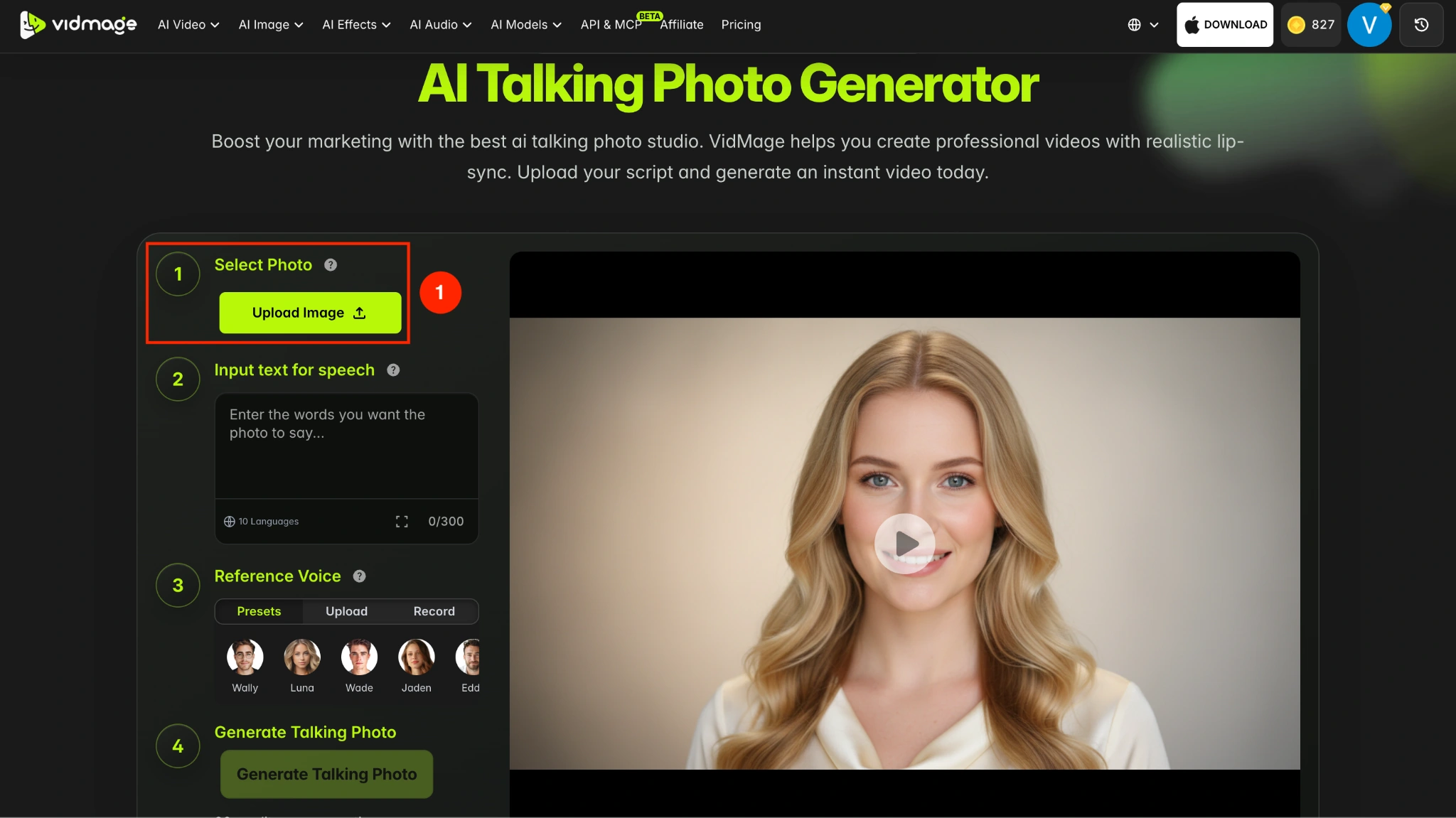
Step 1: Open the VidMage AI Talking Photo Generator and click Upload Image under Select Photo. VidMage accepts JPG, JPEG, PNG, and WEBP images up to 30MB.
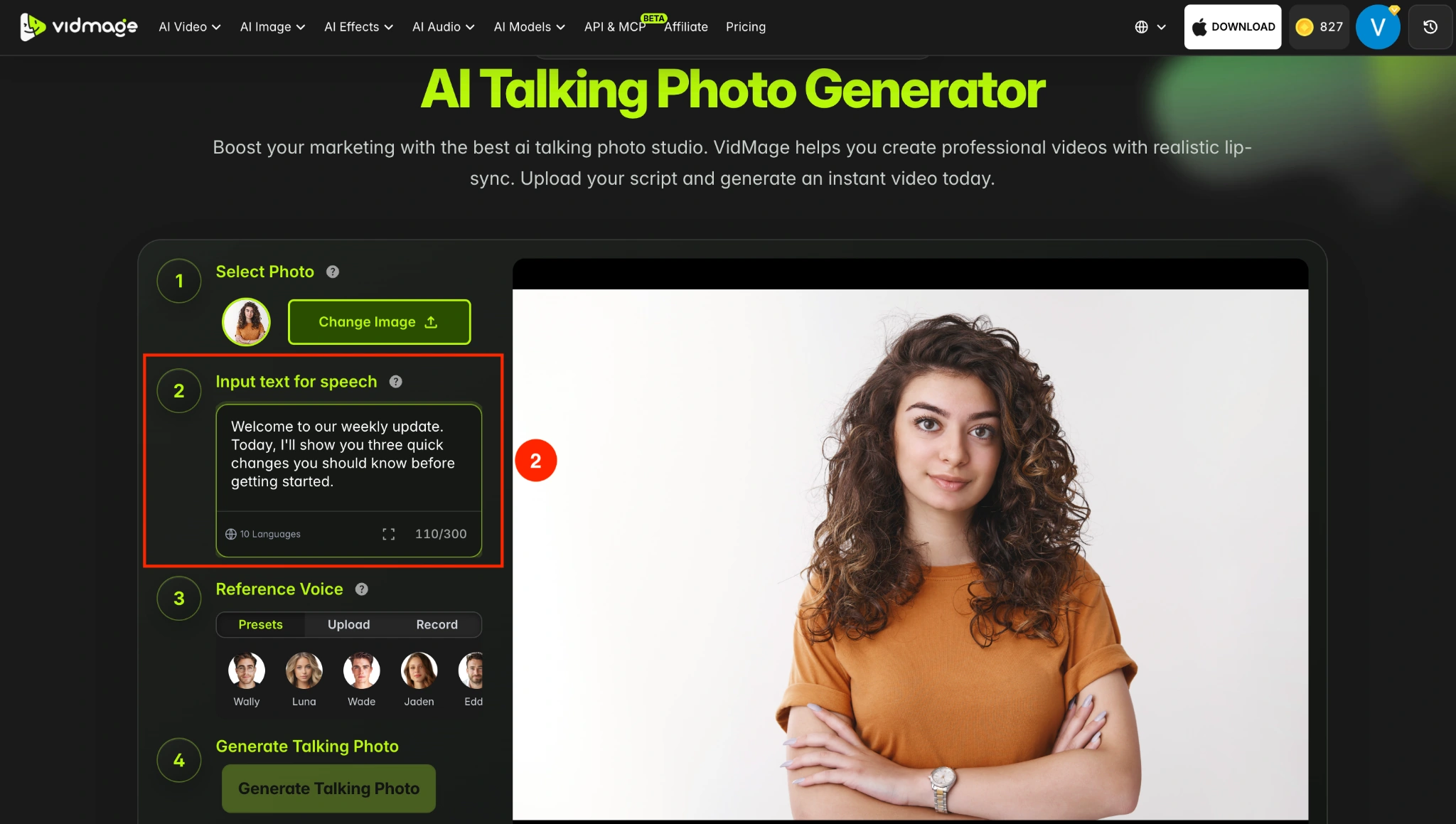
Step 2: Enter the words you want the photo to say in the Input text for speech. The text field allows up to 300 characters.
For example:
Welcome to our weekly update. Today, I'll show you three quick changes you should know before getting started.
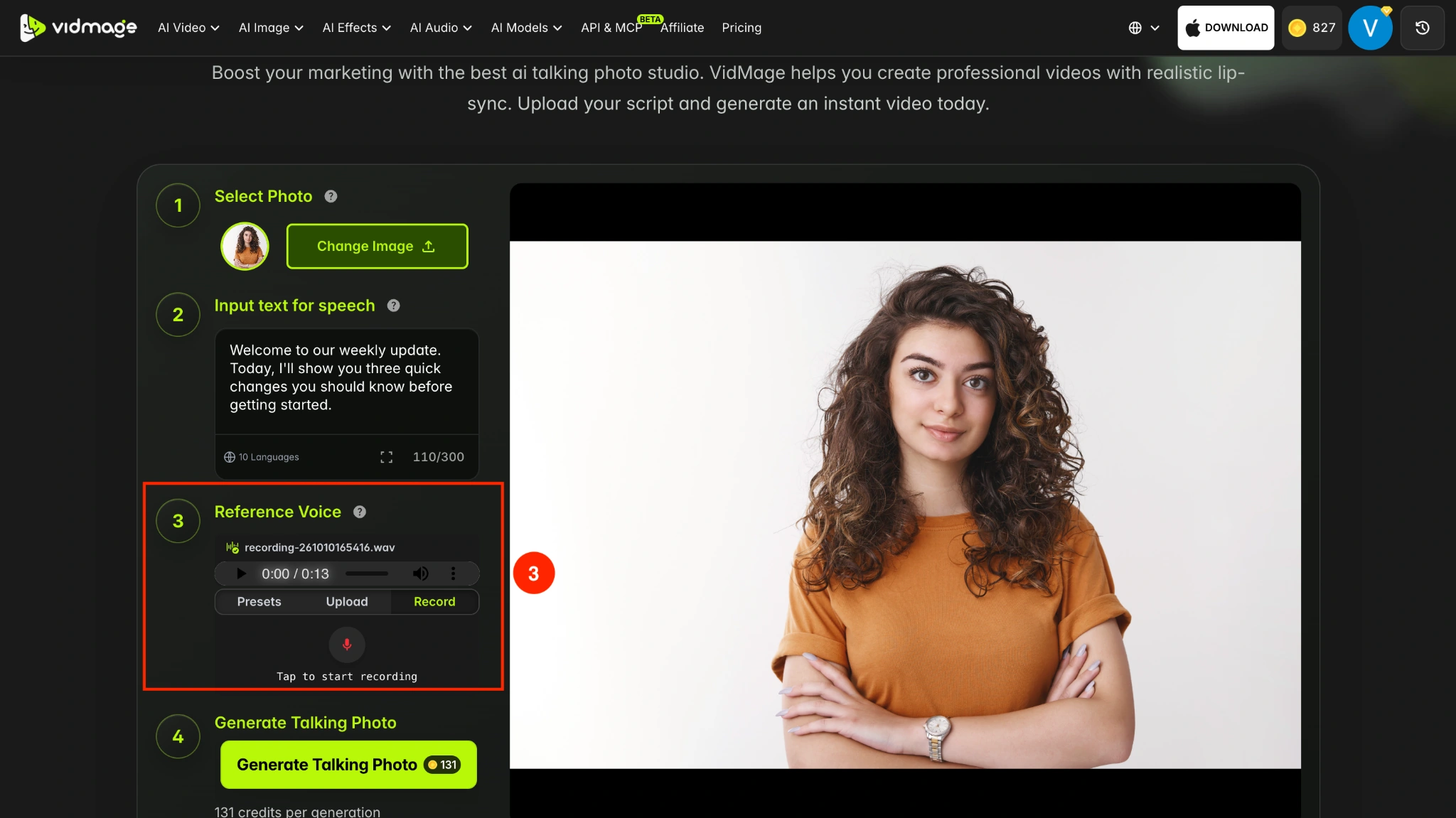
Step 3: Add a Reference Voice. VidMage gives you three ways to do this:
- Choose one of the available voice presets.
- Upload a reference audio file.
- Record a voice sample directly in the tool.
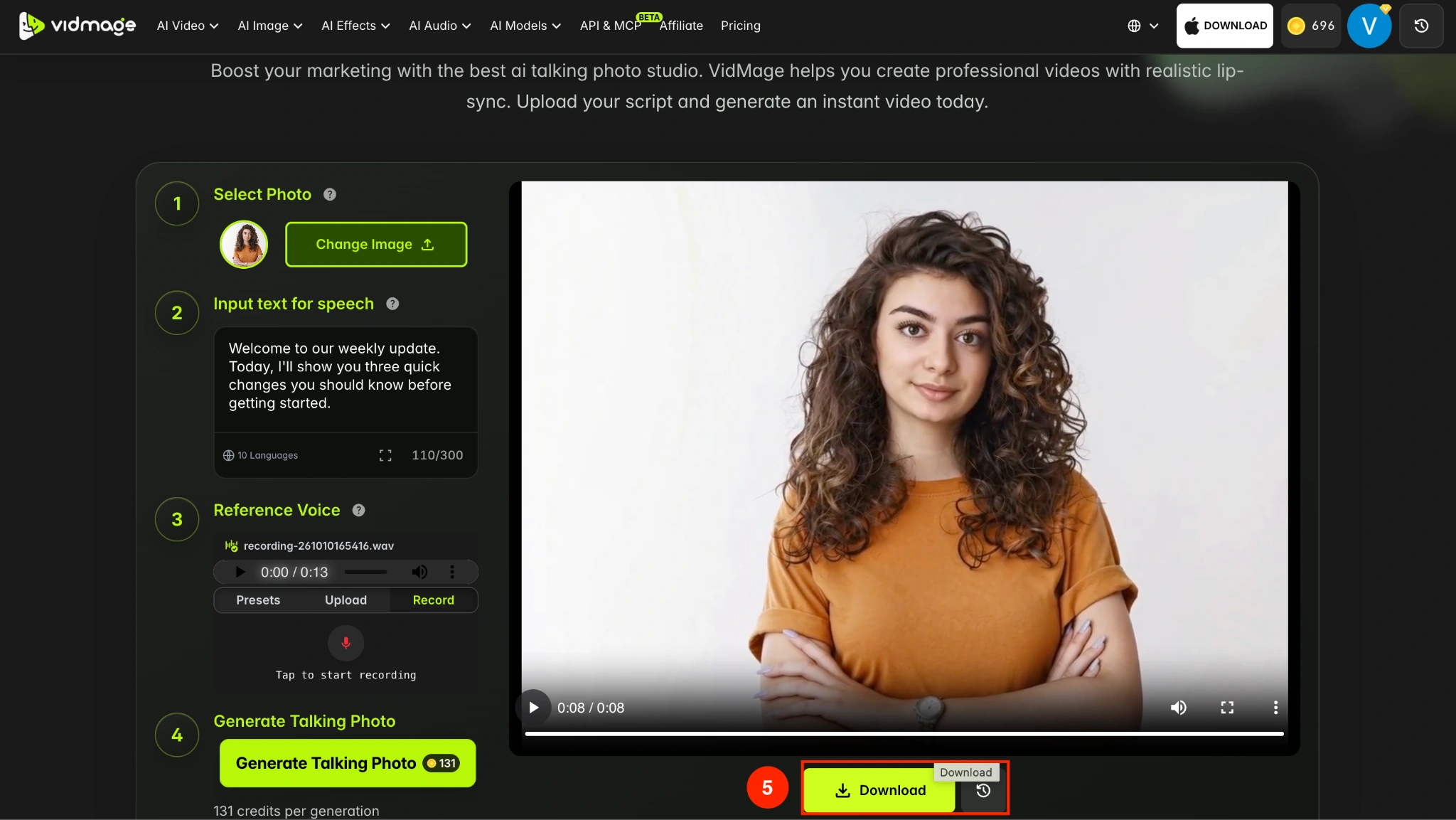
Step 4: Click Generate Talking Photo. Each generation costs 80 credits.
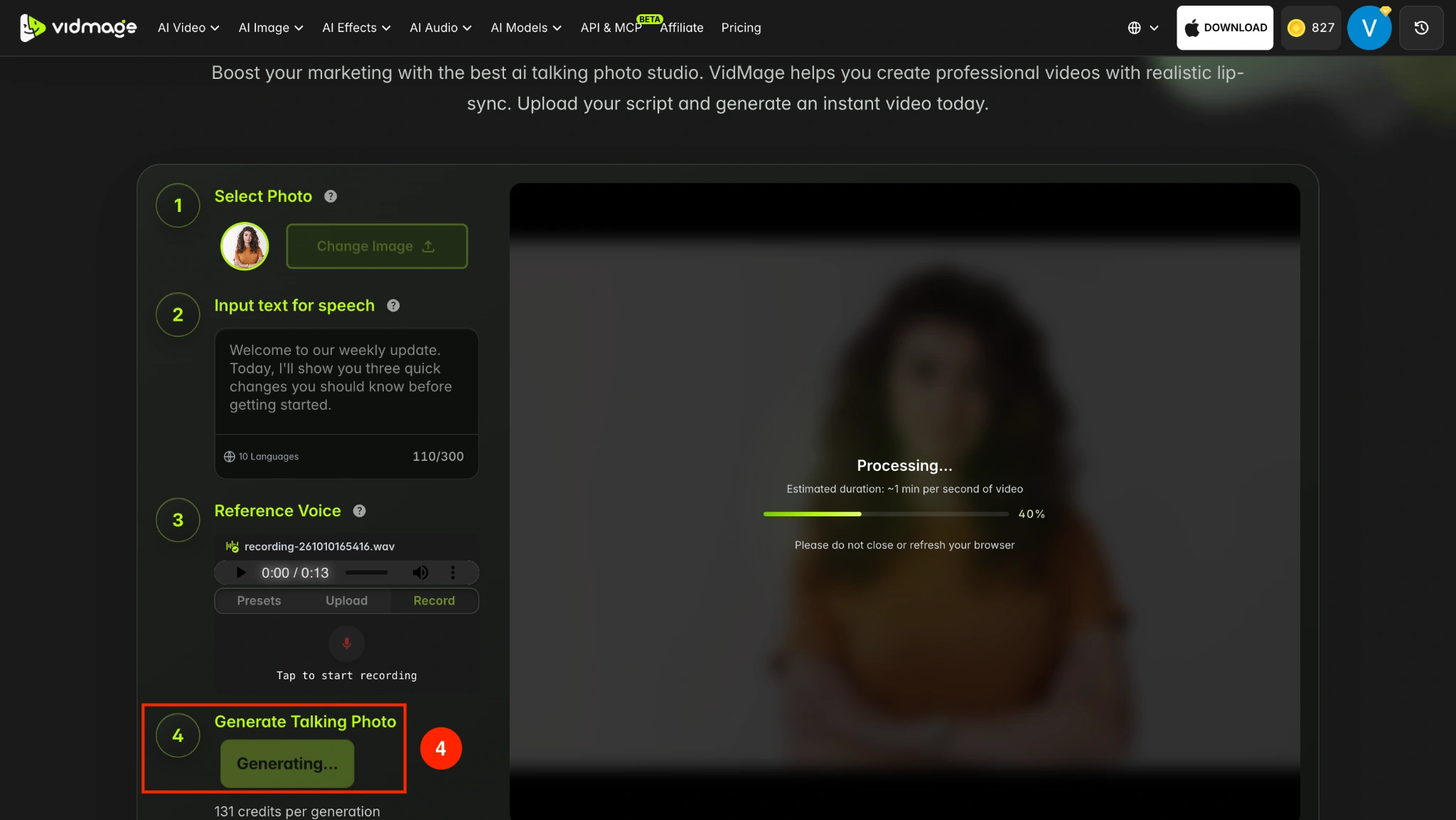
Step 5: Preview the generated video and check whether the speech, mouth movement, and facial animation match naturally. If the result works for your project, download the talking-photo video.
Tips for Making Talking Photos Look and Sound Natural
The quality of a talking photo depends on the portrait, script, and reference voice you provide. Here are four ways to improve the final result.
1. Choose a Portrait With a Clearly Visible Face
AI needs to identify the facial features, particularly the lips and jaw, to animate speech accurately.
For better results:
- Use a front-facing or nearly front-facing portrait.
- Avoid images where hair, hands, or accessories cover the mouth.
- Choose even lighting that keeps the lips and facial features visible.
Example: A well-lit headshot with the subject looking toward the camera is generally easier to animate than a side-profile photo with part of the mouth hidden.
In VidMage: Upload a clear portrait under Select Photo. If the generated mouth movements appear distorted, try an image with a more direct facial angle.
2. Write Short Scripts That Sound Natural When Spoken
A script that reads well doesn't always sound natural when spoken aloud. Long sentences, complicated wording, and too many ideas can make the delivery difficult to follow.
Compare these examples:
Less natural: "We are delighted to officially announce the commencement of our newest product launch initiative."
More natural: "We're excited to introduce our new product. Here's what you need to know."
The second version is easier to understand and gives the speech a more conversational rhythm.
In VidMage: Write one or two short sentences in Input text for speech and read them aloud before generating. Keep the spoken length suitable for a short video, even if the text is within the 300-character limit.
3. Use a Clean Reference Voice With Consistent Delivery
The reference voice influences how the generated speech sounds. Background noise, overlapping voices, and inconsistent speaking styles can make it harder to reproduce a clear voice.
For a useful recording:
- Record in a quiet environment without music.
- Speak clearly at a natural pace.
- Maintain a consistent tone throughout the sample.
Example: For a professional product introduction, a clear 10-second recording with steady, conversational speech is a better reference than a noisy clip containing several speakers.
In VidMage: Select Upload or Record under Reference Voice and provide a clean 2–15-second sample. Alternatively, choose a preset voice if you don't need a custom voice.
4. Check Lip Sync and Pronunciation Before Sharing
Even when the generated speech sounds clear, the mouth animation may not match every word perfectly. Names, numbers, and unfamiliar terms may also be pronounced incorrectly.
After generating, check:
- Lip sync: Do the mouth movements follow the spoken words?
- Pronunciation: Are names, numbers, and important terms spoken correctly?
- Facial movement: Do the lips and facial features look natural throughout the clip?
Example: If your avatar mispronounces a product name, try rewriting the script with a clearer, speech-friendly spelling, provided it preserves the intended pronunciation.
In VidMage: Preview the generated video with sound. If the speech or animation needs improvement, revise the text or try a different reference voice or portrait, then generate another version.
How the Script and Reference Voice Work Together
VidMage uses two separate inputs to control what the talking photo says and how it sounds.
The script controls the words. Whatever you enter in the text field becomes the spoken content.
The reference voice controls the voice identity and speaking style. If you upload or record a sample, VidMage uses that audio as a voice reference rather than repeating the words from the recording.
This distinction matters. For example, you can record yourself saying:
Testing my voice for this video.
and type:
Thanks for joining today's product update.
The generated photo should speak the second sentence while using the reference sample to guide how the voice sounds.
Choose Between a Preset, Uploaded Voice, and Recorded Voice
The right voice option depends on how much control you need.
Voice option | When to use it |
|---|---|
Preset voice | When you want to generate quickly without providing your own audio |
Upload audio | When you already have a clean voice reference saved as MP3 or WAV |
Record voice | When you want to create a reference sample directly in VidMage |
If you use your own reference voice, keep the recording between 2 and 15 seconds and under 15MB. A clean sample with little background noise gives the system a clearer voice reference.
With VidMage, you also get multilingual voice support across more than 100 languages.
What Can You Make With a Talking Photo
The feature works best for short, speech-led videos where a static character needs to deliver a message.
Product Introductions
Turn a spokesperson image or brand character into a short video explaining a product feature or offer.
Social Media Clips
Create talking-avatar posts for TikTok, Instagram Reels, or YouTube Shorts without recording a new video each time.
Educational Content
Use a talking photo to introduce a lesson, repeat a key point, or deliver a short explanation.
Character Content
Animate an illustrated character, avatar, or AI-generated portrait with a short script and selected voice.
Business Updates
Create brief announcements or internal update videos from an approved spokesperson or avatar image.
How to Fix Common Talking Photo Problems
If your talking photo does not look or sound as expected, use these fixes.
Problem | What to try in VidMage |
|---|---|
Mouth movements look unnatural | Use a clearer, front-facing portrait with an unobstructed mouth. |
Speech sounds unclear or inconsistent | Upload a cleaner reference voice or try a preset. |
Words are mispronounced | Simplify the script or adjust how difficult words are written. |
Speech and lips don't match well | Try a shorter script and a clearer portrait, then regenerate. |
The face looks distorted | Choose a sharper photo with natural facial proportions and even lighting. |
When troubleshooting, change one input at a time to identify whether the problem comes from the portrait, script, or reference voice.
VidMage Talking Photo Requirements
Item | VidMage details |
|---|---|
Photo formats | JPG, JPEG, PNG, WEBP |
Maximum photo size | 30MB |
Script limit | 300 characters |
Reference voice | Required |
Audio formats | MP3, WAV |
Reference length | 2 to 15 seconds |
Maximum audio size | 15MB |
Voice options | Presets, upload, or record |
Cost | 80 credits per generation |
Supported content | Photos, characters, AI avatars |
Languages | 100+ |
Try it in VidMage
Open the tool and follow the steps above.