
Want to know how to make still images dance without filming or animating frame by frame? Upload a character photo to Photo Dance, choose a built-in dance template or provide your own motion video, then generate the animated clip.
For more stable movement, start with a clear photo of one person where the face and body are easy to see.
How to Make a Still Image Dance
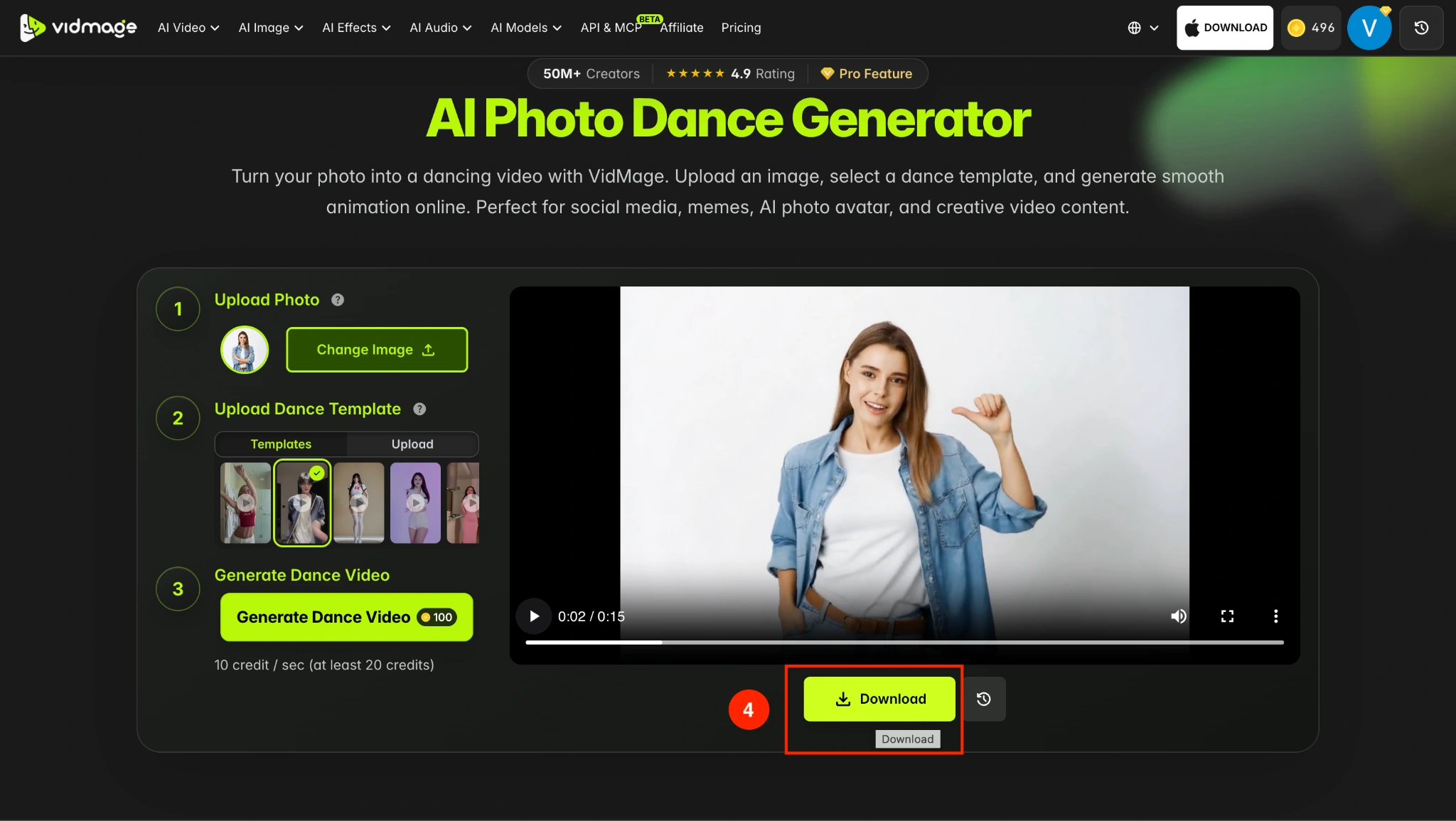
Here is how to make a still image dance with VidMage:
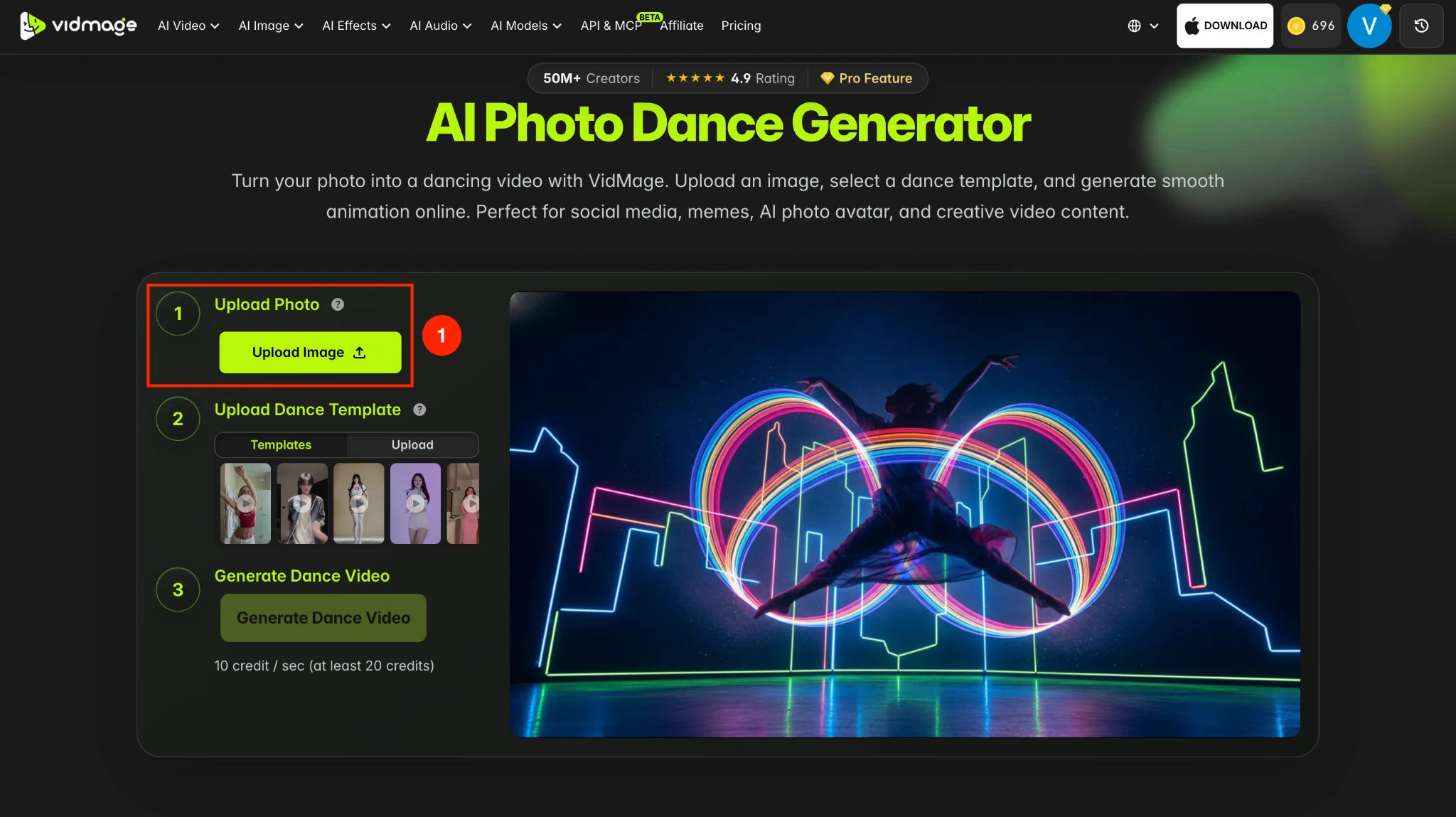
Step 1: Open AI Photo Dance Generator and click Upload Image under Upload Photo.
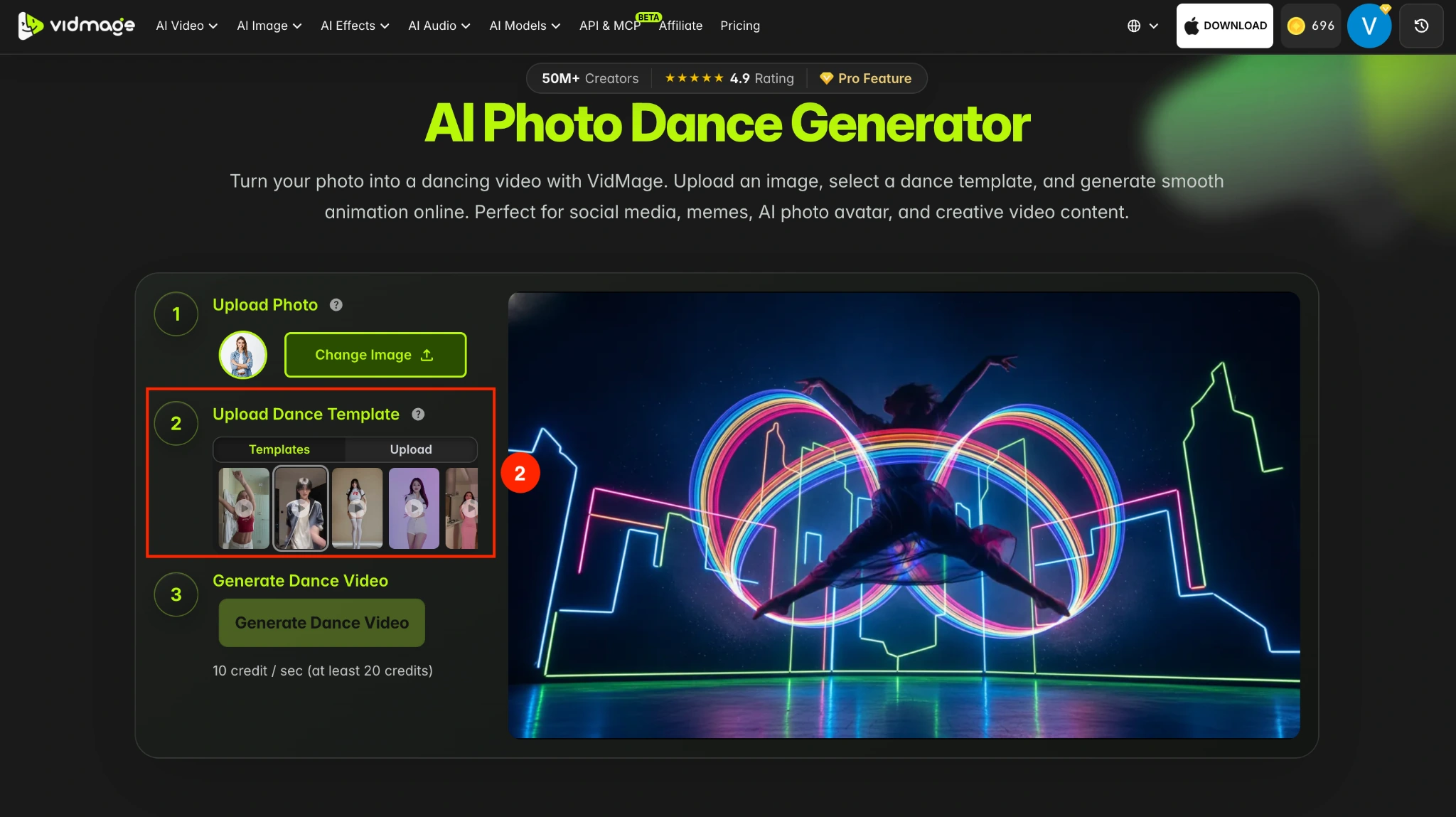
Step 2: Choose how you want the character to move.
You have two options:
- Select one of the built-in Templates.
- Choose Upload and add your own dance video as the motion reference.
If you upload your own reference video, supported formats include MP4, MOV, and M4V. Videos longer than 30 seconds are automatically trimmed.
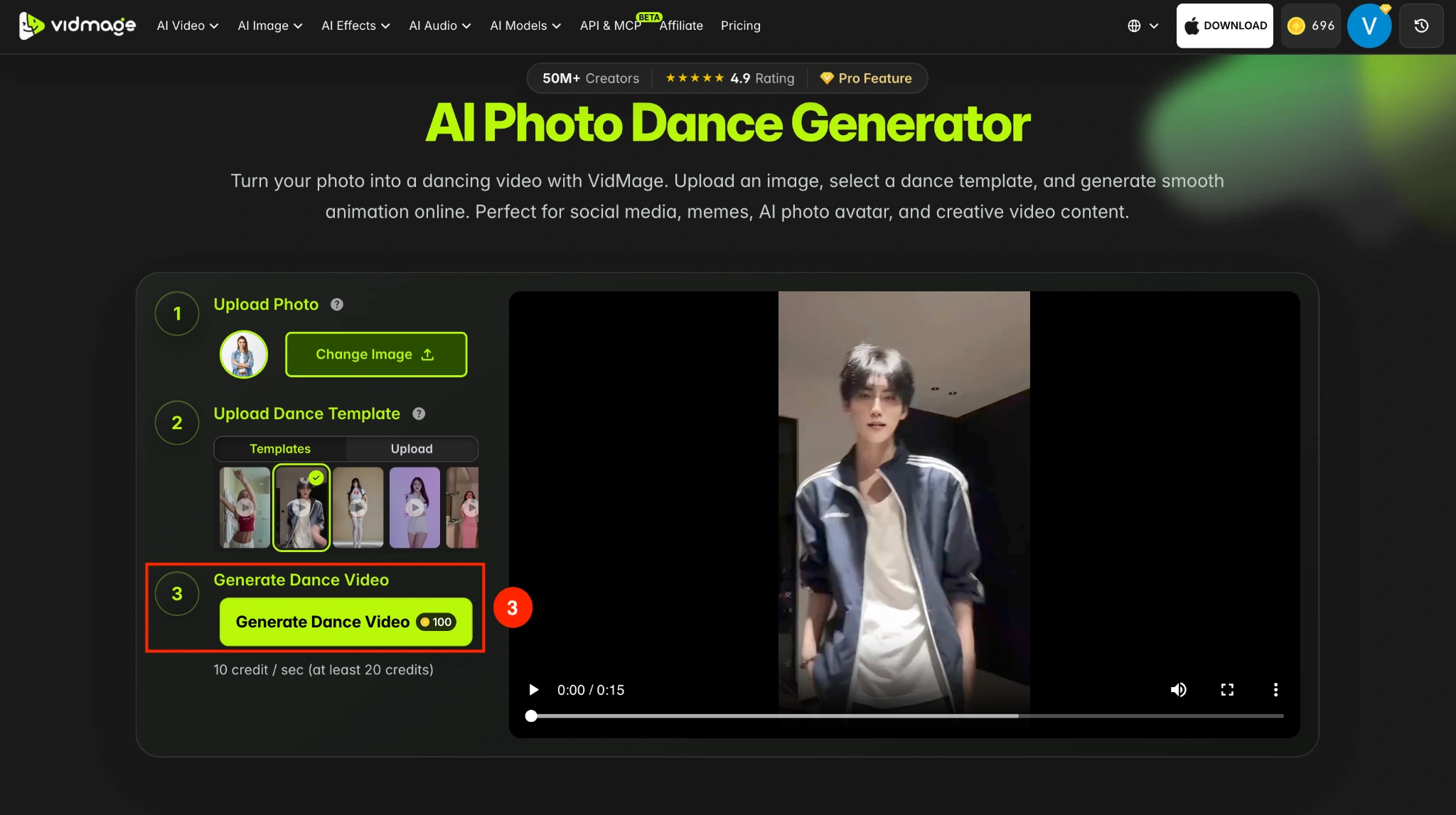
Step 3: Click Generate Dance Video once the photo and dance motion are ready. Generation costs 10 credits per second, with a minimum charge of 20 credits per generation.
Step 4: Preview the generated animation before saving it. If the movement looks right, download the finished video.
Tips for Making AI Photo Dance Videos Look Better
The photo and dance movement you choose can affect how naturally the character moves. Follow these tips to avoid distorted poses and get more consistent animations.
1. Match the Photo Framing to the Dance
A full-body photo works better for dances involving leg movements, jumps, or footwork. Upper-body images are more suitable for simple hand gestures, shoulder movements, or head movements.
Example: If you want a character to perform a dance involving side steps and arm movements, use a photo showing the character from head to toe rather than a close-up portrait.
In VidMage: Upload a photo with enough visible body detail for your chosen dance. If you're using an upper-body photo, choose a template that focuses on upper-body movements.
2. Choose Dance Moves That Suit the Character's Pose
A dance with fast spins, jumps, or large body movements may be difficult to recreate from an image with limited body visibility.
For example, a character standing with both arms visible may work better for a hand-dance routine than a character sitting behind a desk.
In VidMage: Preview the available dance templates before choosing one. Start with simpler movements that fit your character's position and try more complex dances once you have a suitable image.
3. Prepare a Clear Custom Dance Video
If you are uploading your own choreography, the reference video should clearly show the movements you want to transfer.
For better results:
- Use a video with one clearly visible dancer.
- Avoid frequent camera cuts or shaky footage.
- Make sure important arm and leg movements remain within the frame.
- Choose a continuous dance sequence instead of combining unrelated moves.
Example: For a short dance challenge, use a stable recording showing the dancer's complete routine rather than a montage with changing camera angles.
In VidMage: Select Upload and add your reference video. If it's longer than 30 seconds, trim it beforehand to retain the exact dance segment you want, rather than relying on automatic trimming.
4. Check the Character's Appearance During Movement
Even when the dance looks correct, fast movements can sometimes cause distorted hands, changing facial details, or unnatural clothing movement.
For example, a character with long hair or loose clothing may develop visual distortions during rapid turns.
In VidMage: Preview the generated dance and check whether the character's face, outfit, and body shape remain recognizable. If the animation looks distorted, try a clearer photo or a template with less complicated movements.
How to Fix Common Photo Dance Problems
If the animation does not look natural, check whether the selected photo and dance movement work well together.
Problem | What to try in VidMage |
|---|---|
Arms or legs look distorted | Use a photo with clearly visible limbs and choose less complicated dance moves. |
Face changes during the dance | Try a sharper, front-facing photo with unobstructed facial features. |
Some movements look unnatural | Choose a simpler template or upload a reference with clearer movements. |
Character moves outside the frame | Use a full-body image with more space around the subject. |
The wrong part of the dance is animated | Trim your custom reference video to the desired sequence before uploading. |
If a result doesn't look right, start by changing the dance template while keeping the same image. This helps you determine whether the problem is related to the movement or source photo.
Use a Built-In Dance Template or Upload Your Own
Both options animate the same source photo, but they give you different levels of control.
Option | Best when |
|---|---|
Built-in template | You want a quick result and do not need a specific choreography |
Your own dance video | You want the character to follow a particular movement or sequence |
Slower motion | Your source image has loose clothing, long hair, or limited body visibility |
Full-body motion | Your photo clearly shows the character from head to toe |
Built-in templates are useful when you want to test the feature quickly. Uploading your own video is better when the exact dance or movement matters.
What Kind of Photo Works Best for a Dance Video
For better results:
- Use one person rather than a group.
- Choose a sharp, well-lit image.
- Keep the face clearly visible.
- Use a front-facing or near-front-facing pose when possible.
- Avoid objects covering the arms, legs, or body.
- Prefer a full-body photo for dances with large movements.
- Use clear edges around hair and clothing.
When Photo Dance Works Well
Photo Dance works best when the goal is to turn a static character into a dance-style animation. Common uses include:
Social media clips
Turn a portrait or avatar into a short dance video for Reels, TikTok, Shorts, or other short-form posts.
Character and avatar content
Animate illustrated characters, digital avatars, or creative portraits without drawing each pose manually.
Memes and casual content
Use a deliberately unexpected dance with a suitable photo to create a short reaction or meme video.
Original character showcases
Artists can use a dance template to bring a static character to life without building a full animation rig.
Photo Dance Requirements at a Glance
Item | Details |
|---|---|
Source image | One clear character works best |
Recommended framing | Full body or upper body |
Motion source | Built-in template or uploaded dance video |
Custom video formats | MP4, MOV, M4V |
Custom video length | Over 30 seconds is automatically trimmed |
Generation cost | 10 credits per second |
Minimum cost | 20 credits |
Best input | Clear, well-lit image with visible face and body |
Try it in VidMage
Open the tool and follow the steps above.