

If you need to know how to enhance video quality, VidMage can process the clip with AI to improve clarity, sharpen visible details, reduce noise, and increase resolution.
The workflow is simple: upload your video, choose a 2X or 4X enhancement level, and start processing. Subscribers can access up to 8K enhancement also.
How to Enhance Video Quality With VidMage
Follow these steps to know how to enhance video quality online:
Step 1: Open the VidMage AI Video Enhancer and click Upload Video under Select Video to Enhance. Choose the MP4, MOV, or M4V file you want to improve.
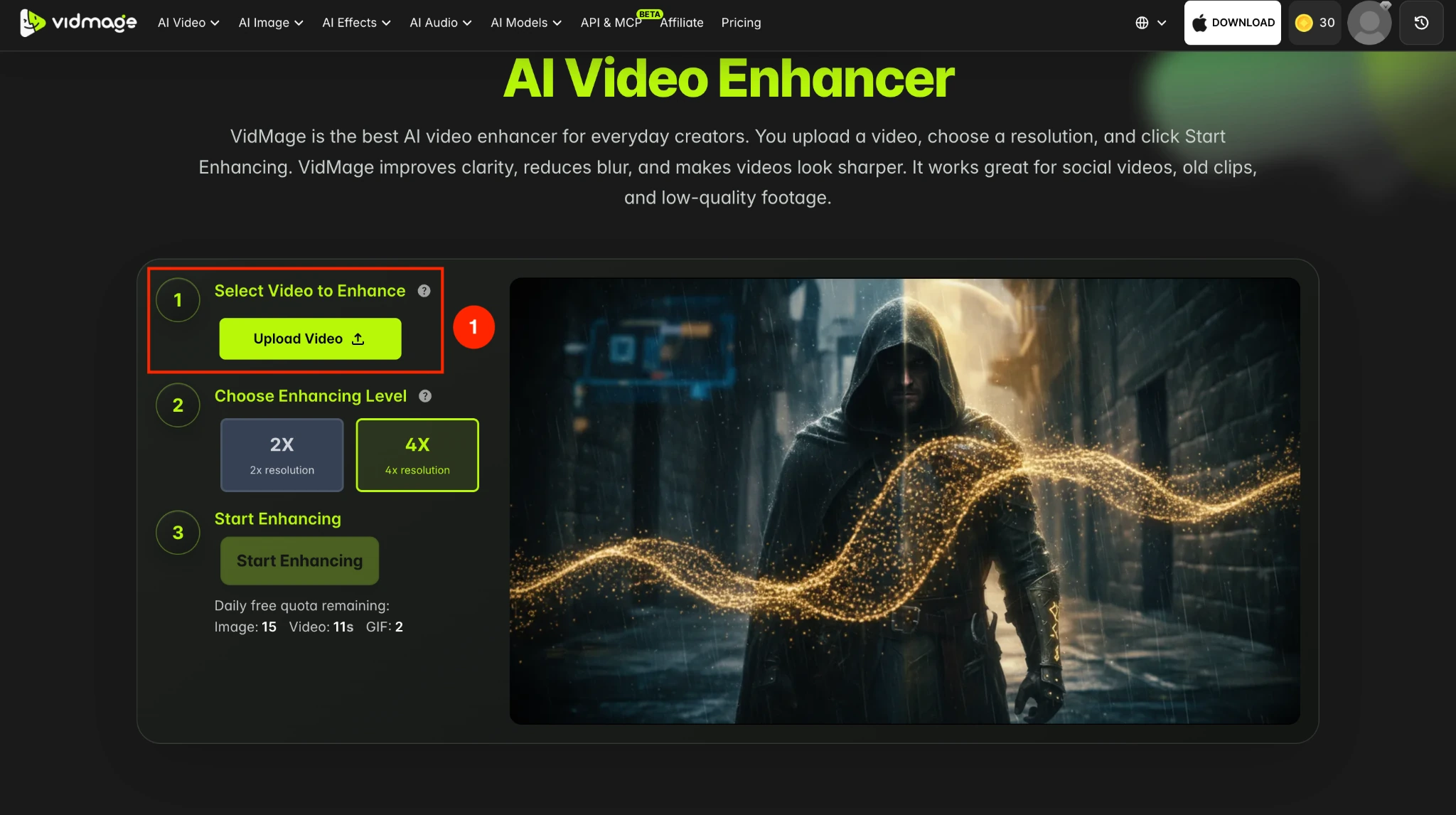
Step 2: Choose your enhancement level. Select 2X for a moderate resolution increase, or 4X for a larger output and more enhancement.
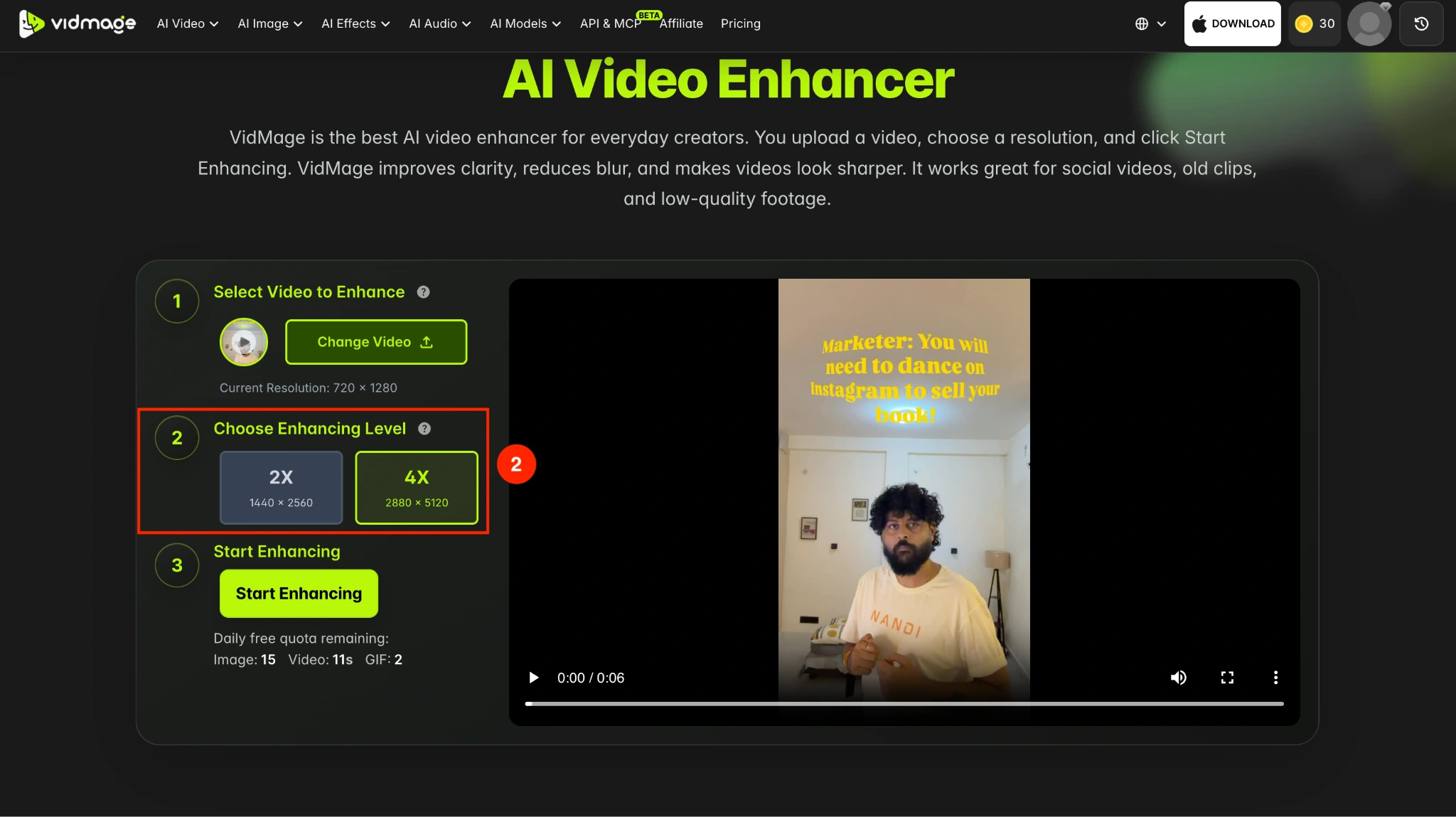
Step 3: Click Start Enhancing. VidMage processes the video to increase resolution, improve visible clarity, and reduce issues such as blur, noise, and grain.
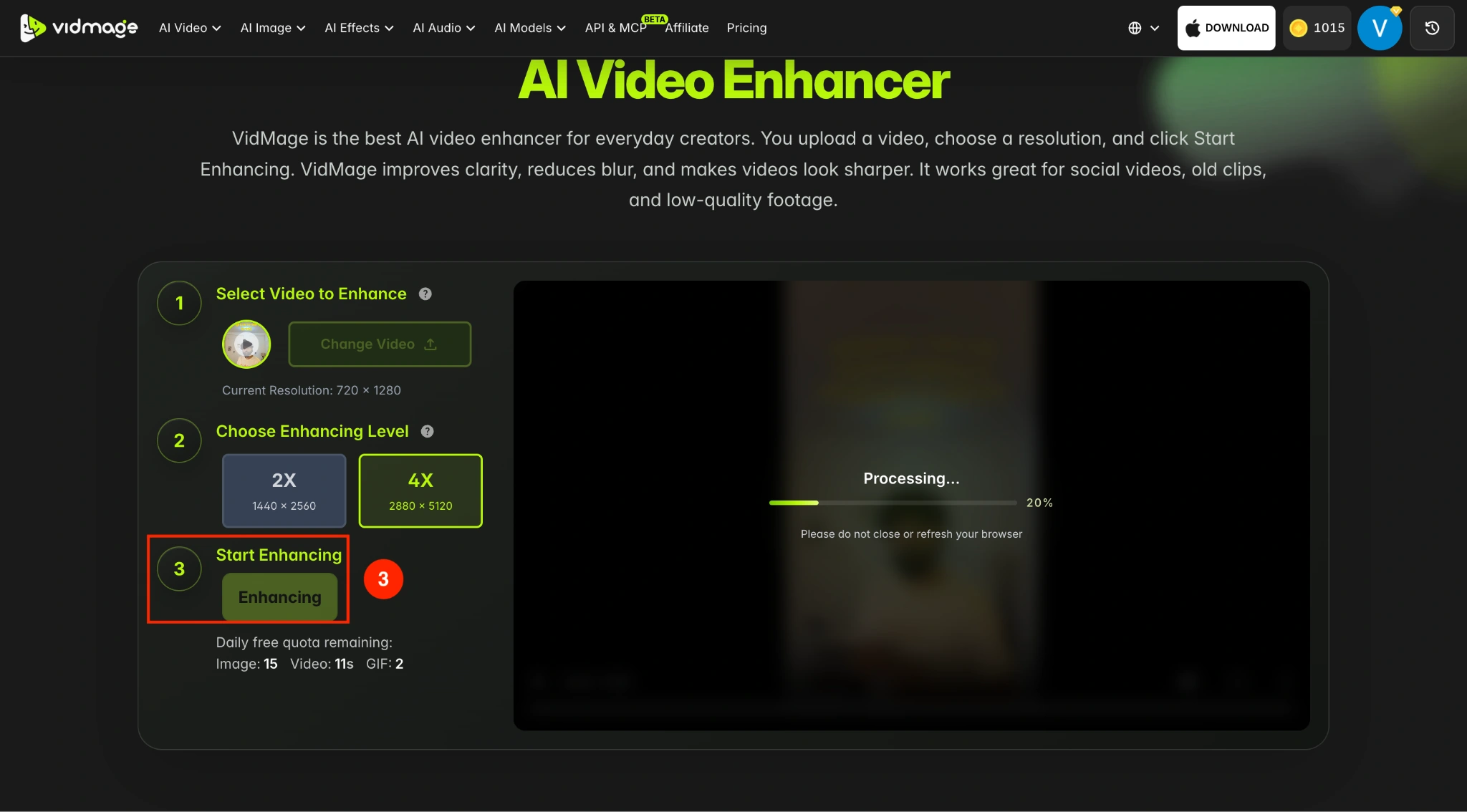
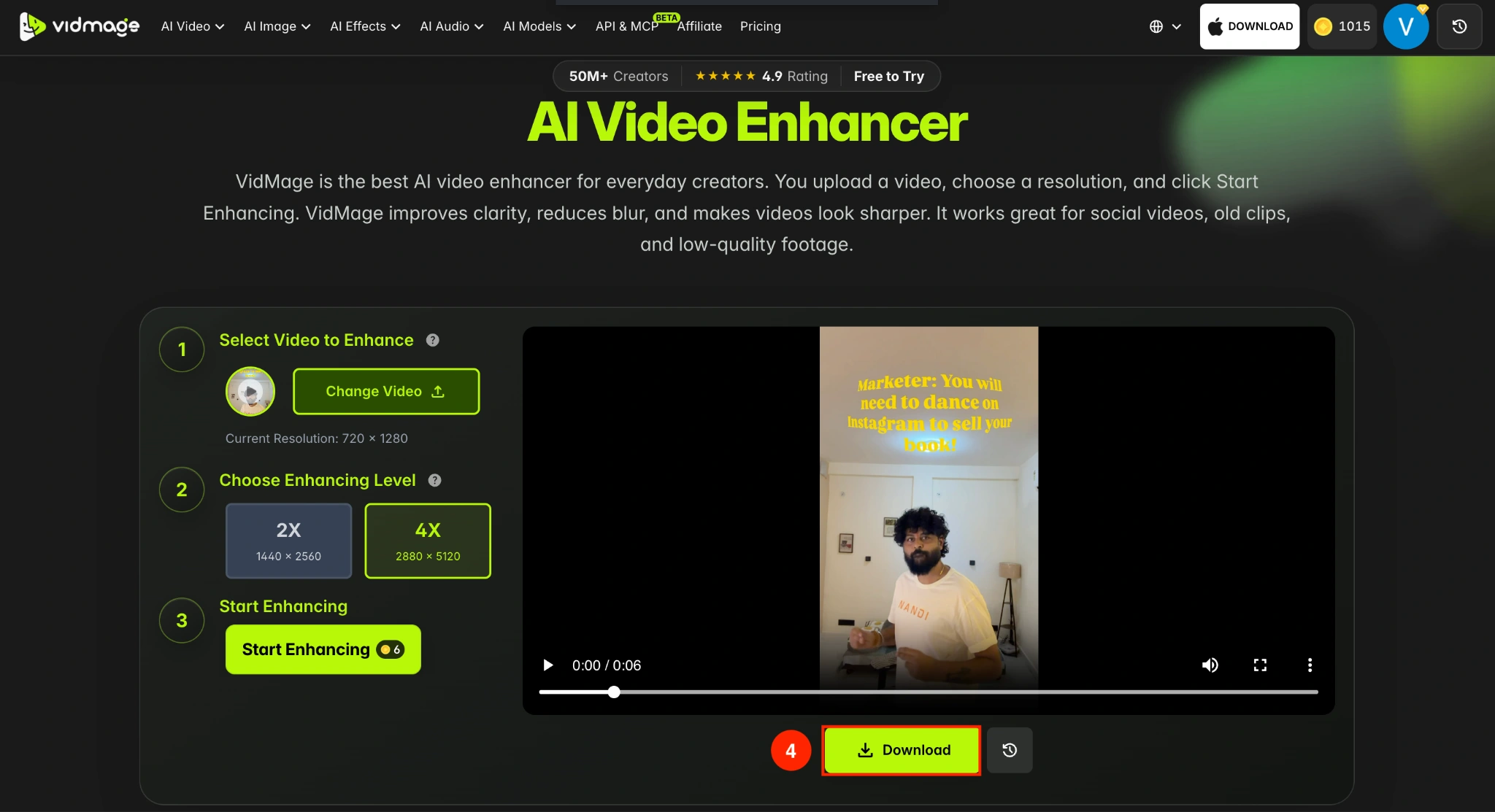
Step 4: Download the enhanced version once you are satisfied with the result.
Tips to Get Better Results When Enhancing Video Quality
AI enhancement can improve blurry, grainy, or low-resolution videos, but the original footage still affects the result. Here are four ways to get better-looking videos.
1. Start With the Best Available Source Video
If you have multiple copies of the same video, choose the one with the most visible detail and least compression.
Repeatedly downloaded or compressed videos may contain blocky textures, blurred edges, and other artifacts that become more noticeable during enhancement.
Example: If you have an original phone recording and a compressed copy shared through WhatsApp, use the original recording. It generally provides more reliable detail for AI enhancement.
In VidMage: Upload your highest-quality available copy under Select Video to Enhance. VidMage will process that file to improve its clarity and resolution.
2. Focus on Recoverable Blur and Noise
AI enhancement works best when the subject and important details are still recognizable.
For example, a grainy indoor video with visible faces may benefit from noise reduction and sharpening. However, if the faces are completely obscured by motion blur or darkness, AI cannot reliably reconstruct their original details.
Before enhancing the video, check whether the main subject, edges, and textures are still visible.
In VidMage: Upload the blurry or grainy footage and select an enhancement level. VidMage automatically applies its enhancement processing, so you don't need to adjust separate noise-reduction or sharpening controls.
3. Choose the Enhancement Level Based on Your Footage
VidMage provides two enhancement levels for free : 2X and 4X and 8X for subscribers. The higher setting increases the output resolution further, but it doesn't guarantee better recovery of damaged or missing details.
For example, if you have a slightly soft 1080p interview, 2X may provide enough resolution for a clearer-looking output. If you need a larger version for a high-resolution display, you can also try 4X and 8X.
In VidMage: Start with 2X under Choose Enhancing Level and review the result. If you need a larger output, try 4X or 8X and compare both versions for clarity and natural-looking details.
4. Check Whether Important Details Look Natural
A video may appear sharper after enhancement but still contain artificial-looking textures, especially around faces, hair, text, and moving objects.
Do not judge the result only by a paused frame. Watch the entire video to check whether details remain consistent during movement.
Example: When enhancing an old family video, check whether facial features look clearer without becoming overly smooth. Also inspect moving hair and clothing for flickering or unusual textures.
In VidMage: Download the enhanced clip and compare it with the original at a similar viewing size. If the 4X version looks overly processed, try 2X and check whether it produces a more natural result.
What Video Enhancement Can and Cannot Fix
Video enhancement can improve visible quality, but not every problem can be completely repaired.
Video problem | What to expect from AI enhancement |
|---|---|
Slightly blurry footage | Sharpened edges and improved perceived clarity |
Grainy or noisy video | Reduced visible noise, especially in darker areas |
Low-resolution footage | Larger output with potentially clearer details |
Severe motion blur | Limited recovery of missing facial or object details |
Unreadable text | AI cannot reliably reconstruct the original letters |
Completely dark or overexposed areas | Missing visual information may remain unrecoverable |
Heavy compression artifacts | Some distorted or blocky details may remain |
For example, VidMage may make a grainy night recording appear cleaner. However, it cannot guarantee recovery of a face that was never clearly visible in the original footage.
When to Use VidMage Video Enhancer
Use the Video Enhancer when the main problem is the clip's overall visual quality, not just its dimensions. It is particularly useful when you want to:
- Make blurry footage clearer
- Reduce grain in older or low-light recordings
- Improve low-resolution social videos
- Prepare an older clip for a modern screen
- Increase resolution while also improving visible detail
- Create a higher-resolution output, including up to 8K for subscribers
Try it in VidMage
Open the tool and follow the steps above.